> ## Documentation Index
> Fetch the complete documentation index at: https://www.cashfree.com/docs/llms.txt
> Use this file to discover all available pages before exploring further.
# Getting Started
> Review the prerequisites, sandbox credentials, IP whitelisting, and signature setup you need before testing Cashfree Payouts APIs in your integration.
Version 2 APIs: Cashfree Payments has new [version 2 APIs for Payouts](/docs/api-reference/payouts/v2/payouts-api-v2-new). The v2 APIs represent a significant leap forward in payouts integration, offering enhanced versioning, standardised requests and responses, efficient troubleshooting, standardisation across products, and simplified transfer APIs.
This article covers the following topics:
* [Download Postman collection](#download-postman-collection)
* [View endpoints](#view-endpoints)
* [Generate API keys](#generate-api-keys)
* [Whitelist IP address](#whitelist-your-ip-address) or [Generate signature](#generate-signature)
* [Contact support](#any-queries-contact-support)
## Download Postman collection
This collection can save you time because of easy access to different requests.
Download Cashfree Payments Payouts Postman Collection
## View endpoints
For [Payout v2 APIs](/docs/api-reference/payouts/v2/payouts-api-v2-new): \[NEW]
| Environment | Base address |
| :---------- | :------------------------------------------------------------------------- |
| Production | [https://api.cashfree.com/payout](https://api.cashfree.com/payout) |
| Test | [https://sandbox.cashfree.com/payout](https://sandbox.cashfree.com/payout) |
For Payout v1 and v1.2 APIs:
| Environment | Base address |
| :---------- | :--------------------------------------------------------------------- |
| Production | [https://payout-api.cashfree.com](https://payout-api.cashfree.com) |
| Test | [https://payout-gamma.cashfree.com](https://payout-gamma.cashfree.com) |
Cashfree Payments uses unique identifiers to allow access to the API. After you sign up at the merchant site, you can see your **AppId** and **SecretKey**. Each API request to the server requires these credentials.
Use this endpoint to verify your credentials: **/api/v1/credentials/verify**
## Generate API keys
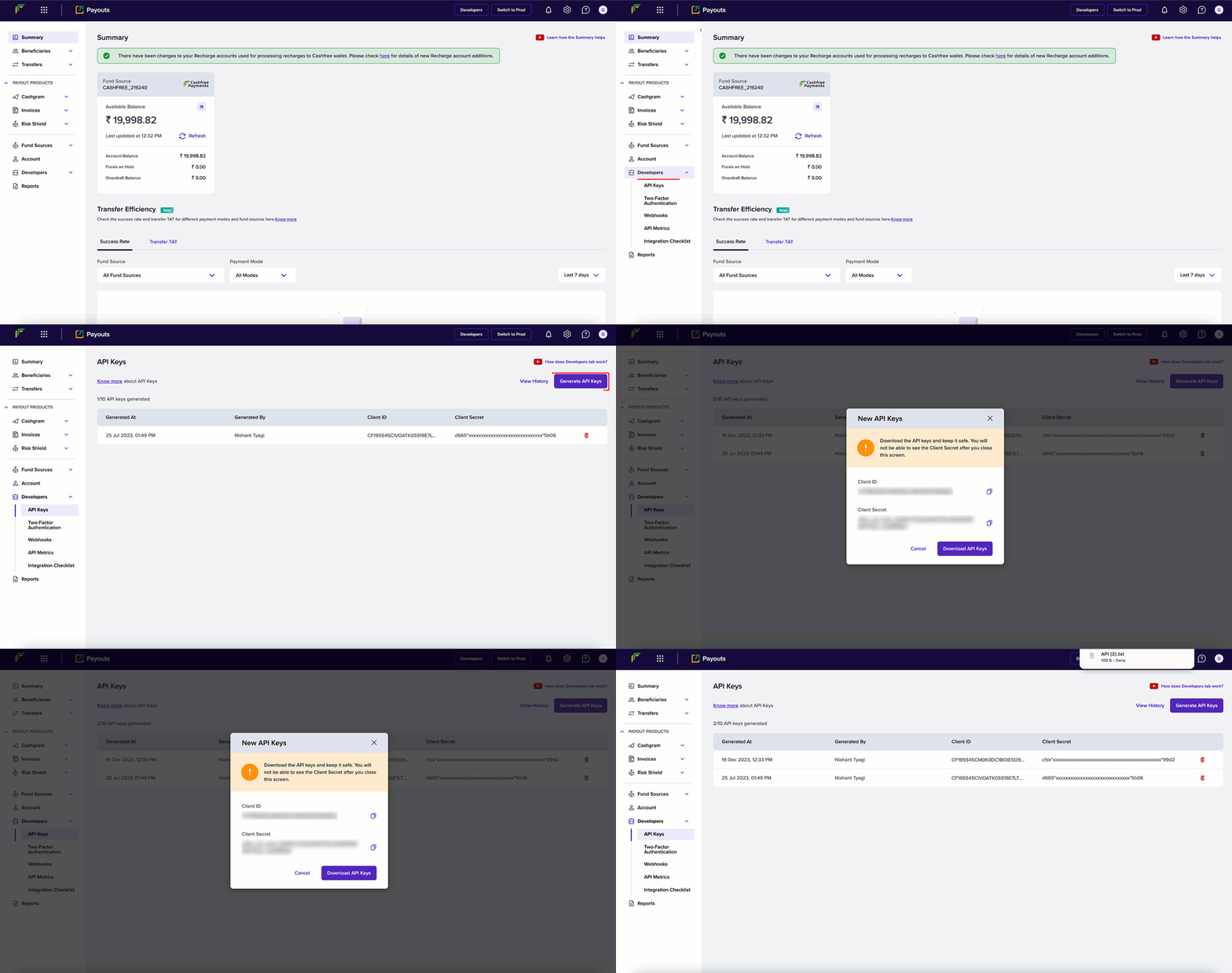
To generate API keys:
1. Log in to the [Merchant Dashboard](https://merchant.cashfree.com/auth/login).
2. From the Payouts dashboard, click **Developers** on the navigation panel.
3. Click **API Keys**.
4. Click **Generate API Keys** from the API Keys screen.
5. The New API Keys popup displays with the client ID and client secret information.
6. Click **Download API Keys** to download the information and save them in your local system folder. Don't share the keys with anyone because they're confidential. You can generate a maximum of 10 API keys.
API Keys - Production Environment: You need to perform an OTP authentication
to generate API keys for the production environment.
## Identity verification
Whitelisting the IP address or generating a signature provides a layer of authentication. These cybersecurity techniques prevent anonymous or unknown disbursement requests and allow only verified requests.
### Whitelist your IP address
Your IP address needs to be whitelisted in the Cashfree Payments production server or it rejects all incoming requests.
Only the production environment needs approval from Cashfree Payments and not
for the test environment.
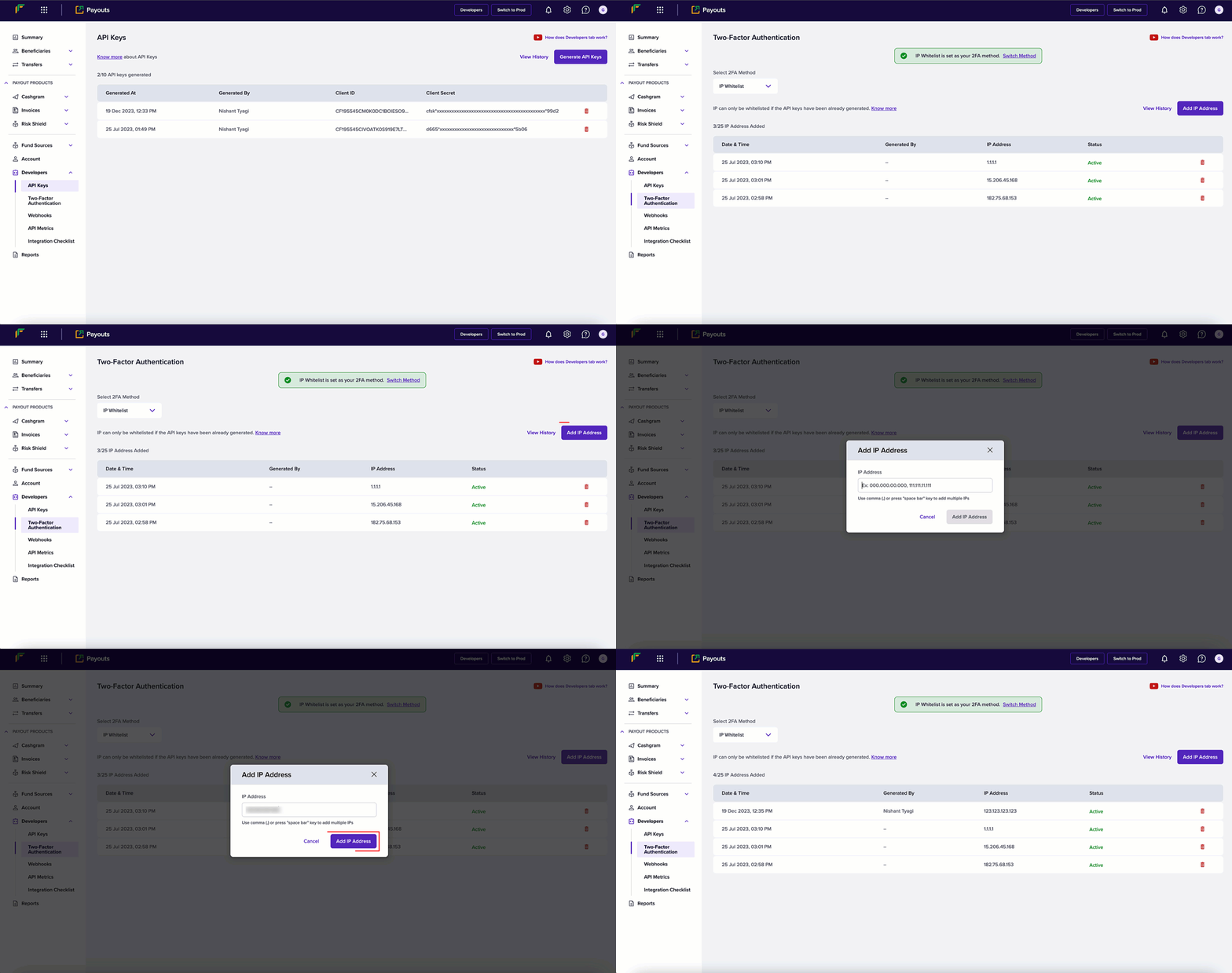
To whitelist your IP:
1. Log in to the [Merchant Dashboard](https://merchant.cashfree.com/auth/login).
2. From the Payouts dashboard, click **Developers** > **Two-Factor Authentication**.
3. Choose **IP Whitelist** from the **Select 2FA Method** drop-down.
4. Click **Add IP Address**.
5. Enter the IP address you want to whitelist in the respective field and click **Add IP Address** to save the details. Note that the IPv4 has to be whitelisted, and not IPv6. The whitelisted IPs display in the grid as shown below. You can whitelist a maximum of 25 IPs.
### Generate signature
To generate a signature, you need to generate the public key. You then use the generated public key to generate the signature.
#### Generating a public key
1. From the **Payouts** dashboard, click **Developers** > **Two-Factor Authentication**.
2. Select **Public Key** from the **Select 2FA Method** drop-down.
3. Click **Generate Public Key**.
4. The public key is downloaded to your computer. Use your registered email ID to access the key.
#### Generating a signature
To generate your signature:
1. Retrieve your clientId (one which you're passing through the header X-Client-Id).
2. Append this with CURRENT UNIX timestamp separated by a period (.).
3. Encrypt this data using RSA encrypt with public key you received—this is the signature.
4. Pass this signature through the header X-Cf-Signature.
When using the Cashfree Payments library, go through the libraries section. During the initialisation process, you need to pass the key as a parameter.
```php PHP theme={"dark"}
";
$publicKey =
openssl_pkey_get_public(file_get_contents("/path/to/certificate/public
_key.pem"));
$encodedData = $clientId.".".strtotime("now");
return static::encrypt_RSA($encodedData, $publicKey);
}
private static function encrypt_RSA($plainData, $publicKey) { if (openssl_public_encrypt($plainData, $encrypted, $publicKey,
OPENSSL_PKCS1_OAEP_PADDING))
$encryptedData = base64_encode($encrypted);
else return NULL;
return $encryptedData;
}
?>
```
```java Java theme={"dark"}
private static String generateEncryptedSignature(String clientIdWithEpochTimestamp) {
// String clientIdWithEpochTimeStamp = clientId+"."+Instant.now().getEpochSecond();
String encrytedSignature = "";
try {
byte[] keyBytes = Files
.readAllBytes(new File("/Users/sameera/Downloads/payout_test_public_key.pem").toPath()); // Absolute Path to be replaced
String publicKeyContent = new String(keyBytes);
System.out.println(publicKeyContent);
publicKeyContent = publicKeyContent.replaceAll("[\\t\\n\\r]", "")
.replace("-----BEGIN PUBLIC KEY-----", "").replace("-----END PUBLIC KEY-----", "");
KeyFactory kf = KeyFactory.getInstance("RSA");
System.out.println(publicKeyContent);
X509EncodedKeySpec keySpecX509 = new X509EncodedKeySpec(
Base64.getDecoder().decode(publicKeyContent));
RSAPublicKey pubKey = (RSAPublicKey) kf.generatePublic(keySpecX509);
final Cipher cipher = Cipher.getInstance("RSA/ECB/OAEPWithSHA-1AndMGF1Padding");
cipher.init(Cipher.ENCRYPT_MODE, pubKey);
encrytedSignature = Base64.getEncoder().encodeToString(cipher.doFinal(clientIdWithEpochTimestamp.getBytes()));
System.out.println(encrytedSignature);
} catch (Exception e) {
e.printStackTrace();
}
return encrytedSignature;
}
```
```python Python theme={"dark"}
from cashfree_sdk.payouts import Payouts
// Initialise the SDK, pass public key for dynamic IP
Payouts.init("", "", "PROD", public_key= b'public key')
```
```javascript Node theme={"dark"}
//require CashfreeSDK
const cfSdk = require("cashfree-sdk");
//access the PayoutsSdk from CashfreeSDK
const { Payouts } = cfSdk;
// Instantiate Cashfree Payouts
const payoutsInstance = new Payouts({
env: "TEST",
clientId: "",
clientSecret: "",
pathToPublicKey: "/path/to/your/public/key/file.pem",
//"publicKey": "ALTERNATIVE TO SPECIFYING PATH (DIRECTLY PASTE PublicKey)"
});
```
**Getting the “IP not whitelisted” error on the Postman web app?**\
If you're using the Postman web app, API requests may fail because Postman uses dynamic cloud IPs, which can't be whitelisted.
**How to fix it**: Use the Postman desktop app. It sends requests from your local IP address, which can be whitelisted.
Signature verification works correctly with both web and desktop apps. Only **IP-based whitelisting** is affected.
## Any queries: Contact support
For API or integration issues, fill the [Support Form](https://merchant.cashfree.com/merchants/landing?env=prod\&raise_issue=1) or email Cashfree Support with the details below.
To identify, diagnose, and resolve problems related to API requests, ensure the following information is communicated when contacting support:
* Share the API request and response details along with only **x-client-ID**.
* Mention the registered email ID and environment in the email.
* Use your registered email address (with Cashfree Payments) to send the email or mention the registered email address.
* Include your account manager in the CC of the email request.
For dashboard queries, share the screenshot and .har file of the screen.
 ### Generate signature
To generate a signature, you need to generate the public key. You then use the generated public key to generate the signature.
#### Generating a public key
1. From the **Payouts** dashboard, click **Developers** > **Two-Factor Authentication**.
2. Select **Public Key** from the **Select 2FA Method** drop-down.
3. Click **Generate Public Key**.
4. The public key is downloaded to your computer. Use your registered email ID to access the key.
### Generate signature
To generate a signature, you need to generate the public key. You then use the generated public key to generate the signature.
#### Generating a public key
1. From the **Payouts** dashboard, click **Developers** > **Two-Factor Authentication**.
2. Select **Public Key** from the **Select 2FA Method** drop-down.
3. Click **Generate Public Key**.
4. The public key is downloaded to your computer. Use your registered email ID to access the key.