> ## Documentation Index
> Fetch the complete documentation index at: https://www.cashfree.com/docs/llms.txt
> Use this file to discover all available pages before exploring further.

# Integration Overview

The 1-Click Onboarding SDK simplifies user verification workflows for Android, iOS, and web applications. You can include a script tag, initialise the SDK with a session ID, and manage verification processes easily. Success and error callbacks handle responses, and you can close the SDK programmatically if needed.
This topic includes the following sections:

* [Integration](#integration)
* [Initializing SDK](#initializing-sdks)
* [Callback structure](#callback-structure)

## Integration

To integrate 1-Click Onboarding:

1. Log in to the [Merchant Dashboard](https://merchant.cashfree.com/verificationsuite/1-click-onboarding) and create a 1-Click Onboarding template.

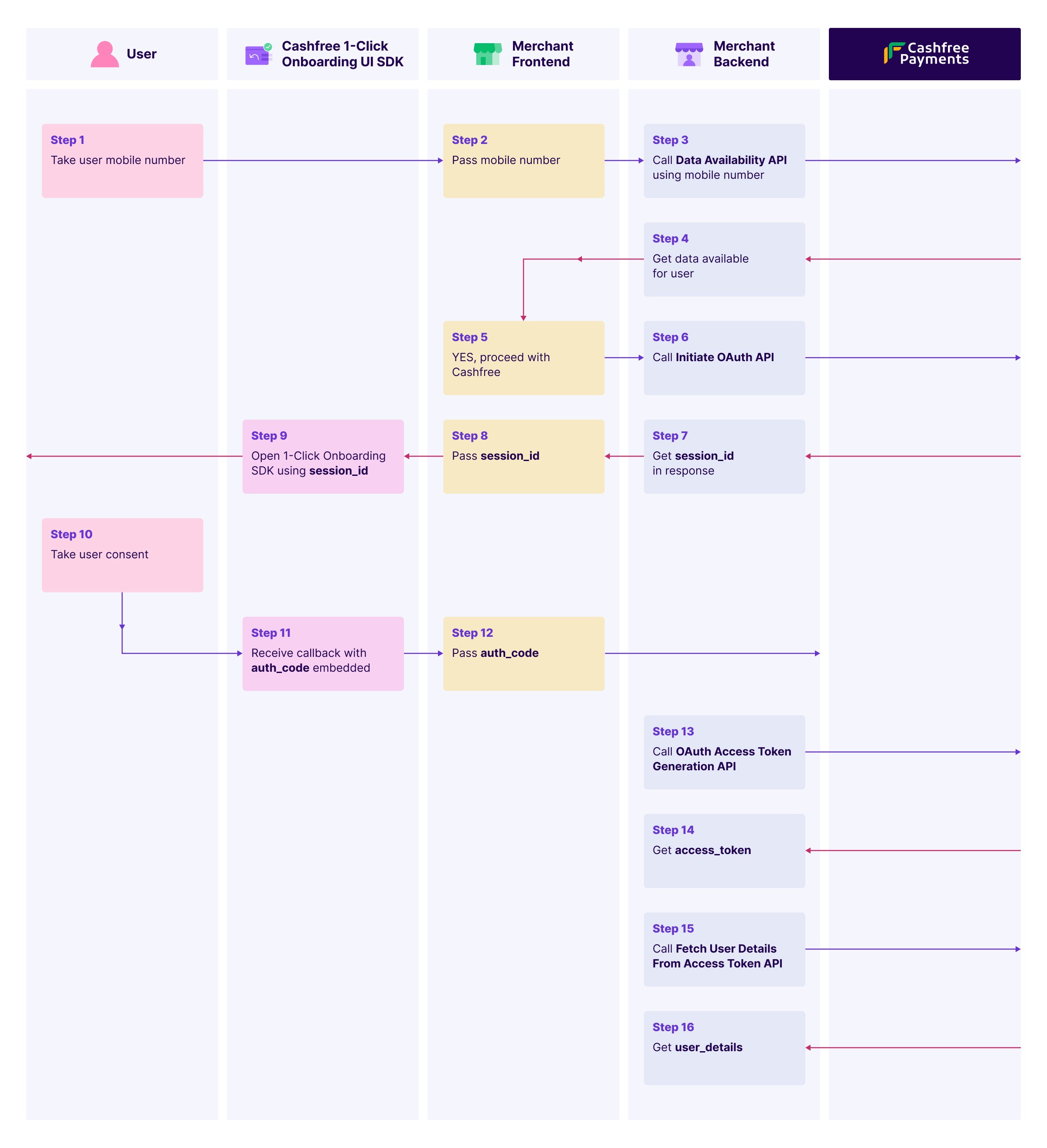
2. Follow the workflow below:

   1. Verify user data using the [Data Availability API](https://www.cashfree.com/docs/api-reference/vrs/v2/1-click-onboarding/data-availability) to check user data availability using a mobile number. This step is mandatory.

   2. Initiate OAuth by calling the [Initiate OAuth API](https://www.cashfree.com/docs/api-reference/vrs/v2/1-click-onboarding/initiate-oauth) with the mobile number to obtain a `session_id` for opening the SDK.

   3. Collect user consent by opening the SDK using the `session_id`. Once the user provides consent, a callback returns an `auth_code`.

   4. Generate an access token using the auth\_code with the [OAuth Access Token Generation API](https://www.cashfree.com/docs/api-reference/vrs/v2/1-click-onboarding/oauth-access-token-generation) to get a token valid for one hour.

   5. Retrieve user details using the access token with the [Fetch User Details API](https://www.cashfree.com/docs/api-reference/vrs/v2/1-click-onboarding/fetch-user-details-from-access-token) to access user details.

Refer to the image below for a sample workflow:

<img height="200" src="https://mintcdn.com/cashfreepayments-d00050e9/Hvlwro-hVj4Ie92q/static/api-reference/secure-id/1-click-onboarding.jpg?fit=max&auto=format&n=Hvlwro-hVj4Ie92q&q=85&s=acfc10347dcb8525ea7fb655942edcdf" data-path="static/api-reference/secure-id/1-click-onboarding.jpg" />

## Initializing SDKs

The SDK communicates with Cashfree and provides updates via the callbacks. Initialize the applicable SDK from the options below:

* [Web](#web)
* [Android native](#android-native)
* [iOS native](#ios-native)

### Web

To initiate the web SDK, pass the `sessionId` and callback functions. Refer to the JavaScript example below:

```javascript theme={"dark"}
const cf = CF1ClickOnboarding({
  sessionId: newId,
  successCb: successCallback,
  errorCb: errorCallback,
  mode: "production" // default: "sandbox"
});

const successCallback = (data) => {
  console.log("Success: ", data);
};

const errorCallback = (error) => {
  console.error("Error: ", error);
};

// Close the SDK programmatically
cf.closeSDK();
```

#### Importing hosted JS SDK

Include the following SDK in your HTML document for the production environment:

```html theme={"dark"}
<script src="https://vssdk-prod.cashfree.com/vsvault/prod/1.0.0/index.js"></script>
```

<Note>
  To use the test environment, set `mode="sandbox"` in the `CF1ClickOnboarding` SDK. This is the default mode. To use the production environment, set `mode="production"`.
</Note>

Refer to the code snippet below for the HTML structure:

```html theme={"dark"}
<html>
  <head>
    <title>1-Click Onboarding</title>
    <script src="https://vssdk-prod.cashfree.com/vsvault/prod/1.0.0/index.js"></script>
  </head>
  <body>
    <div id="cf-sdk"></div>
  </body>
</html>
```

### Android native

To set up the Android native SDK:

1. Add the Maven repository to `settings.gradle.kts`:
   ```kotlin theme={"dark"}
   repositories {
       google()
       mavenCentral()
       maven { url = URI("https://maven.cashfree.com/release") }
   }
   ```
2. Add SDK dependency in `build.gradle.kts`:
   ```kotlin theme={"dark"}
   dependencies {
       implementation("com.cashfree.vrs:kyc-verification:1.0.1")
   }
   ```
3. Click **Sync Now** in Android Studio to sync the project.

To initialise and use the Android native SDK:

1. Create an instance of the verification service:
   ```kotlin theme={"dark"}
   val verificationService = CFVerificationService.Builder()
       .setContext(this) // Pass the context
       .build()
   ```
2. Configure the callback to handle verification responses, errors, and user drop scenarios:
   ```kotlin theme={"dark"}
   verificationService.set1ClickOnboardingCallback(object : CF1ClickOnboardingCallback {
       override fun onVerification(response: CF1ClickOnboardingResponse) {
           // Handle response
       }

       override fun onVerificationError(error: CF1ClickOnboardingErrorResponse) {
           // Handle error
       }

       override fun onUserDrop(error: CFUserDropResponse) {
           // Handle user drop
       }
   })
   ```
3. Initiate the 1-Click Onboarding SDK:
   ```kotlin theme={"dark"}
   verificationService.open1ClickOnboarding(sessionId, Environment.TEST)
   ```

It consists of the following parameters:

* **sessionId**: Unique session identifier.
* **Environment**: SDK environment. Possible values are:
  * `Environment.TEST`
  * `Environment.PROD`

### iOS native

To set up the iOS native SDK:

1. Add the SDK to your project by updating your `Podfile`:
   ```ruby theme={"dark"}
   pod 'KycVerificationSdk', '~> 1.0.2'
   ```
2. Run `pod install` to install the SDK.

To initialise and use the iOS native SDK:

1. Create an instance of the `CFVerificationService` class:
   ```swift theme={"dark"}
   let kycService = CFVerificationService.getInstance()
   ```
2. Set up callback handlers to manage events after verification processing. Implement the `CF1ClickOnboardingResponseDelegate` protocol to handle responses and errors:
   ```swift theme={"dark"}
   extension ViewController: CFResponseDelegate {
       func onVerification(_ verificationResponse: KycVerificationSdk.CF1ClickOnboardingResponse) {
           showErrorAlert(title: "Verification Success", message: verificationResponse.verificationId ?? "N/A")
       }

       func onVerificationError(_ errorResponse: KycVerificationSdk.CF1ClickOnboardingErrorResponse) {
           showErrorAlert(title: "Verification Error", message: errorResponse.status ?? "N/A")
       }

       func onUserDrop(_ userDropResponse: KycVerificationSdk.CFUserDropResponse) {
           showErrorAlert(title: "User Dropped", message: userDropResponse.verificationId ?? "N/A")
       }
   }
   ```
3. Initiate the 1-Click Onboarding SDK using the following code:
   ```swift theme={"dark"}
   do {
       let environment = Environment.PROD
       try kycService.open1ClickOnboarding(sessionId, environment, self, self)
   } catch let e {
       let error = e as! VerificationError
       print(error)
   }
   ```

It consists of the following parameters:

* **sessionId**: A unique identifier for the session.
* **environment**: Specifies the environment in which the SDK operates. Possible values are:
  * `Environment.TEST`
  * `Environment.PROD`

## Callback structure

Refer to the sample response below:

```json theme={"dark"}
{
  "verification_id": "verification_id_value",
  "auth_code": "auth_code_value",
  "status": "SUCCESS"
}
```

Refer to the table below for the possible statuses:

| Status               | Description                                      |
| -------------------- | ------------------------------------------------ |
| SESSION\_EXPIRED     | The session ID is invalid.                       |
| SESSION\_ID\_MISSING | No session ID is provided during initialization. |
| DIV\_MISSING         | The `<div>` with ID `cf-sdk` is missing.         |
| SUCCESS              | The operation is completed successfully.         |
| CLOSED               | The SDK closes.                                  |

<Note>
  **Notes**:

  * Ensure the `<div>` with ID `cf-sdk` exists in your HTML.

  * The SDK applies default styling for consistent behaviour; custom styling is not supported.

  * The iframe uses sandboxing for secure interactions.

  For detailed API documentation, refer to [1-Click Onboarding API](https://www.cashfree.com/docs/api-reference/vrs/v2/1-click-onboarding/data-availability) Integration.
</Note>
