> ## Documentation Index
> Fetch the complete documentation index at: https://www.cashfree.com/docs/llms.txt
> Use this file to discover all available pages before exploring further.
# Affiliate Partner Dashboard
> Explore the Cashfree Affiliate Partner Dashboard to add and manage referred merchants, track commissions, monitor activations, and analyse business performance.
The Affiliate Dashboard is a feature-rich user interface that helps you to add and manage your merchants effectively. Analyse your business progress, monitor your commissions and more within the dashboard.
## Dashboard components
* [Summary](/docs/partners/affiliates/dashboard#summary)
* [Merchants](/docs/partners/affiliates/dashboard#merchants)
* [PG Orders](/docs/partners/affiliates/dashboard#pg-orders)
* [Commission](/docs/partners/affiliates/dashboard#commission)
### Summary
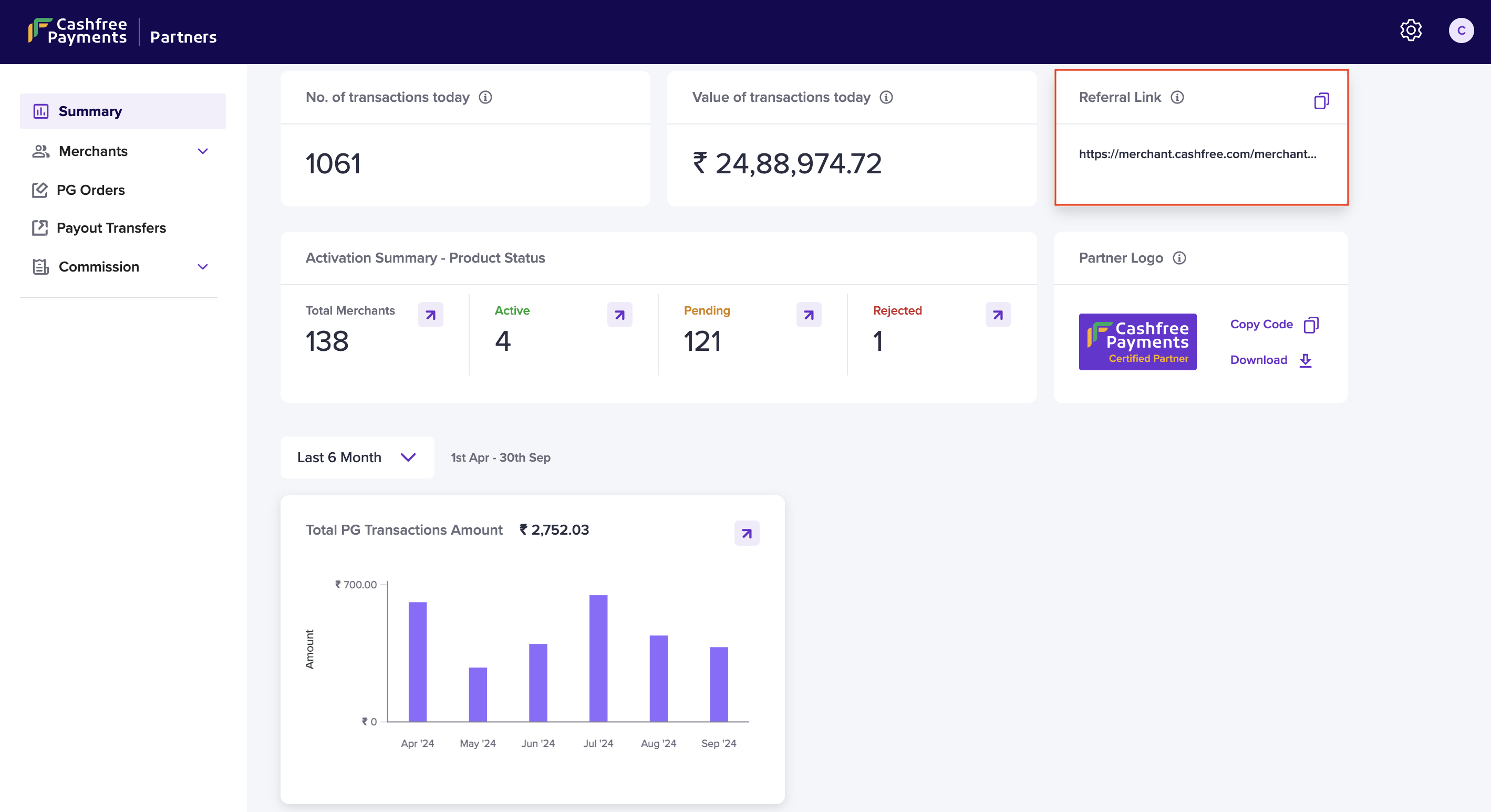
The **Summary** screen gives you details about your daily transactions, like the current-day transaction count, the value of the transactions made by your merchants, and the last commission amount you received from Cashfree Payments as per the referral program.
The following details are available on this page:
* Number of Transactions Today - Total number of PG and Payout transactions done by your merchants.
* Value of Today's Transactions - Total value of PG and Payout transactions done by your merchants today.
* Merchant Stats - Number of merchants you have added and activated.
* Referral Link - Copy and share your unique Referral Link with your clients or merchants for sign up and activation.
* Partner Logo - Use the Cashfree Affiliate Partner badge on your website or marketing assets visible to your clients or merchants.
 ### Merchants
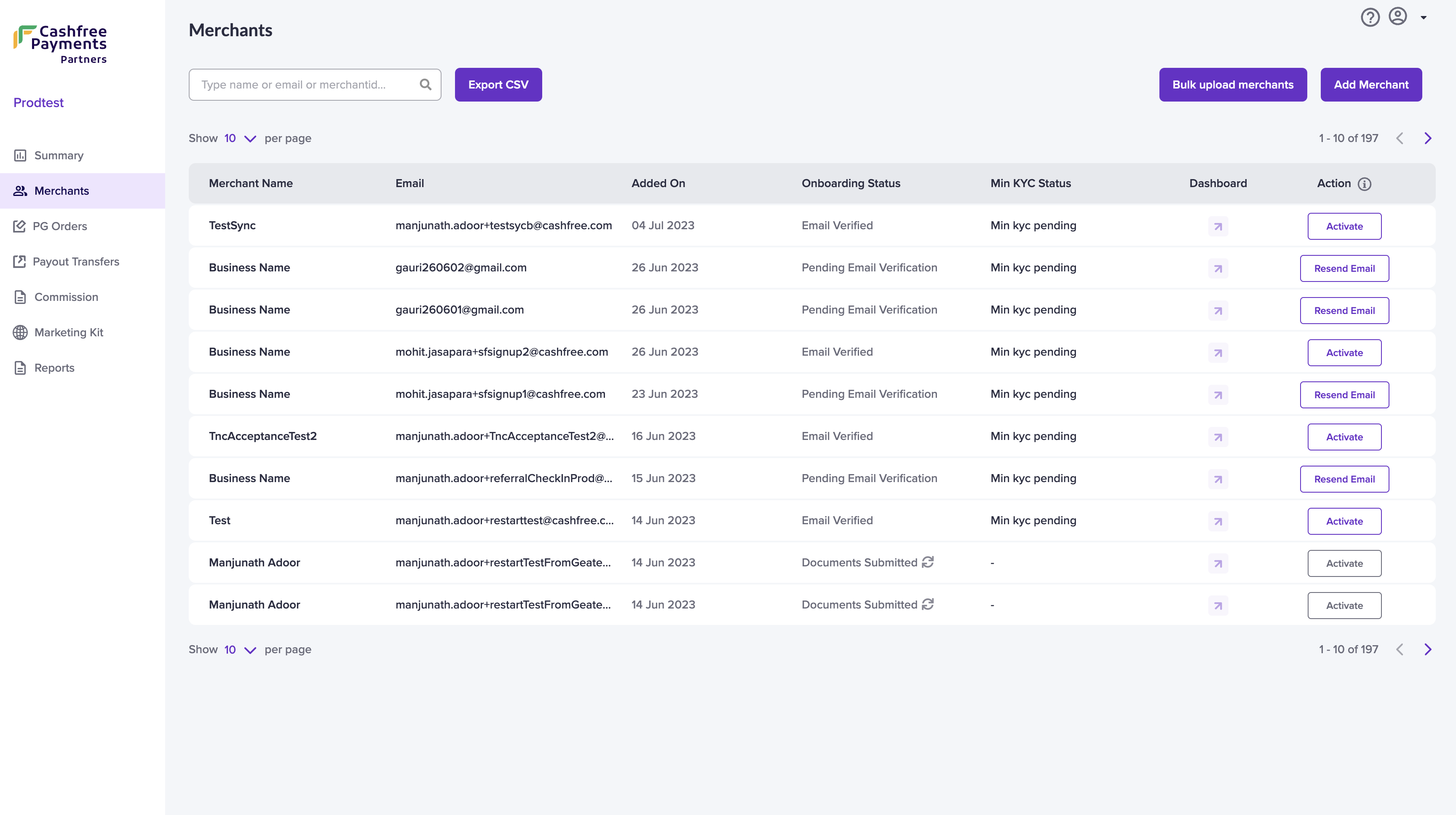
The **Merchants** section in the Affiliate Partner Dashboard allows you to efficiently onboard and manage referred merchants.
You can:
* **Add a single merchant** by entering:
* Business name
* Contact details (email address and phone number)
* Optional KYC information for faster verification
* **Bulk upload merchants** using a predefined file format to add multiple businesses at once. For more information, refer [
Onboarding](/docs/partners/affiliates/refer-merchants#onboarding).
* **Track onboarding status** after submission:
* Merchants receive a verification email
* Status updates are shown on the Dashboard
For more information, refer [Track merchant status](/docs/partners/affiliates/assist-merchant/merchants-kyc#track-merchant-status).
### Merchants
The **Merchants** section in the Affiliate Partner Dashboard allows you to efficiently onboard and manage referred merchants.
You can:
* **Add a single merchant** by entering:
* Business name
* Contact details (email address and phone number)
* Optional KYC information for faster verification
* **Bulk upload merchants** using a predefined file format to add multiple businesses at once. For more information, refer [
Onboarding](/docs/partners/affiliates/refer-merchants#onboarding).
* **Track onboarding status** after submission:
* Merchants receive a verification email
* Status updates are shown on the Dashboard
For more information, refer [Track merchant status](/docs/partners/affiliates/assist-merchant/merchants-kyc#track-merchant-status).
 Use this section to monitor your referred merchants and support them through activation and KYC.
### PG orders
The PG Orders screen gives you merchant-wise details about the PG transactions. Details available are:
* Merchant Name
* Transaction Count
* Transaction Amount
* Total Commission
By default, the report shows details for the last 7 days. You can filter and view the details as per your requirement. Click on a particular transaction to view more details about it.
### Commission
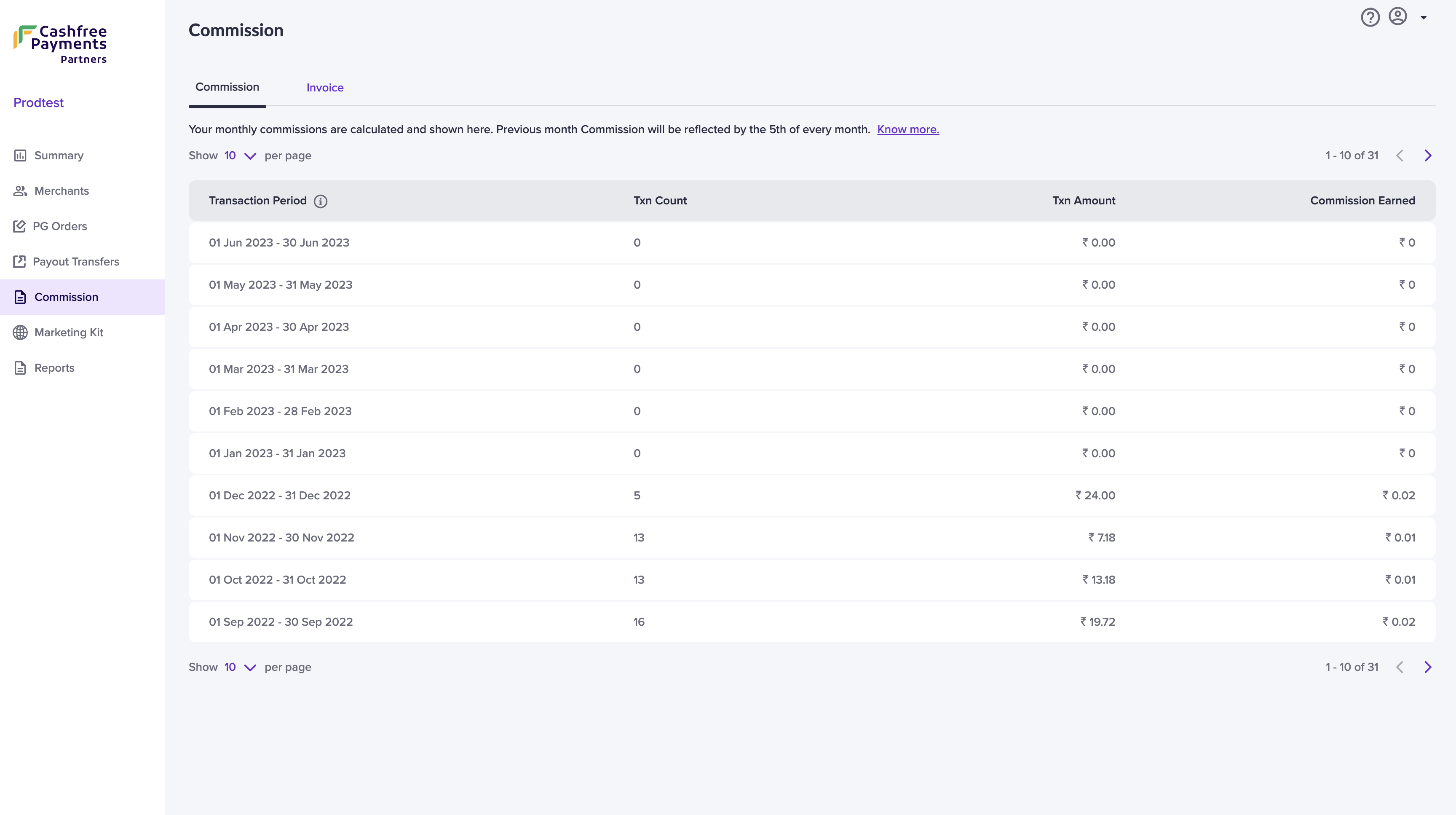
The Commission screen gives you details of all the commissions you have earned month-wise. This screen displays the volume of transactions, the total transaction amount, and your earned commission. Cashfree settles the commission amount to your account monthly. For more information, refer [Commissions and Invoices](/docs/partners/affiliates/partner-commissions-and-invoices).
Use this section to monitor your referred merchants and support them through activation and KYC.
### PG orders
The PG Orders screen gives you merchant-wise details about the PG transactions. Details available are:
* Merchant Name
* Transaction Count
* Transaction Amount
* Total Commission
By default, the report shows details for the last 7 days. You can filter and view the details as per your requirement. Click on a particular transaction to view more details about it.
### Commission
The Commission screen gives you details of all the commissions you have earned month-wise. This screen displays the volume of transactions, the total transaction amount, and your earned commission. Cashfree settles the commission amount to your account monthly. For more information, refer [Commissions and Invoices](/docs/partners/affiliates/partner-commissions-and-invoices).