> ## Documentation Index
> Fetch the complete documentation index at: https://www.cashfree.com/docs/llms.txt
> Use this file to discover all available pages before exploring further.
# Partner Earnings Guide
> Understand how Cashfree Affiliate Partner commissions are calculated, when payouts are issued, and how to download invoices for referred merchant transactions.
Become a Cashfree Affiliate, offer payment solutions to your merchants, and earn a commission for every transaction your customers make.
## Commissions
As a **Cashfree Affiliate Partner**, you offer payment solutions to your merchants and earn a commission on each transaction they make. You can view your commissions in the **Partner Dashboard**. To receive your monthly payout, you need to create and submit an invoice through the dashboard.
### How Cashfree calculates commissions
Cashfree calculates your commission based on the difference between the merchant pricing and the partner pricing. Here are some key terms:
* **Merchant pricing**: The fee Cashfree charges the merchant for each transaction. This is either a percentage of the transaction amount or a flat fee.
* **Partner pricing**: The fee defined for you during onboarding, based on the merchant’s pricing.
* **Partner commission**: The difference between the merchant pricing and the partner pricing. This is what you earn per transaction.
Refer to the sample scenario below:
You refer an e-commerce merchant, **ABC Ltd.** The following pricing applies:
* **Merchant pricing for UPI**: 1.95%
* **Partner pricing for UPI**: 1.70%
* **Commission earned**: 1.95% – 1.70% = 0.25%
For a single transaction of ₹10,000:
* **Transaction amount**: ₹10,000
* **Fee charged to the merchant**: 1.95% × ₹10,000 = ₹195
* **Your commission**: 0.25% × ₹10,000 = ₹25
If ABC Ltd. processes 100 such transactions in a month, you earn:\
₹25 × 100 = ₹2,500
**Notes**:
* Commission rates vary based on the merchant and partner pricing agreed upon during onboarding.
* The system aggregates commissions monthly and displays them in the **Partner Dashboard**.
### View commissions
You can track all your commissions from the affiliate dashboard.
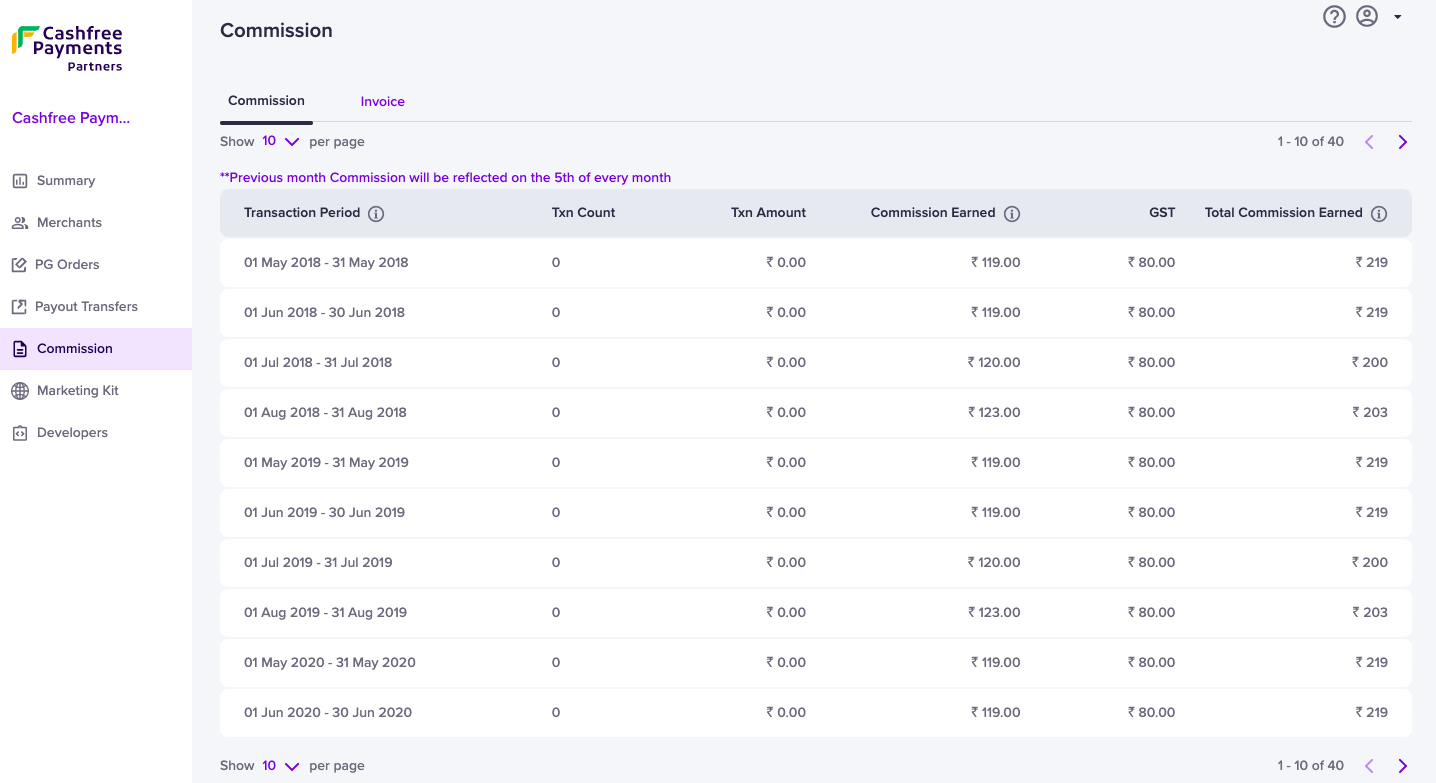
1. Login to your dashboard using your credentials. Select **Commission** to view the total commission earned on transactions for a particular period.
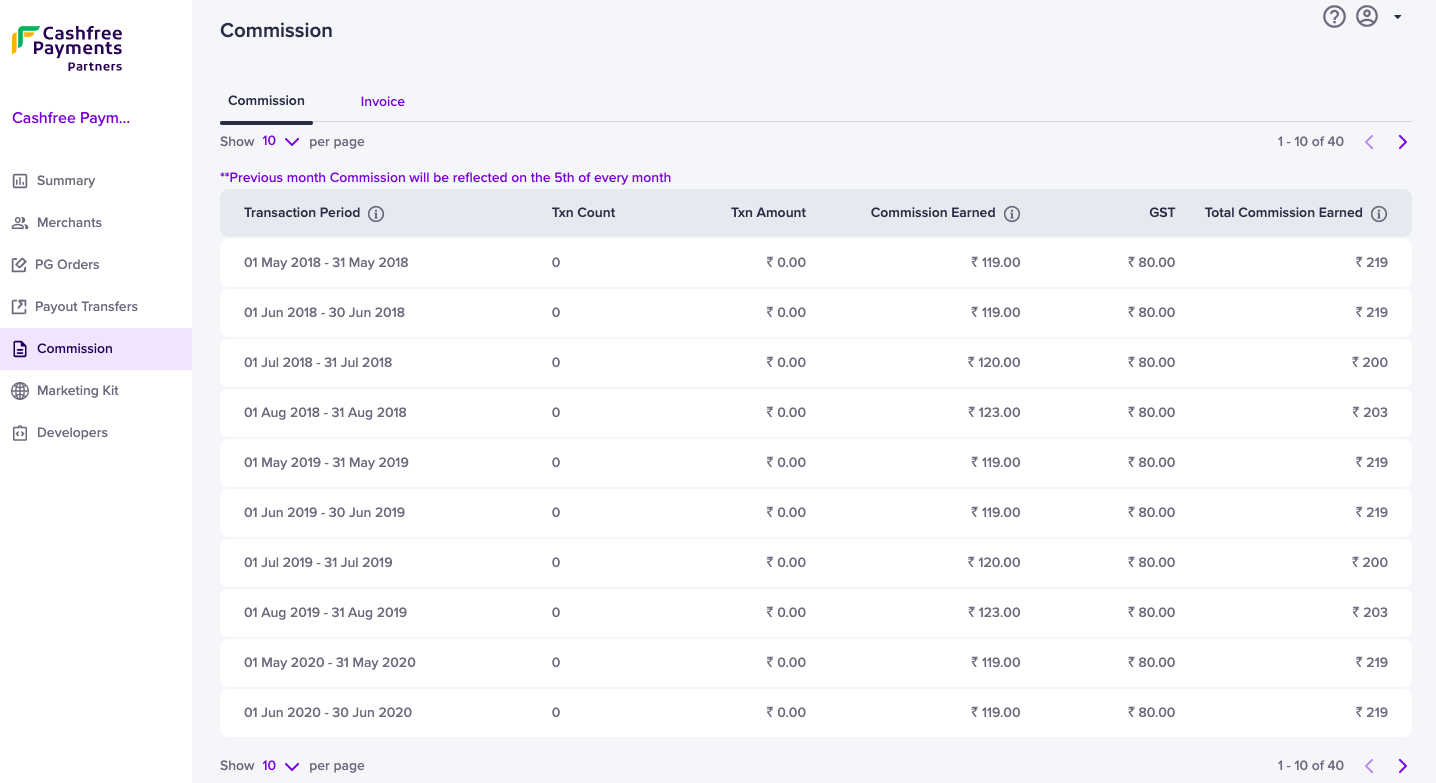 2. To track payment gateway transactions by your merchants, select **PG Orders** in the navigation section on the left. You can view the number of transactions, total transaction amount, and commission earned by you on those transactions for every merchant.
### Commission for GST registered and unregistered affiliates
If you are GST registered and shared the GSTIN details with Cashfree Payments, you will see the GST component in the **Commission** section. This information is not visible to the unregistered affiliates.
All GST-registered affiliates must share their GSTIN with Cashfree Payments as per compliance requirements. Please update your GST details via the [Support Form](https://merchant.cashfree.com/merchants/landing?env=prod\&raise_issue=1).
2. To track payment gateway transactions by your merchants, select **PG Orders** in the navigation section on the left. You can view the number of transactions, total transaction amount, and commission earned by you on those transactions for every merchant.
### Commission for GST registered and unregistered affiliates
If you are GST registered and shared the GSTIN details with Cashfree Payments, you will see the GST component in the **Commission** section. This information is not visible to the unregistered affiliates.
All GST-registered affiliates must share their GSTIN with Cashfree Payments as per compliance requirements. Please update your GST details via the [Support Form](https://merchant.cashfree.com/merchants/landing?env=prod\&raise_issue=1).
 ### Receive commission amount
Cashfree generates and displays commissions every month. You see the commission for the previous month by the 5th of the current month. To start the settlement process, you create an invoice.
#### Eligibility requirements
You receive a commission if:
* You have at least two transacting merchants in the month.
* Your Partner KYC is complete.
* Your commission amount is more than ₹1.
If you meet all the requirements but don’t receive your commission, raise a ticket through the [Support Form](https://merchant.cashfree.com/merchants/landing?env=prod\&raise_issue=1).
## Invoices
To receive the commission amount for the previous months: you must create an invoice, specify the mandatory details, and upload the invoice.
To raise an invoice,
1. Login to the [Affiliate Partner](https://partner.cashfree.com/auth/login) dashboard using your credentials.
2. Select **Commission** > **Invoice**.
3. Click **Add Invoice**.
### Receive commission amount
Cashfree generates and displays commissions every month. You see the commission for the previous month by the 5th of the current month. To start the settlement process, you create an invoice.
#### Eligibility requirements
You receive a commission if:
* You have at least two transacting merchants in the month.
* Your Partner KYC is complete.
* Your commission amount is more than ₹1.
If you meet all the requirements but don’t receive your commission, raise a ticket through the [Support Form](https://merchant.cashfree.com/merchants/landing?env=prod\&raise_issue=1).
## Invoices
To receive the commission amount for the previous months: you must create an invoice, specify the mandatory details, and upload the invoice.
To raise an invoice,
1. Login to the [Affiliate Partner](https://partner.cashfree.com/auth/login) dashboard using your credentials.
2. Select **Commission** > **Invoice**.
3. Click **Add Invoice**.
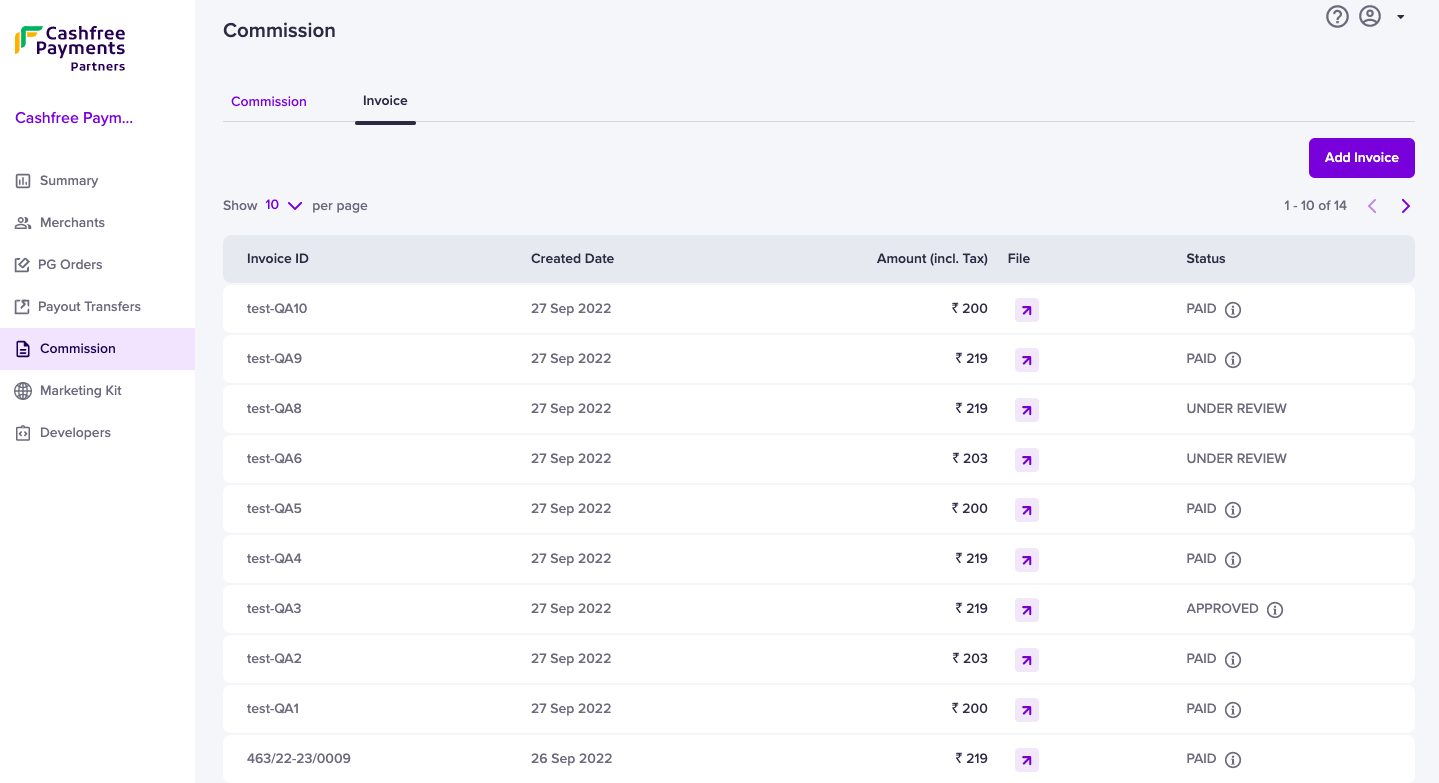 3. Select the months for which you want to create an invoice.
4. If you use an accounting system and want to upload an invoice using the same system, you can click **Upload Invoice**. Ensure your company's GSTIN and Cashfree Payments GSTIN are specified in the invoice.\
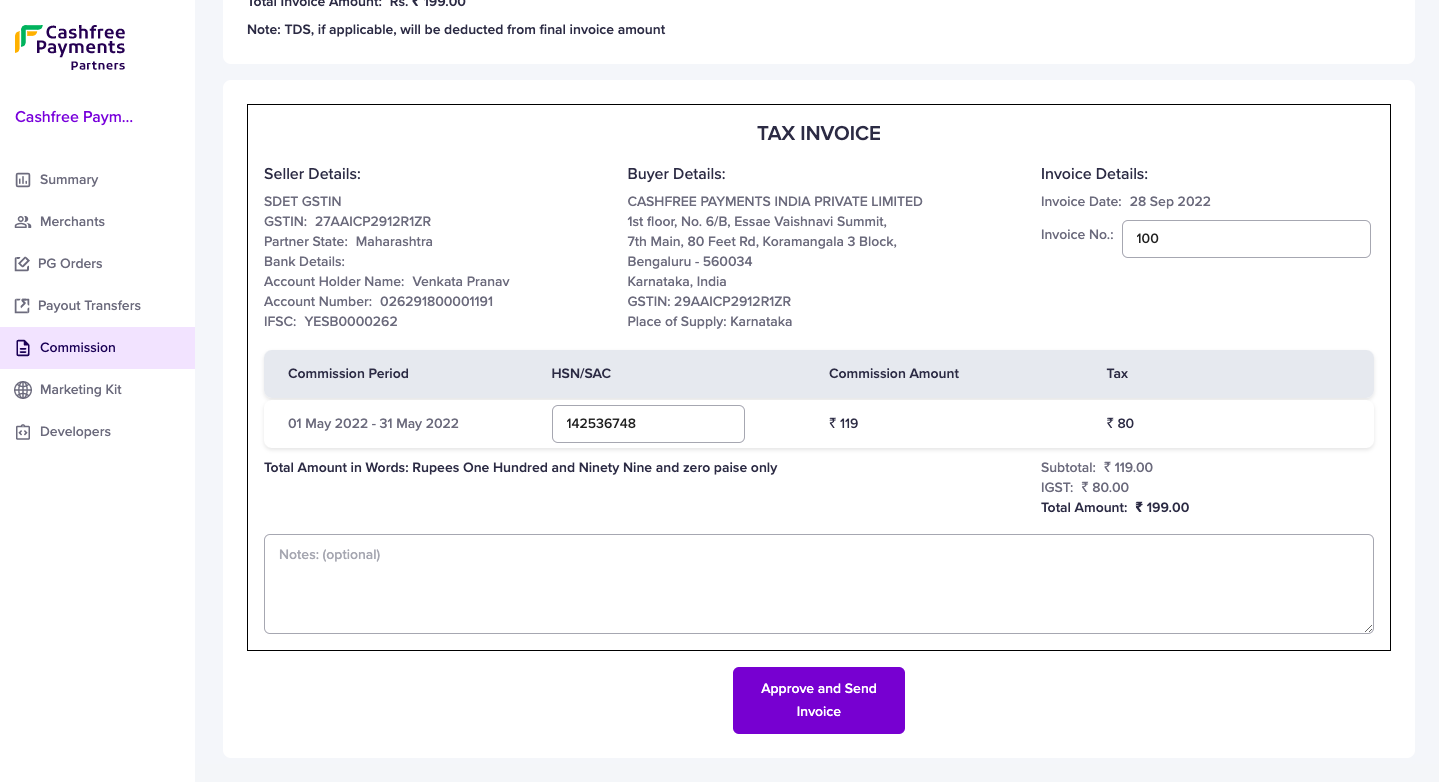
Alternatively, you can click **Generate Invoice** if you need help with creating the invoice. Cashfree Payments automatically creates an invoice. You can enter the mandatory details and send the invoice.
3. Select the months for which you want to create an invoice.
4. If you use an accounting system and want to upload an invoice using the same system, you can click **Upload Invoice**. Ensure your company's GSTIN and Cashfree Payments GSTIN are specified in the invoice.\
Alternatively, you can click **Generate Invoice** if you need help with creating the invoice. Cashfree Payments automatically creates an invoice. You can enter the mandatory details and send the invoice.
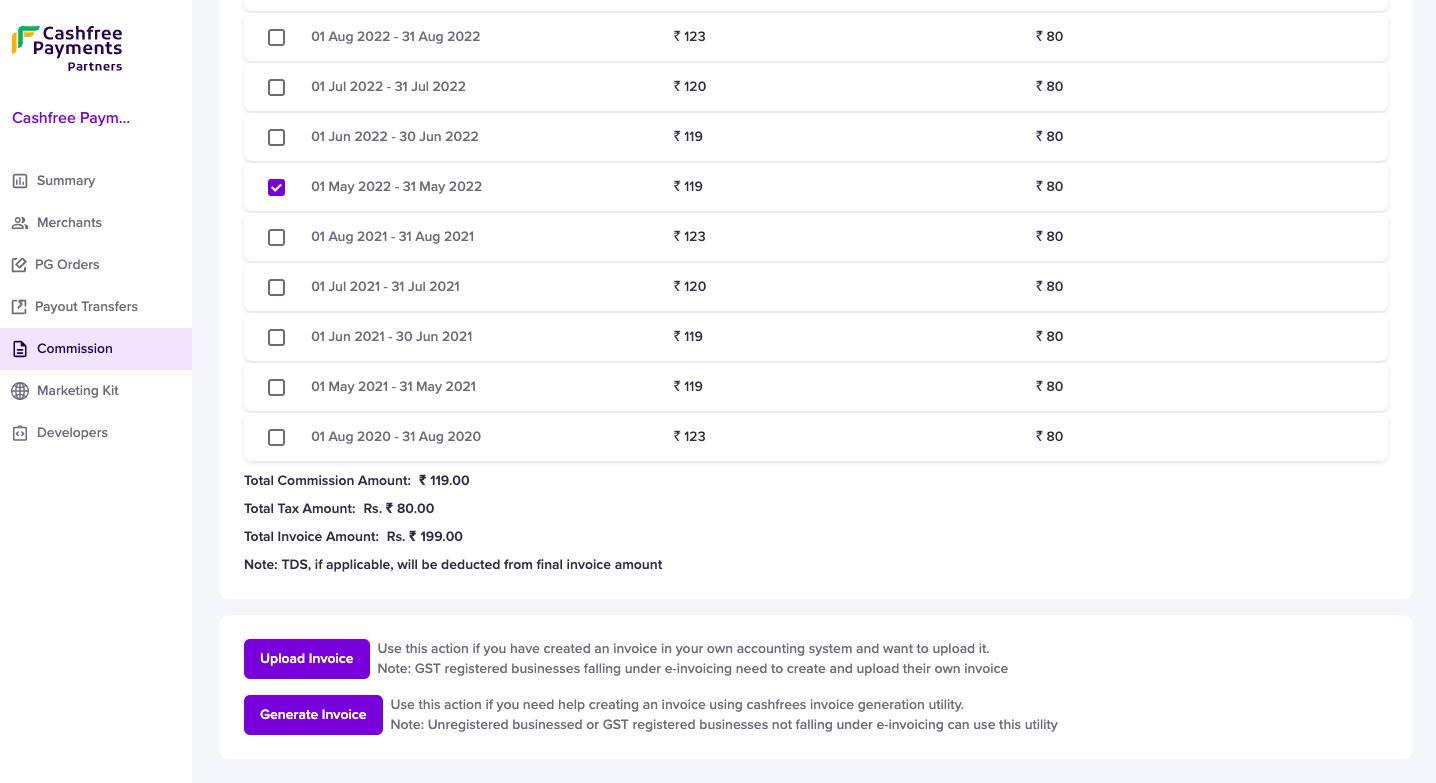 5. Upload or generate the invoice and enter the mandatory details. Click **Approve and Send Invoice** to send the invoice to Cashfree Payments for further processing of the commission amount.
 ### Invoice statuses
| Status | Description |
| :----------------- | :--------------------------------------------------------------------------------------- |
| Under Review | The invoice status is yet to be verified by Cashfree Payments. |
| Approved | The invoice is verified and approved for processing the commission amount. |
| Payout in Progress | The commission amount is initiated for payout by Cashfree Payments. |
| Paid | The commission amount is settled in your bank account registered with Cashfree Payments. |
| Rejected | The invoice is rejected by Cashfree Payments. |
### Invoice statuses
| Status | Description |
| :----------------- | :--------------------------------------------------------------------------------------- |
| Under Review | The invoice status is yet to be verified by Cashfree Payments. |
| Approved | The invoice is verified and approved for processing the commission amount. |
| Payout in Progress | The commission amount is initiated for payout by Cashfree Payments. |
| Paid | The commission amount is settled in your bank account registered with Cashfree Payments. |
| Rejected | The invoice is rejected by Cashfree Payments. |