> ## Documentation Index
> Fetch the complete documentation index at: https://www.cashfree.com/docs/llms.txt
> Use this file to discover all available pages before exploring further.
# Refer and Onboard Merchants
> Learn how Cashfree Affiliate Partners can refer businesses, assist with KYC verification, and guide them through integration to earn commissions on activations.
As a Cashfree Affiliate Partner, you can refer businesses to use Cashfree Payments. You can also help them with KYC verification and integration to simplify onboarding.
After you sign in to your Affiliate Partner Dashboard, you can refer merchants in the following ways:
* [Share your referral link](/docs/partners/affiliates/refer-merchants#share-a-referral-link): Copy and share your unique referral link through email, messaging apps, or social media.
* [Send an email invitation](/docs/partners/affiliates/refer-merchants#send-an-email-invitation): Add the merchant’s details and send an invitation directly to their email address.
## Share a referral link
To share your referral link:
1. Login to the [Affiliate Partner](https://partner.cashfree.com/auth/login) dashboard using your credentials.
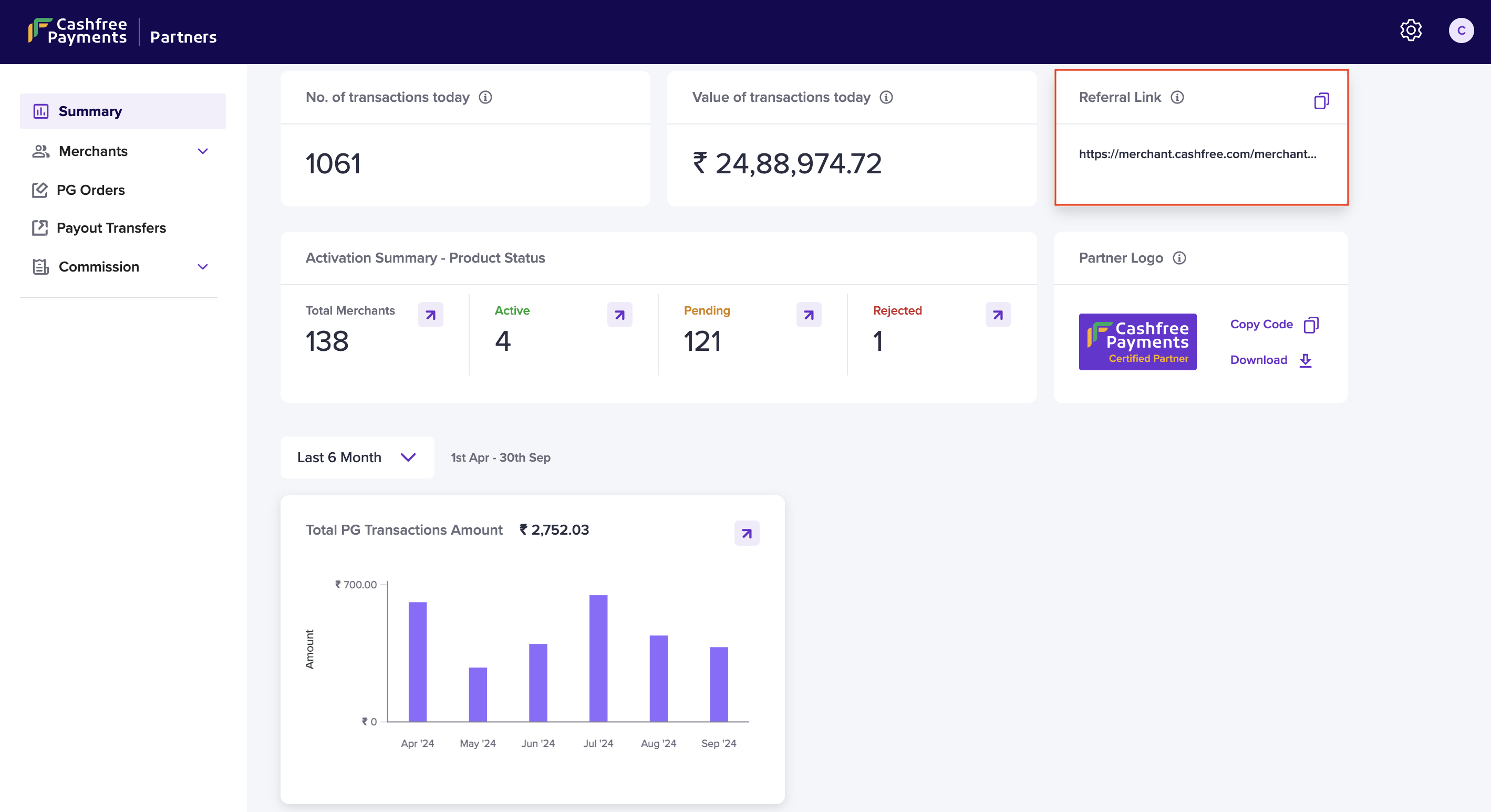
2. Go to the **Summary** page in your dashboard.
3. Copy your unique **Referral Link** and share it with merchants or clients via **WhatsApp**, **Instagram**, or other channels.
 ## Send an email invitation
To add a merchant via an email invitation:
1. Login to the [Affiliate Partner](https://partner.cashfree.com/auth/login) dashboard using your credentials.
2. Go to the **Affiliate Dashboard** > **Merchants** > **All** and click **Add Merchant**.
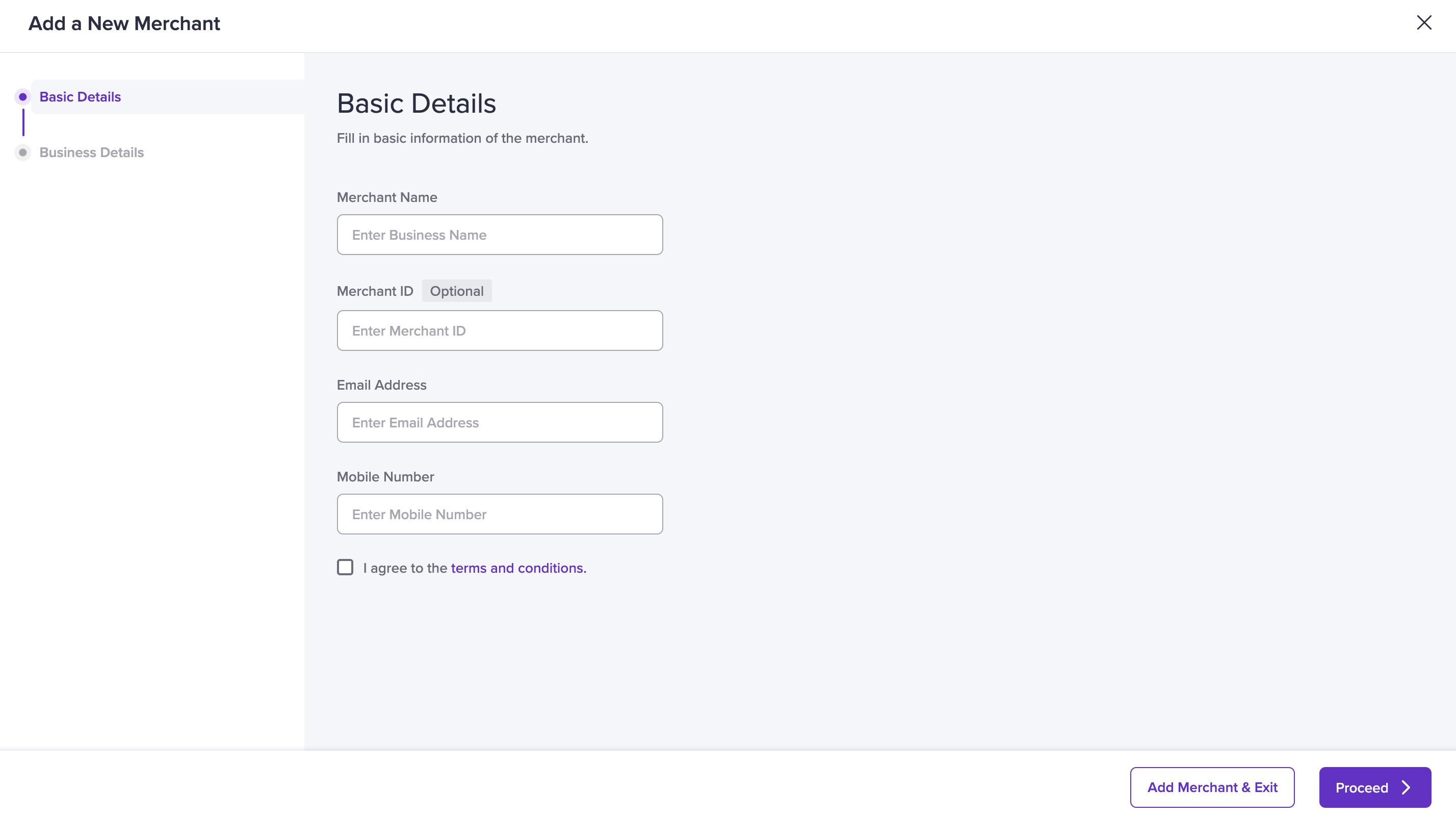
3. On the Add a New Merchant screen, under Basic Details, fill in the merchant's information:
* Merchant Name
* Merchant ID (Optional)
* Email Address
* Mobile Number
* Accept the terms and conditions.
## Send an email invitation
To add a merchant via an email invitation:
1. Login to the [Affiliate Partner](https://partner.cashfree.com/auth/login) dashboard using your credentials.
2. Go to the **Affiliate Dashboard** > **Merchants** > **All** and click **Add Merchant**.
3. On the Add a New Merchant screen, under Basic Details, fill in the merchant's information:
* Merchant Name
* Merchant ID (Optional)
* Email Address
* Mobile Number
* Accept the terms and conditions.
 3. Click **Add Merchant & Exit** or click **Proceed** to enable faster onboarding and KYC verification by submitting the merchant's basic KYC details.
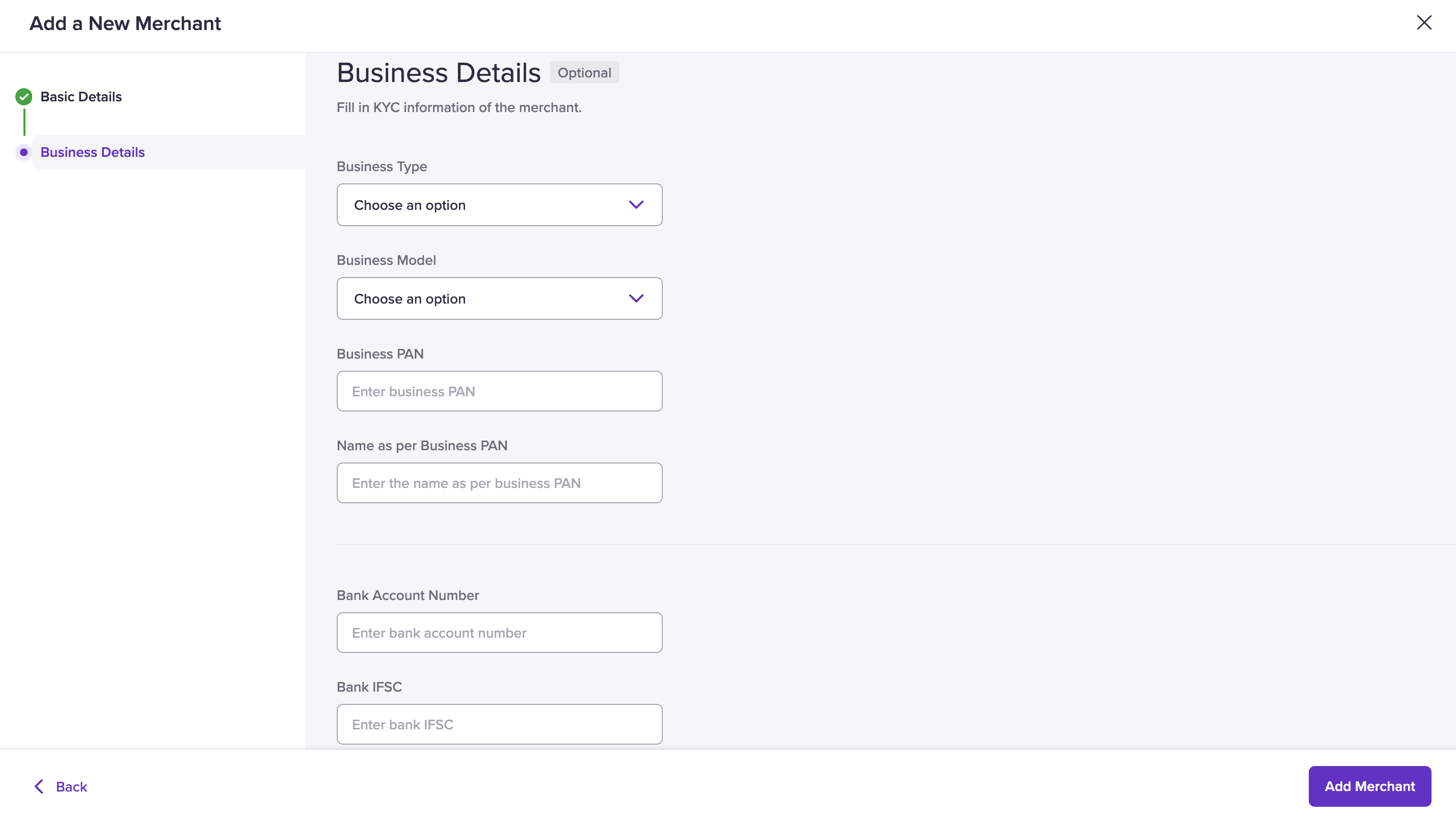
**Business Details (Optional)**:
* Business Type
* Business Model
* Business PAN Details
* Bank Account Details
* Business Category and subcategory
* Website and application link
* Authorised signatory PAN details
* Name as per Authorised Signatory PAN
* GSTIN
3. Click **Add Merchant & Exit** or click **Proceed** to enable faster onboarding and KYC verification by submitting the merchant's basic KYC details.
**Business Details (Optional)**:
* Business Type
* Business Model
* Business PAN Details
* Bank Account Details
* Business Category and subcategory
* Website and application link
* Authorised signatory PAN details
* Name as per Authorised Signatory PAN
* GSTIN
 4. Click **Add Merchant**.
Cashfree sends a verification email to the merchant and updates the onboarding status after successful verification.
If your merchant hasn't received the email, click the **Resend Email** option
in the **Merchants** screen to resend the verification email to the merchant.
## Bulk referral
To onboard multiple merchants at once, upload their details using a file in the format specified by Cashfree Payments.
**To upload merchant details in bulk:**
1. Login to the [Affiliate Partner](https://partner.cashfree.com/auth/login) dashboard using your credentials.
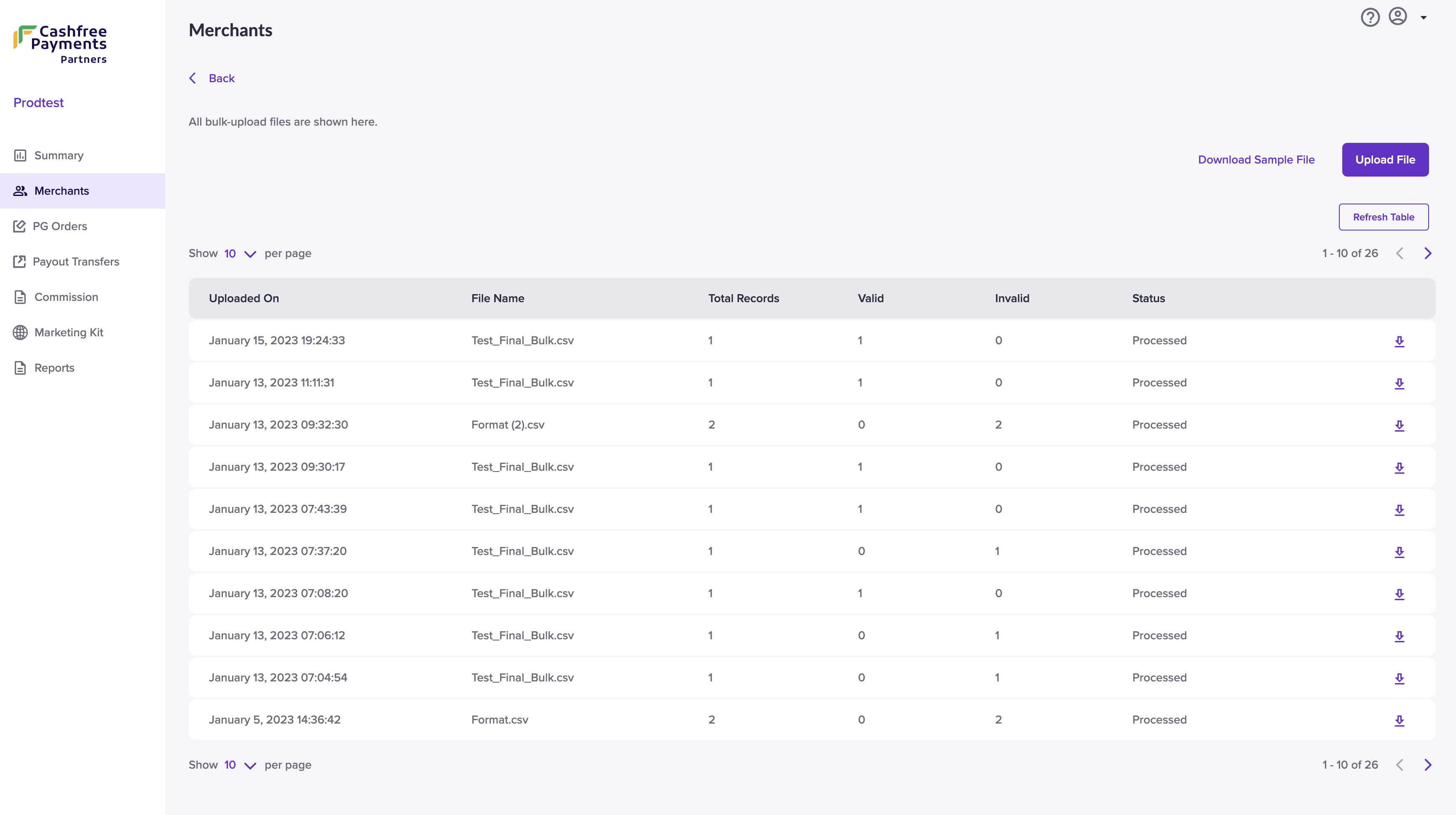
2. Go to **Merchants**, and then select **Bulk upload merchants**.
3. Select **Upload File**, and choose the file you want to upload.\
Ensure the following mandatory fields are filled:
* Business Name
* Registered Email
* Phone Number
* Merchant ID
You can also include optional fields such as business details, PAN, and bank account details for KYC verification.
4. After upload, the system displays a summary of:
* Total merchants added
* Valid and invalid entries
* Upload status
You can download the file, correct any errors, and re-upload it.
[Download sample upload file](https://cashfreepublic.s3.ap-south-1.amazonaws.com/payoutsample/Bulk-Upload-Format.csv)
4. Click **Add Merchant**.
Cashfree sends a verification email to the merchant and updates the onboarding status after successful verification.
If your merchant hasn't received the email, click the **Resend Email** option
in the **Merchants** screen to resend the verification email to the merchant.
## Bulk referral
To onboard multiple merchants at once, upload their details using a file in the format specified by Cashfree Payments.
**To upload merchant details in bulk:**
1. Login to the [Affiliate Partner](https://partner.cashfree.com/auth/login) dashboard using your credentials.
2. Go to **Merchants**, and then select **Bulk upload merchants**.
3. Select **Upload File**, and choose the file you want to upload.\
Ensure the following mandatory fields are filled:
* Business Name
* Registered Email
* Phone Number
* Merchant ID
You can also include optional fields such as business details, PAN, and bank account details for KYC verification.
4. After upload, the system displays a summary of:
* Total merchants added
* Valid and invalid entries
* Upload status
You can download the file, correct any errors, and re-upload it.
[Download sample upload file](https://cashfreepublic.s3.ap-south-1.amazonaws.com/payoutsample/Bulk-Upload-Format.csv)
 **Note**:
* Help merchants get started by assisting with their KYC process. For more information, refer [Merchants KYC](/docs/partners/affiliates/assist-merchant/merchants-kyc).
* After payment activation, guide merchants in selecting business-friendly solutions to integrate and accept payments. For more information, refer [Merchants Integration](/docs/partners/affiliates/assist-merchant/merchants-integration).
**Note**:
* Help merchants get started by assisting with their KYC process. For more information, refer [Merchants KYC](/docs/partners/affiliates/assist-merchant/merchants-kyc).
* After payment activation, guide merchants in selecting business-friendly solutions to integrate and accept payments. For more information, refer [Merchants Integration](/docs/partners/affiliates/assist-merchant/merchants-integration).