> ## Documentation Index
> Fetch the complete documentation index at: https://www.cashfree.com/docs/llms.txt
> Use this file to discover all available pages before exploring further.
# Bills
> View and manage BBPS bills on Cashfree from the Merchant Dashboard, including bill upload, customer queries, payment status, and refund handling.
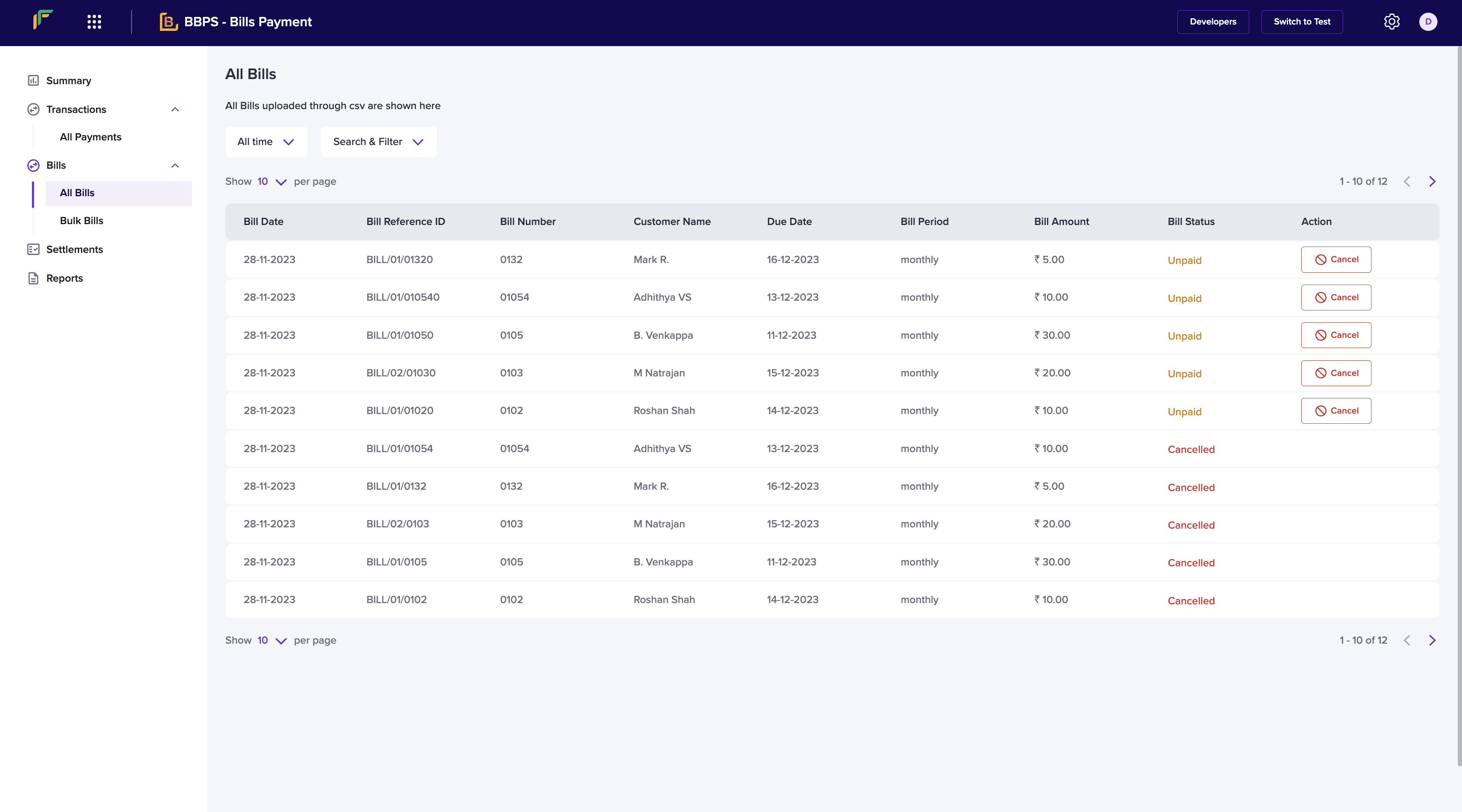
The bills section displays all the bills that were uploaded as csv files. Details mentioned below are available in this section:
* Bill Date - Date the bill was generated.
* Bill Reference ID - Unique identifier of the bill generated by the merchant/biller.
* Bill Number - Number of the bill.
* Customer Name - Name of the customer.
* Due Date - Date on which the bill is due next.
* Bill Period - The frequency of the bill.
* Bill Amount - Amount of the bill.
* Bill Status - Status of the bill.
* Action - Action that can be performed on the bill.
 # Cancel Bills
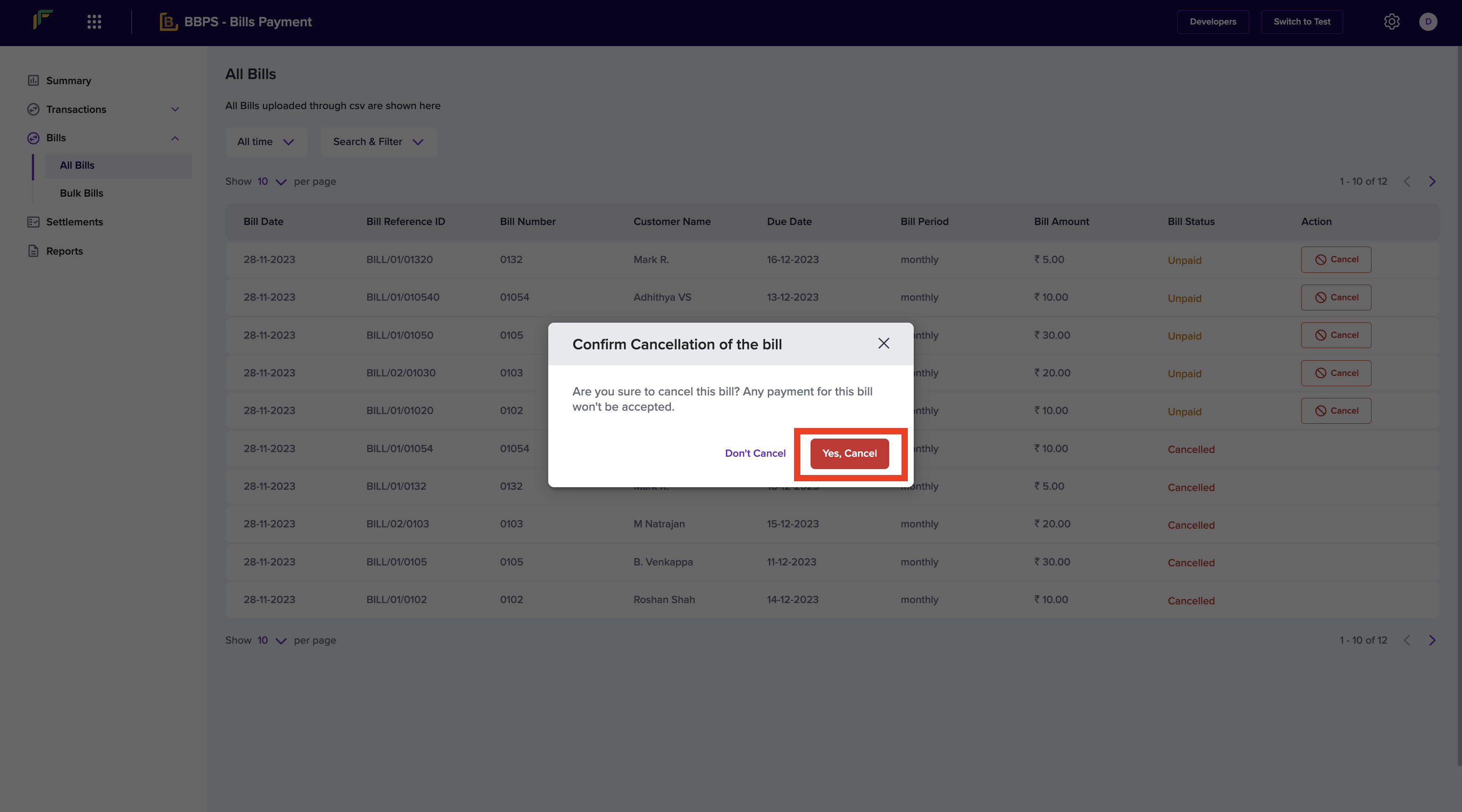
Click the Cancel button from the Actions tab to cancel the bill. Note that any payment for this bill won't be accepted post this.
# Cancel Bills
Click the Cancel button from the Actions tab to cancel the bill. Note that any payment for this bill won't be accepted post this.
 # Bulk Bills
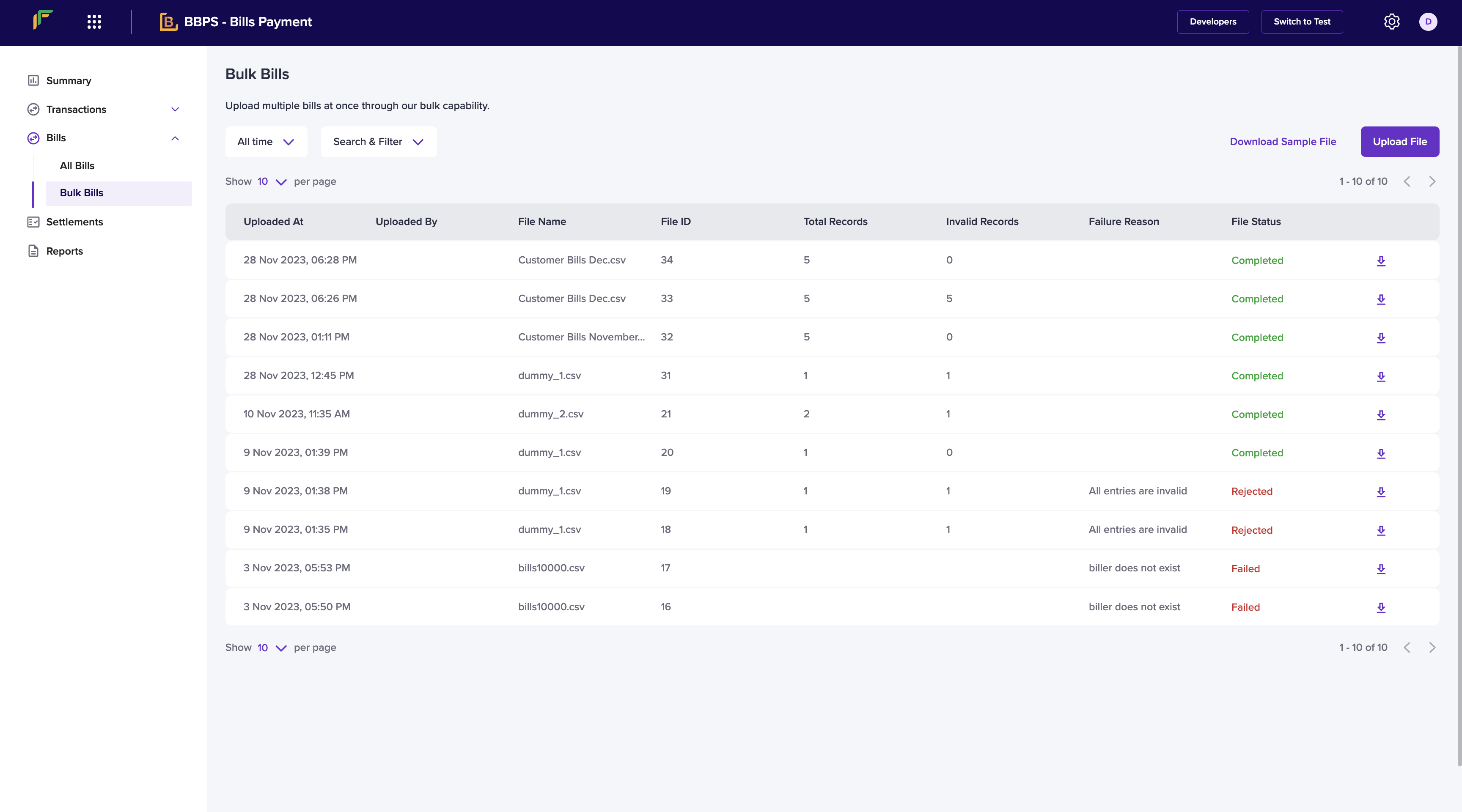
You can upload multiple bills at once using the Upload Batch Bill File functionality. Details such as:
* Uploaded At - The time at which the bill was uploaded.
* Uploaded By - The person who uploaded the bill.
* File Name - Name of the file.
* File ID - ID of the file.
* Total Records - Number of records in the file.
* Invalid Records - Number of invalid records.
* Failure Reason - Reason why the upload failed.
* File Status - Upload status.
# Bulk Bills
You can upload multiple bills at once using the Upload Batch Bill File functionality. Details such as:
* Uploaded At - The time at which the bill was uploaded.
* Uploaded By - The person who uploaded the bill.
* File Name - Name of the file.
* File ID - ID of the file.
* Total Records - Number of records in the file.
* Invalid Records - Number of invalid records.
* Failure Reason - Reason why the upload failed.
* File Status - Upload status.
 To upload a file,
Go to **Bulk Bills** > **Upload File** > **Choose File** > **Upload**. Ensure that the file you are uploading is as per the format in the sample file.
To upload a file,
Go to **Bulk Bills** > **Upload File** > **Choose File** > **Upload**. Ensure that the file you are uploading is as per the format in the sample file.
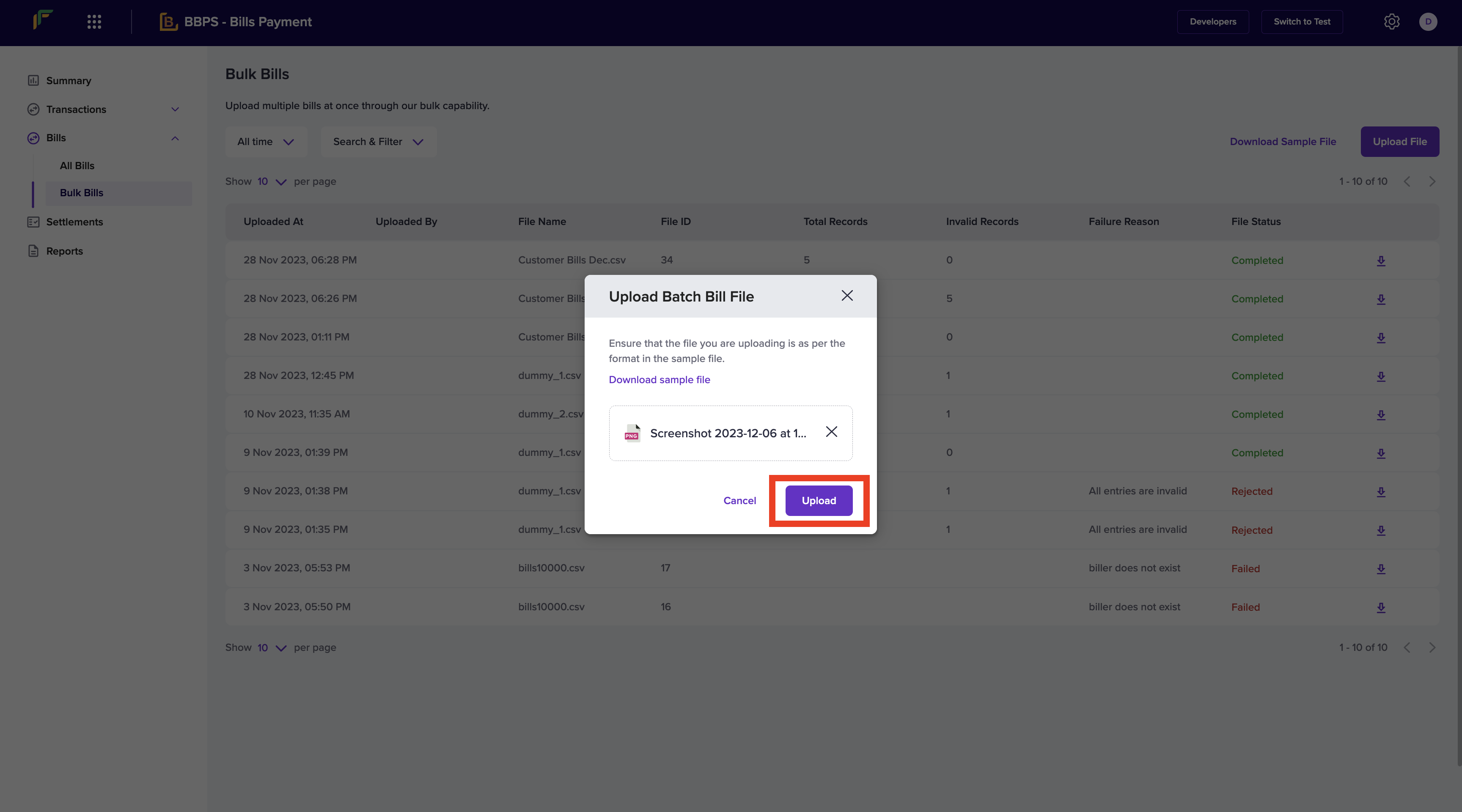 You can download the sample file using the **Download Sample File** option. You can also download the sample file using the **Download** option from the Bulk Bills section.