> ## Documentation Index
> Fetch the complete documentation index at: https://www.cashfree.com/docs/llms.txt
> Use this file to discover all available pages before exploring further.
# External Analytics
> Send Cashfree Checkout, Payment Links, and Payment Forms events to Google Analytics and other platforms to track behaviour and optimise conversions.
## Supported platforms
Cashfree supports integration with the following analytics platforms:
* [Google Analytics 4 (GA4)](/docs/payments/checkout/after/external-analytics#google-analytics-4-ga4)
* [Meta Pixel](/docs/payments/checkout/after/external-analytics#meta-pixel)
* [Mixpanel](/docs/payments/checkout/after/external-analytics#mixpanel)
* [Google Ads (via GA4 linking) ](/docs/payments/checkout/after/external-analytics#ga4-google-ads)
* [Meta Ads (via Meta Pixel linking) ](/docs/payments/checkout/after/external-analytics#meta-pixel-meta-ads)
If your analytics provider is not listed, contact [Cashfree support](https://merchant.cashfree.com/merchants/landing?env=prod\&raise_issue=1).
## Configure external analytics
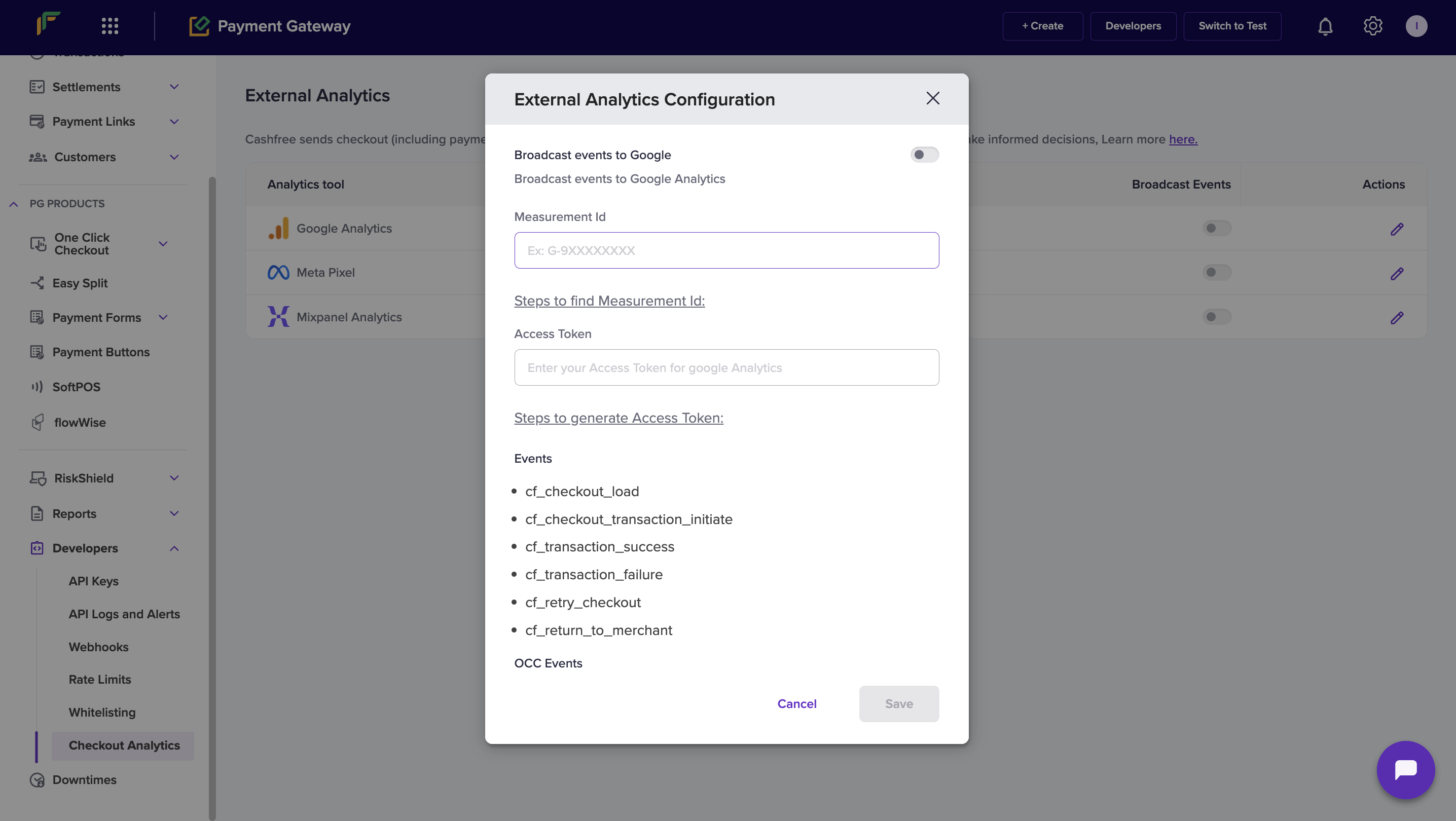
To configure external analytics integration, follow these steps:
1. Log in to the **[Merchant Dashboard](https://merchant.cashfree.com/auth/login)**.
2. In the **Payment Gateway** section, select **Access**.
3. In the left navigation pane, select **Developers > Checkout Analytics**.
4. Under the **Actions** column, select the **Edit** icon.
5. In the **External Analytics Configuration** modal, configure the integration as described in the setup sections below.
6. Select **Save** to apply your changes.
 ## Event categories
Events are organised into different categories based on where they are triggered and what they track. You can track customer interactions in your integration by using the following event categories:
* Checkout
* One Click Checkout (OCC)
### Checkout events
Use these events to track customer interactions in the standard checkout flow, including checkout pages, payment links, and payment forms.
#### Client-side checkout events
Client-side events are triggered in the browser or app when customers interact with the checkout interface.
| Event name | Description |
| ---------------------------------- | ------------------------------------------ |
| `cf_checkout_load` | Checkout loaded successfully. |
| `cf_checkout_transaction_initiate` | Customer initiated a transaction. |
| `cf_transaction_success` | Transaction completed successfully. |
| `cf_transaction_failure` | Transaction failed. |
| `cf_retry_checkout` | Redirected to checkout after failure. |
| `cf_return_to_merchant` | Customer redirected back to merchant page. |
#### Client-side payment link and payment form events
| Event name | Description |
| ----------------------- | ----------------------------------------------- |
| `cf_pl_load` | Payment link loaded successfully. |
| `cf_pf_load` | Payment form loaded successfully. |
| `cf_checkout_initiated` | Checkout initiated from a payment link or form. |
| `cf_purchase_completed` | Payment completed successfully. |
### One click checkout (OCC) events
Use these events to track customer interactions in the One Click Checkout (OCC) flow. OCC events are available for server-side and client-side tracking.
#### Server-side events
Server-side events are pushed to Google Analytics 4 (GA4) and Meta Facebook.
| GA4 event | Meta Facebook event |
| ------------------------------------ | ------------------------------------ |
| `begin_checkout` (standard event) | `InitiateCheckout` (standard event) |
| `cf_checkout_login_otp_sent` | `cf_checkout_login_otp_sent` |
| `cf_checkout_login_verify` | `cf_checkout_login_verify` |
| `add_shipping_info` (standard) | `cf_checkout_address_collected` |
| `cf_checkout_payment_info_displayed` | `cf_checkout_payment_info_displayed` |
| `add_payment_info` (standard) | `AddPaymentInfo` (standard event) |
| `purchase` (standard) | `purchase` (standard event) |
#### Client-side events
Client-side events are triggered in the browser or app when customers interact with OCC pages.
| Event name | Description |
| ---------------------------------- | -------------------------------------------- |
| `cf_checkout_occ_load` | First page or login page loaded. |
| `cf_checkout_login_verify` | OTP verified. |
| `cf_checkout_login_otp_sent` | OTP sent. |
| `cf_checkout_address_load` | Addresses loaded. |
| `cf_checkout_address_collected` | Address save or continue clicked. |
| `cf_checkout_load` | Payment page opened. |
| `cf_checkout_transaction_initiate` | Order payment transaction initiated. |
| `cf_checkout_offer_apply` | Offer applied. |
| `cf_checkout_offer_remove` | Offer removed. |
| `cf_checkout_order_cancelled` | Order cancelled. |
| `cf_checkout_address_deleted` | Address deleted. |
| `cf_checkout_address_updated` | Address updated. |
| `transaction_success` | Triggered only for non-Shopify integrations. |
## Setup instructions
Follow the platform-specific instructions below to configure your analytics integration.
To set up GA4 integration, complete the following steps:
1. Sign in to your [GA4 account](https://analytics.google.com/).
2. Go to **Admin** (bottom left).
3. Select **Data Streams** and open the relevant stream.
4. Copy the **Measurement ID**.
5. In Cashfree’s External Analytics Configuration modal, enable **Broadcast events to Google**.
6. Enter the **Measurement ID**.
7. Generate an API token:
* In GA4 Admin, select **Measurement Protocol API secrets**.
* Create a new API secret and copy the value.
8. Enter the **Access Token** in Cashfree’s configuration modal.
9. Select **Save**.
## Event categories
Events are organised into different categories based on where they are triggered and what they track. You can track customer interactions in your integration by using the following event categories:
* Checkout
* One Click Checkout (OCC)
### Checkout events
Use these events to track customer interactions in the standard checkout flow, including checkout pages, payment links, and payment forms.
#### Client-side checkout events
Client-side events are triggered in the browser or app when customers interact with the checkout interface.
| Event name | Description |
| ---------------------------------- | ------------------------------------------ |
| `cf_checkout_load` | Checkout loaded successfully. |
| `cf_checkout_transaction_initiate` | Customer initiated a transaction. |
| `cf_transaction_success` | Transaction completed successfully. |
| `cf_transaction_failure` | Transaction failed. |
| `cf_retry_checkout` | Redirected to checkout after failure. |
| `cf_return_to_merchant` | Customer redirected back to merchant page. |
#### Client-side payment link and payment form events
| Event name | Description |
| ----------------------- | ----------------------------------------------- |
| `cf_pl_load` | Payment link loaded successfully. |
| `cf_pf_load` | Payment form loaded successfully. |
| `cf_checkout_initiated` | Checkout initiated from a payment link or form. |
| `cf_purchase_completed` | Payment completed successfully. |
### One click checkout (OCC) events
Use these events to track customer interactions in the One Click Checkout (OCC) flow. OCC events are available for server-side and client-side tracking.
#### Server-side events
Server-side events are pushed to Google Analytics 4 (GA4) and Meta Facebook.
| GA4 event | Meta Facebook event |
| ------------------------------------ | ------------------------------------ |
| `begin_checkout` (standard event) | `InitiateCheckout` (standard event) |
| `cf_checkout_login_otp_sent` | `cf_checkout_login_otp_sent` |
| `cf_checkout_login_verify` | `cf_checkout_login_verify` |
| `add_shipping_info` (standard) | `cf_checkout_address_collected` |
| `cf_checkout_payment_info_displayed` | `cf_checkout_payment_info_displayed` |
| `add_payment_info` (standard) | `AddPaymentInfo` (standard event) |
| `purchase` (standard) | `purchase` (standard event) |
#### Client-side events
Client-side events are triggered in the browser or app when customers interact with OCC pages.
| Event name | Description |
| ---------------------------------- | -------------------------------------------- |
| `cf_checkout_occ_load` | First page or login page loaded. |
| `cf_checkout_login_verify` | OTP verified. |
| `cf_checkout_login_otp_sent` | OTP sent. |
| `cf_checkout_address_load` | Addresses loaded. |
| `cf_checkout_address_collected` | Address save or continue clicked. |
| `cf_checkout_load` | Payment page opened. |
| `cf_checkout_transaction_initiate` | Order payment transaction initiated. |
| `cf_checkout_offer_apply` | Offer applied. |
| `cf_checkout_offer_remove` | Offer removed. |
| `cf_checkout_order_cancelled` | Order cancelled. |
| `cf_checkout_address_deleted` | Address deleted. |
| `cf_checkout_address_updated` | Address updated. |
| `transaction_success` | Triggered only for non-Shopify integrations. |
## Setup instructions
Follow the platform-specific instructions below to configure your analytics integration.
To set up GA4 integration, complete the following steps:
1. Sign in to your [GA4 account](https://analytics.google.com/).
2. Go to **Admin** (bottom left).
3. Select **Data Streams** and open the relevant stream.
4. Copy the **Measurement ID**.
5. In Cashfree’s External Analytics Configuration modal, enable **Broadcast events to Google**.
6. Enter the **Measurement ID**.
7. Generate an API token:
* In GA4 Admin, select **Measurement Protocol API secrets**.
* Create a new API secret and copy the value.
8. Enter the **Access Token** in Cashfree’s configuration modal.
9. Select **Save**.
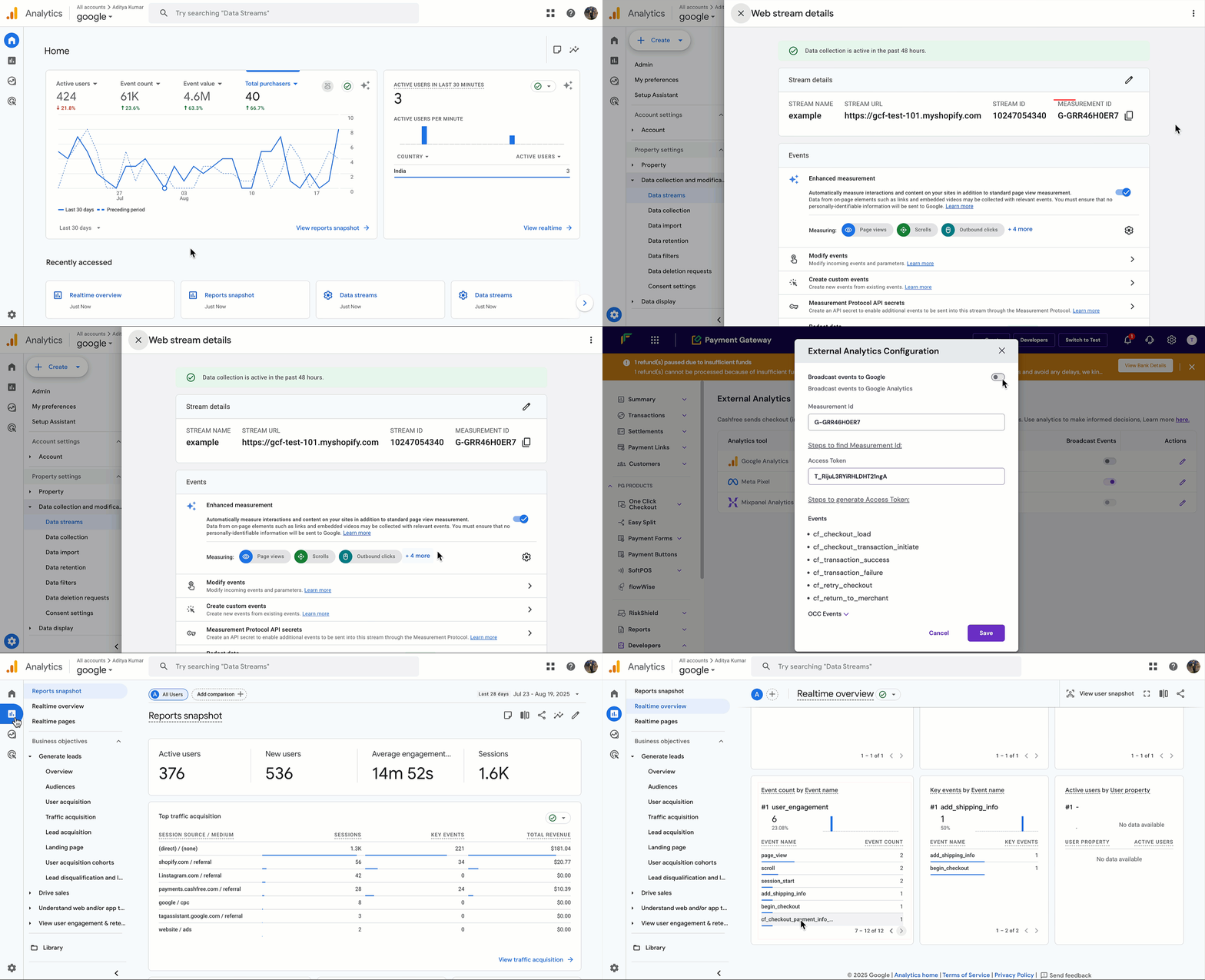 **Verification**:
* In GA4, go to **Reports > Realtime Overview**.
* Perform a test transaction.
* Events should appear in real time.
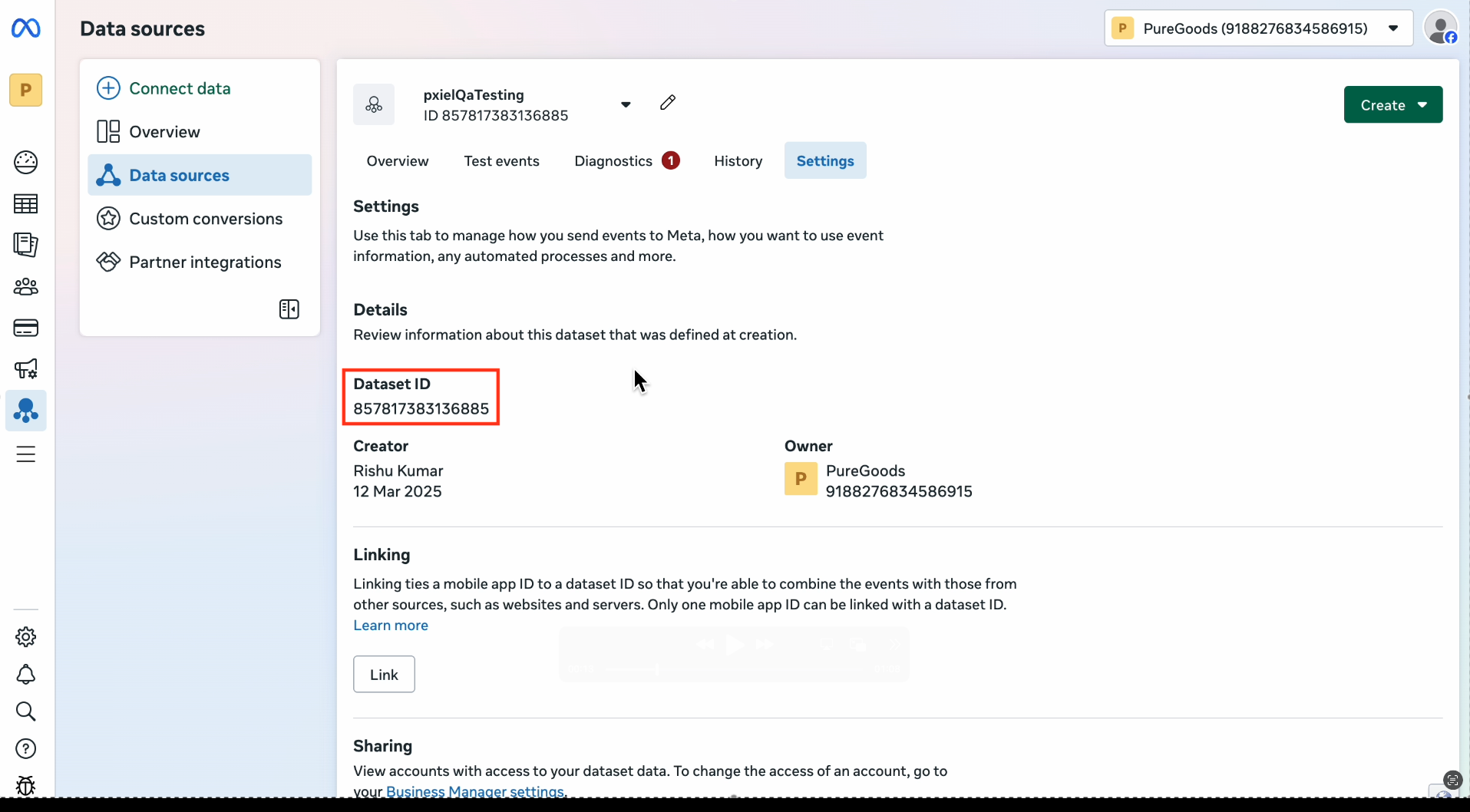
To set up Meta Pixel integration, complete the following steps:
1. Sign in to [Meta Events Manager](https://www.facebook.com/events_manager2).
2. Select your Pixel from **Data Sources**.
3. Copy the **Pixel ID** from **Settings**.
**Verification**:
* In GA4, go to **Reports > Realtime Overview**.
* Perform a test transaction.
* Events should appear in real time.
To set up Meta Pixel integration, complete the following steps:
1. Sign in to [Meta Events Manager](https://www.facebook.com/events_manager2).
2. Select your Pixel from **Data Sources**.
3. Copy the **Pixel ID** from **Settings**.
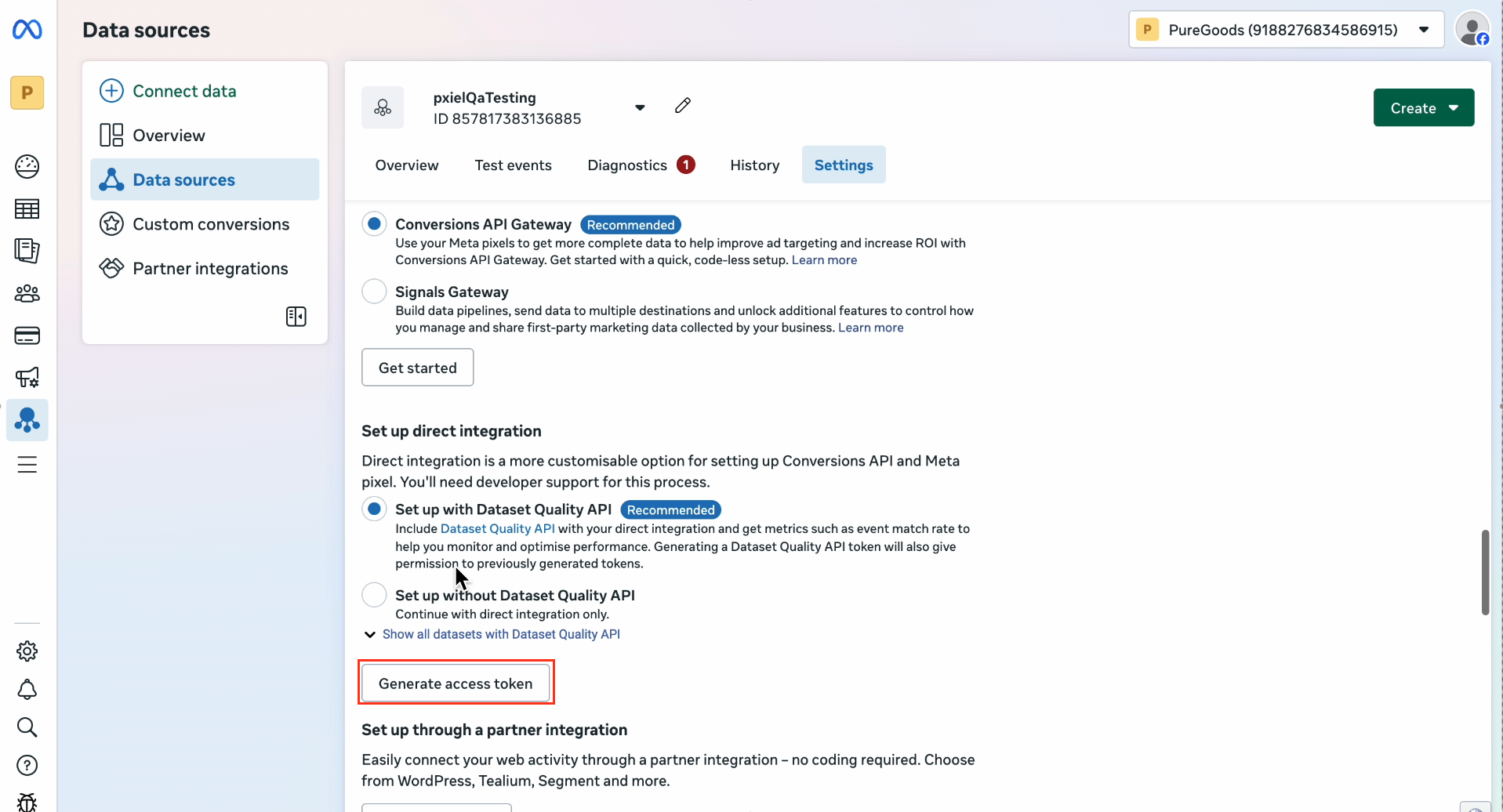
 4. Generate an **Access Token**:
* Scroll to **Conversions API**.
* Select **Generate Access Token**.\\
4. Generate an **Access Token**:
* Scroll to **Conversions API**.
* Select **Generate Access Token**.\\
 5. In Cashfree’s configuration modal, enter the Pixel ID and Access Token.
6. Select **Save**.
**Verification**:
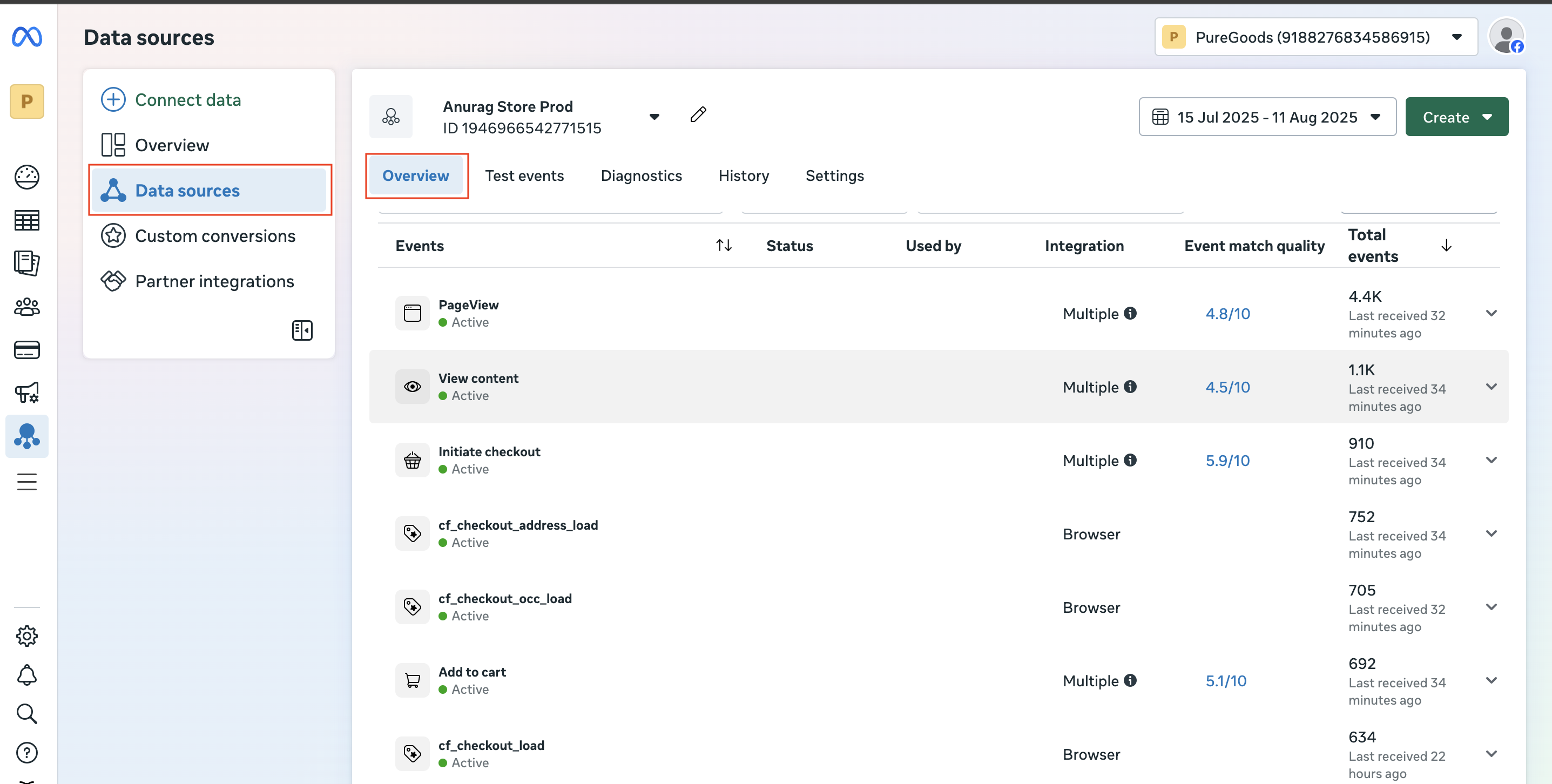
1. Navigate to **Data Source** tab under Events Manager.
2. Select your particular Pixel ID and click on **Overview**.
Here, you see the list of events coming, if there is some activity on the OCC.
5. In Cashfree’s configuration modal, enter the Pixel ID and Access Token.
6. Select **Save**.
**Verification**:
1. Navigate to **Data Source** tab under Events Manager.
2. Select your particular Pixel ID and click on **Overview**.
Here, you see the list of events coming, if there is some activity on the OCC.
 ### Event verification
Use this section to confirm that Meta Pixel receives your Purchase events successfully. Verify event delivery directly in Meta Events Manager rather than in other tracking interfaces, because Meta Events Manager is the only source that reflects the data Meta actually receives.
If you configure a new Meta Pixel, wait approximately 30 minutes to 1 hour before you verify event delivery. Event data can take this long to appear in Meta Events Manager.
To verify Purchase events in Meta Events Manager:
1. Log in to [Meta Events Manager](https://www.facebook.com/events_manager2).
2. Navigate to the relevant Pixel or data set.
3. Apply the date and time filter for the period you want to review.
4. Review the number of Purchase events recorded for that period.
5. Open the Shopify Admin and navigate to the **Orders** section.
6. Filter the orders for the same period.
7. Count the number of orders processed through the OCC channel during that period.
8. Compare the Purchase events shown in Meta Events Manager with the OCC orders from Shopify for the same period.
This comparison provides the most accurate way to confirm that Meta receives your Purchase events successfully.
If you are a Shopify merchant using OCC, disable the **purchase** event in Cashfree Meta Pixel setup. This prevents double-counting if Facebook and Instagram sales channels are active in your Shopify store.
To set up Mixpanel integration, complete the following steps:
1. Sign in to your [Mixpanel account](https://mixpanel.com/).
2. Go to **Project Settings**.
3. Copy the **Project Token**.
4. Enter it in the Cashfree configuration modal.
5. Select **Save**.
## Linking with ad platforms
You can link your analytics platforms with advertising platforms to enhance tracking and optimisation.
Link Google Ads and GA4
### Step 1: Mark the purchase event as a conversion in GA4
GA4 imports only events that are marked as key events. Mark the purchase event as a key event before you import it into Google Ads.
1. Sign in to your GA4 property.
2. Select **Admin** (bottom-left).
3. Under **Data display**, select **Events**.
4. Find the **purchase** event in the list of collected events.
5. Check for the star icon to confirm the purchase event is marked as a key event (purchase events are usually marked by default).
### Step 2: Link Google Analytics 4 to Google Ads
Linking creates the connection that lets data flow between the two platforms.
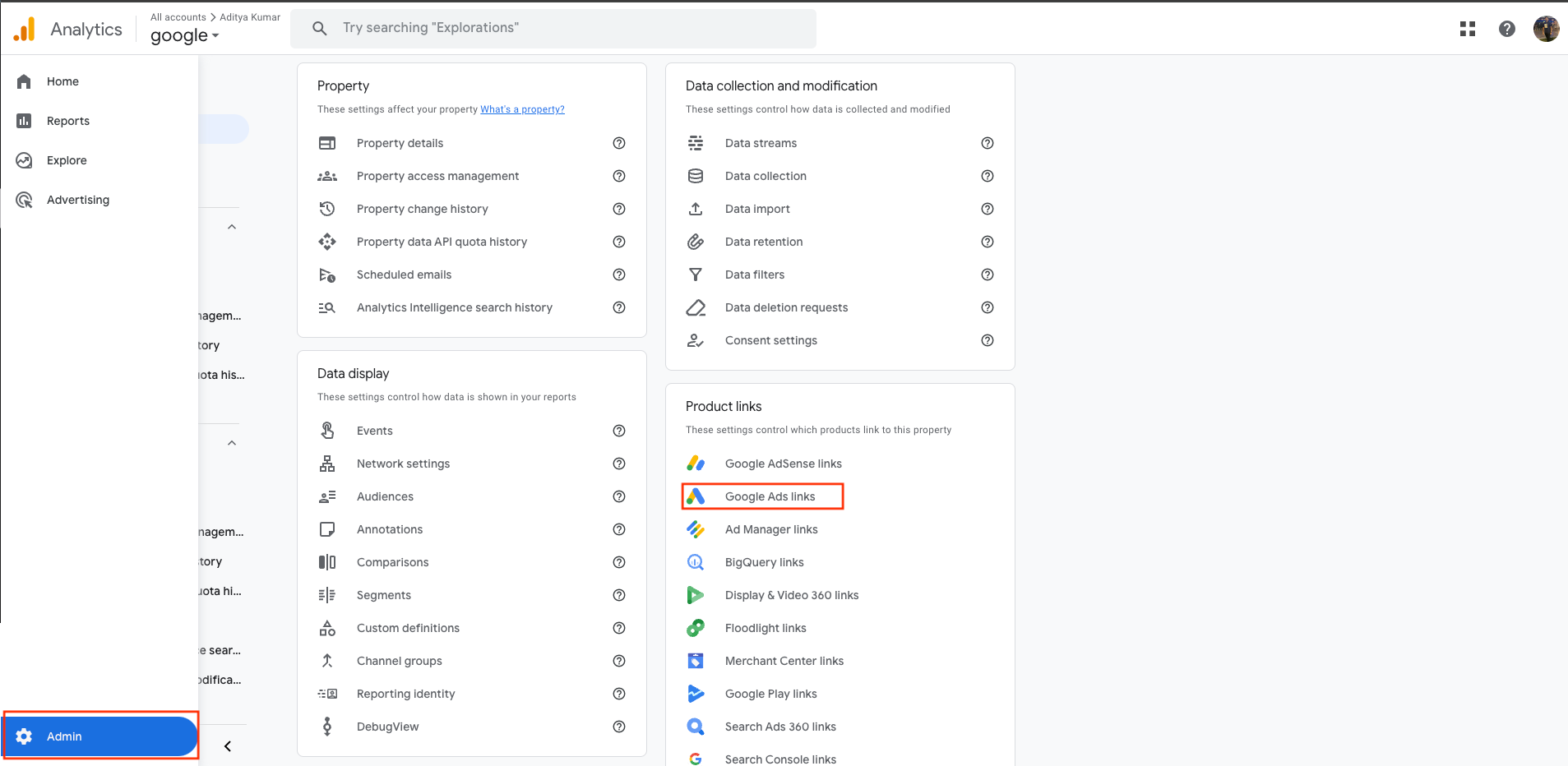
1. In your GA4 property, open **Admin**.
2. Under **Product links**, select **Google Ads links**.
### Event verification
Use this section to confirm that Meta Pixel receives your Purchase events successfully. Verify event delivery directly in Meta Events Manager rather than in other tracking interfaces, because Meta Events Manager is the only source that reflects the data Meta actually receives.
If you configure a new Meta Pixel, wait approximately 30 minutes to 1 hour before you verify event delivery. Event data can take this long to appear in Meta Events Manager.
To verify Purchase events in Meta Events Manager:
1. Log in to [Meta Events Manager](https://www.facebook.com/events_manager2).
2. Navigate to the relevant Pixel or data set.
3. Apply the date and time filter for the period you want to review.
4. Review the number of Purchase events recorded for that period.
5. Open the Shopify Admin and navigate to the **Orders** section.
6. Filter the orders for the same period.
7. Count the number of orders processed through the OCC channel during that period.
8. Compare the Purchase events shown in Meta Events Manager with the OCC orders from Shopify for the same period.
This comparison provides the most accurate way to confirm that Meta receives your Purchase events successfully.
If you are a Shopify merchant using OCC, disable the **purchase** event in Cashfree Meta Pixel setup. This prevents double-counting if Facebook and Instagram sales channels are active in your Shopify store.
To set up Mixpanel integration, complete the following steps:
1. Sign in to your [Mixpanel account](https://mixpanel.com/).
2. Go to **Project Settings**.
3. Copy the **Project Token**.
4. Enter it in the Cashfree configuration modal.
5. Select **Save**.
## Linking with ad platforms
You can link your analytics platforms with advertising platforms to enhance tracking and optimisation.
Link Google Ads and GA4
### Step 1: Mark the purchase event as a conversion in GA4
GA4 imports only events that are marked as key events. Mark the purchase event as a key event before you import it into Google Ads.
1. Sign in to your GA4 property.
2. Select **Admin** (bottom-left).
3. Under **Data display**, select **Events**.
4. Find the **purchase** event in the list of collected events.
5. Check for the star icon to confirm the purchase event is marked as a key event (purchase events are usually marked by default).
### Step 2: Link Google Analytics 4 to Google Ads
Linking creates the connection that lets data flow between the two platforms.
1. In your GA4 property, open **Admin**.
2. Under **Product links**, select **Google Ads links**.
 3. Select **Link** (top-right).
4. Select **Google Ads accounts** and pick the account(s) you want to link.
5. Select the checkbox next to the account and select **Confirm**.
6. On the next screen, ensure **Enable personalised advertising** and **Enable auto tagging** are turned on (they should be on by default). Keep both enabled where possible.
* Personalised advertising lets you use GA4 audiences for remarketing in Google Ads.
* Auto tagging adds the gclid parameter to your ad URLs so GA4 can attribute clicks and conversions to Google Ads campaigns.
7. Select **Next**, review the settings, then select **Submit**.
Allow up to 24 hours for data to start flowing between the two platforms.
### Step 3: Import the purchase conversion into Google Ads
After linking and once data has synced, import the GA4 conversion into Google Ads.
1. Sign in to your Google Ads account.
2. From the left menu, select **Goals**.
3. Under **Conversion**, select **Summary**.
4. Select **+ Create conversion action**.
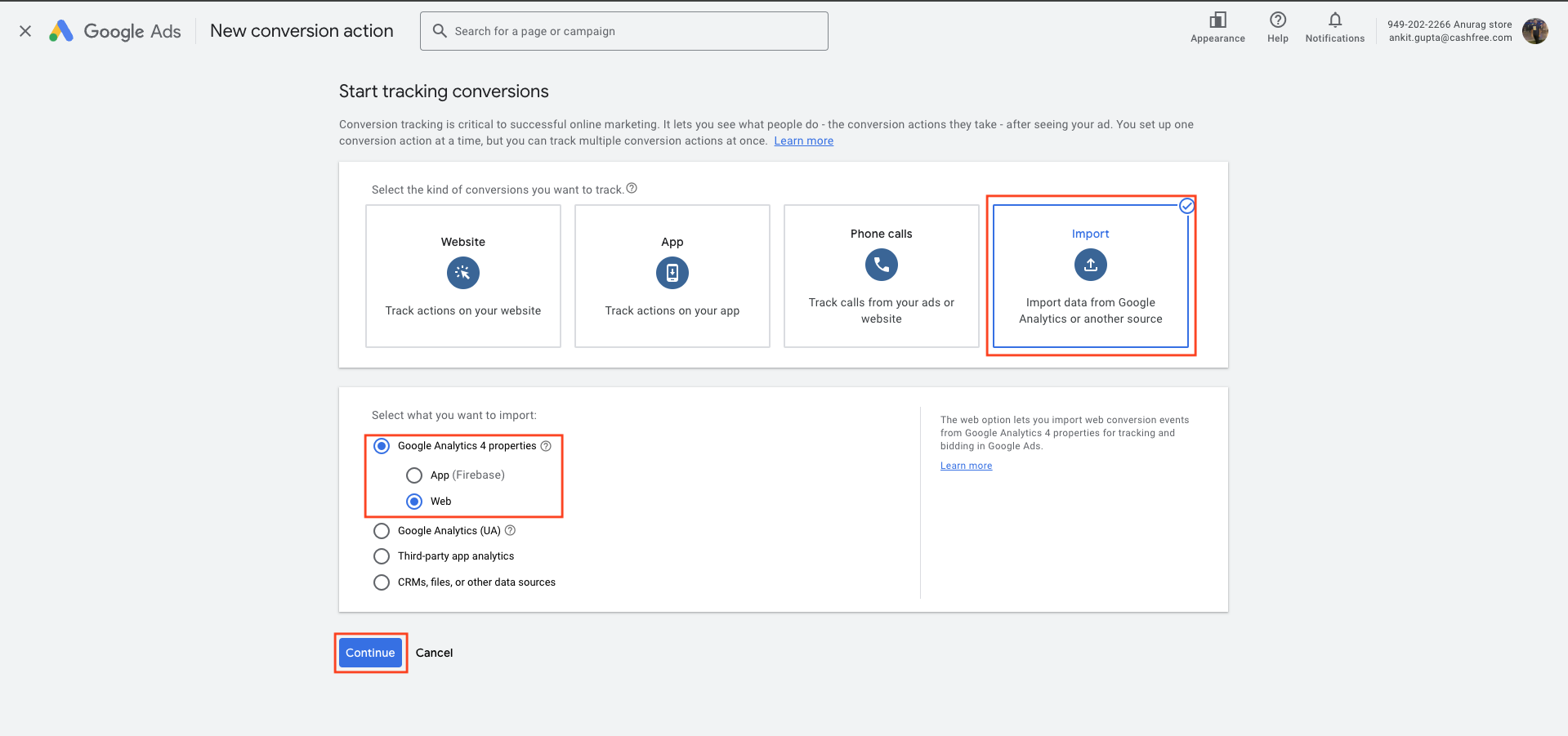
5. Select **Import**.
6. Select **Google Analytics 4 properties**, select **Web**, then select **Continue**.
3. Select **Link** (top-right).
4. Select **Google Ads accounts** and pick the account(s) you want to link.
5. Select the checkbox next to the account and select **Confirm**.
6. On the next screen, ensure **Enable personalised advertising** and **Enable auto tagging** are turned on (they should be on by default). Keep both enabled where possible.
* Personalised advertising lets you use GA4 audiences for remarketing in Google Ads.
* Auto tagging adds the gclid parameter to your ad URLs so GA4 can attribute clicks and conversions to Google Ads campaigns.
7. Select **Next**, review the settings, then select **Submit**.
Allow up to 24 hours for data to start flowing between the two platforms.
### Step 3: Import the purchase conversion into Google Ads
After linking and once data has synced, import the GA4 conversion into Google Ads.
1. Sign in to your Google Ads account.
2. From the left menu, select **Goals**.
3. Under **Conversion**, select **Summary**.
4. Select **+ Create conversion action**.
5. Select **Import**.
6. Select **Google Analytics 4 properties**, select **Web**, then select **Continue**.
 7. Select the **purchase** event (or other conversions you want to track) from the list of GA4 key events.
8. Select **Import and continue**, then select **Done**.
### Step 4: Configure the purchase conversion in Google Ads
1. On the **Conversions** summary page, find the purchase conversion you imported.
2. Select the conversion name to edit settings.
3. Set **Value** to **Use the value from Google Analytics** so the purchase amount is passed into Google Ads dynamically.
4. Set **Action optimisation** to **Primary action** so Google Ads can use this conversion for bidding optimisation.
When setup is complete, start analysing conversion data in both platforms.
Changes to conversion tracking apply only to future orders and events and won’t be applied retroactively to historical data. Allow up to 48 hours for the new conversion data to appear in GA4 and Meta reporting dashboards.
Once you have configured Meta Pixel integration with Cashfree, you can link it with Meta Ads Manager to enhance your advertising campaigns with conversion tracking and optimisation.
### Prerequisites
Before linking Meta Pixel with Meta Ads, ensure you have:
* A configured Meta Pixel with Cashfree integration
* An active Meta Ads Manager account
* Admin access to your Meta Business account
### Step 1: Access your Meta Ads Manager
1. Sign in to [Meta Ads Manager](https://www.facebook.com/adsmanager/).
2. Navigate to **Events Manager** from the main menu.
3. Select your configured Pixel from the **Data Sources** list.
### Step 2: Verify pixel events
1. In **Events Manager**, go to your Pixel's **Overview** tab.
2. Verify that Cashfree events such as `purchase` and `InitiateCheckout` are appearing.
3. Verify event data quality using the **Diagnostics** tab.
### Step 3: Create custom conversions
1. In **Events Manager**, select **Custom Conversions** from the left menu.
2. Select **Create Custom Conversion**.
3. Define conversion rules based on Cashfree events:
* For purchase tracking: use the `purchase` event
* For checkout initiation: use the `InitiateCheckout` event
* For payment info collection: use the `AddPaymentInfo` event
4. Set conversion values and attribution windows as needed.
5. Save the custom conversion.
### Step 4: Use conversions in Meta Ads campaigns
1. In [Meta Ads Manager](https://www.facebook.com/adsmanager/), create or edit a campaign.
2. In the **Optimisation & Delivery** section, select your custom conversion as the optimisation goal.
3. Set appropriate bid strategies based on your conversion objectives.
4. Launch your campaign to begin using Cashfree conversion data for optimisation.
### Step 5: Monitor performance
* Use **[Ads Reporting](https://www.facebook.com/adsmanager/reporting/)** to view conversion metrics from Cashfree events.
* Monitor attribution data in **Events Manager** to understand the customer journey.
* Adjust campaign targeting and bidding based on Cashfree conversion insights.
## Verification and troubleshooting
* Allow up to 48 hours for new configurations.
* Ensure IDs and tokens are correct.
* For Shopify merchants, disable duplicate purchase events.
* Use provider-specific real-time or debug views.
If you are a Shopify merchant using One Click Checkout, disable the purchase event in Cashfree Meta Pixel setup. This prevents double-counting if Facebook and Instagram sales channels are active in your Shopify store.
## FAQs
posthog.capture('Accordion Clicked', { title: "I am not able to see events in the Meta Pixel Helper (Meta Pixel Ad Helper). Why?" })}>
Browser-side events are not currently supported. The Meta Pixel Helper extension only detects browser-side events.
Cashfree External Analytics integration supports server-side events only, which are pushed directly to the Meta Events Manager dashboard instead of the browser. As a result, events do not appear in the Meta Pixel Helper, but they are visible in the Meta Events Manager dashboard.
posthog.capture('Accordion Clicked', { title: "How long does it take for events to appear in Meta Pixel?" })}>
* After configuration in the Merchant Dashboard, events may take approximately **30 minutes to 1 hour** to appear in the Meta Events Manager.
* It may take **24–48 hours** for the same events to become visible in Meta Ads reporting.
posthog.capture('Accordion Clicked', { title: "What should I do if I am receiving duplicate events in Meta Pixel?" })}>
If you are receiving duplicate purchase events in the Meta Events Manager, events may be getting triggered from multiple sources.
To avoid duplication, disable the `purchase` event from the Cashfree Merchant Dashboard. This prevents Cashfree from sending the purchase event and resolves the duplication issue.
snippets/related-topics-loader.mdx
7. Select the **purchase** event (or other conversions you want to track) from the list of GA4 key events.
8. Select **Import and continue**, then select **Done**.
### Step 4: Configure the purchase conversion in Google Ads
1. On the **Conversions** summary page, find the purchase conversion you imported.
2. Select the conversion name to edit settings.
3. Set **Value** to **Use the value from Google Analytics** so the purchase amount is passed into Google Ads dynamically.
4. Set **Action optimisation** to **Primary action** so Google Ads can use this conversion for bidding optimisation.
When setup is complete, start analysing conversion data in both platforms.
Changes to conversion tracking apply only to future orders and events and won’t be applied retroactively to historical data. Allow up to 48 hours for the new conversion data to appear in GA4 and Meta reporting dashboards.
Once you have configured Meta Pixel integration with Cashfree, you can link it with Meta Ads Manager to enhance your advertising campaigns with conversion tracking and optimisation.
### Prerequisites
Before linking Meta Pixel with Meta Ads, ensure you have:
* A configured Meta Pixel with Cashfree integration
* An active Meta Ads Manager account
* Admin access to your Meta Business account
### Step 1: Access your Meta Ads Manager
1. Sign in to [Meta Ads Manager](https://www.facebook.com/adsmanager/).
2. Navigate to **Events Manager** from the main menu.
3. Select your configured Pixel from the **Data Sources** list.
### Step 2: Verify pixel events
1. In **Events Manager**, go to your Pixel's **Overview** tab.
2. Verify that Cashfree events such as `purchase` and `InitiateCheckout` are appearing.
3. Verify event data quality using the **Diagnostics** tab.
### Step 3: Create custom conversions
1. In **Events Manager**, select **Custom Conversions** from the left menu.
2. Select **Create Custom Conversion**.
3. Define conversion rules based on Cashfree events:
* For purchase tracking: use the `purchase` event
* For checkout initiation: use the `InitiateCheckout` event
* For payment info collection: use the `AddPaymentInfo` event
4. Set conversion values and attribution windows as needed.
5. Save the custom conversion.
### Step 4: Use conversions in Meta Ads campaigns
1. In [Meta Ads Manager](https://www.facebook.com/adsmanager/), create or edit a campaign.
2. In the **Optimisation & Delivery** section, select your custom conversion as the optimisation goal.
3. Set appropriate bid strategies based on your conversion objectives.
4. Launch your campaign to begin using Cashfree conversion data for optimisation.
### Step 5: Monitor performance
* Use **[Ads Reporting](https://www.facebook.com/adsmanager/reporting/)** to view conversion metrics from Cashfree events.
* Monitor attribution data in **Events Manager** to understand the customer journey.
* Adjust campaign targeting and bidding based on Cashfree conversion insights.
## Verification and troubleshooting
* Allow up to 48 hours for new configurations.
* Ensure IDs and tokens are correct.
* For Shopify merchants, disable duplicate purchase events.
* Use provider-specific real-time or debug views.
If you are a Shopify merchant using One Click Checkout, disable the purchase event in Cashfree Meta Pixel setup. This prevents double-counting if Facebook and Instagram sales channels are active in your Shopify store.
## FAQs
posthog.capture('Accordion Clicked', { title: "I am not able to see events in the Meta Pixel Helper (Meta Pixel Ad Helper). Why?" })}>
Browser-side events are not currently supported. The Meta Pixel Helper extension only detects browser-side events.
Cashfree External Analytics integration supports server-side events only, which are pushed directly to the Meta Events Manager dashboard instead of the browser. As a result, events do not appear in the Meta Pixel Helper, but they are visible in the Meta Events Manager dashboard.
posthog.capture('Accordion Clicked', { title: "How long does it take for events to appear in Meta Pixel?" })}>
* After configuration in the Merchant Dashboard, events may take approximately **30 minutes to 1 hour** to appear in the Meta Events Manager.
* It may take **24–48 hours** for the same events to become visible in Meta Ads reporting.
posthog.capture('Accordion Clicked', { title: "What should I do if I am receiving duplicate events in Meta Pixel?" })}>
If you are receiving duplicate purchase events in the Meta Events Manager, events may be getting triggered from multiple sources.
To avoid duplication, disable the `purchase` event from the Cashfree Merchant Dashboard. This prevents Cashfree from sending the purchase event and resolves the duplication issue.
snippets/related-topics-loader.mdx