> ## Documentation Index
> Fetch the complete documentation index at: https://www.cashfree.com/docs/llms.txt
> Use this file to discover all available pages before exploring further.
# Go Live Checklist
> Use this Cashfree One Click Checkout go-live checklist for Shopify Preview Stores to validate configurations and maximise conversions before launch.
After Cashfree One Click Checkout is successfully integrated with your Shopify Preview Store, ensure and verify the following configurations to get the maximum conversions on the Checkout.
## Shopify dashboard
### Products
Ensure Cashfree is added as Sales Channel for all your products in Shopify.
1. Navigate to **Products** > All in your Shopify store admin.
2. Select all the products and click **Include in sales channels**.
3. Select **Cashfree-OCC-** sales channel and click **Include products** to save.
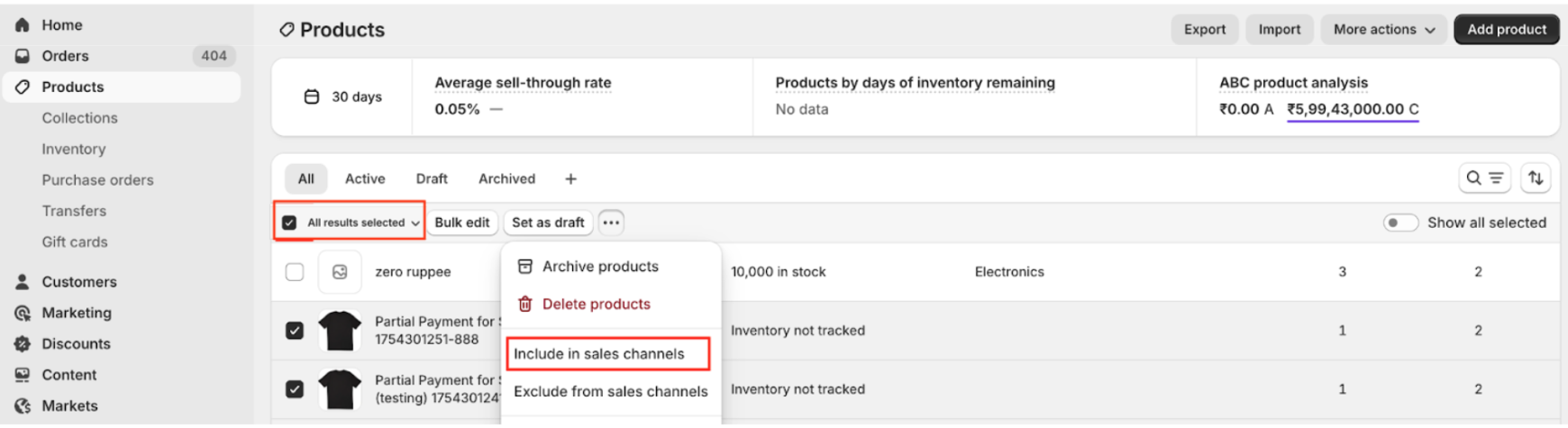 Once done, Cashfree Checkout will open for all these products when added in the cart and proceeding to checkout.
### Taxes
Ensure **Inclusive Taxes** is set up since Cashfree Checkout is compatible with this setting.
1. Navigate to **Settings > Taxes and duties** in your Shopify store admin.
2. Scroll to **Global settings** and select the **Include sales tax in product price and shipping rate** check box. Click **Save**.
Once done, Cashfree Checkout will open for all these products when added in the cart and proceeding to checkout.
### Taxes
Ensure **Inclusive Taxes** is set up since Cashfree Checkout is compatible with this setting.
1. Navigate to **Settings > Taxes and duties** in your Shopify store admin.
2. Scroll to **Global settings** and select the **Include sales tax in product price and shipping rate** check box. Click **Save**.
 ## Cashfree dashboard
### Payments
* Verify **Online Payments** are set up for your account.
* Check that the Online Payment Gateway is activated. Note that Payment Gateway is shown in Products Activated section on Merchant Dashboard.
* Check that online payment methods like **UPI** and **Cards** are activated in the **[Merchant Dashboard](https://merchant.cashfree.com/auth/login)** and go to **Payment Gateway > Settings > Payment Methods**.
### COD and RTO
* Verify **COD** is set up for your account.
* Configure **COD** (or **Partial COD**) rules. Learn more about [COD management](/docs/payments/checkout/cod/overview).
* Set up **RTO Intelligence** and COD configurations to manage RTO. Learn more about [RTO tools](/docs/payments/checkout/cod/blacklist-cod).\
You can configure COD and set up RTO rules in the **[Merchant Dashboard](https://merchant.cashfree.com/auth/login)** and go to **PG Products > One Click Checkout > COD & RTO**.
## Ads and analytics tracking
To maintain accurate ROAS, Conversion metrics and performance, ensure your ads and analytics setup is complete. Your ROAS and Conversion metrics will drop if this isn't set up correctly.
1. Configure **Meta Pixel tracking** to get Checkout and Conversion events.
* Know more about the setup here:**[External Analytics OCC](/docs/payments/checkout/after/external-analytics#meta-pixel).**
* You can set up analytics tracking in the **[Merchant Dashboard](https://merchant.cashfree.com/auth/login)** and go to **Payment Gateway > Developers > Checkout Analytics**.
If “Facebook and Instagram” sales channel is activated in your Shopify store, ensure the **Purchase** event is disabled in Cashfree during the Meta Pixel Analytics setup.
2. Configure **Google Analytics (GA4) tracking** to get Checkout and Conversion events.
* Know more about the setup here: **[External Analytics OCC](/docs/payments/checkout/after/external-analytics#google-analytics-4-ga4).**
* You can set up analytics tracking in the **[Merchant Dashboard](https://merchant.cashfree.com/auth/login)** and go to **Payment Gateway > Developers > Checkout Analytics**.
3. Configure **Google Ads conversion tracking via GA4**.
* Know more about the setup here: **[External Analytics OCC](/docs/payments/checkout/after/external-analytics#ga4-google-ads).**
## Shipping and delivery
Ensure your **Shipping Rates and Delivery Time** is correctly configured to avoid drop-offs at the address stage.
* Set up your **Shipping Rules, COD Availability, and Shipping Charges** to ease your delivery operations.
* Learn more about the [shipping setup steps](/docs/payments/checkout/shipping-overview).
* You can set up the shipping rules in the **[Merchant Dashboard](https://merchant.cashfree.com/auth/login)** and go to **PG Products > One Click Checkout > Shipping & Delivery**.
Shoppers are increasingly conscious of **Expected Delivery Time**. Ensure this is added during setup to avoid drop-offs.
Shopify Shipping Rules **won't be shown** on Cashfree OCC. Set these up in Cashfree as per the above.
## Discounts and offers
Ensure your Discounts and Offers are synced from Shopify or created in Cashfree to boost your customer acquisition and repeat purchases.
* Setup your Shopify Discounts to be displayed on Checkout.
* For Shopify discounts to work with Cashfree Checkout, the **Cashfree-OCC-\*** sales channel must be added. Learn more about [Shopify discounts](/docs/payments/checkout/offers/shopify).
* Create Prepaid, Payment Method, and other special offers to drive conversions.
You can import Shopify discounts and create Cashfree offers in the **[Merchant Dashboard](https://merchant.cashfree.com/auth/login)** and go to **PG Products > One Click Checkout > Offers**.
## Branding and customisation
Customise the checkout experience to match your brand identity.
* You can customise your **Brand Logo** and **Colours** on checkout in the **[Merchant Dashboard](https://merchant.cashfree.com/auth/login)** and go to **PG Products > One Click Checkout > Customisation**.
Ensure your **Brand Name** is visible on Checkout. Reach out to [Cashfree support](https://merchant.cashfree.com/merchants/landing?env=prod\&raise_issue=1) for this.
## Abandoned checkout recovery
Set up recovery flows to recover dropped shoppers.
1. **Abandoned Checkout**:
* This is created and available in Shopify dashboard and no configuration required.
* Connect your **Recovery Provider** on Shopify to target these shoppers.\
Only sessions that have reached the **Payments page** and dropped are created in Shopify.
2. **WhatsApp via Cashfree webhooks**:
* Configure your WhatsApp Provider to get notified via **Abandoned Checkout webhooks**. Learn more about [Abandoned Checkout webhooks](/docs/payments/checkout/abandoned-checkout/webhook).\
Sessions that completed the **Login step** (verified phone number is available) and dropped are notified via webhook.
## Final checkout flow
* Verify and experience the final checkout flow in your **Preview Theme** on Shopify.
## OCC analytics
* Check OCC **Sales and Performance** in the **[Merchant Dashboard](https://merchant.cashfree.com/auth/login)** and go to **PG Products > One Click Checkout > Funnel Analytics**.
## Special flow handling
### Bundler apps
* Check your bundled product information and amount are correctly captured in **Cart Summary** and when **Order is Placed via OCC**.
* If your current Bundler app isn't working, try one of these integrated and tested apps:
* [Shopify Bundles](https://apps.shopify.com/shopify-bundles)
* [Bundler Product Bundles](https://apps.shopify.com/bundler-product-bundles)
* [Pumper Product Bundles](https://apps.shopify.com/pumper-quantity-breaks-product-bundles-discounts)
* [Essential Post-Purchase Upsell](https://apps.shopify.com/essential-post-purchase-upsell)
* [Revy Product Bundles](https://apps.shopify.com/product-bundles-discounts-by-revy)
* [Koala Product Bundles](https://apps.shopify.com/profitkoala-upsell-bundle)
### Sidecart apps
* Check product, amount, and discount information is correctly captured during OCC Checkout.
* OCC works with vanilla Shopify Sidecart. If your current app doesn’t work, try one of these:
* [iCart](https://apps.shopify.com/icart)
* [Slide Cart](https://apps.shopify.com/slide-cart)
* [Sticky Cart by Qikify](https://apps.shopify.com/sticky-cart-by-qikify)
* [CornerCart](https://apps.shopify.com/cornercart)
* [XB Sticky Add To Cart + Upsell](https://apps.shopify.com/xb-sticky-add-to-cart-upsell)
* [Monster Cart Upsell+Free Gifts](https://apps.shopify.com/monster-upsells)
### International orders
* OCC doesn't support International Orders and Currency.
* To facilitate the same, we can add a custom CTA above/below your Checkout button which redirects such shoppers to Shopify Checkout.
## Cashfree dashboard
### Payments
* Verify **Online Payments** are set up for your account.
* Check that the Online Payment Gateway is activated. Note that Payment Gateway is shown in Products Activated section on Merchant Dashboard.
* Check that online payment methods like **UPI** and **Cards** are activated in the **[Merchant Dashboard](https://merchant.cashfree.com/auth/login)** and go to **Payment Gateway > Settings > Payment Methods**.
### COD and RTO
* Verify **COD** is set up for your account.
* Configure **COD** (or **Partial COD**) rules. Learn more about [COD management](/docs/payments/checkout/cod/overview).
* Set up **RTO Intelligence** and COD configurations to manage RTO. Learn more about [RTO tools](/docs/payments/checkout/cod/blacklist-cod).\
You can configure COD and set up RTO rules in the **[Merchant Dashboard](https://merchant.cashfree.com/auth/login)** and go to **PG Products > One Click Checkout > COD & RTO**.
## Ads and analytics tracking
To maintain accurate ROAS, Conversion metrics and performance, ensure your ads and analytics setup is complete. Your ROAS and Conversion metrics will drop if this isn't set up correctly.
1. Configure **Meta Pixel tracking** to get Checkout and Conversion events.
* Know more about the setup here:**[External Analytics OCC](/docs/payments/checkout/after/external-analytics#meta-pixel).**
* You can set up analytics tracking in the **[Merchant Dashboard](https://merchant.cashfree.com/auth/login)** and go to **Payment Gateway > Developers > Checkout Analytics**.
If “Facebook and Instagram” sales channel is activated in your Shopify store, ensure the **Purchase** event is disabled in Cashfree during the Meta Pixel Analytics setup.
2. Configure **Google Analytics (GA4) tracking** to get Checkout and Conversion events.
* Know more about the setup here: **[External Analytics OCC](/docs/payments/checkout/after/external-analytics#google-analytics-4-ga4).**
* You can set up analytics tracking in the **[Merchant Dashboard](https://merchant.cashfree.com/auth/login)** and go to **Payment Gateway > Developers > Checkout Analytics**.
3. Configure **Google Ads conversion tracking via GA4**.
* Know more about the setup here: **[External Analytics OCC](/docs/payments/checkout/after/external-analytics#ga4-google-ads).**
## Shipping and delivery
Ensure your **Shipping Rates and Delivery Time** is correctly configured to avoid drop-offs at the address stage.
* Set up your **Shipping Rules, COD Availability, and Shipping Charges** to ease your delivery operations.
* Learn more about the [shipping setup steps](/docs/payments/checkout/shipping-overview).
* You can set up the shipping rules in the **[Merchant Dashboard](https://merchant.cashfree.com/auth/login)** and go to **PG Products > One Click Checkout > Shipping & Delivery**.
Shoppers are increasingly conscious of **Expected Delivery Time**. Ensure this is added during setup to avoid drop-offs.
Shopify Shipping Rules **won't be shown** on Cashfree OCC. Set these up in Cashfree as per the above.
## Discounts and offers
Ensure your Discounts and Offers are synced from Shopify or created in Cashfree to boost your customer acquisition and repeat purchases.
* Setup your Shopify Discounts to be displayed on Checkout.
* For Shopify discounts to work with Cashfree Checkout, the **Cashfree-OCC-\*** sales channel must be added. Learn more about [Shopify discounts](/docs/payments/checkout/offers/shopify).
* Create Prepaid, Payment Method, and other special offers to drive conversions.
You can import Shopify discounts and create Cashfree offers in the **[Merchant Dashboard](https://merchant.cashfree.com/auth/login)** and go to **PG Products > One Click Checkout > Offers**.
## Branding and customisation
Customise the checkout experience to match your brand identity.
* You can customise your **Brand Logo** and **Colours** on checkout in the **[Merchant Dashboard](https://merchant.cashfree.com/auth/login)** and go to **PG Products > One Click Checkout > Customisation**.
Ensure your **Brand Name** is visible on Checkout. Reach out to [Cashfree support](https://merchant.cashfree.com/merchants/landing?env=prod\&raise_issue=1) for this.
## Abandoned checkout recovery
Set up recovery flows to recover dropped shoppers.
1. **Abandoned Checkout**:
* This is created and available in Shopify dashboard and no configuration required.
* Connect your **Recovery Provider** on Shopify to target these shoppers.\
Only sessions that have reached the **Payments page** and dropped are created in Shopify.
2. **WhatsApp via Cashfree webhooks**:
* Configure your WhatsApp Provider to get notified via **Abandoned Checkout webhooks**. Learn more about [Abandoned Checkout webhooks](/docs/payments/checkout/abandoned-checkout/webhook).\
Sessions that completed the **Login step** (verified phone number is available) and dropped are notified via webhook.
## Final checkout flow
* Verify and experience the final checkout flow in your **Preview Theme** on Shopify.
## OCC analytics
* Check OCC **Sales and Performance** in the **[Merchant Dashboard](https://merchant.cashfree.com/auth/login)** and go to **PG Products > One Click Checkout > Funnel Analytics**.
## Special flow handling
### Bundler apps
* Check your bundled product information and amount are correctly captured in **Cart Summary** and when **Order is Placed via OCC**.
* If your current Bundler app isn't working, try one of these integrated and tested apps:
* [Shopify Bundles](https://apps.shopify.com/shopify-bundles)
* [Bundler Product Bundles](https://apps.shopify.com/bundler-product-bundles)
* [Pumper Product Bundles](https://apps.shopify.com/pumper-quantity-breaks-product-bundles-discounts)
* [Essential Post-Purchase Upsell](https://apps.shopify.com/essential-post-purchase-upsell)
* [Revy Product Bundles](https://apps.shopify.com/product-bundles-discounts-by-revy)
* [Koala Product Bundles](https://apps.shopify.com/profitkoala-upsell-bundle)
### Sidecart apps
* Check product, amount, and discount information is correctly captured during OCC Checkout.
* OCC works with vanilla Shopify Sidecart. If your current app doesn’t work, try one of these:
* [iCart](https://apps.shopify.com/icart)
* [Slide Cart](https://apps.shopify.com/slide-cart)
* [Sticky Cart by Qikify](https://apps.shopify.com/sticky-cart-by-qikify)
* [CornerCart](https://apps.shopify.com/cornercart)
* [XB Sticky Add To Cart + Upsell](https://apps.shopify.com/xb-sticky-add-to-cart-upsell)
* [Monster Cart Upsell+Free Gifts](https://apps.shopify.com/monster-upsells)
### International orders
* OCC doesn't support International Orders and Currency.
* To facilitate the same, we can add a custom CTA above/below your Checkout button which redirects such shoppers to Shopify Checkout.
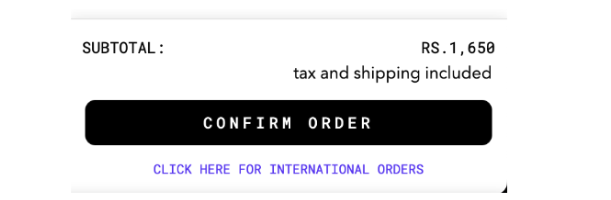 Reach out to [Cashfree support](https://merchant.cashfree.com/merchants/landing?env=prod\&raise_issue=1) for this configuration.
### Gift card and store credit apps
* OCC doesn't support Shopify or custom Gift Card and Store Credit Apps.
* Add a **custom CTA** above/below Checkout button to redirect shoppers to Shopify Checkout.
Reach out to [Cashfree support](https://merchant.cashfree.com/merchants/landing?env=prod\&raise_issue=1) for this configuration.
### Gift card and store credit apps
* OCC doesn't support Shopify or custom Gift Card and Store Credit Apps.
* Add a **custom CTA** above/below Checkout button to redirect shoppers to Shopify Checkout.
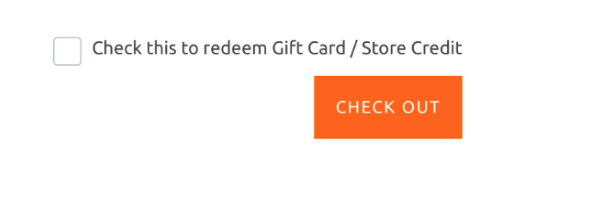 Reach out to [Cashfree support](https://merchant.cashfree.com/merchants/landing?env=prod\&raise_issue=1) for this configuration.
### Loyalty and rewards apps
* OCC doesn't support third-party Loyalty Apps.
* Add a **custom CTA** above/below Checkout button to redirect shoppers to Shopify Checkout.
Reach out to [Cashfree support](https://merchant.cashfree.com/merchants/landing?env=prod\&raise_issue=1) for this configuration.
### Loyalty and rewards apps
* OCC doesn't support third-party Loyalty Apps.
* Add a **custom CTA** above/below Checkout button to redirect shoppers to Shopify Checkout.
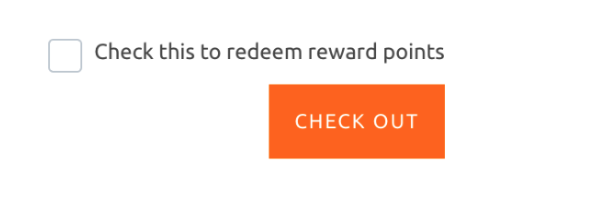 Reach out to [Cashfree support](https://merchant.cashfree.com/merchants/landing?env=prod\&raise_issue=1) for this configuration.