> ## Documentation Index
> Fetch the complete documentation index at: https://www.cashfree.com/docs/llms.txt
> Use this file to discover all available pages before exploring further.
# Configure Cash on Delivery
> Configure Cashfree Cash on Delivery rules: set transaction amount thresholds, COD types, handling fees, and partial-payment collection to lift conversions.
Cashfree Payments lets you set rules for handling COD transactions. You can define rules based on transaction amount, specify COD types, apply handling fees, and enable partial payment collection. These configurations give customers more flexibility and help increase conversions.
## Key features
* **Partial COD support**: Collect a flat amount or a percentage of the order value upfront. This helps reduce RTOs, improve order reliability, and manage risk for high-value or first-time orders—while offering customers flexible payment options and protecting your business.
* **Flexible COD rules**: Set minimum and maximum order amounts to control COD eligibility.
* **Custom transaction types**: Choose between full COD or Partial COD based on your business needs.
* **Handling fee configuration**: Apply handling fees for COD orders to offset delivery risks or costs.
* **Tiered rule setup**: Create multiple slabs to apply different COD rules for different order ranges.
## Configuring COD
To configure COD:
1. Log in to the **[Merchant Dashboard](https://merchant.cashfree.com/auth/login)**.
2. Under **One-Click Checkout**, select **Access**.
3. In the left pane, select **COD & RTO**.
4. Select the **Configuration** tab.
5. Under **Configure COD Rules**, do the following:
* In **Transaction Amount**, set the **Min Amount** and **Max Amount** for COD.
* Under **Transaction Type**, choose one of the following:
* **COD**: Enter a value in the **Handling Fee** field.
* **Partial COD**: Specify the advance amount to collect. Choose a **Flat Amount** or **Percentage** of the order value.
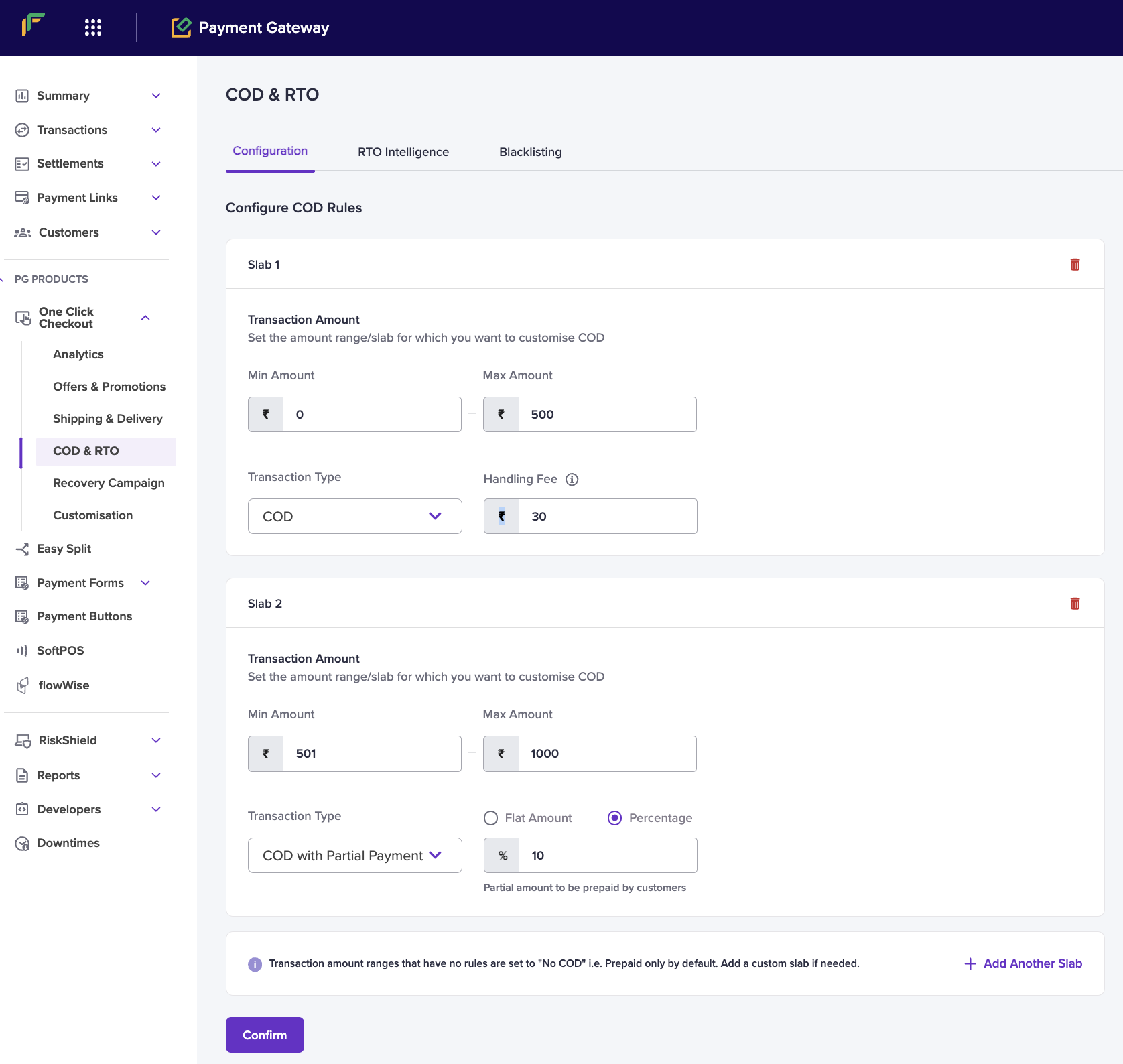 6. To define more COD rules, select **Add Another Slab**.
7. Select **Confirm** to save your settings.
**Note**: If a transaction amount doesn’t match any rule, COD is disabled and the payment defaults to prepaid. Create custom slabs as needed.
6. To define more COD rules, select **Add Another Slab**.
7. Select **Confirm** to save your settings.
**Note**: If a transaction amount doesn’t match any rule, COD is disabled and the payment defaults to prepaid. Create custom slabs as needed.