> ## Documentation Index
> Fetch the complete documentation index at: https://www.cashfree.com/docs/llms.txt
> Use this file to discover all available pages before exploring further.

# WooCommerce

> Integrate Cashfree One Click Checkout with WooCommerce stores to provide a fast, branded payment experience for WordPress-based ecommerce shops.

<div class="hidden mb-4" data-table-of-contents="top">
  <iframe height="150" width="100%" class="shadow-2xl rounded-md" src="https://www.youtube.com/embed/vWdjhPrOb70?si=75alOhZjY-kRVqdh&enablejsapi=1" title="YouTube video player" frameborder="0" allow="accelerometer; autoplay; clipboard-write; encrypted-media; gyroscope; picture-in-picture" allowfullscreen />
</div>

Accept payments instantly on your WooCommerce store with the Cashfree Payments no-code payment gateway. The following major payment methods are supported:

* UPI
* Credit cards
* Debit cards
* Net banking
* Wallets
* Buy Now Pay Later (BNPL)

<Steps>
  <Step title="Sign up and set up">
    1. **[Sign up with Cashfree](https://merchant.cashfree.com/merchants/signup?source-action=docs%20page\&action=Sign%20Up\&button-id=StartNow_EcomPluginWooCom)** if you don't have an account.
    2. Submit the [required documents](https://knowledgebase.cashfree.com/support/solutions/articles/48001146022-what-are-the-documents-needed-for-activating-my-cashfree-account-).
  </Step>

  <Step title="Install the Cashfree payments plugin">
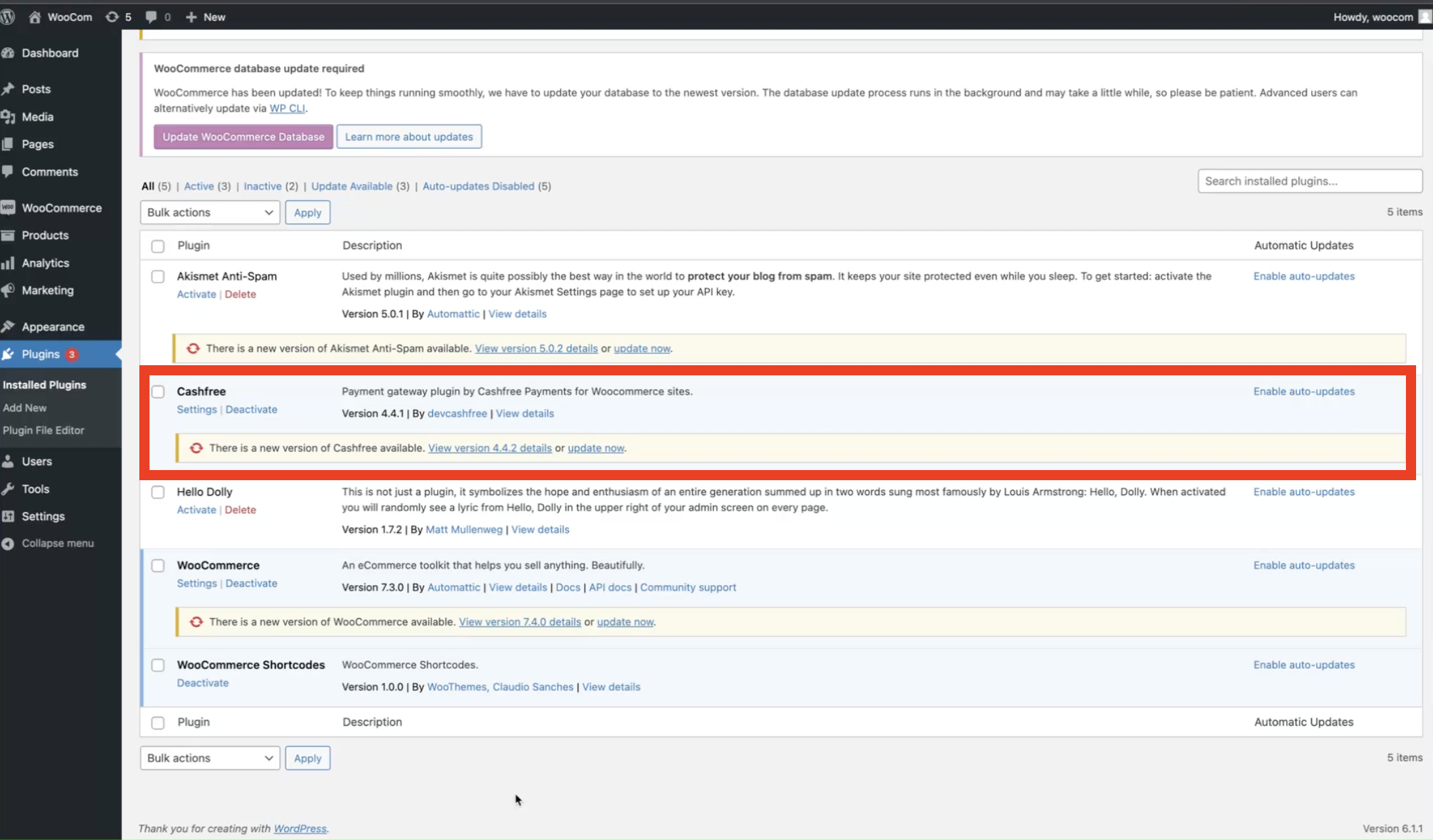
    1. **[Download the plugin](https://wordpress.org/plugins/cashfree)** from WordPress.
    2. Log in to your WordPress Admin Dashboard.
    3. Upload and install the plugin in `/wp-content/plugins`.
    4. Activate the Cashfree Plugin from the Plugins page.
  </Step>

  <Step title="Configure Cashfree in WooCommerce">
    1. Go to **WooCommerce > Settings > Checkout**.
    2. Select **Cashfree** under Payment Gateways.
    3. Enable Cashfree by checking the **Enable/Disable** box.
  </Step>

  <Step title="Enter your credentials">
    1. Enter your **App ID** and **Secret Key** from Cashfree in the plugin settings.
    2. Configure optional settings:
       * **Sandbox Mode**: Enable to use test mode.
       * **In-Context Payment**: Enable to avoid redirection during payment.
    3. Click **Save Changes**.

    <Warning>
      **Note**: If you encounter an "Authentication Failed" error, clear the "Enable Cashfree Sandbox" checkbox.
    </Warning>
  </Step>

  <Step title="Whitelist your domain">
    To complete the integration, request domain whitelisting:

    1. Log in to the [Merchant Dashboard](https://merchant.cashfree.com/auth/login).
    2. Navigate to **Developers > Whitelisting**.
    3. Follow the [whitelisting guide](/payments/online/go-live/whitelist).
  </Step>
</Steps>

## Buy Now Pay Later plus integration

<Steps>
  <Step title="Setup guide">
    1. **Upgrade Cashfree Plugin**: Go to **WooCommerce Admin > Plugins** and update to the latest version.
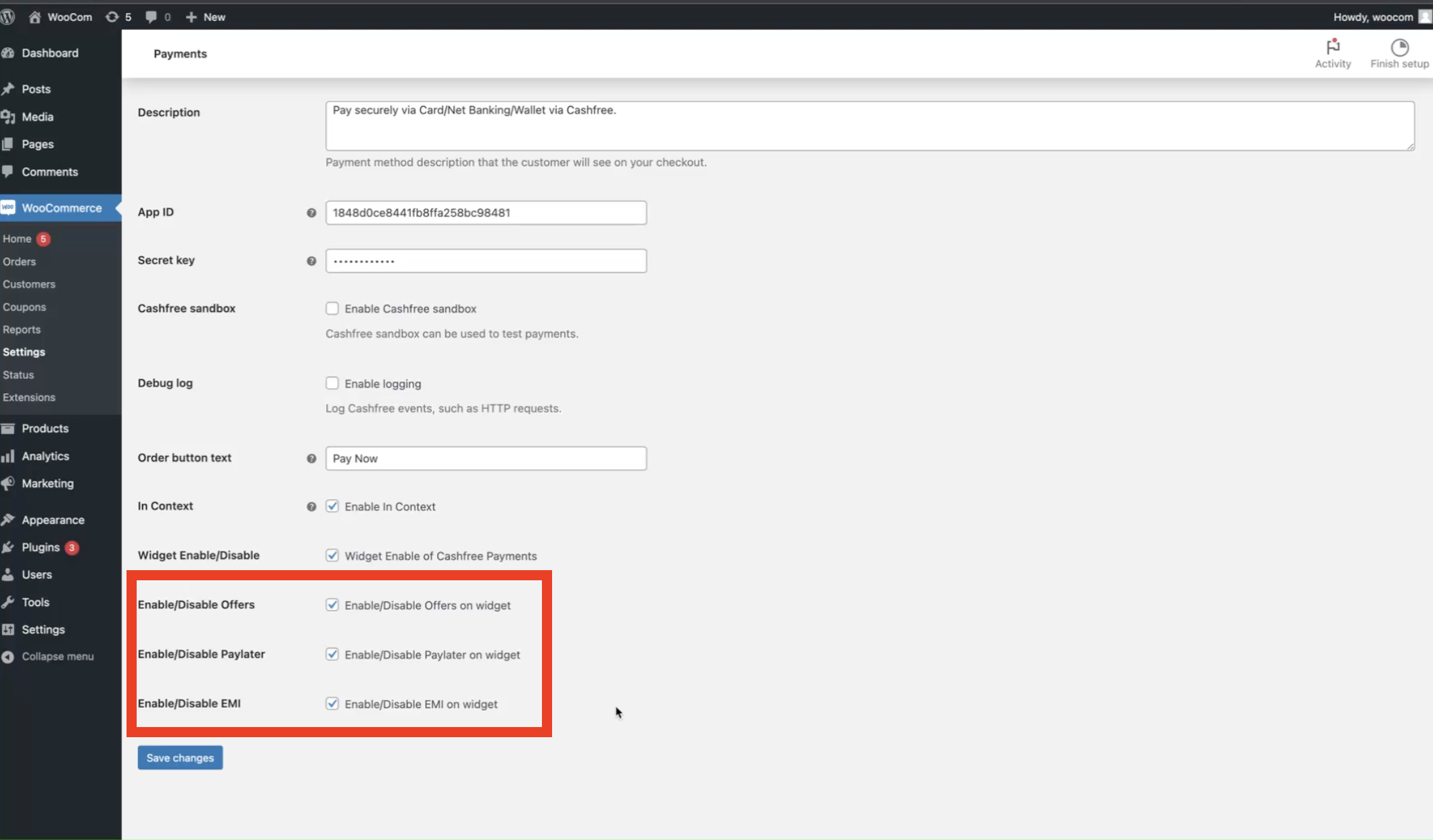
    2. **Enable BNPL Options**: Go to **Settings** and activate offers, pay later, or EMI options as desired.

           <img src="https://mintcdn.com/cashfreepayments-d00050e9/u8Cr16YpkCLylH2l/static/payments/checkout/Screenshot_2023-02-21_at_3.42.07_PM.png?fit=max&auto=format&n=u8Cr16YpkCLylH2l&q=85&s=30d689ae983c2c3bf429af09a8a3c5d6" alt="BNPL Settings Page" width="2118" height="1242" data-path="static/payments/checkout/Screenshot_2023-02-21_at_3.42.07_PM.png" />

           <img src="https://mintcdn.com/cashfreepayments-d00050e9/u8Cr16YpkCLylH2l/static/payments/checkout/Screenshot_2023-02-21_at_3.43.07_PM.png?fit=max&auto=format&n=u8Cr16YpkCLylH2l&q=85&s=f14e8e275781650465fc1ec17b8e458b" alt="BNPL Plus Display on Product Page" width="2118" height="1242" data-path="static/payments/checkout/Screenshot_2023-02-21_at_3.43.07_PM.png" />

    BNPL Plus will now display on your product pages.
  </Step>

  <Step title="Troubleshooting">
    **Common errors and solutions**

    * **"Authentication Failed"**: Ensure Sandbox Mode is disabled in settings.
    * **Domain error**: Verify the domain is whitelisted in the Merchant Dashboard.
  </Step>
</Steps>

**Learn how to use other features to improve conversion using [offers](./coupons) and [cart recovery](./cart-recovery).**

<div
  className="callout info"
  style={{
backgroundColor: 'light-dark(#f9f7fd, #2d1b4e)',
borderColor: 'light-dark(#cdbaef, #6930ca)',
color: 'light-dark(#000000, #ffffff)'
}}
>
  <p style={{fontSize: '1.3em', fontWeight: '500', marginBottom: '16px'}}>Affiliate partner program</p>

  <p>As a developer building payment experiences for your clients, you can earn additional income while providing them with industry-leading payment solutions.</p>

  <p>Join the <a href="https://partner.cashfree.com/partner-ui/authentication/signup?source-action=Affiliate%20Program%20LP&action=Sign%20Up&button-id=StartNow_CashfreeAffiliatePartnerProgram">Cashfree affiliate partner program</a> and get rewarded every time your clients use Cashfree.</p>

  <p>**What you get:**</p>

  <ul>
    <li>Earn up to 0.25% commission on every transaction.</li>
    <li>Become a trusted fintech partner for your clients.</li>
    <li>Access to a dedicated partner manager for expert support.</li>
  </ul>

  <p>**What your clients get:**</p>

  <ul>
    <li>Instant activation and go live in minutes.</li>
    <li>Industry-best success rate across all payment modes.</li>
    <li>Effortless acceptance of international payments in 140+ currencies.</li>
  </ul>

  <p>Get started today. <a href="https://partner.cashfree.com/partner-ui/authentication/signup?source-action=Affiliate%20Program%20LP&action=Sign%20Up&button-id=StartNow_BecomeAPartner">Become a partner now</a>.</p>
</div>
