> ## Documentation Index
> Fetch the complete documentation index at: https://www.cashfree.com/docs/llms.txt
> Use this file to discover all available pages before exploring further.
# Show Purchase Context on Checkout
> Show a short purchase description on Cashfree checkout so customers can confirm what they are paying for before they complete the payment.
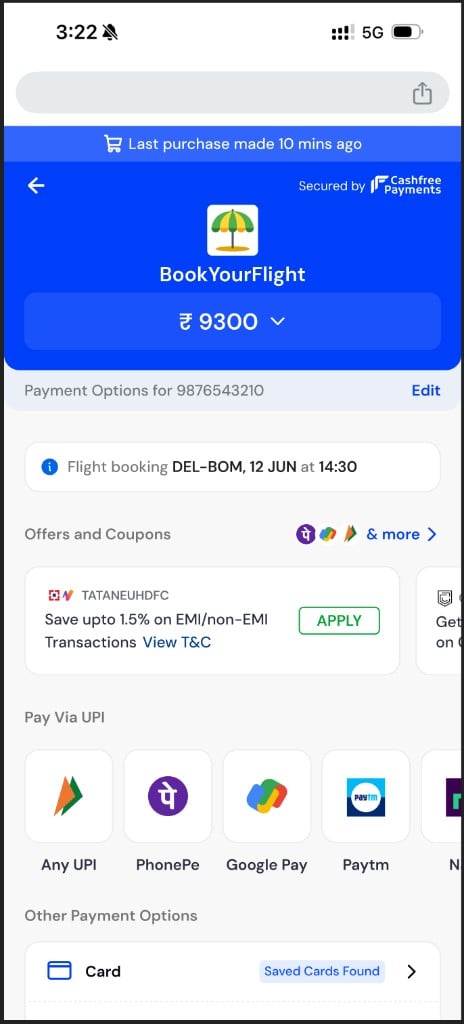
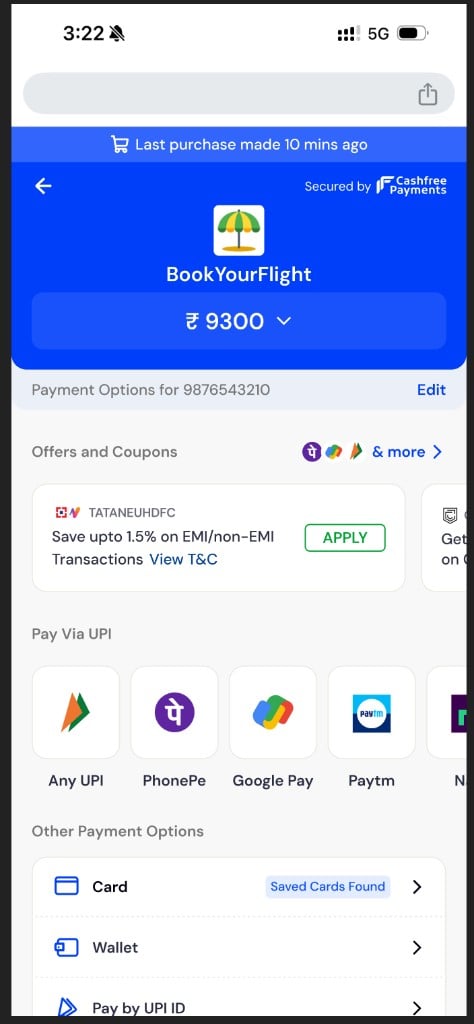
Checkout displays the merchant name, payment amount, and available payment methods. Use Contextual Checkout to add a short purchase description so customers can confirm what they are paying for before they complete the payment.
Contextual Checkout is available on request. Contact your Cashfree account manager or submit the [Support Form](https://merchant.cashfree.com/merchants/landing?env=prod\&raise_issue=1) to enable it on your account.
If you pass a valid `checkout_context` value, checkout displays a context card above the payment methods. If the key is missing, the value is invalid, or Contextual Checkout is not enabled for your account, checkout does not display the context card.
The following tabs show checkout scenarios with and without a context card:
 ## Add checkout context
Pass a `checkout_context` key in the existing `order_tags` object when you call the [Create Order API](/docs/api-reference/payments/latest/orders/create). This requires no new endpoint, SDK upgrade, or extra integration step.
You control the text shown in the context card. Use it for a route, booking reference, invoice number, or any other short description the customer can recognise.
**Context card rule**: If `checkout_context` is invalid, checkout ignores the value and does not display the context card.
```json theme={"dark"}
{
"order_amount": 9300.00,
"order_currency": "INR",
"customer_details": {
"customer_id": "",
"customer_phone": ""
},
"order_tags": {
"checkout_context": "Flight booking DEL to BOM, 12 JUN at 14:30"
}
}
```
## Add checkout context
Pass a `checkout_context` key in the existing `order_tags` object when you call the [Create Order API](/docs/api-reference/payments/latest/orders/create). This requires no new endpoint, SDK upgrade, or extra integration step.
You control the text shown in the context card. Use it for a route, booking reference, invoice number, or any other short description the customer can recognise.
**Context card rule**: If `checkout_context` is invalid, checkout ignores the value and does not display the context card.
```json theme={"dark"}
{
"order_amount": 9300.00,
"order_currency": "INR",
"customer_details": {
"customer_id": "",
"customer_phone": ""
},
"order_tags": {
"checkout_context": "Flight booking DEL to BOM, 12 JUN at 14:30"
}
}
```