> ## Documentation Index
> Fetch the complete documentation index at: https://www.cashfree.com/docs/llms.txt
> Use this file to discover all available pages before exploring further.
# PayU
> Connect a PayU account to Cashfree FlowWise to orchestrate cards, UPI, netbanking, and wallet payments through unified rule-based and AI-driven routing.
Payment Methods supported:
* [x] Cards (Credit, Debit and Prepaid)
* [x] UPI
* [x] Netbanking (all banks)
* [x] Wallets
* [x] BNPL
## Required steps:
1. Enable seamless mode for your account. Mention that you use Flowwise (Cashfree) as the technology company to handle sensitive card data.
2. Disable Auto-retry on failed transactions.
3. Configure Flowwise webhooks to receive all payment related event information
4. Enable the payment modes you want to use on Flowwise
5. Provide to PayU (if required), necessary documents for card data handling, duly provided by Cashfree. Please let your Cashfree AM know of this requirement.
## Configuration
Reason for disabling `Auto-retry`: If retry is enabled, Cashfree will not know about the status of the payment, and it may lead to incorrect payment information and mismatches.
Since, disabling retry when not live on Flowwise might affect your standard integration with PayU, you can request PayU AM to disable auto-retry once you have tested your PayU integration with Flowwise and want to start routing.
Please send the below mail to your SPOC at PayU to enable the required flags for Flowwise.
## Email to PayU
The following email needs to be sent to PayU to enable the configurations for your account.
Dear `Account Manager`,\
We are using Flowwise as a technology service provider to manage our integration with PayU for account `Merchant/Account ID`.
In order to use this TSP, we require certain configurations to be enabled as mentioned below:
1. Enablement of S2S/seamless integration for the above MID.
2. Disablement of the ‘auto retry’ option for all methods.
3. Configuration of the below end points for transaction callbacks for production and stage:\
For production - `https://push.cashfree.com/push/v1/pg/pa_payupg`
For sandbox/gamma - `https://push-test.cashfree.com/push/v1/pg/pa_payupg`
4. Enable webhooks for failed and bounced transactions.
5. Enable ‘ws\_callback’ to get status updates for delayed success transactions.
6. Enablement of UPI (both Intent and Collect), Cards, Wallet and Netbanking. \*\*\*
7. Enable Method UPI on S2S with txn\_s2s\_flow = 4 and also enable UPI Intent. \*\*\*
8. Enable Method txn\_s2s\_flow = 1 at PayU’s end. (This is an internal flag at PayU’s end for UPI intent transactions)
9. Please enable UPI intent for my account if it is not enabled already.
Additionally, please share the **KEY** and **SALT** for the account so that we can complete the integration.
Regards,
## Steps to add PayU gateway on Flowwise
1. Log in to the **[Merchant Dashboard](https://merchant.cashfree.com/auth/login)**
2. On the home page, click ‘Payment Gateway’, then select Flowwise from left navbar.
3. Select ‘Gateways’
4. On the top right, click **Add Gateways**
Select PayU from dropdown, and add a unique name and description for the gateway.\
Then hit ‘next’
5. Select ‘PROD’ environment if you are configuring your production Key and Salt.\
Click ‘Submit’.
6. You have now added PayU on to Flowwise.
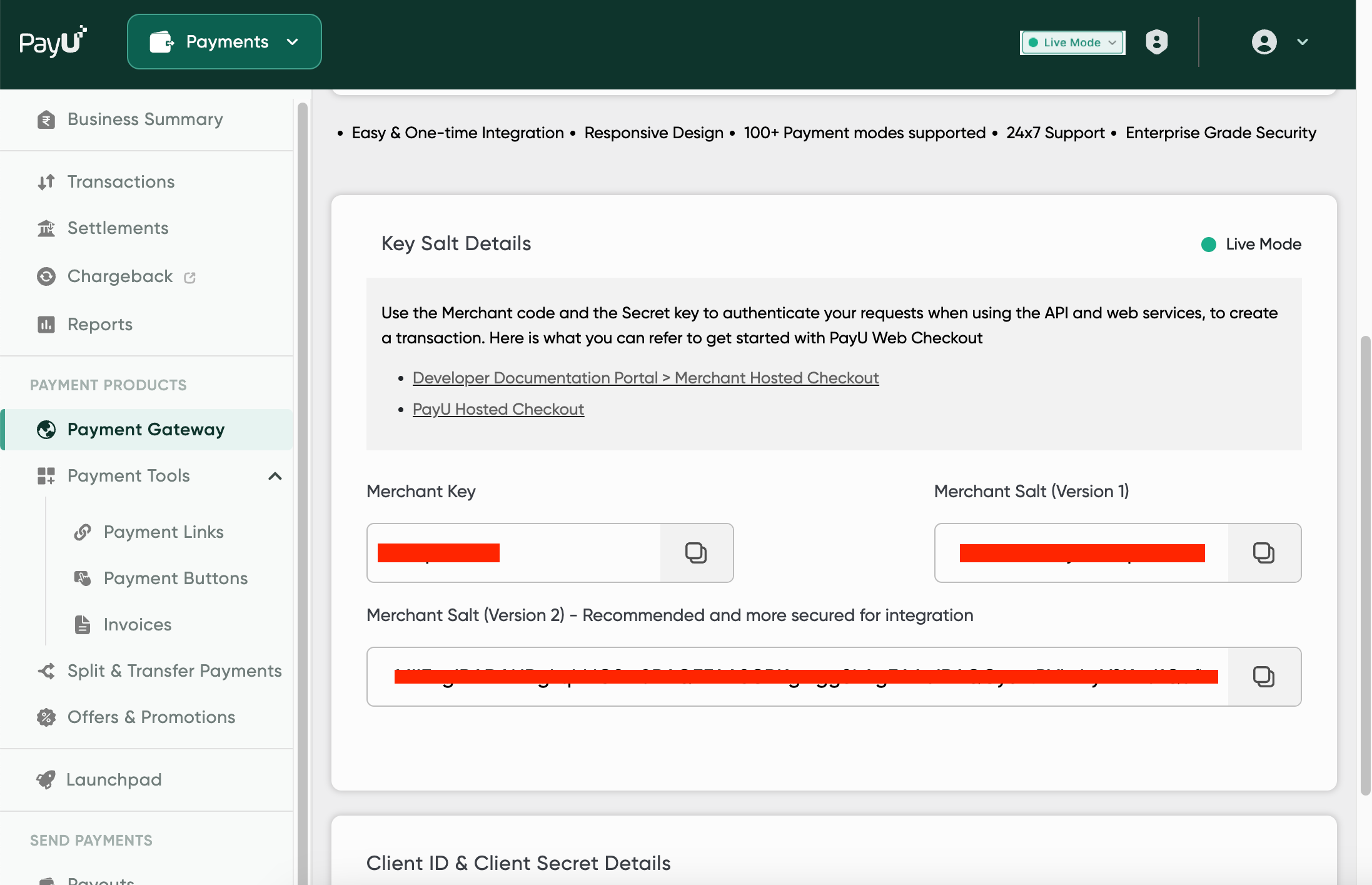
## How to find your key and salt
There are two ways of obtaining your key and salt
1. Login to your PayU dashboard
2. Select Payment Gateway under Collect Payments from the menu on the left-pane.
3. Scroll down to Key Salt Details section.
4. You will be able to find the credentials
 1. Your PayU Account manager will provide you the details on the mail.