> ## Documentation Index
> Fetch the complete documentation index at: https://www.cashfree.com/docs/llms.txt
> Use this file to discover all available pages before exploring further.
# Add a New Configuration
> Configure Cashfree FlowWise routing rules visually to split traffic across payment partners using percentages, conditions, and over 40 routing parameters.
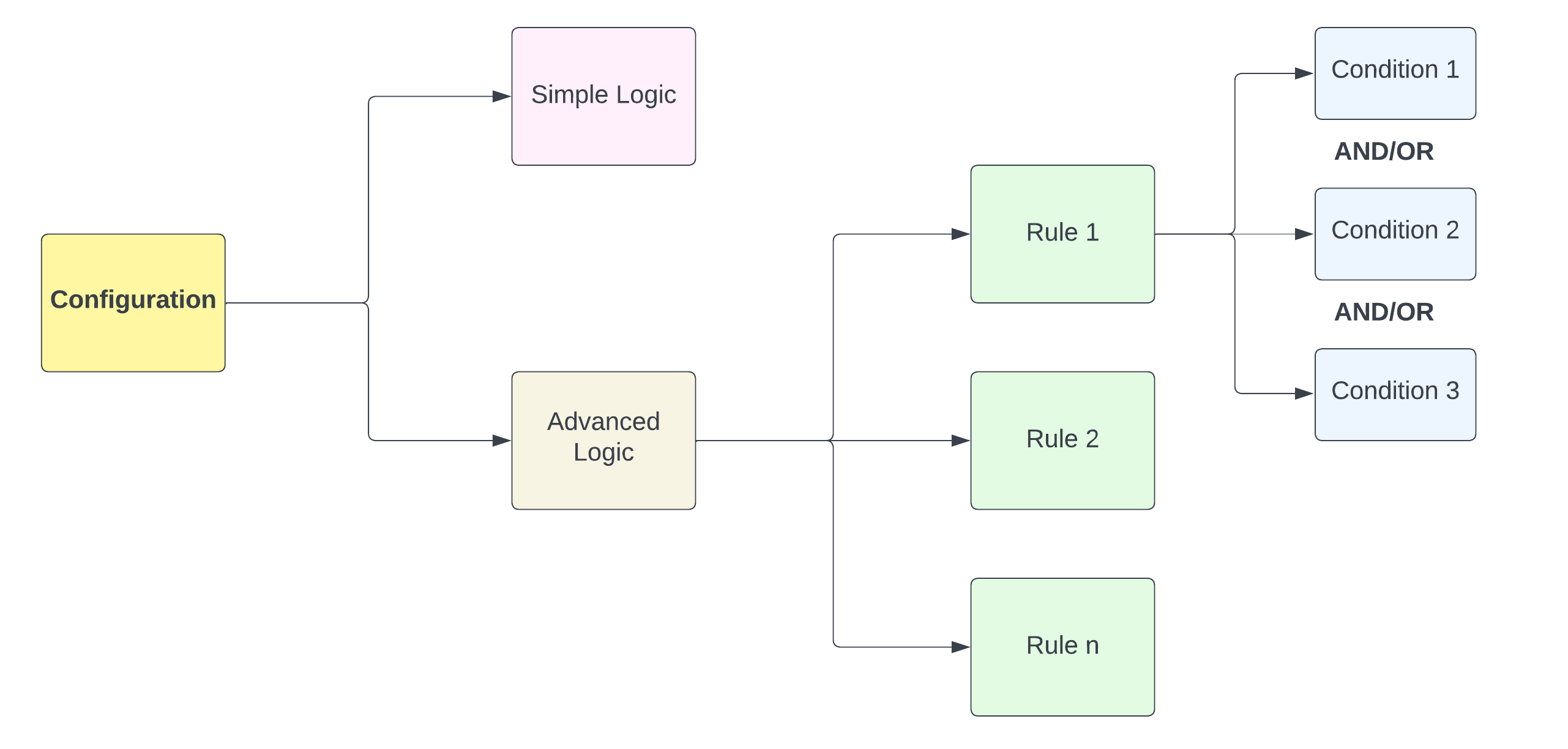
Flowwise rules visually can be understood with the below diagram:
 ## Adding a new configuration
A Configuration object reprepsents the set of routing rules that will be invoked by Cashfree for every payment. Our first step is to just create a new configuration. To get started:
1. Log in to your Cashfree Dashboard, navigate to Payment Gateway, and select FlowWise.
2. In the Configure screen, click Add Configuration and enter a unique Name and Description to identify the rule.
You will now land on the screen to add `Rules` to this `Configuration` object. A `rule` objects represents a condition like:
IF Payment Mode is `CREDIT CARD` AND IF Bank is `HDFC Bank`
There are two type of rules:
1. Simple Rule: This must always be set as this is the default rule for a `Configuration` object.
2. Advanced Rule: This is optional and should be used for advanced routing configuration.
## Add a simple rule
To configure a simple rule, just select a payment gateway from your configured gateways.
## Adding an advanced rule
Advanced rule can be used when you want to route payments based on various parameters such as payment method, bank, card networks, and more. For example: you may want to send all UPI transactions through Cashfree and PayU, and want to ensure routing such that Flowwise ensures the best gateway at any point in time.
Let's assume we want to add create the following rule: Create a configuration which routes netbanking transactions for major banks (HDFC, ICICI, YES, SBI, AXIS, KOTAK) to PayU and Razorpay, and all other banks to PayTM. Route all other types of transactions to Cashfree (such as UPI, Cards etc)
Select `Rule 1` and set `When Payment Method IS Net Banking`
Add a conditional (AND) within Rule 1, since we need netbanking as well as bank names `AND When Issuing Bank IN HDFC, ICICI, YES, SBI, AXIS, KOTAK`
Add a conditional (AND) within Rule 1, since we need netbanking as well as bank names `AND When Issuing Bank IN HDFC, ICICI, YES, SBI, AXIS, KOTAK`
Now, that we have a rule we need to add gateways to this rule. Since we wanted to add PayU and Razorpay to this rule, we also need to decide how should routing take place between these two gateways. Recall our [dynamic routing](/docs/payments/flowwise/routing/dynamic-routing) options. Let's assume that we decide on ‘Smart Routing’ because we want to maximise the success rate.
We select ‘Smart Routing’ since we want maximum success rate.
From dropdown in ‘Select Gateways’, we select PayU and Razorpay. We need to ensure that both gateways are active. This completes Rule #1.
Now we are left with routing rule for other banks. As in step 2 above, we now add the following rule `When Payment Method IS Net Banking AND When Issuing Bank NOT IN HDFC, ICICI, YES, SBI, AXIS, KOTAK`. Note that we are using the `NOT IN` operator since we want to exclude these banks.
From dropdown in ‘Select Gateways’, we select PayTm
We now have the Advanced Logic ready to be used in Flowwise.
## Adding a new configuration
A Configuration object reprepsents the set of routing rules that will be invoked by Cashfree for every payment. Our first step is to just create a new configuration. To get started:
1. Log in to your Cashfree Dashboard, navigate to Payment Gateway, and select FlowWise.
2. In the Configure screen, click Add Configuration and enter a unique Name and Description to identify the rule.
You will now land on the screen to add `Rules` to this `Configuration` object. A `rule` objects represents a condition like:
IF Payment Mode is `CREDIT CARD` AND IF Bank is `HDFC Bank`
There are two type of rules:
1. Simple Rule: This must always be set as this is the default rule for a `Configuration` object.
2. Advanced Rule: This is optional and should be used for advanced routing configuration.
## Add a simple rule
To configure a simple rule, just select a payment gateway from your configured gateways.
## Adding an advanced rule
Advanced rule can be used when you want to route payments based on various parameters such as payment method, bank, card networks, and more. For example: you may want to send all UPI transactions through Cashfree and PayU, and want to ensure routing such that Flowwise ensures the best gateway at any point in time.
Let's assume we want to add create the following rule: Create a configuration which routes netbanking transactions for major banks (HDFC, ICICI, YES, SBI, AXIS, KOTAK) to PayU and Razorpay, and all other banks to PayTM. Route all other types of transactions to Cashfree (such as UPI, Cards etc)
Select `Rule 1` and set `When Payment Method IS Net Banking`
Add a conditional (AND) within Rule 1, since we need netbanking as well as bank names `AND When Issuing Bank IN HDFC, ICICI, YES, SBI, AXIS, KOTAK`
Add a conditional (AND) within Rule 1, since we need netbanking as well as bank names `AND When Issuing Bank IN HDFC, ICICI, YES, SBI, AXIS, KOTAK`
Now, that we have a rule we need to add gateways to this rule. Since we wanted to add PayU and Razorpay to this rule, we also need to decide how should routing take place between these two gateways. Recall our [dynamic routing](/docs/payments/flowwise/routing/dynamic-routing) options. Let's assume that we decide on ‘Smart Routing’ because we want to maximise the success rate.
We select ‘Smart Routing’ since we want maximum success rate.
From dropdown in ‘Select Gateways’, we select PayU and Razorpay. We need to ensure that both gateways are active. This completes Rule #1.
Now we are left with routing rule for other banks. As in step 2 above, we now add the following rule `When Payment Method IS Net Banking AND When Issuing Bank NOT IN HDFC, ICICI, YES, SBI, AXIS, KOTAK`. Note that we are using the `NOT IN` operator since we want to exclude these banks.
From dropdown in ‘Select Gateways’, we select PayTm
We now have the Advanced Logic ready to be used in Flowwise.