> ## Documentation Index
> Fetch the complete documentation index at: https://www.cashfree.com/docs/llms.txt
> Use this file to discover all available pages before exploring further.
# Reports
> Download Cashfree Payment Gateway reports for transactions, settlements, refunds, and disputes to reconcile finances and track key business metrics with ease.
To ensure accurate accounting of funds, you can use Cashfree-generated reports for your bookkeeping and reconciliation processes. You can generate those reports automatically according to a specific schedule, or manually on-demand.
Before you start generating reports and building your reconciliation flow, it's important to understand:
* The reports that you can use for reconciliation.
* How various payments are reflected in the reports.
* The types of fees that you can track in the reports.
- All reports can be downloaded in CSV and XLSX format.
- Reports can be accessed via Dashboard or API.
- Historical data is available for lifetime and can be downloaded year-wise.
- Custom date ranges are supported for all reports.
## Reports overview
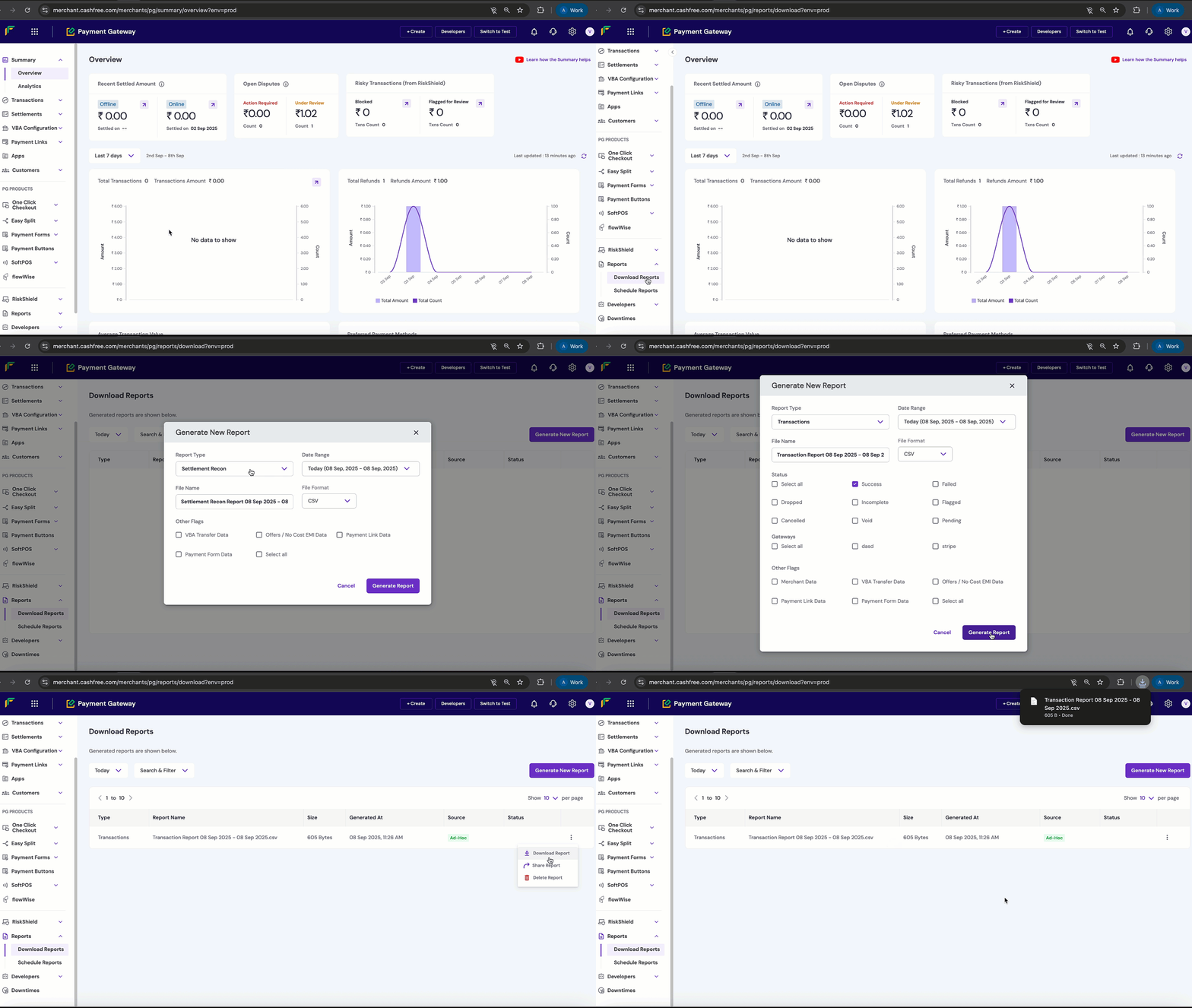
### Steps to download reports from the merchant dashboard
1. Log in to the [Merchant Dashboard](https://merchant.cashfree.com/auth/login).
2. From the left navigation menu, select **Reports**.
3. Click on **Generate New Report**.
4. Apply filters such as:
* **Date Range**: Select the reporting period for example today, last 7 days, this month.
* **File Name**: Enter a name for the generated report file.
* **File Format**: Select the output format, either CSV or XLSX.
5. Click **Generate Report**.
6. Once the report is generated, click **Download** to save it.
 ## Report types
Below are the different reports available in the Cashfree Merchant Dashboard. Select a report type to view its details.
The transactions report gives you details of all the transactions made during the selected period. This report includes customer details, transaction amount, payment method, transaction status, settlement amount (if the settlement is complete), and more.
If the transaction involves goods or services from two or more vendors, the transactions report also shows the vendor-wise payment split.
To generate a new transactions report, fill in the following fields:
* **Date Range**: Select the reporting period such as today, last 7 days, or this month.
* **File Name**: Enter a name for the generated report file.
* **File Format**: The format in which the report has to be generated such as CSV, XLSX.
* **Status**: The status of the transaction. Possible values: **Success**, **Failed**.
* **Gateways**: Stripe, etc.
* Other flags
This report has two sections: **Summary** and **Reconciliation Details**.
* **Summary**: Provides a summarised view of all the settlements received from Cashfree Payments for the selected time period. It includes details like total transaction amount, settlement amount, adjustments, UTR, settlement type, and charges.
* **Reconciliation Details**: Shows all individual events associated with settlements for the selected time period. Events such as Payments, Refunds, Settlements, and Disputes, along with details for each event, are included in this section.
Since all events linked to a single settlement are available in one place, reconciliation becomes faster and simpler.
### Custom reconciliation fields (`order_tags`)
Pass custom key-value pairs in the `order_tags` object when you call the [Create Order API](/docs/api-reference/payments/latest/orders/create). Each key and value must be a string between 1 and 255 characters. You can add up to 10 tags per order.
The first three tags you send appear in the **Reconciliation Details** section of the Settlement Recon report as `Key_1`/`Value_1`, `Key_2`/`Value_2`, and `Key_3`/`Value_3`. Tags beyond the first three are stored on the order but aren't shown in this report.
Choose keys that match how you reconcile payouts in your books—for example branch or outlet ID, campaign or product code, internal invoice reference, or customer segment. Pass only the fields you need in the report and keep `order_tags` to three keys so the correct values map to `Key_1` through `Key_3`.
**Example: education and multi-institute fee collection**
```json theme={"dark"}
"order_tags": {
"institute_code": "INST001",
"roll_number": "2024001234",
"division": "A"
}
```
You can filter the Settlement Recon report on `Value_1`, `Value_2`, or `Value_3` to reconcile by institute, student, or division.
For column definitions and sample values, see the [Settlement Recon report specification](/docs/partners/embedded/reports/settlement-recon-reports#settlement-recon-report-specification).
The settlement summary report gives you a consolidated view of all the settlements received from Cashfree Payments for the selected time-period. It includes details like total transaction amount, settlement amount, adjustments, UTR, settlement type, and more. This provides a quick high-level overview of your settlement activity.
The refunds report gives you details of all refunds initiated during the selected time-period. The report includes information such as refund ID, order ID, transaction and refund amount, initiation date, ARN, and refund status. This helps you track customer refunds, monitor timelines, and reconcile refund amounts.
The ledger report summarises all the debits and credits that have occurred in your account for the selected time-period. For every **SETTLEMENT\_COMPUTE (Credit)** entry in the ledger, you can view and reconcile the transaction-level details in the settlement reconciliation report. This report is useful for auditing, tracking cash flow, and verifying your account balance.
This report provides details of all payments received via **Payment Links**. You can view information such as customer details, payment method, transaction amount, payment status, and settlement details. The report helps you track link-based collections, monitor customer payment behaviour, and reconcile Payment Link transactions with your settlements.
The Payment Form Orders report provides details of all orders created using **Payment Forms**. It includes customer details, order amount, payment status, settlement details, and timelines. This report helps you track order-level activity, monitor form performance, and reconcile order payments with settlements.
The softPOS transactions report captures all transactions processed via Cashfree’s **softPOS devices**. You can view details such as payment method (UPI, card), transaction amount, customer details, status, and settlement details. This report is useful for reconciling in-person payments, tracking device usage, and auditing softPOS collections.
The Paytm report provides details of all transactions processed through **Paytm Wallet or Paytm UPI**. It includes information such as transaction ID, order ID, customer details, transaction amount, status, and settlement details. The report helps you track Paytm payments, monitor success or failure rates, and reconcile Paytm transactions with settlements and bank statements.
The disputes report gives you complete visibility into all payment disputes and chargebacks raised by customers. It includes details such as dispute ID, order ID, reason code, dispute amount, date raised, and current status. This report helps you monitor open or pending disputes, review reasons for disputes, and track resolution outcomes.
This report provides reconciliation details for **offline settlements** that are manually recorded outside Cashfree’s automated systems. It includes settlement amounts, adjustments, UTRs, charges, and associated transaction details. The report helps you match offline settlement activity with Cashfree records and ensures accuracy in reconciliation.
The settlements offline report gives you a summarised view of settlements processed outside the automated settlement cycle. It includes settlement date, UTR, settlement amount, and adjustments. This report helps you monitor and reconcile manually handled settlements with bank credits.
The ledger offline report tracks offline credits and debits applied to your account. It provides details of balance adjustments, reasons for adjustments, and reconciliation data. This report helps you monitor non-automated ledger entries and ensures accurate financial records.
The Riskshield transactions report captures transactions flagged by **Cashfree’s Riskshield system**. It includes details such as transaction ID, customer information, risk category, reason for flagging, and status. This report helps you track potentially fraudulent or suspicious activity, monitor fraud detection alerts, and take preventive action.
This report provides details of settlements split across multiple vendors for a single transaction. It includes order ID, vendor IDs, vendor share amounts, settlement UTR, and adjustments. The report helps you monitor vendor payouts, ensure payout accuracy, and reconcile vendor settlements with your overall transaction flow.
The vendor recon report provides reconciliation details for vendor-specific settlements. It includes vendor IDs, transaction IDs, settlement amounts, adjustments, and UTRs. This report helps you match vendor transactions with settlements, verify calculations, and reconcile vendor records.
This report provides reconciliation at the **order level** for vendors. It includes order ID, vendor ID, transaction details, settlement amounts, and adjustments. The report helps you verify accuracy for each vendor order, track discrepancies, and reconcile orders with settlements.
The subscription payments report provides detailed information on recurring payments processed via subscriptions. It includes subscription ID, order ID, cycle date, transaction amount, status, and settlement details. This report helps you monitor recurring payments, track failures, and reconcile subscription collections.
The subscription report provides details of all active, inactive, and expired subscriptions. It includes subscription ID, customer details, start and end dates, renewal information, payment method, and status. This report helps you manage subscription lifecycles, track renewals and cancellations, and analyse subscription trends.
## Report types
Below are the different reports available in the Cashfree Merchant Dashboard. Select a report type to view its details.
The transactions report gives you details of all the transactions made during the selected period. This report includes customer details, transaction amount, payment method, transaction status, settlement amount (if the settlement is complete), and more.
If the transaction involves goods or services from two or more vendors, the transactions report also shows the vendor-wise payment split.
To generate a new transactions report, fill in the following fields:
* **Date Range**: Select the reporting period such as today, last 7 days, or this month.
* **File Name**: Enter a name for the generated report file.
* **File Format**: The format in which the report has to be generated such as CSV, XLSX.
* **Status**: The status of the transaction. Possible values: **Success**, **Failed**.
* **Gateways**: Stripe, etc.
* Other flags
This report has two sections: **Summary** and **Reconciliation Details**.
* **Summary**: Provides a summarised view of all the settlements received from Cashfree Payments for the selected time period. It includes details like total transaction amount, settlement amount, adjustments, UTR, settlement type, and charges.
* **Reconciliation Details**: Shows all individual events associated with settlements for the selected time period. Events such as Payments, Refunds, Settlements, and Disputes, along with details for each event, are included in this section.
Since all events linked to a single settlement are available in one place, reconciliation becomes faster and simpler.
### Custom reconciliation fields (`order_tags`)
Pass custom key-value pairs in the `order_tags` object when you call the [Create Order API](/docs/api-reference/payments/latest/orders/create). Each key and value must be a string between 1 and 255 characters. You can add up to 10 tags per order.
The first three tags you send appear in the **Reconciliation Details** section of the Settlement Recon report as `Key_1`/`Value_1`, `Key_2`/`Value_2`, and `Key_3`/`Value_3`. Tags beyond the first three are stored on the order but aren't shown in this report.
Choose keys that match how you reconcile payouts in your books—for example branch or outlet ID, campaign or product code, internal invoice reference, or customer segment. Pass only the fields you need in the report and keep `order_tags` to three keys so the correct values map to `Key_1` through `Key_3`.
**Example: education and multi-institute fee collection**
```json theme={"dark"}
"order_tags": {
"institute_code": "INST001",
"roll_number": "2024001234",
"division": "A"
}
```
You can filter the Settlement Recon report on `Value_1`, `Value_2`, or `Value_3` to reconcile by institute, student, or division.
For column definitions and sample values, see the [Settlement Recon report specification](/docs/partners/embedded/reports/settlement-recon-reports#settlement-recon-report-specification).
The settlement summary report gives you a consolidated view of all the settlements received from Cashfree Payments for the selected time-period. It includes details like total transaction amount, settlement amount, adjustments, UTR, settlement type, and more. This provides a quick high-level overview of your settlement activity.
The refunds report gives you details of all refunds initiated during the selected time-period. The report includes information such as refund ID, order ID, transaction and refund amount, initiation date, ARN, and refund status. This helps you track customer refunds, monitor timelines, and reconcile refund amounts.
The ledger report summarises all the debits and credits that have occurred in your account for the selected time-period. For every **SETTLEMENT\_COMPUTE (Credit)** entry in the ledger, you can view and reconcile the transaction-level details in the settlement reconciliation report. This report is useful for auditing, tracking cash flow, and verifying your account balance.
This report provides details of all payments received via **Payment Links**. You can view information such as customer details, payment method, transaction amount, payment status, and settlement details. The report helps you track link-based collections, monitor customer payment behaviour, and reconcile Payment Link transactions with your settlements.
The Payment Form Orders report provides details of all orders created using **Payment Forms**. It includes customer details, order amount, payment status, settlement details, and timelines. This report helps you track order-level activity, monitor form performance, and reconcile order payments with settlements.
The softPOS transactions report captures all transactions processed via Cashfree’s **softPOS devices**. You can view details such as payment method (UPI, card), transaction amount, customer details, status, and settlement details. This report is useful for reconciling in-person payments, tracking device usage, and auditing softPOS collections.
The Paytm report provides details of all transactions processed through **Paytm Wallet or Paytm UPI**. It includes information such as transaction ID, order ID, customer details, transaction amount, status, and settlement details. The report helps you track Paytm payments, monitor success or failure rates, and reconcile Paytm transactions with settlements and bank statements.
The disputes report gives you complete visibility into all payment disputes and chargebacks raised by customers. It includes details such as dispute ID, order ID, reason code, dispute amount, date raised, and current status. This report helps you monitor open or pending disputes, review reasons for disputes, and track resolution outcomes.
This report provides reconciliation details for **offline settlements** that are manually recorded outside Cashfree’s automated systems. It includes settlement amounts, adjustments, UTRs, charges, and associated transaction details. The report helps you match offline settlement activity with Cashfree records and ensures accuracy in reconciliation.
The settlements offline report gives you a summarised view of settlements processed outside the automated settlement cycle. It includes settlement date, UTR, settlement amount, and adjustments. This report helps you monitor and reconcile manually handled settlements with bank credits.
The ledger offline report tracks offline credits and debits applied to your account. It provides details of balance adjustments, reasons for adjustments, and reconciliation data. This report helps you monitor non-automated ledger entries and ensures accurate financial records.
The Riskshield transactions report captures transactions flagged by **Cashfree’s Riskshield system**. It includes details such as transaction ID, customer information, risk category, reason for flagging, and status. This report helps you track potentially fraudulent or suspicious activity, monitor fraud detection alerts, and take preventive action.
This report provides details of settlements split across multiple vendors for a single transaction. It includes order ID, vendor IDs, vendor share amounts, settlement UTR, and adjustments. The report helps you monitor vendor payouts, ensure payout accuracy, and reconcile vendor settlements with your overall transaction flow.
The vendor recon report provides reconciliation details for vendor-specific settlements. It includes vendor IDs, transaction IDs, settlement amounts, adjustments, and UTRs. This report helps you match vendor transactions with settlements, verify calculations, and reconcile vendor records.
This report provides reconciliation at the **order level** for vendors. It includes order ID, vendor ID, transaction details, settlement amounts, and adjustments. The report helps you verify accuracy for each vendor order, track discrepancies, and reconcile orders with settlements.
The subscription payments report provides detailed information on recurring payments processed via subscriptions. It includes subscription ID, order ID, cycle date, transaction amount, status, and settlement details. This report helps you monitor recurring payments, track failures, and reconcile subscription collections.
The subscription report provides details of all active, inactive, and expired subscriptions. It includes subscription ID, customer details, start and end dates, renewal information, payment method, and status. This report helps you manage subscription lifecycles, track renewals and cancellations, and analyse subscription trends.