> ## Documentation Index
> Fetch the complete documentation index at: https://www.cashfree.com/docs/llms.txt
> Use this file to discover all available pages before exploring further.
# Transactions
> View, search, and export Cashfree transactions from the Merchant Dashboard, filter by status, payment method, and customer, and dive into order details.
This guide provides step-by-step instructions on how to view transaction details using the [Merchant Dashboard](https://merchant.cashfree.com/auth/login).
## Viewing transaction details
1. Log in to the [Merchant Dashboard](https://merchant.cashfree.com/auth/login).
2. Select **Payment Gateway** from the home page.
3. Select **Payments** under the **Transaction** section. This displays the transaction dashboard.
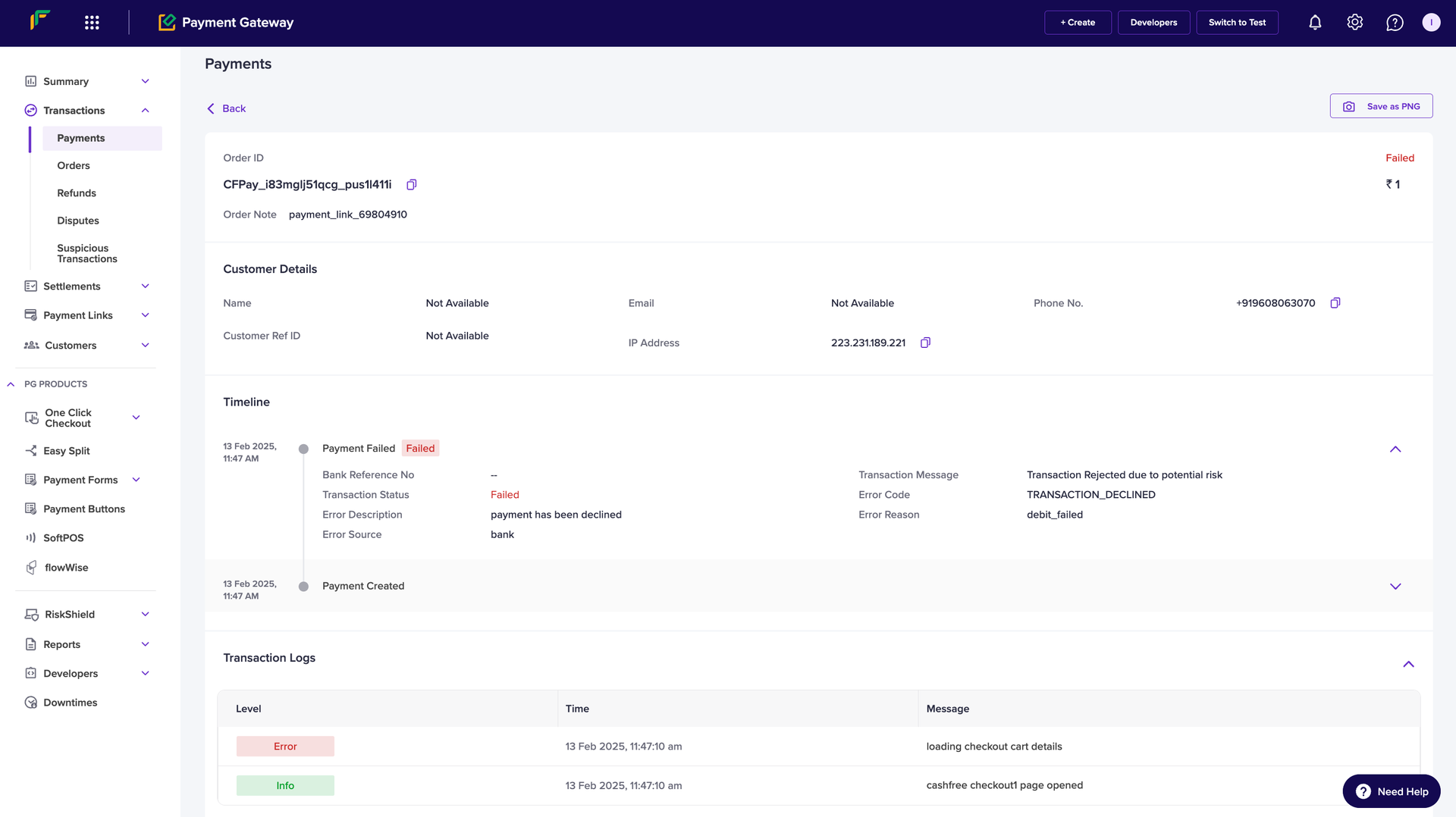
4. Click on the **Transaction ID** to view the following details:
* **Order ID**: A unique identifier assigned to the order.
* **Order Note**: Additional information or comments related to the order.
* **Customer Details**
* **Name**: The name of the customer.
* **Email**: The customer's registered email address.
* **Phone Number**: The customer's contact number.
* **Customer Reference ID**: A unique identifier assigned to the customer.
* **IP Address**: The IP address from which the transaction was initiated.
* **Timeline**: Provides a detailed record of the transaction's progress, including
* **Bank Reference Number**: A unique identifier assigned by the bank for the transaction.
* **Transaction Status**: Indicates whether the transaction was **Success**, **Pending**, or **Failed**.
* **Error Description**: A message explaining why the payment was declined.
* **Error Source**: Identifies the origin of the error, such as the bank.
* **Transaction Message**: A message explaining the reason for transaction rejection, such as Transaction Rejected due to potential risk.
* **Error Code**: A specific code associated with the transaction failure, such as **TRANSACTION\_DECLINED**.
* **Error Reason**: The underlying cause of the failure, such as **debit\_failed**.
* **Transaction Logs**: A record of all transaction-related activities for troubleshooting and auditing purposes.
 ## Additional features
Use the following options to refine results on the transaction details page:
* **Date Range**: Filter results by a specific date range.
* **Search & Filters**: Narrow down transactions using the following criteria:
* **Order ID**
* **Transaction ID**
* **Customer Reference ID**
* **Phone Number**
* **Customer's Phone Number**
* **Email ID**
* **Bank Reference Number**
* **Filters**: Narrow down transactions using the following:
* **Status**: Filter the transactions using status such as **Success**, **Pending**, **Failed**, **User Dropped**.
* **Payment Methods**: Filter the transactions using payment methods.
**Note**
* Verify your filters and timeframe selection if you cannot find refund data.
* Contact the support team for assistance if you encounter any discrepancies.
## Additional features
Use the following options to refine results on the transaction details page:
* **Date Range**: Filter results by a specific date range.
* **Search & Filters**: Narrow down transactions using the following criteria:
* **Order ID**
* **Transaction ID**
* **Customer Reference ID**
* **Phone Number**
* **Customer's Phone Number**
* **Email ID**
* **Bank Reference Number**
* **Filters**: Narrow down transactions using the following:
* **Status**: Filter the transactions using status such as **Success**, **Pending**, **Failed**, **User Dropped**.
* **Payment Methods**: Filter the transactions using payment methods.
**Note**
* Verify your filters and timeframe selection if you cannot find refund data.
* Contact the support team for assistance if you encounter any discrepancies.