> ## Documentation Index
> Fetch the complete documentation index at: https://www.cashfree.com/docs/llms.txt
> Use this file to discover all available pages before exploring further.
# Overview
> Create Cashfree Payment Forms to collect customer details and payments through hosted forms with conditional fields, partial payments, and no-code setup.
Accept payments instantly with customisable payment forms - no coding needed. Brand your form, collect customer details, and receive money directly in your bank account. Share via any channel or embed on your website. Supports 120+ payment methods including UPI, cards, and net banking. Set fixed amounts or let customers decide. Get started in minutes.
## Use cases
Payment forms support a wide range of business scenarios for payment collection and customer data gathering:
Ideal for the educational sector to collect fees from parents and students.
Ideal for non-profit organisations looking to raise money for a good cause.
Ideal for event or webinar organisers to collect fee from the participants.
Ideal for hospitality sectors to collect customer details and payments.
Ideal for SEBI-registered RAs and IAs to collect payments and authenticate customer's acceptance of terms and conditions.
## Creating a payment form
You can create an unlimited number of payment forms and share them with your customers, and easily track all the payments.
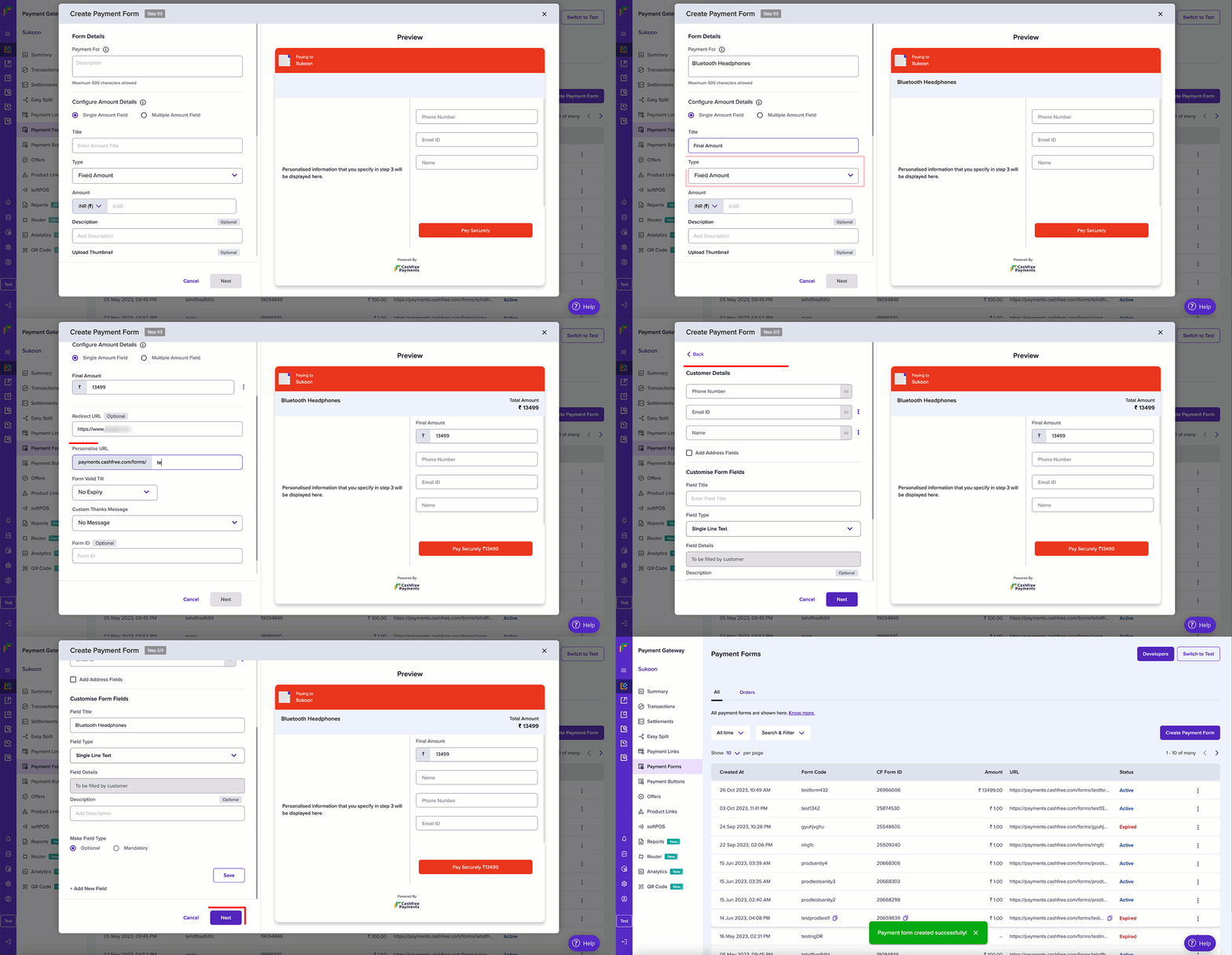
Follow these steps to create a payment form through the Merchant Dashboard:
1. Log in to the [Merchant Dashboard](https://merchant.cashfree.com/auth/login).
2. Go to **Payment Gateway > Payment Forms > All**.
3. Click the **Create a Payment Form** button.
4. Complete the form details:
* **Payment For**: Enter a brief description such as the product name. For example, Headphones for audio equipment.
* **Amount configuration**: Choose single amount for fixed pricing or multiple amounts for customer choice.
* **Amount title**: Enter a title like Final amount.
* **Currency and amount**: Select currency type and enter the payment amount.
* **Description**: Add brief payment details (optional).
* **GST and service charges**: Set rates if applicable to your business (optional).
* **Redirect URL**: Add where customers go after payment completion (optional).
5. Configure form settings:
* **Personalised URL**: Create a custom URL slug for easy sharing.
* **Form validity**: Set expiration date for the form.
* **Thank you message**: Customise the post-payment message.
* **Form ID**: Create unique identifier for tracking (optional).
6. Set up customer data collection:
* **Required fields**: Enable name, phone number, and email address.
* **Address field**: Enable if required for your business (optional).
7. Enhance form functionality:
* **Description**: Add business or payment purpose information.
* **Invoice option**: Enable automatic invoice generation after payment.
* **Terms and conditions**: Add legal terms customers must accept.
8. Add business contact information:
* **Contact details**: Email, phone, WhatsApp number, website URL, and support link.
9. Connect social media profiles:
* **Social links**: Add Twitter, Instagram, Facebook, and LinkedIn URLs (optional).
10. Click **Create** to finalise and publish your payment form.
To send a customer a payment form with their personal details pre-filled, see [personalised payment forms](/docs/payments/no-code/payment-forms/personalise-payment-form).
 Payment forms are required to create [payment buttons](/docs/payments/no-code/payment-button). Use the form code from your personalised URL to link forms with buttons.