> ## Documentation Index
> Fetch the complete documentation index at: https://www.cashfree.com/docs/llms.txt
> Use this file to discover all available pages before exploring further.
# WhatsApp Payment Links
> Send Cashfree WhatsApp payment links as interactive cards so customers can pay directly inside their chat, without being redirected to an external page.
WhatsApp payment links enable businesses to send payment requests to customers directly within WhatsApp as an interactive card. Customers can view payment details and complete transactions in-app, without being redirected to an external payment page.
## Key benefits
WhatsApp payment links offer the following advantages over standard payment links:
* **In-app payments**: Customers pay directly within WhatsApp without being redirected to an external page or browser. Each payment card displays your verified business name and logo for a branded checkout experience.
* **Clear payment details**: Payment details such as amount, description, and business name are displayed clearly in a single interactive card, making it easy for customers to review before paying.
* **Improved conversion**: A prominent **Pay Now** call-to-action button gives customers a clear, immediate action, reducing drop-off at the payment step.
WhatsApp payment links is a paid feature available only to selected merchants. If this option is not visible in your dashboard and you would like to enable it, contact your Cashfree account manager or fill out the [Support Form](https://merchant.cashfree.com/merchants/landing?env=prod\&raise_issue=1).
## Customer payment experience
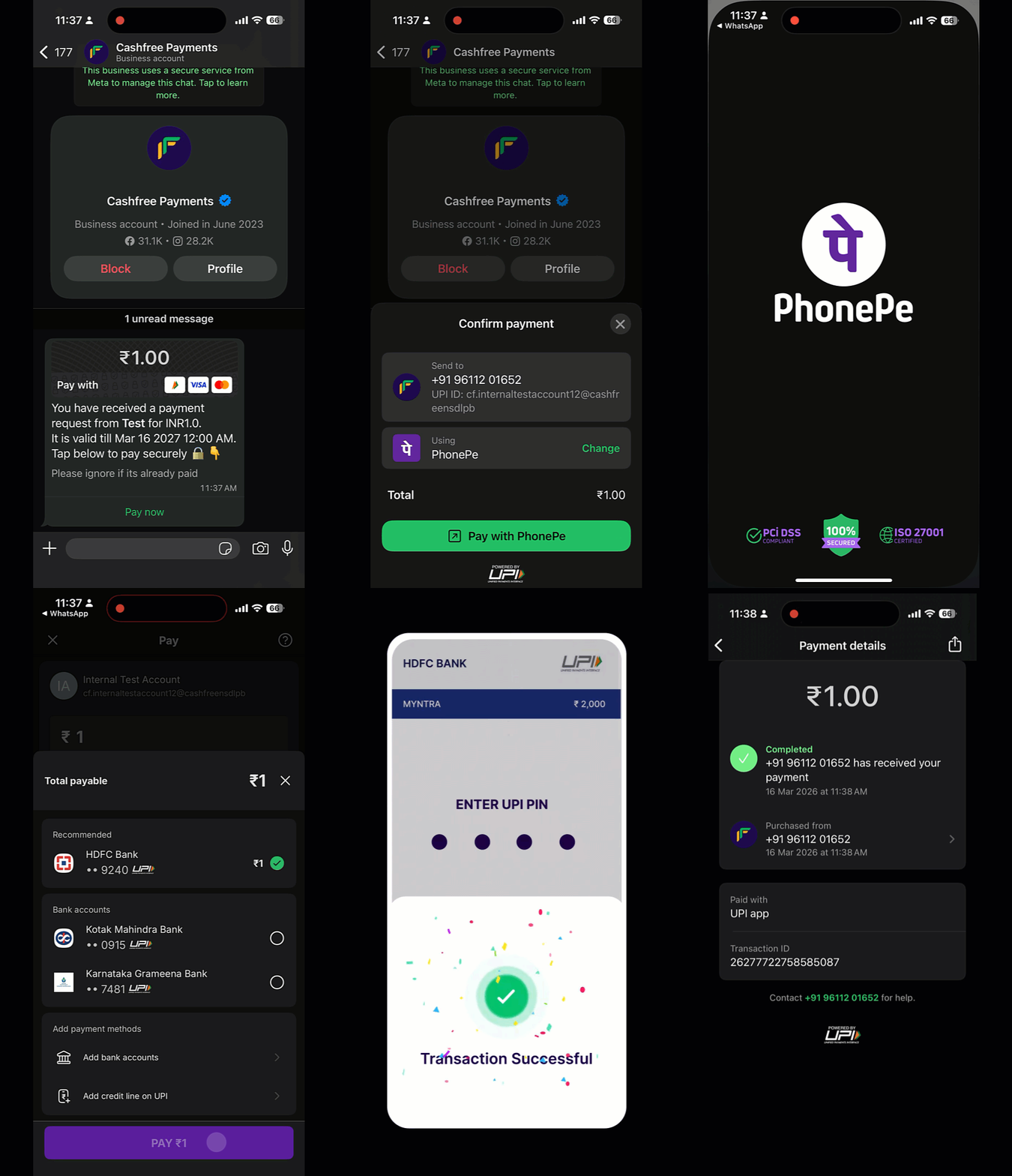
When you create a payment link and enable WhatsApp notifications, Cashfree sends it to your customer as an interactive card in WhatsApp. The card displays your verified business name, payment amount, and description, along with a **Pay Now** button. Customers can complete the transaction without leaving WhatsApp, through the Cashfree checkout flow.
Follow these steps to understand the end-to-end customer journey:
The customer receives a branded payment card in their WhatsApp chat showing the amount, description, and a **Pay Now** button.
The customer taps **Pay Now** and selects a payment method from the available options, such as UPI apps, cards, net banking, or other supported methods.
The customer reviews the merchant name, amount, and selected payment method, then confirms the payment.
The customer receives a confirmation message with a transaction ID. The merchant receives a payment notification and can view the transaction details in the [Merchant Dashboard](https://merchant.cashfree.com/auth/login).
 ## Set up WhatsApp payment links delivery
You can enable WhatsApp payment link delivery via one of two options:
* [Cashfree WhatsApp Business Account](#cashfree-waba): Payment links are sent from Cashfree's WhatsApp Business Account (WABA), with Cashfree Payments shown as the sender. No BSP (Business Solution Provider) coordination or WABA setup required.
* [Merchant WhatsApp Business Account](#merchant-waba): Payment links are sent from your own WABA, with your business name shown as the sender. Requires BSP coordination and WABA setup.
The following table compares both options to help you choose the right setup for your business:
| | Cashfree WABA | Merchant WABA |
| ---------------------------- | ---------------------------------------- | ----------------------------------------------------- |
| **Who sends the message** | Cashfree WABA | Your own WABA |
| **Sender shown to customer** | Cashfree Payments | Your business name |
| **Onboarding setup** | Add `send_whatsapp` to your API request. | No API changes, but WABA setup required on your side. |
| **What you share with us** | Confirmation that you want this enabled. | Your WABA ID, BSP name, and daily volume. |
| **Time to go live** | 4–5 working days. | \~1 week (subject to Meta's whitelisting). |
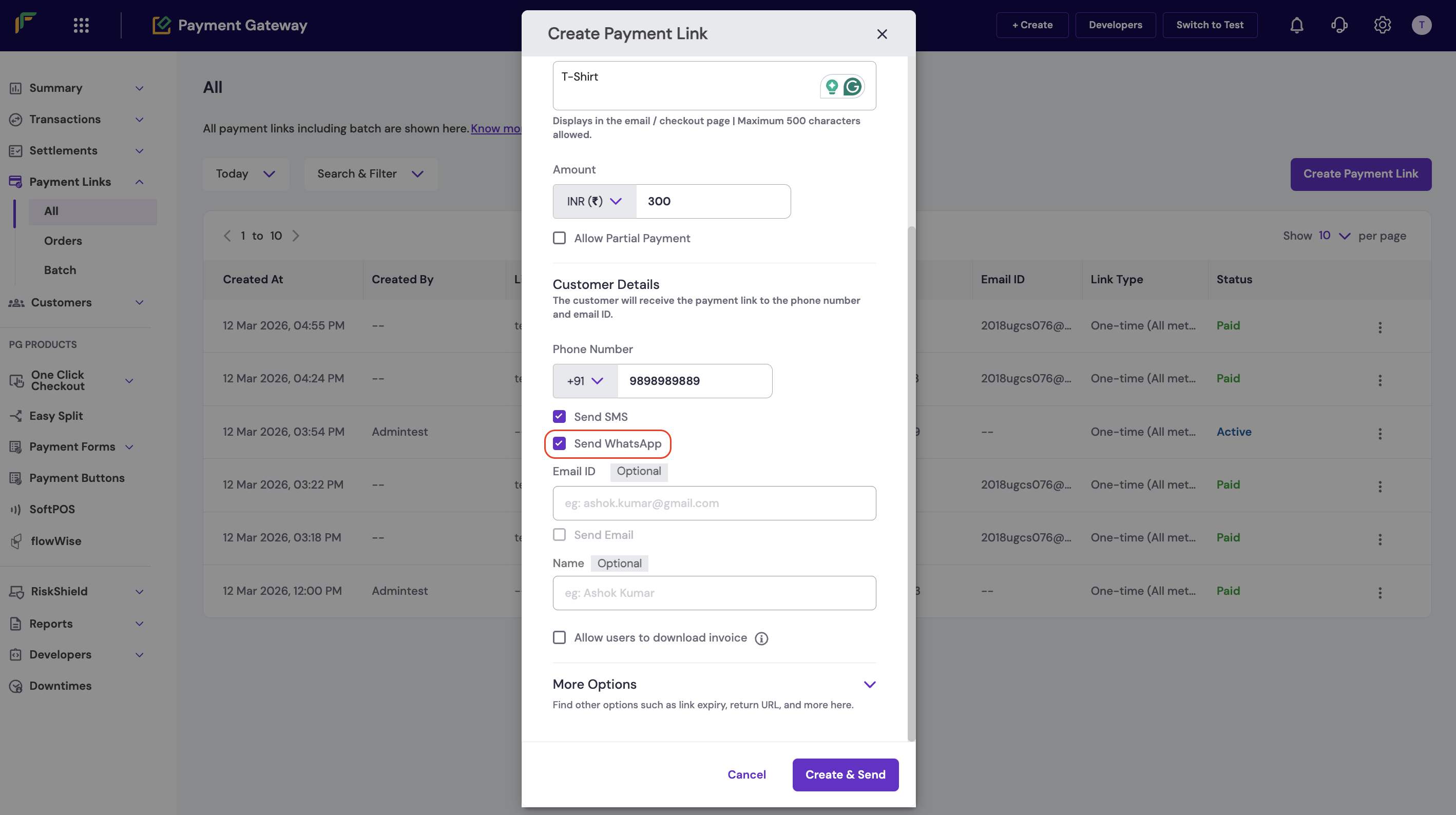
Follow these steps to create and send a WhatsApp payment link from the Merchant Dashboard:
1. Log in to the [Merchant Dashboard](https://merchant.cashfree.com/auth/login).
2. Navigate to **Payment Links Dashboard > All**.
3. Select **Create Payment Link**.
4. Choose the payment link type:
* **All payment methods**: Allows the customer to pay using any available payment method.
* **Only UPI**: Restricts payment to UPI methods only.
5. In the **Payment reason** field, enter a description of the payment.
6. Enter the amount details:
* Select the currency.
* Enter the exact amount to be collected.
WhatsApp payment links do not support partial payments. If you create a payment link with the `partial_payments` option enabled, the payment fails when the customer attempts to open or pay through the WhatsApp channel.
7. Complete the customer details:
* **Phone number** (required): Enter the customer's mobile number. This is used to send SMS notifications and payment confirmations.
* **Email ID** (optional): Enter the customer's email address to send the payment link and receipt by email.
* **Name** (optional): Enter the customer's full name for personalised communication and record-keeping.
8. Under notification preferences:
* Select **Send SMS** to deliver the payment link via SMS.
* Select **Send WhatsApp** to deliver the payment link via WhatsApp.
9. Select **Create & Send** to generate and deliver the payment link.
## Set up WhatsApp payment links delivery
You can enable WhatsApp payment link delivery via one of two options:
* [Cashfree WhatsApp Business Account](#cashfree-waba): Payment links are sent from Cashfree's WhatsApp Business Account (WABA), with Cashfree Payments shown as the sender. No BSP (Business Solution Provider) coordination or WABA setup required.
* [Merchant WhatsApp Business Account](#merchant-waba): Payment links are sent from your own WABA, with your business name shown as the sender. Requires BSP coordination and WABA setup.
The following table compares both options to help you choose the right setup for your business:
| | Cashfree WABA | Merchant WABA |
| ---------------------------- | ---------------------------------------- | ----------------------------------------------------- |
| **Who sends the message** | Cashfree WABA | Your own WABA |
| **Sender shown to customer** | Cashfree Payments | Your business name |
| **Onboarding setup** | Add `send_whatsapp` to your API request. | No API changes, but WABA setup required on your side. |
| **What you share with us** | Confirmation that you want this enabled. | Your WABA ID, BSP name, and daily volume. |
| **Time to go live** | 4–5 working days. | \~1 week (subject to Meta's whitelisting). |
Follow these steps to create and send a WhatsApp payment link from the Merchant Dashboard:
1. Log in to the [Merchant Dashboard](https://merchant.cashfree.com/auth/login).
2. Navigate to **Payment Links Dashboard > All**.
3. Select **Create Payment Link**.
4. Choose the payment link type:
* **All payment methods**: Allows the customer to pay using any available payment method.
* **Only UPI**: Restricts payment to UPI methods only.
5. In the **Payment reason** field, enter a description of the payment.
6. Enter the amount details:
* Select the currency.
* Enter the exact amount to be collected.
WhatsApp payment links do not support partial payments. If you create a payment link with the `partial_payments` option enabled, the payment fails when the customer attempts to open or pay through the WhatsApp channel.
7. Complete the customer details:
* **Phone number** (required): Enter the customer's mobile number. This is used to send SMS notifications and payment confirmations.
* **Email ID** (optional): Enter the customer's email address to send the payment link and receipt by email.
* **Name** (optional): Enter the customer's full name for personalised communication and record-keeping.
8. Under notification preferences:
* Select **Send SMS** to deliver the payment link via SMS.
* Select **Send WhatsApp** to deliver the payment link via WhatsApp.
9. Select **Create & Send** to generate and deliver the payment link.
 To complete setup, select your WABA option below:
Payment links are delivered from Cashfree's WABA, with **Cashfree Payments** shown as the sender. No BSP coordination or WABA setup is required from your side.
#### Onboard with Cashfree's WABA
Complete the following steps to enable WhatsApp payment links via Cashfree's WABA. Cashfree handles the configuration on your account once you confirm enablement.
Contact your Cashfree account manager to confirm that you want WhatsApp enabled as a notification channel.
Cashfree enables WhatsApp as a notification channel on your merchant account. Once enabled, the option is visible on your Merchant Dashboard.
Payment links generated from your account can now be delivered to customers over WhatsApp through Cashfree's WABA.
**Time to go live:** 4–5 working days.
#### Send a payment link via the API
To deliver a payment link over WhatsApp, set `link_notify.send_whatsapp` to `true` in your request body when calling the [Create Payment Link](/docs/api-reference/payments/latest/payment-links/create) API.
#### Request example
The following example shows a request body that sends the payment link via WhatsApp and email:
```json theme={"dark"}
{
"customer_details": {
"customer_phone": "9876543210",
"customer_email": "johndoe@example.com",
"customer_name": "John Doe"
},
"link_amount": 100.00,
"link_currency": "INR",
"link_purpose": "Payment for order #123",
"link_partial_payments": false,
"link_notify": {
"send_sms": false,
"send_email": true,
"send_whatsapp": true
}
}
```
#### Parameters
The following table describes the notification parameters relevant to WhatsApp delivery:
| Parameter | Type | Description |
| --------------------------- | ------- | ---------------------------------------------------------------------- |
| `link_notify.send_whatsapp` | boolean | Set to `true` to send the payment link via WhatsApp. Default: `false`. |
| `link_notify.send_sms` | boolean | Set to `true` to send the payment link via SMS. |
| `link_notify.send_email` | boolean | Set to `true` to send the payment link via email. |
For more information on the list of request and response parameters, refer to the [Create Payment Link API](/docs/api-reference/payments/latest/payment-links/create).
Payment links are delivered from your own WABA, with your business name shown as the sender. This option is suited for merchants who already use their own WABA for customer communication.
#### Onboard with your WABA
Complete the following steps to enable WhatsApp payment links via your own WABA. This process involves coordination with your BSP and Meta's whitelisting approval.
Share the following details with your Cashfree account manager:
* Your active WABA ID.
* Your BSP name.
* Your estimated daily payment link volume.
Your WABA must be on the messages endpoint, with MMLite disabled.
Cashfree submits your WABA to Meta for whitelisting.
Your BSP registers the enhanced payment link template under your WABA. The template must be approved as **Utility**.
Marketing-classified templates may fail to deliver to customers who have not recently messaged your WABA. If your template is classified as Marketing, contact your BSP to raise a re-classification request with Meta.
Cashfree sends test payment links from your WABA and validates rendering and delivery.
Resume normal payment link sending. Links now render as enhanced payment links from your WABA.
**Time to go live:** Approximately one week, subject to Meta's whitelisting turnaround.
#### Send a payment link via your WABA
Once your BSP and Meta setup is complete, payment links are automatically delivered as interactive cards from your WABA. No changes are required to your existing API or Merchant Dashboard workflow.
## FAQs
Refer to the following frequently asked questions for more information on WhatsApp payment links and setup:
posthog.capture('Accordion Clicked', { title: "Which payment link delivery option should I choose?" })}>
Both options deliver the same enhanced payment link experience to your customers. Choose based on your current setup:
* **Cashfree WABA**: Suited for merchants without an active WABA. Cashfree handles the WhatsApp delivery on your behalf.
* **Merchant WABA**: Suited for merchants who already use their own WABA for customer communication and want their business name shown as the sender.
posthog.capture('Accordion Clicked', { title: "Will the customer experience differ between the two options?" })}>
No, the payment card format and checkout flow are identical across both options. The only visible difference is the sender name on the WhatsApp message, which is either **Cashfree Payments** (Cashfree WABA) or your business name (your WABA).
posthog.capture('Accordion Clicked', { title: "Will enabling this disrupt my existing payment link flow?" })}>
No, your existing payment link generation and reconciliation flow remains unchanged. Only the delivery channel changes.
posthog.capture('Accordion Clicked', { title: "What if my WhatsApp template is classified as Marketing?" })}>
This applies to the merchant WABA option only. Contact your BSP and request that they raise a re-classification request with Meta to move the template to **Utility**. Marketing-classified templates may fail to deliver to customers who have not recently messaged your WABA.
posthog.capture('Accordion Clicked', { title: "Can I test before going live?" })}>
Yes, UAT is included as part of the enablement flow for both options. Cashfree validates rendering and delivery before your account goes live.
To complete setup, select your WABA option below:
Payment links are delivered from Cashfree's WABA, with **Cashfree Payments** shown as the sender. No BSP coordination or WABA setup is required from your side.
#### Onboard with Cashfree's WABA
Complete the following steps to enable WhatsApp payment links via Cashfree's WABA. Cashfree handles the configuration on your account once you confirm enablement.
Contact your Cashfree account manager to confirm that you want WhatsApp enabled as a notification channel.
Cashfree enables WhatsApp as a notification channel on your merchant account. Once enabled, the option is visible on your Merchant Dashboard.
Payment links generated from your account can now be delivered to customers over WhatsApp through Cashfree's WABA.
**Time to go live:** 4–5 working days.
#### Send a payment link via the API
To deliver a payment link over WhatsApp, set `link_notify.send_whatsapp` to `true` in your request body when calling the [Create Payment Link](/docs/api-reference/payments/latest/payment-links/create) API.
#### Request example
The following example shows a request body that sends the payment link via WhatsApp and email:
```json theme={"dark"}
{
"customer_details": {
"customer_phone": "9876543210",
"customer_email": "johndoe@example.com",
"customer_name": "John Doe"
},
"link_amount": 100.00,
"link_currency": "INR",
"link_purpose": "Payment for order #123",
"link_partial_payments": false,
"link_notify": {
"send_sms": false,
"send_email": true,
"send_whatsapp": true
}
}
```
#### Parameters
The following table describes the notification parameters relevant to WhatsApp delivery:
| Parameter | Type | Description |
| --------------------------- | ------- | ---------------------------------------------------------------------- |
| `link_notify.send_whatsapp` | boolean | Set to `true` to send the payment link via WhatsApp. Default: `false`. |
| `link_notify.send_sms` | boolean | Set to `true` to send the payment link via SMS. |
| `link_notify.send_email` | boolean | Set to `true` to send the payment link via email. |
For more information on the list of request and response parameters, refer to the [Create Payment Link API](/docs/api-reference/payments/latest/payment-links/create).
Payment links are delivered from your own WABA, with your business name shown as the sender. This option is suited for merchants who already use their own WABA for customer communication.
#### Onboard with your WABA
Complete the following steps to enable WhatsApp payment links via your own WABA. This process involves coordination with your BSP and Meta's whitelisting approval.
Share the following details with your Cashfree account manager:
* Your active WABA ID.
* Your BSP name.
* Your estimated daily payment link volume.
Your WABA must be on the messages endpoint, with MMLite disabled.
Cashfree submits your WABA to Meta for whitelisting.
Your BSP registers the enhanced payment link template under your WABA. The template must be approved as **Utility**.
Marketing-classified templates may fail to deliver to customers who have not recently messaged your WABA. If your template is classified as Marketing, contact your BSP to raise a re-classification request with Meta.
Cashfree sends test payment links from your WABA and validates rendering and delivery.
Resume normal payment link sending. Links now render as enhanced payment links from your WABA.
**Time to go live:** Approximately one week, subject to Meta's whitelisting turnaround.
#### Send a payment link via your WABA
Once your BSP and Meta setup is complete, payment links are automatically delivered as interactive cards from your WABA. No changes are required to your existing API or Merchant Dashboard workflow.
## FAQs
Refer to the following frequently asked questions for more information on WhatsApp payment links and setup:
posthog.capture('Accordion Clicked', { title: "Which payment link delivery option should I choose?" })}>
Both options deliver the same enhanced payment link experience to your customers. Choose based on your current setup:
* **Cashfree WABA**: Suited for merchants without an active WABA. Cashfree handles the WhatsApp delivery on your behalf.
* **Merchant WABA**: Suited for merchants who already use their own WABA for customer communication and want their business name shown as the sender.
posthog.capture('Accordion Clicked', { title: "Will the customer experience differ between the two options?" })}>
No, the payment card format and checkout flow are identical across both options. The only visible difference is the sender name on the WhatsApp message, which is either **Cashfree Payments** (Cashfree WABA) or your business name (your WABA).
posthog.capture('Accordion Clicked', { title: "Will enabling this disrupt my existing payment link flow?" })}>
No, your existing payment link generation and reconciliation flow remains unchanged. Only the delivery channel changes.
posthog.capture('Accordion Clicked', { title: "What if my WhatsApp template is classified as Marketing?" })}>
This applies to the merchant WABA option only. Contact your BSP and request that they raise a re-classification request with Meta to move the template to **Utility**. Marketing-classified templates may fail to deliver to customers who have not recently messaged your WABA.
posthog.capture('Accordion Clicked', { title: "Can I test before going live?" })}>
Yes, UAT is included as part of the enablement flow for both options. Cashfree validates rendering and delivery before your account goes live.