> ## Documentation Index
> Fetch the complete documentation index at: https://www.cashfree.com/docs/llms.txt
> Use this file to discover all available pages before exploring further.

# Cashfree Plugin for Shopify

> Set up payments on your Shopify store with the Cashfree no-code plugin to accept Indian payment methods like cards, UPI, netbanking, and wallets.

Accept payments instantly on your Shopify store with our no-code payment gateway. We support all major payment methods including:

* UPI
* Credit Cards
* Debit Cards
* Net Banking
* Wallets
* Buy Now Pay Later (BNPL)

Cashfree provides following plugin options for Shopify integration:

* **Standard Shopify payment plugin** (listed on Shopify as **1Cashfree**): Supports all major payment methods, including UPI, credit cards, debit cards, net banking, wallets, and Buy Now Pay Later (BNPL).

* **Direct card payments plugin (manual setup)** (listed on Shopify as **Cashfree Payments - Cards**): Supports only credit and debit card payments through Shopify’s native checkout flow.

<Note>
  We have introduced a new, simpler way for merchants to install Shopify using the following link:
  [Cashfree: Shopify App Store](https://apps.shopify.com/cashfree-payments).
  This method enables merchants to integrate Shopify with Cashfree seamlessly, complementing our traditional approach.
</Note>

## Prerequisites

* Credentials to log in to your Shopify account.
* Register for an [account with Cashfree](https://merchant.cashfree.com/merchants/signup) before you start integration.(Optional)

## Setup process

### 1. Complete your KYC

<Steps>
  <Step title="Login to Dashboard">
    Visit the [Cashfree dashboard](https://merchant.cashfree.com/)
    using the login credentials used at the time of installation
  </Step>

  <Step title="Submit KYC">
    Complete your KYC verification to start accepting payments
  </Step>
</Steps>

### 2. Activate the plugin

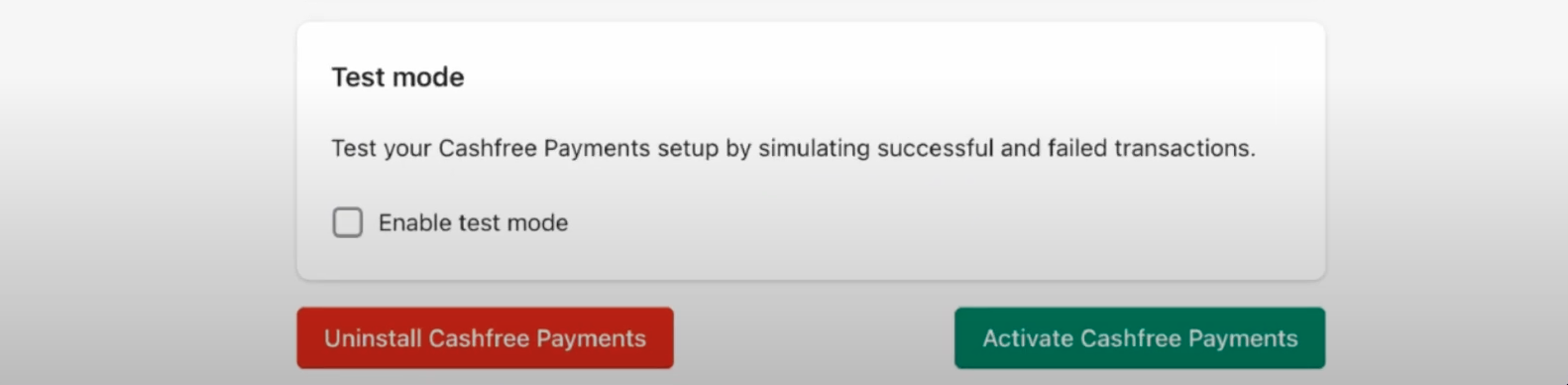
After installation, the plugin redirects you to an authentication page. Log in using your Cashfree-registered email address, then click the **Activate** button in your Shopify settings to enable Cashfree at checkout:

<Frame>
  <img src="https://mintcdn.com/cashfreepayments-d00050e9/JZc-JzI9LQpTeTyY/static/payments/checkout/shopify/paymentsplugin/activatebutton.png?fit=max&auto=format&n=JZc-JzI9LQpTeTyY&q=85&s=c28ec766ad778992c93c3509f7548206" alt="Activate Cashfree" width="100%" data-path="static/payments/checkout/shopify/paymentsplugin/activatebutton.png" />
</Frame>

### 3. Configure payment settings

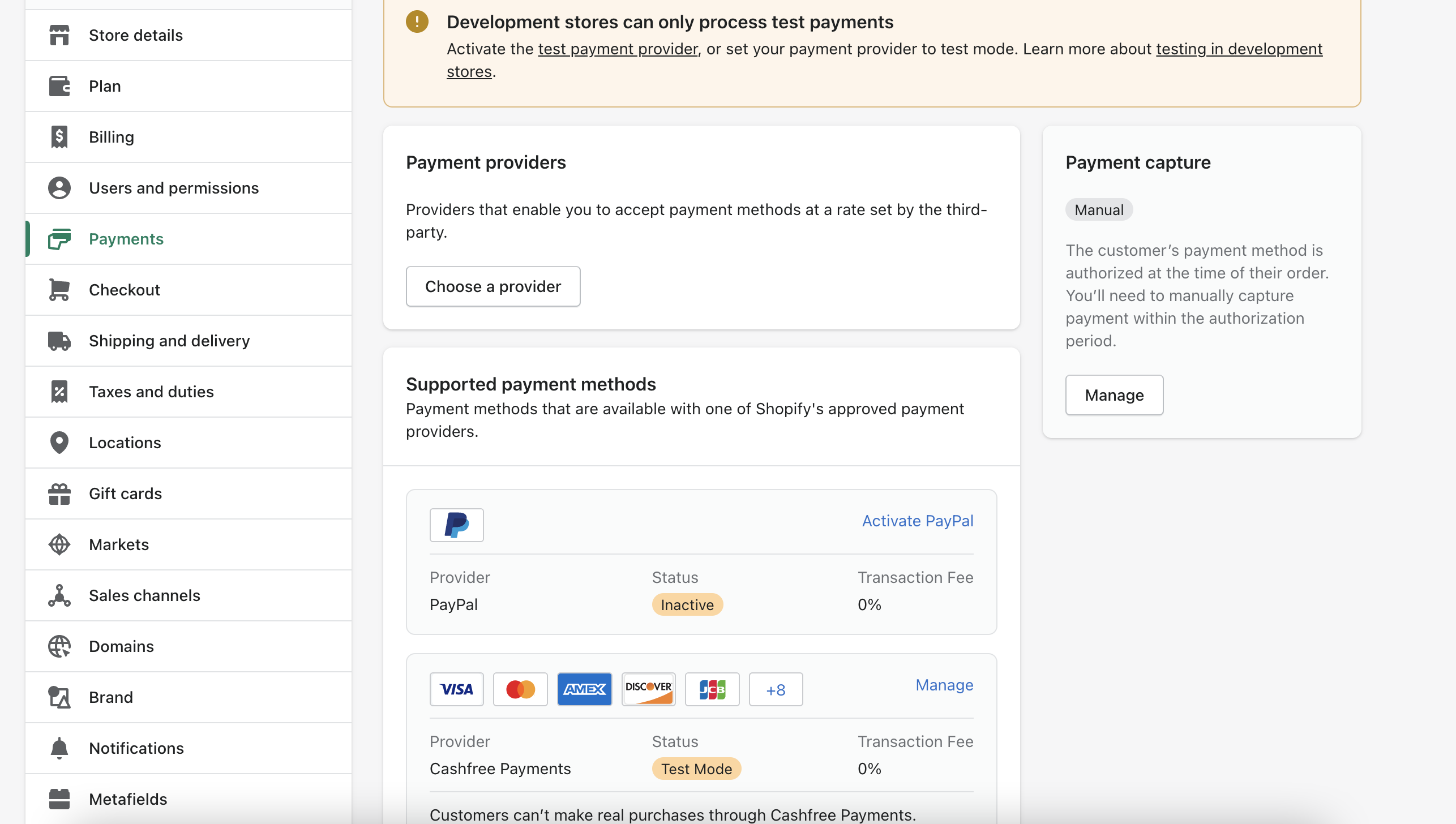
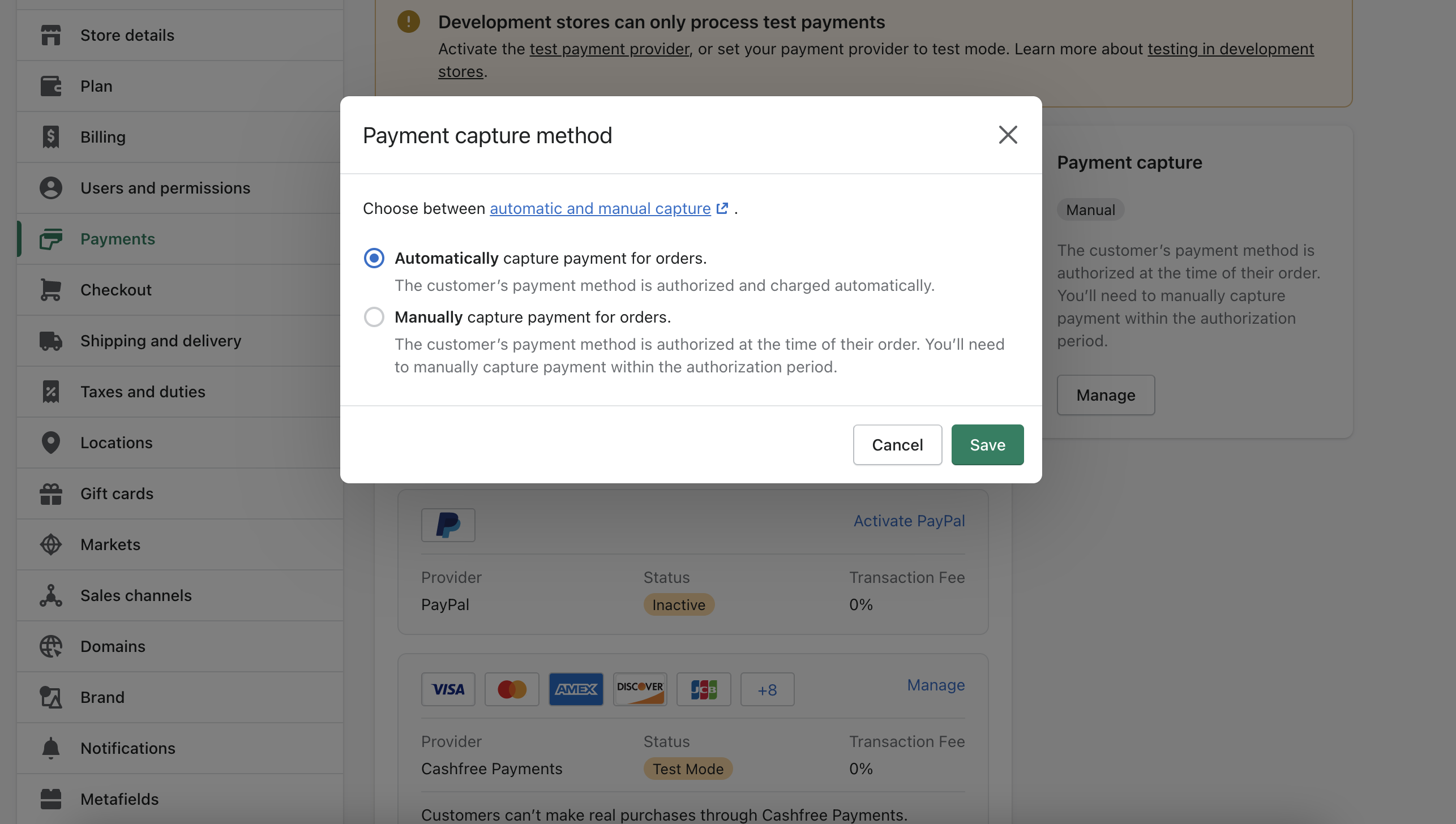
#### Enable automatic payment capture

We recommend turning on automatic payment capture to avoid manual order processing:
<Steps>
  <Step title="Navigate to Settings">
    <Frame>
      <img src="https://mintcdn.com/cashfreepayments-d00050e9/JZc-JzI9LQpTeTyY/static/payments/checkout/shopify/paymentsplugin/settings.png?fit=max&auto=format&n=JZc-JzI9LQpTeTyY&q=85&s=d116423afc77a762f9038a3c7667dc4a" alt="Go to Payment Settings" width="100%" data-path="static/payments/checkout/shopify/paymentsplugin/settings.png" />
    </Frame>
  </Step>

  <Step title="Enable Auto-Capture">
    <Frame>
      <img src="https://mintcdn.com/cashfreepayments-d00050e9/JZc-JzI9LQpTeTyY/static/payments/checkout/shopify/paymentsplugin/autocapture.png?fit=max&auto=format&n=JZc-JzI9LQpTeTyY&q=85&s=9a7d347e26d151264c59760f9398952b" alt="Enable Automatic Capture" width="100%" data-path="static/payments/checkout/shopify/paymentsplugin/autocapture.png" />
    </Frame>
  </Step>
</Steps>

## Direct card payments

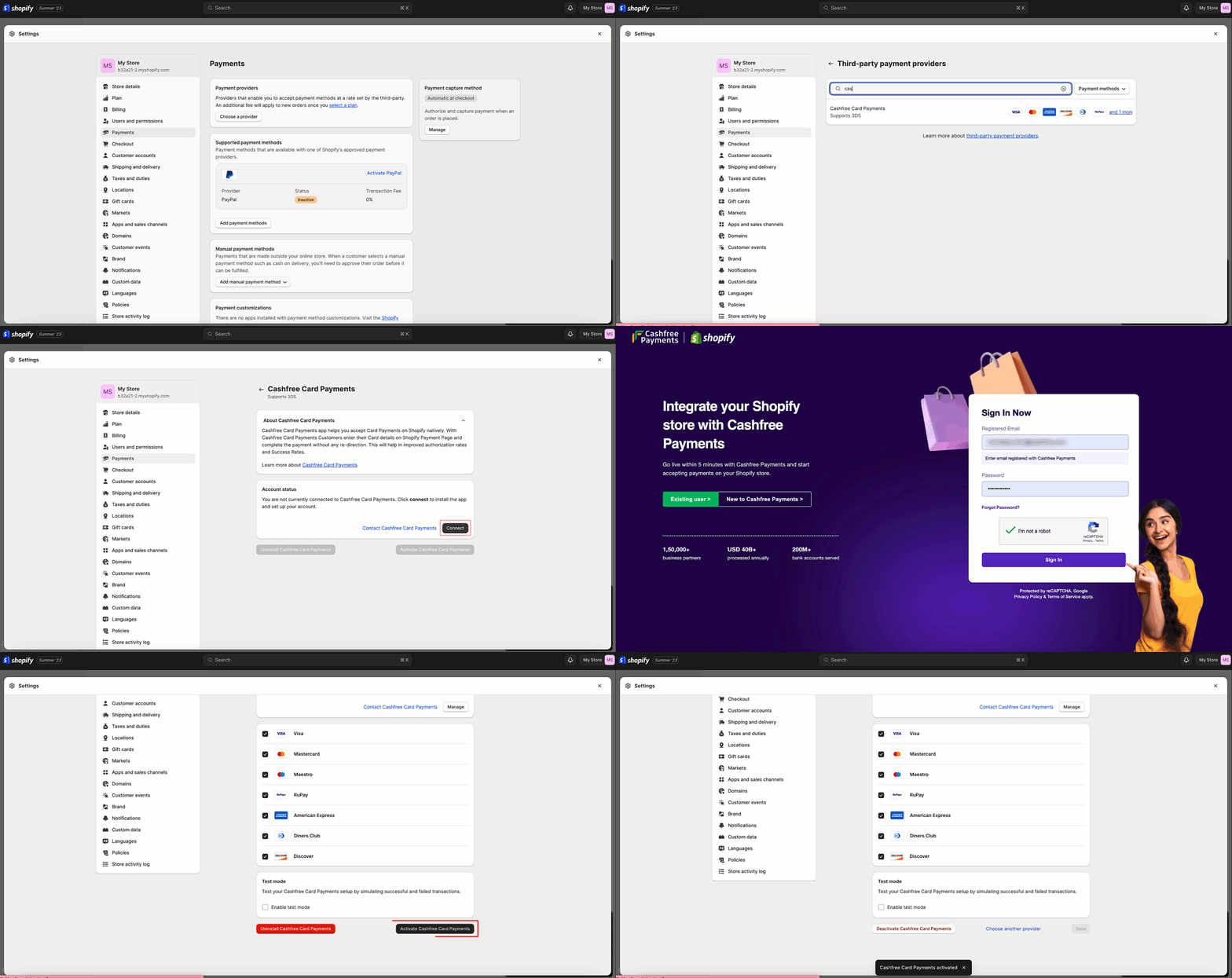
Enable direct card payments through Shopify's checkout:

<Frame>
  <img src="https://mintcdn.com/cashfreepayments-d00050e9/JZc-JzI9LQpTeTyY/static/payments/checkout/shopify/paymentsplugin/cardpayments.gif?s=8caea5dfd48afd3a1317b301187a9763" alt="Card Payments Demo" width="100%" data-path="static/payments/checkout/shopify/paymentsplugin/cardpayments.gif" />
</Frame>

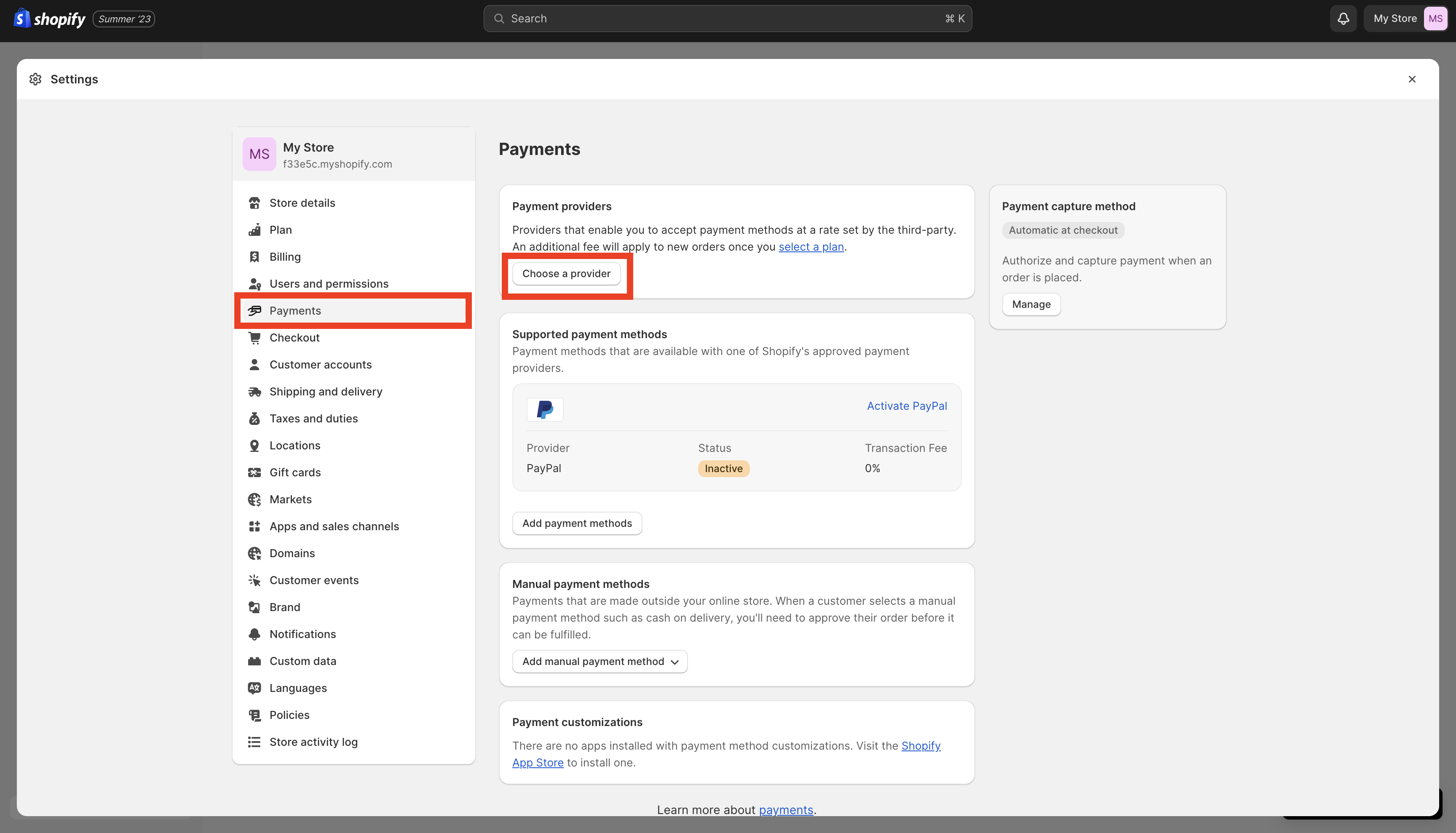
### Setup steps

<Steps>
  <Step title="Open Settings">
    <Frame>
      <img src="https://mintcdn.com/cashfreepayments-d00050e9/JZc-JzI9LQpTeTyY/static/payments/checkout/shopify/paymentsplugin/opensettings.png?fit=max&auto=format&n=JZc-JzI9LQpTeTyY&q=85&s=66032805949d344b7883c86e25e77541" alt="Shopify Settings" width="100%" data-path="static/payments/checkout/shopify/paymentsplugin/opensettings.png" />
    </Frame>
  </Step>

  <Step title="Find Payment Providers">
    <Frame>
      <img src="https://mintcdn.com/cashfreepayments-d00050e9/JZc-JzI9LQpTeTyY/static/payments/checkout/shopify/paymentsplugin/providers.png?fit=max&auto=format&n=JZc-JzI9LQpTeTyY&q=85&s=8818937f94ed4f2b076ddc58dab3c1b1" alt="Payment Providers" width="100%" data-path="static/payments/checkout/shopify/paymentsplugin/providers.png" />
    </Frame>
  </Step>

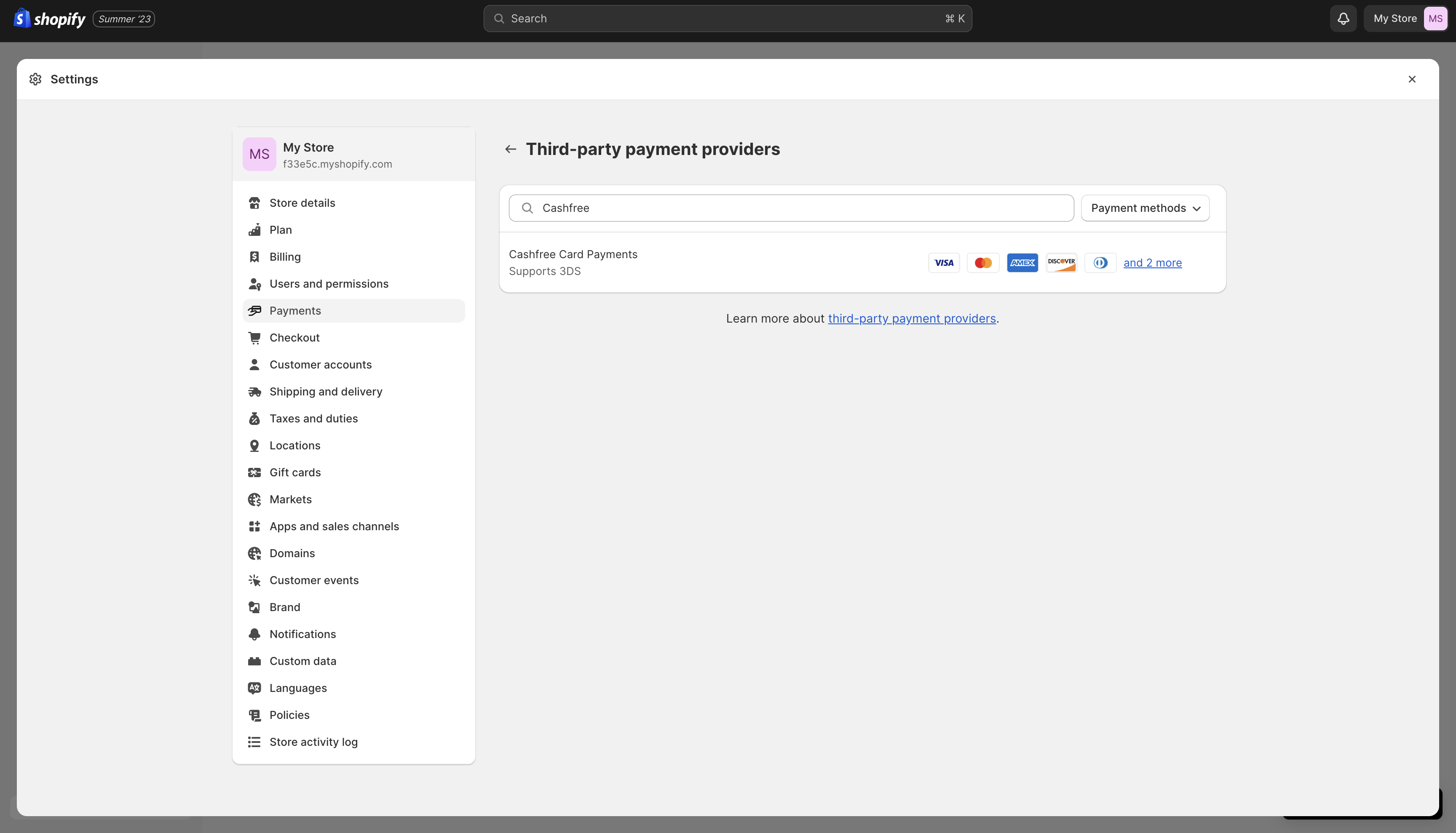
  <Step title="Select Cashfree">
    <Frame>
      <img src="https://mintcdn.com/cashfreepayments-d00050e9/JZc-JzI9LQpTeTyY/static/payments/checkout/shopify/paymentsplugin/selectcf.png?fit=max&auto=format&n=JZc-JzI9LQpTeTyY&q=85&s=051e6ee09d30542a90907a7ddff1323c" alt="Select Cashfree" width="100%" data-path="static/payments/checkout/shopify/paymentsplugin/selectcf.png" />
    </Frame>
  </Step>

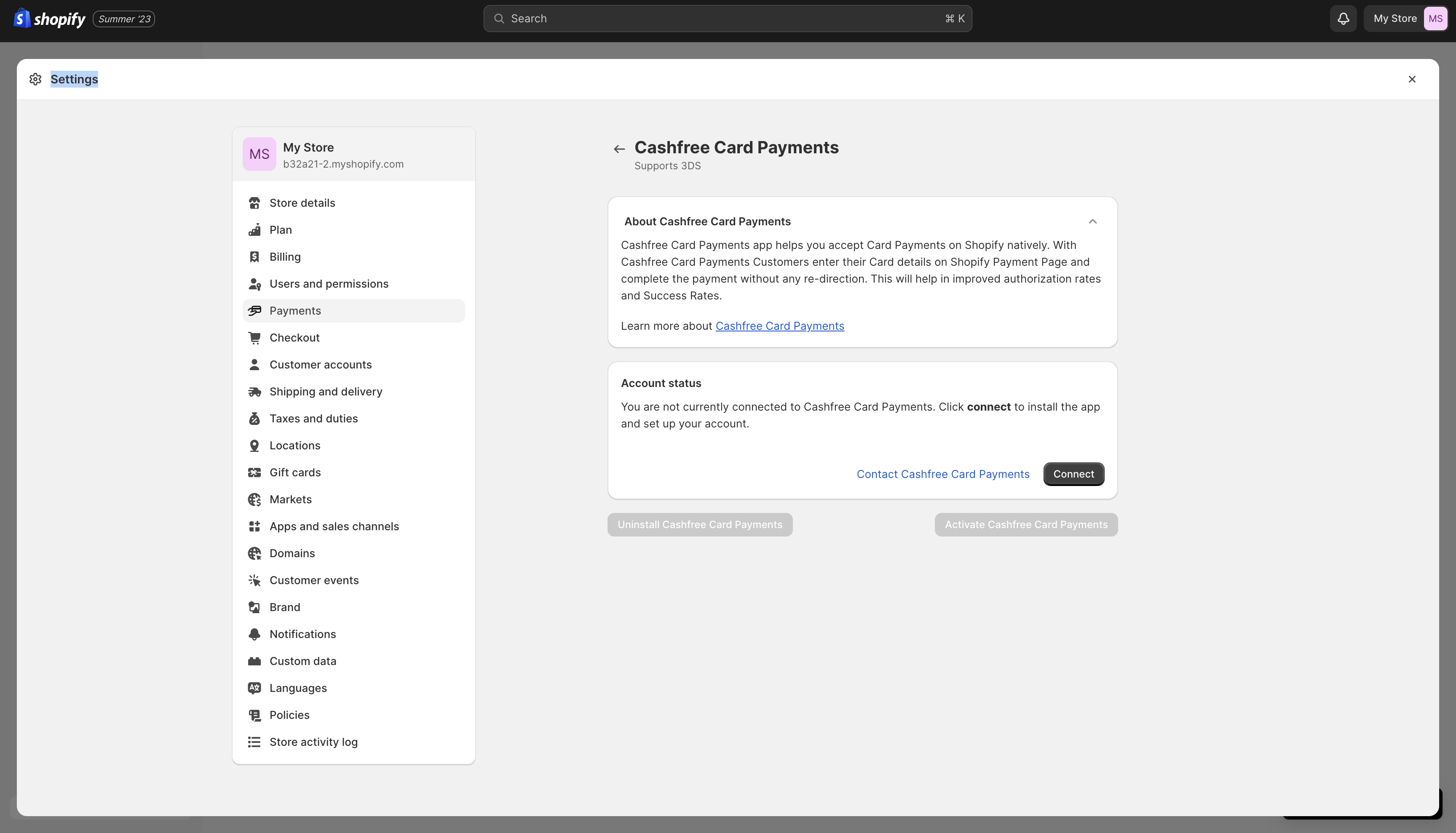
  <Step title="Connect Account">
    <Frame>
      <img src="https://mintcdn.com/cashfreepayments-d00050e9/JZc-JzI9LQpTeTyY/static/payments/checkout/shopify/paymentsplugin/account.png?fit=max&auto=format&n=JZc-JzI9LQpTeTyY&q=85&s=eae6528edded1e491fff61343b93fc35" alt="Connect Account" width="100%" data-path="static/payments/checkout/shopify/paymentsplugin/account.png" />
    </Frame>
  </Step>
</Steps>

## Test mode integration

<Tip>
  You can perform an end-to-end simulation of funds flow in the Test Mode. Once
  confident that the installation and integration is working as expected, switch
  to the Live Mode and start accepting payments from customers.
</Tip>

Follow these steps to verify your integration in test mode:

#### Enable test mode

1. Log in to your Shopify store
2. Go to Settings → Payments
3. In Supported Payment Methods, click Manage on Cashfree
4. Scroll down and enable Test mode
5. Click Save

*Switch off test mode to start accepting payments*

## Important notes

<Note>
  If you change your Shopify domain, remember to: - Whitelist the new domain in
  Cashfree dashboard from
  the **[Merchant Dashboard](https://merchant.cashfree.com/auth/login)** and go to **Payment Gateway > Developers > Whitelisting** -
  Reconnect the plugin to update settings
</Note>

<Note>
  Cashfree does not currently support customising the payment method name, description, or other text that the Cashfree plugin displays on the Shopify checkout page.
</Note>

<Tip>
  Enable mandatory phone number collection in [Shopify checkout
  settings](https://help.shopify.com/en/manual/checkout-settings/checkout-form-options)
</Tip>

## Report reconciliation

Match transactions between Shopify and Cashfree using:

* Shopify's `Payment ID` column in the shopify report.
* Cashfree's `Order Id` column in the [Transaction Report](https://merchant.cashfree.com/merchants/pg/reports)

The Shopify Payment ID is passed to Cashfree as the `order_id`. Cashfree's `order_id` in turn maps to Cashfree's `cf_payment_id`. You can use the Cashfree `order_id` to retrieve payment details via Cashfree APIs or webhooks.

## Frequently asked questions

<AccordionGroup>
  <Accordion title="How do I find and install the Cashfree Payments plugin on Shopify to enable all payment modes including UPI?">
    To enable all Cashfree payment modes (including UPI) on your Shopify store, install the **1CashfreePayments** plugin:

    1. Log in to your Shopify Admin.
    2. Go to **Settings > Payments**.
    3. Under **Payment providers**, click **Choose a provider**.
    4. Search for **1CashfreePayments** under the **Third-party providers** section.
    5. Click **Install** and follow the prompts to log in with your Cashfree registered email ID to complete activation.

    For more details, see the [setup process](/docs/payments/shopify/payments#setup-process).
  </Accordion>

  <Accordion title="Why is Google Pay (GPay) or Paytm not showing under the Wallets section in checkout?">
    GPay, Paytm, and PhonePe are primarily UPI-based payment methods, not prepaid wallet products. They appear under the **UPI** section of your checkout, not the Wallets section.

    The Wallets section is reserved for prepaid wallet products such as MobiKwik, OLA Money, and Airtel Money. GPay does not have a prepaid wallet product and appears only as a UPI option.

    These apps appear in the UPI section in two ways:

    * **UPI QR Code**: Customers scan a QR code using any UPI app (GPay, PhonePe, Paytm). This is the standard option for desktop checkouts.
    * **UPI Intent (app icons)**: Individual app icons appear for customers to tap and open the app directly. This is typically available on mobile browsers. For Shopify stores using the 1CashfreePayments plugin, UPI Intent is handled automatically on mobile devices.
  </Accordion>

  <Accordion title="How do I complete the setup for the Cashfree Payments - Cards plugin on Shopify?">
    To set up the Cashfree Payments - Cards app for direct card payments on Shopify:

    1. In your Shopify Admin, go to **Settings > Payments**.
    2. Under payment providers, locate and open **Cashfree Payments - Cards**.
    3. Click **Manage account** or **Connect Account**.
    4. Log in using the Cashfree account or registered email associated with your merchant account.
    5. Ensure your Cashfree account KYC activation is complete before proceeding.
    6. Return to **Settings > Payments** to verify that Cashfree is shown as an active payment provider.

    If you are testing, enable **Test mode** in the payment settings. Remember to disable Test mode before going live to accept real payments.

    For detailed setup instructions, see [Direct card payments](/docs/payments/shopify/payments#direct-card-payments).
  </Accordion>

  <Accordion title="Why are my Shopify orders showing as Authorized instead of Paid after a successful transaction?">
    If orders remain in the **Authorized** state after payment, check the Payment Capture Method in Shopify. Go to **Settings > Payments > Payment Capture Method** and set it to **Automatically at checkout**. If you set it to **Manually**, you must capture the payment in Shopify before the order status updates to Paid.
  </Accordion>

  <Accordion title="Why is IGST being charged or displayed separately on my Shopify orders?">
    If you enable taxes for your Shopify store, Shopify may calculate and display IGST separately on the order page. Go to **Settings > Taxes and duties** in your Shopify Admin to update your tax configuration. You can also configure your store to show prices inclusive of taxes, if required. For specific tax calculation logic, contact Shopify Support, since Shopify manages these settings.
  </Accordion>

  <Accordion title="How can I automatically add a tag to Shopify orders when a customer provides GSTIN information?">
    Cashfree cannot automatically add a GSTIN tag to Shopify orders. Shopify restricts payment apps from passing payment-related information into Order Tags.

    <Note>
      * Cashfree has introduced order tags in Shopify that include payment and discount details. Merchants experiencing a mismatch between the paid amount (such as with the 5% UPI discount) and the Shopify order total can resolve this by reinstalling the Cashfree plugin.
      * Match transactions using Shopify's `Payment ID` and Cashfree's `Order Id` as described above.
    </Note>
  </Accordion>

  <Accordion title="Why is PayPal not showing, or why is the Activate button disabled in my Shopify payment settings?">
    These issues occur when the **Cashfree Payments - Cards** app is installed instead of the **1Cashfree** plugin. The Cashfree Payments - Cards app does not support PayPal or the full Cashfree checkout experience.

    To resolve this, install the correct plugin from the [Shopify App Store](https://apps.shopify.com/cashfree-payments). Once installed, complete the account connection in Shopify to activate the payment gateway. PayPal and all other supported payment methods then appear on the Cashfree checkout.
  </Accordion>
</AccordionGroup>

## FAQs

<AccordionGroup>
  <Accordion title="Why are my Shopify orders showing as Authorized instead of Paid after a successful transaction?">
    This happens when your Shopify Payment Capture Method is set to **Manually**. To fix this, go to **Settings > Payments > Payment Capture Method** in your Shopify Dashboard and set it to **Automatically at checkout**. When capture is set to manually, you must capture each payment yourself in Shopify for the order status to update to Paid.
  </Accordion>

  <Accordion title="Why are some orders being redirected to the native Shopify Checkout instead of Cashfree Checkout?">
    Orders may fall back to native Shopify Checkout in the following situations:

    * **Inventory issues**: The item is out of stock or has zero quantity.
    * **Network interruptions**: Technical connectivity issues can cause the checkout flow to default to Shopify's native checkout.
  </Accordion>

  <Accordion title="Why is UPI not appearing as a payment option?">
    UPI is available as a payment method only when the order currency is set to INR.
  </Accordion>

  <Accordion title="Why is IGST being displayed separately on my Shopify orders?">
    If taxes are enabled for your Shopify store, IGST may be calculated and displayed separately on the order page. You can update your tax configuration by navigating to **Settings > Taxes and duties** in your Shopify Admin Dashboard. You can also configure your store to have prices inclusive of taxes if required. For specific tax calculation logic, contact Shopify Support, as these settings are managed within Shopify.
  </Accordion>

  <Accordion title="How can I automatically add a tag to Shopify orders when a customer provides GSTIN information?">
    Cashfree does not directly push a GSTIN-related tag to Shopify orders. GSTIN information is passed in the **Additional Information** section of the order. To automatically tag these orders, you can build a custom Shopify Flow. Navigate to **Apps > Flow** in your Shopify Dashboard to create a custom flow that adds a GSTIN tag when GST information is present in the order.
  </Accordion>
</AccordionGroup>

## Need help?

Contact our [Support team](https://merchant.cashfree.com/merchants/landing?env=prod\&raise_issue=1) for assistance with your integration

<div class="hidden mb-4" data-table-of-contents="top">
  <iframe height="150" width="100%" class="shadow-2xl rounded-md" src="https://www.youtube.com/embed/c4PlrdbbaRk?si=VSG1NRs1Trs39lNs&enablejsapi=1" title="How to Setup Cashfree on Shopify" frameborder="0" allow="accelerometer; autoplay; clipboard-write; encrypted-media; gyroscope; picture-in-picture" allowfullscreen />
</div>

<div
  className="callout info"
  style={{
backgroundColor: 'light-dark(#f9f7fd, #2d1b4e)',
borderColor: 'light-dark(#cdbaef, #6930ca)',
color: 'light-dark(#000000, #ffffff)'
}}
>
  <p style={{fontSize: '1.3em', fontWeight: '500', marginBottom: '16px'}}>Affiliate partner program</p>

  <p>As a developer building payment experiences for your clients, you can earn additional income while providing them with industry-leading payment solutions.</p>

  <p>Join the <a href="https://partner.cashfree.com/partner-ui/authentication/signup?source-action=Affiliate%20Program%20LP&action=Sign%20Up&button-id=StartNow_CashfreeAffiliatePartnerProgram">Cashfree affiliate partner program</a> and get rewarded every time your clients use Cashfree.</p>

  <p>**What you get:**</p>

  <ul>
    <li>Earn up to 0.25% commission on every transaction.</li>
    <li>Become a trusted fintech partner for your clients.</li>
    <li>Access to a dedicated partner manager for expert support.</li>
  </ul>

  <p>**What your clients get:**</p>

  <ul>
    <li>Instant activation and go live in minutes.</li>
    <li>Industry-best success rate across all payment modes.</li>
    <li>Effortless acceptance of international payments in 140+ currencies.</li>
  </ul>

  <p>Get started today. <a href="https://partner.cashfree.com/partner-ui/authentication/signup?source-action=Affiliate%20Program%20LP&action=Sign%20Up&button-id=StartNow_BecomeAPartner">Become a partner now</a>.</p>
</div>