> ## Documentation Index
> Fetch the complete documentation index at: https://www.cashfree.com/docs/llms.txt
> Use this file to discover all available pages before exploring further.
# Customer VPA
> Set up a unique UPI VPA (Virtual Payment Address) and static QR code per customer. Match payments to payers using terminal details in the payment webhook.
Customer VPA (Virtual Payment Address) gives each customer a unique UPI VPA and static QR code on a `CUSTOMER` type terminal. Payment webhooks include `terminal_details`, so you can match each transaction to the right payer without manual bank-statement matching.
## Prerequisites
Complete the following before you create Customer VPAs:
* An active Cashfree Payment Gateway account with **Offline Payments - SoftPOS** enabled. See [Get started with Offline Payments](/docs/payments/softpos/how-softpos-works) to request activation.
* Customer VPA enabled on your account. Contact your Cashfree account manager if the **Customer VPA** collection type is not visible when you add a collection point.
* A configured webhook URL if you plan to reconcile payments programmatically. See [softPOS webhooks](/docs/api-reference/payments/latest/softpos/softpos-webhooks).
## Key benefits
Customer VPA provides the following capabilities:
| Benefit | Description |
| ------------------------ | --------------------------------------------------------------------------------------------------------- |
| Automatic reconciliation | Every incoming payment maps to a specific customer ID, so you do not need to match bank credits manually. |
| Static, reusable QR | Generate the QR once and share it. The customer can pay any amount at any time. |
| Customisable VPA | Set a custom VPA prefix (for example, `yourbrand.john01@cashfree`) when you create the terminal. |
| Real-time webhooks | Receive payment notifications that include terminal and customer context. |
| Faster refunds | Initiate refunds with the `order_id` from the payment webhook. |
| Bulk creation | Create Customer VPAs in volume through the Merchant Dashboard or API. |
Maintain a mapping between `cf_terminal_id` and your internal customer ID. Payment webhooks include `terminal_details` with `cf_terminal_id`, `terminal_phone`, and `terminal_vpa` for reconciliation.
## How Customer VPA works
The Customer VPA collection flow has the following stages:
1. Create a `CUSTOMER` type terminal for each payer through the [Merchant Dashboard](https://merchant.cashfree.com/merchants/pg/softpos/collection-point-management) or the [Create Terminal API](/docs/api-reference/payments/latest/softpos/create-terminal).
2. Cashfree generates the VPA and static QR code for the terminal.
3. Share the QR code or VPA with the customer.
4. The customer pays any amount through a UPI app.
5. Cashfree sends a `PAYMENT_SUCCESS_WEBHOOK` to your configured URL. The payload includes `terminal_details` to identify the customer terminal.
For terminal-based transactions, Cashfree generates the `order_id` only after the payment completes. Use the `order_id` from the webhook to initiate refunds.
## Use cases
Customer VPA supports collections where each payer is known in advance and requires individual tracking.
| Use case | Description |
| ----------------------- | ------------------------------------------------------------------------------------------------------------ |
| Recurring billing | One terminal per subscriber. Payments reconcile to the subscriber `terminal_id`. |
| Rent and tenancy | One terminal per tenant. Partial or full payments update the tenant ledger through webhook `payment_amount`. |
| EMI and loan repayments | One terminal per borrower. Track status per `cf_terminal_id`. |
| Fee collection | One terminal per student or member. Use separate terminals for different fee types for the same person. |
| Society maintenance | One terminal per unit owner. Review payment status per terminal. |
| B2B collections | One terminal per distributor or dealer. Share the terminal QR at delivery. |
## Create a customer VPA
Customer VPA is not enabled by default. Contact your Cashfree account manager to request activation before proceeding with the steps below.
Create a Customer VPA from the Merchant Dashboard or through the API.
To add and verify a Customer VPA collection point, complete the following steps:
1. Log in to the [Merchant Dashboard](https://merchant.cashfree.com/auth/login).
2. Navigate to **PG PRODUCTS** > **Offline Payments** > **Collection Point Management**.
3. Click **Add Collection Point**, then select the **Customer VPA** collection type.
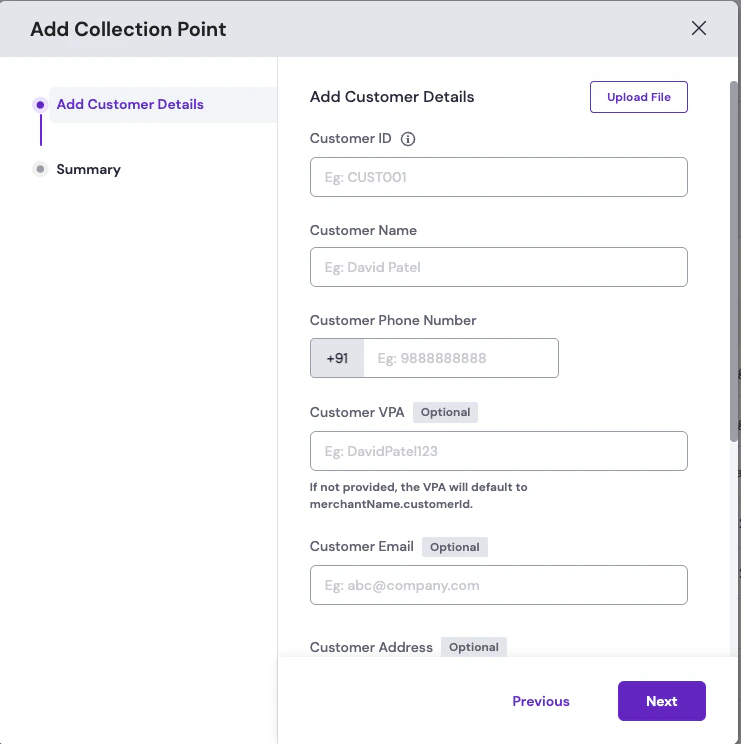
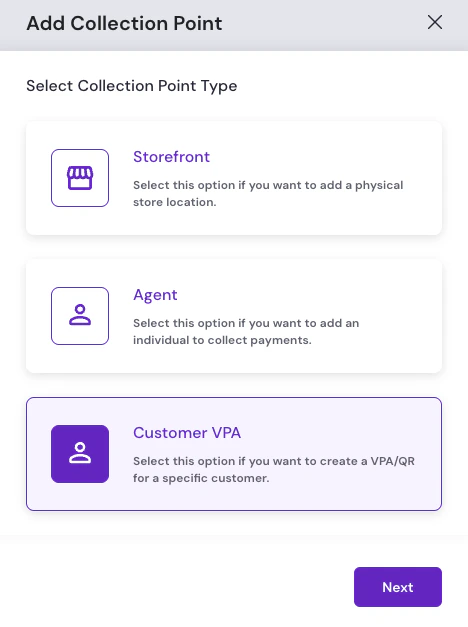 4. On **Add Customer Details**, provide the following mandatory customer details:
* **Customer ID**: A unique identifier for the customer (for example, `CUST001`).
* **Customer Name**: The customer's name for this customer ID.
* **Customer Phone Number**: The customer's mobile number with country code.
You can also provide the following optional details:
* **Customer VPA**: If not provided, the VPA defaults to `merchantName.customerId`.
* **Customer Email**: The customer's email address.
* **Customer Address**: Street, city, state, and pin code for the customer.
Use **Upload File** on the **Add Customer Details** screen to upload a batch file and create customer VPAs or QR codes for multiple customers at once.
4. On **Add Customer Details**, provide the following mandatory customer details:
* **Customer ID**: A unique identifier for the customer (for example, `CUST001`).
* **Customer Name**: The customer's name for this customer ID.
* **Customer Phone Number**: The customer's mobile number with country code.
You can also provide the following optional details:
* **Customer VPA**: If not provided, the VPA defaults to `merchantName.customerId`.
* **Customer Email**: The customer's email address.
* **Customer Address**: Street, city, state, and pin code for the customer.
Use **Upload File** on the **Add Customer Details** screen to upload a batch file and create customer VPAs or QR codes for multiple customers at once.
 5. Click **Next**. On the **Summary** step, review the customer VPA details. Make any necessary changes by selecting the edit icon next to the details, then click **Create Collection Point**.
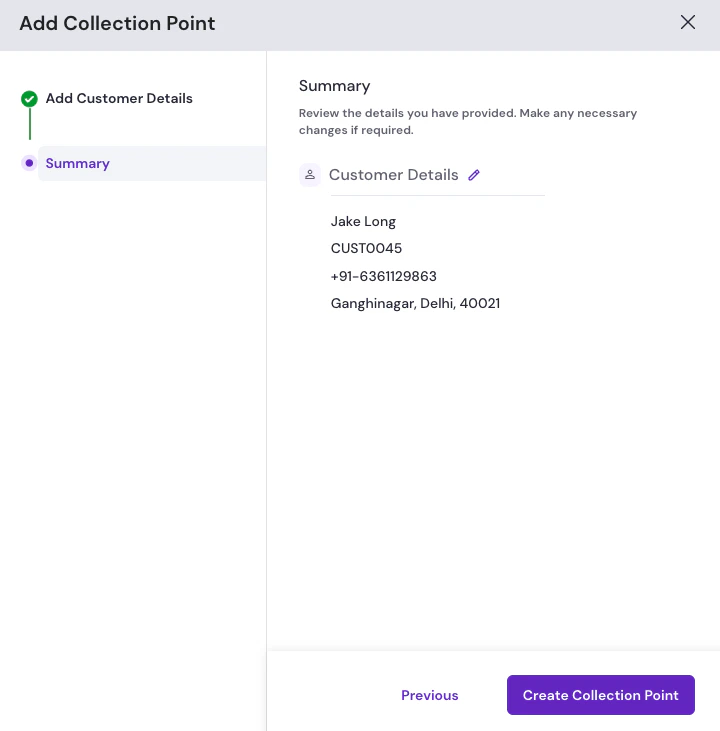 Cashfree generates the static QR code when the collection point is created. Download, print, or share it with the customer.
To create a Customer VPA programmatically, complete the following steps:
1. Send a `POST` request to `/pg/terminal` using the [Create Terminal API](/docs/api-reference/payments/latest/softpos/create-terminal). Set `terminal_type` to `CUSTOMER`.
```json theme={"dark"}
{
"terminal_id": "",
"terminal_name": "",
"terminal_phone_no": "",
"terminal_email": "",
"terminal_type": "CUSTOMER",
"terminal_vpa_prefix": ""
}
```
2. Map `cf_terminal_id` and `terminal_vpas` from the response to your internal customer ID.
3. Call the [Fetch Terminal QR Codes API](/docs/api-reference/payments/latest/softpos/fetch-terminal-qr-codes) with `cf_terminal_id` to retrieve the static QR image and `qrCodeUrl`.
Cashfree generates the static QR code when the terminal is created. Download, print, or share it with the customer.
## Reconciling payments
Every successful payment triggers a `PAYMENT_SUCCESS_WEBHOOK` to your configured URL. The webhook includes the terminal details (`cf_terminal_id`, phone, and VPA) alongside the payment amount, UPI reference number, and payer details.
You can use the webhook for the following actions:
* Mark an invoice as paid in your ERP or billing system.
* Send a payment confirmation by SMS, email, or WhatsApp to the customer.
* Trigger downstream actions such as unlocking a service, shipping an order, or extending a subscription.
* Update the customer outstanding balance in your CRM.
For batch reconciliation, download the [softPOS transactions report](/docs/payments/softpos/settlements-reports) from the Merchant Dashboard for a customer-wise view of collections over any date range.
## Refunds
Initiate refunds through the [Create Refund API](/docs/api-reference/payments/latest/refunds/create). Pass the `order_id` from the `PAYMENT_SUCCESS_WEBHOOK` payload as the path parameter.
Do not pre-generate `order_id` values for Customer VPA payments. Cashfree creates the order ID after the customer completes the payment and chooses the amount.
## FAQs
The QR code is static. Cashfree generates the static QR code when the collection point is created. Download, print, or share it with the customer.
Each Customer VPA requires a unique `terminal_id`. Create separate terminals if you need distinct VPAs for the same customer (for example, rent and utilities).
By default, the VPA uses your merchant name as the prefix followed by the `terminal_id`. Pass `terminal_vpa_prefix` in the API request or set a custom prefix in the Merchant Dashboard to override the default.
Static QR codes accept any amount the customer enters. Read `payment_amount` from the webhook and compare it against the expected balance to mark an invoice as fully paid, partially paid, or overpaid.
Cashfree does not impose a platform cap on Customer VPA count. Contact your Cashfree account manager before creating terminals at very large scale.
Webhooks are sent in near real time, typically within seconds of bank confirmation.
Cashfree generates the static QR code when the collection point is created. Download, print, or share it with the customer.
To create a Customer VPA programmatically, complete the following steps:
1. Send a `POST` request to `/pg/terminal` using the [Create Terminal API](/docs/api-reference/payments/latest/softpos/create-terminal). Set `terminal_type` to `CUSTOMER`.
```json theme={"dark"}
{
"terminal_id": "",
"terminal_name": "",
"terminal_phone_no": "",
"terminal_email": "",
"terminal_type": "CUSTOMER",
"terminal_vpa_prefix": ""
}
```
2. Map `cf_terminal_id` and `terminal_vpas` from the response to your internal customer ID.
3. Call the [Fetch Terminal QR Codes API](/docs/api-reference/payments/latest/softpos/fetch-terminal-qr-codes) with `cf_terminal_id` to retrieve the static QR image and `qrCodeUrl`.
Cashfree generates the static QR code when the terminal is created. Download, print, or share it with the customer.
## Reconciling payments
Every successful payment triggers a `PAYMENT_SUCCESS_WEBHOOK` to your configured URL. The webhook includes the terminal details (`cf_terminal_id`, phone, and VPA) alongside the payment amount, UPI reference number, and payer details.
You can use the webhook for the following actions:
* Mark an invoice as paid in your ERP or billing system.
* Send a payment confirmation by SMS, email, or WhatsApp to the customer.
* Trigger downstream actions such as unlocking a service, shipping an order, or extending a subscription.
* Update the customer outstanding balance in your CRM.
For batch reconciliation, download the [softPOS transactions report](/docs/payments/softpos/settlements-reports) from the Merchant Dashboard for a customer-wise view of collections over any date range.
## Refunds
Initiate refunds through the [Create Refund API](/docs/api-reference/payments/latest/refunds/create). Pass the `order_id` from the `PAYMENT_SUCCESS_WEBHOOK` payload as the path parameter.
Do not pre-generate `order_id` values for Customer VPA payments. Cashfree creates the order ID after the customer completes the payment and chooses the amount.
## FAQs
The QR code is static. Cashfree generates the static QR code when the collection point is created. Download, print, or share it with the customer.
Each Customer VPA requires a unique `terminal_id`. Create separate terminals if you need distinct VPAs for the same customer (for example, rent and utilities).
By default, the VPA uses your merchant name as the prefix followed by the `terminal_id`. Pass `terminal_vpa_prefix` in the API request or set a custom prefix in the Merchant Dashboard to override the default.
Static QR codes accept any amount the customer enters. Read `payment_amount` from the webhook and compare it against the expected balance to mark an invoice as fully paid, partially paid, or overpaid.
Cashfree does not impose a platform cap on Customer VPA count. Contact your Cashfree account manager before creating terminals at very large scale.
Webhooks are sent in near real time, typically within seconds of bank confirmation.