> ## Documentation Index
> Fetch the complete documentation index at: https://www.cashfree.com/docs/llms.txt
> Use this file to discover all available pages before exploring further.
# Create a Workflow
> Create an automated Cashfree Relay workflow from the Merchant Dashboard by configuring triggers, adding action nodes, mapping data, and activating it.
## Prerequisites
Before you create a workflow, ensure that the following conditions are met.
* You have a valid Cashfree Merchant account and can log in to the Merchant Dashboard.
* If your workflow uses an app-based action (for example, Gmail or Google Sheets), you have set up the required connection under the **Connections** tab. For steps, see [Setting up Connections](/tools-ai/relay/add-connections).
## Create a workflow
To create a workflow, follow these steps.
Log in to the [Merchant Dashboard](https://merchant.cashfree.com/auth/login), then go to **Payment Gateway** > **Relay** and click **Create Workflow**.
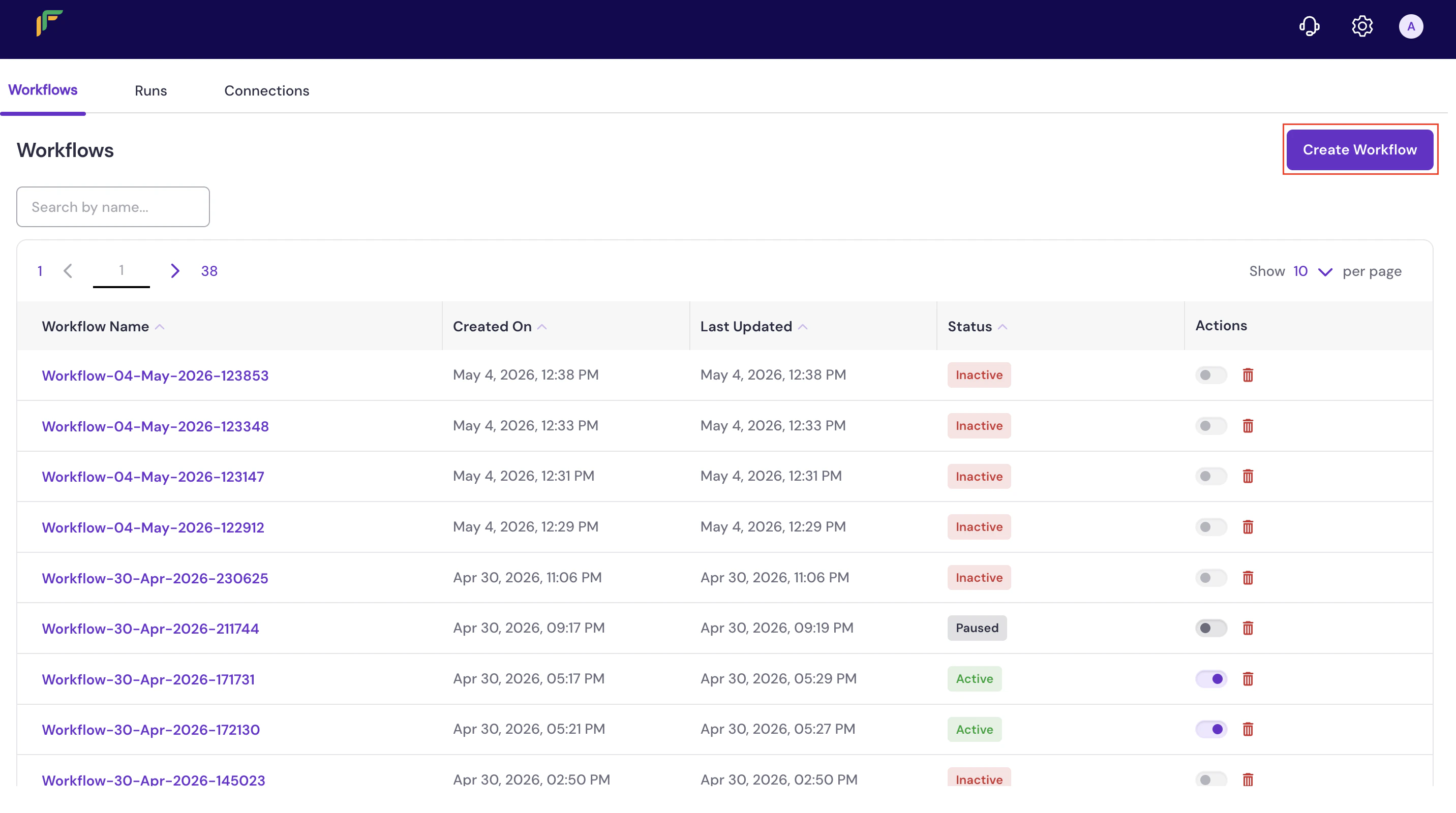 The workflow canvas opens immediately, displaying two default nodes: **Add a trigger here** and **End**. You can rename the workflow at any time by editing the name in the header at the top of the canvas.
A trigger defines the event or schedule that starts the workflow. On the canvas, click the **Add a trigger here** node. A panel opens on the right asking **What triggers this workflow?** Select a trigger type and follow the steps in the [Trigger types](#trigger-types) section.
After configuring the trigger, add one or more nodes to define what the workflow does. On the canvas, click the **+ Add step** button that appears between the trigger node and the **End** node, then follow the steps in the [Node types](#node-types) section.
You can repeat this step to chain multiple nodes and build a multi-step workflow. After you configure a node, a new **+ Add step** button appears between the last node and the **End** node.
The **End** node marks the completion of the workflow and cannot be removed or repositioned. All branches in the flow must connect to the **End** node.
After configuring all triggers and nodes, you can activate the workflow directly from the canvas or from the Relay dashboard.
* **From the canvas**: In the top-right corner of the canvas, click the **Draft** toggle. The status changes to **Active**.
* **From the Relay dashboard**: Click the back arrow at the top left of the canvas to return to the dashboard. In the **Actions** column for your workflow, click the toggle to activate it. The status changes to **Active**.
You can pause a workflow at any time by toggling the switch off. The status changes to **Paused**. To delete a workflow, click the delete icon in the **Actions** column on the Relay dashboard.
## Test a workflow
You can test a workflow at any time from the canvas to verify that it is configured correctly before activating it.
1. On the canvas, click **Test flow** in the top-right corner. The **Sample Data** panel opens, displaying auto-generated sample data for the configured trigger event.
2. Review the sample data to confirm it reflects the expected trigger payload.
3. Click **Execute** to run the test.
If the workflow runs successfully, a green confirmation message — **Execution started successfully** — appears at the bottom of the canvas. To review the results in detail, go to the **Runs** tab on the Relay dashboard.
If the test does not execute as expected, review your trigger configuration and node settings. Ensure that all required fields are filled in and that any app-based connections are active. For connection setup, see [Setting up Connections](/tools-ai/relay/add-connections).
## Trigger types
A trigger defines when a workflow starts. The following trigger types are available.
Use a schedule-based trigger to run your workflow automatically at a defined time interval.
1. Click the **Add a trigger here** node on the canvas. The **What triggers this workflow?** panel opens.
2. Select **Schedule Based**. The Schedule Based Triggers panel opens.
3. Select **Scheduled**, then select **Simple Schedule**. The Simple Schedule configuration panel opens.
4. From the **Trigger Interval** dropdown, select how often the workflow should run. See the [Trigger intervals](#trigger-intervals) reference for available options and additional fields.
5. Fill in any additional fields that appear based on your selected interval (for example, **Trigger at Hour**, **Trigger at Minute**, or **Trigger at Day of Month**).
6. (Optional) From the **Input Template** dropdown, select a template that defines the data structure passed into the workflow. Available templates include **Failed Transactions** and **Transaction Summary (Today & Yesterday)**.
7. Click **Confirm Selection**. The canvas updates to show the **Simple Schedule** trigger node.
The following intervals are available in the **Trigger Interval** dropdown. Some intervals display additional configuration fields after selection.
| Interval | Behaviour | Additional fields |
| -------- | -------------------- | ------------------------------------------------------------------ |
| Minutes | Runs every X minutes | None |
| Hours | Runs every X hours | None |
| Days | Runs every X days | Trigger at Hour, Trigger at Minute |
| Weeks | Runs every X weeks | Trigger at Hour, Trigger at Minute, Trigger at Day of Week |
| Months | Runs every X months | Trigger at Hour, Trigger at Minute, Trigger at Day of Month (1–31) |
Use an event-based trigger to run your workflow instantly when a specific payment-related event occurs.
1. Click the **Add a trigger here** node on the canvas. The **What triggers this workflow?** panel opens.
2. Select **Event Based**. The Event Based Triggers panel opens, listing the available event categories.
3. Select a category — **Payment**, **Refund**, or **Dispute** — to expand it and view the available events.
4. Select the event you want to trigger the workflow. The event configuration panel opens. See the [Supported events](#supported-events) reference for a full list.
5. (Optional) Add one or more conditions to target a specific subset of events.
* The first condition block is labelled **If**. Use the three dropdowns to select an **attribute** (for example, Amount, Card Country, Bank Name, or Payment Gateway), an **operator** (for example, Equals), and a **value**.
* To add another condition, click **+ Add more**. The new block includes an **AND/OR** toggle to control how conditions are combined.
* To remove a condition block, click **Remove** on that block.
**Example**: To trigger a workflow only for payments above a defined amount from India, set: **Amount** > **Greater than** > **\[value]** AND **Card Country** > **Equals** > **IN**.
Conditions are optional. If no conditions are added, the workflow triggers for every occurrence of the selected event.
6. Click **Confirm Selection**. The canvas updates to show the selected event as the trigger node.
The following event categories and events are available for event-based triggers.
| Category | Event | Description |
| -------- | ------------------- | --------------------------------------------------- |
| Payment | Payment Success | Runs when a customer completes a payment. |
| Payment | Payment Failed | Runs when a payment attempt fails. |
| Payment | Payment Dropped | Runs when a customer abandons checkout. |
| Refund | Refund Success | Runs when a refund is completed. |
| Refund | Refund Cancelled | Runs when a refund is cancelled or reversed. |
| Refund | Auto Refund Success | Runs when the system automatically issues a refund. |
| Dispute | Dispute Created | Runs when a new chargeback or retrieval is raised. |
| Dispute | Dispute Updated | Runs when a dispute status changes. |
| Dispute | Dispute Closed | Runs when a dispute is resolved. |
## Node types
A node defines what the workflow does after the trigger fires. The following node types are available.
Select **Action in an app** to perform an operation in an external service.
1. On the canvas, click **+ Add step**. The **What happens next?** panel opens.
2. Select **Action in an app**. A list of available apps appears. See [Supported apps](#supported-apps) for a full list.
3. Select the app you want to use. A list of available actions for that app appears.
4. Select the action to perform. The action configuration panel opens.
5. From the **Connection** dropdown, select an existing connection for the selected app.
Connection requirements vary by app. Apps such as Gmail, Google Sheets, and Slack require a pre-configured connection. The **Connection** dropdown lists only connections that have been set up in the **Connections** tab. If the required connection does not appear, set it up before configuring this action. For steps, see [Setting up Connections](/tools-ai/relay/add-connections).
6. Fill in all required fields for the selected action. Required fields are marked with an asterisk (\*). Optional fields can be left blank.
7. (Optional) Under **Sample Data**, click **Test Node** to validate the action configuration. A successful test displays a confirmation; if the test fails, review the connection and field values before proceeding.
8. Click **Save** to add the node to the canvas.
The following apps and services are available for app-based actions.
| App or service | Description |
| ----------------- | ------------------------------------------------------------------------------------ |
| Google Sheets | Create and manage spreadsheets; add rows, create spreadsheets, or create worksheets. |
| Slack | Send messages to channels or users via a Slack workspace. |
| Gmail | Send emails or request approvals through a Gmail account. |
| HTTP | Send HTTP requests to an external endpoint and receive responses. |
| Calendly | Manage scheduling actions via a Calendly account. |
| WhatsApp Business | Send messages via a WhatsApp Business account. |
| Google Gemini | Use Google Gemini AI models for content generation and analysis. |
| OpenAI | Access ChatGPT models for a wide range of AI-powered actions. |
Select **Flow Control** to route the workflow along different paths based on conditions. A Flow Control node splits the canvas into branches, and each branch can contain its own sequence of actions.
1. On the canvas, click **+ Add step**. The **What happens next?** panel opens.
2. Select **Flow Control**. The Flow Control panel opens.
3. Select **Router**. The Router node is added to the canvas and displays two default branches: **Branch 1** and **Otherwise**.
* **Branch 1** — The primary conditional path. You can add conditions and actions specific to this branch.
* **Otherwise** — The fallback path that runs when none of the other branch conditions are met.
4. Under any branch, click **Add step**. The **What happens next?** panel opens, allowing you to add either of the following.
* **Action in an app** — Perform an operation in an external service. See the **Action in an app** tab for configuration steps.
* **Flow Control** — Add another Router node to create further branching within the branch.
Repeat this for each branch as needed.
Each branch is independent. Actions added under **Branch 1** do not affect the **Otherwise** branch, and vice versa.
5. (Optional) To add more conditional paths, click the edit icon on the Router node and add additional branches. Each new branch appears alongside the existing ones on the canvas.
6. (Optional) To remove a branch, click the delete icon on the Router node and select the branch to remove.
The **Otherwise** branch cannot be removed, as it serves as the default fallback path.
7. Click **Save** to add the Router node to the canvas.
All branches in a Router node converge back to a single **End** node. You can continue adding shared nodes after the Router by clicking the **+ Add step** button that appears below all branches, before the **End** node.
## What's next
View, edit, pause, or delete existing workflows from the Relay dashboard.
Set up connections to external apps and services required for app-based actions.
The workflow canvas opens immediately, displaying two default nodes: **Add a trigger here** and **End**. You can rename the workflow at any time by editing the name in the header at the top of the canvas.
A trigger defines the event or schedule that starts the workflow. On the canvas, click the **Add a trigger here** node. A panel opens on the right asking **What triggers this workflow?** Select a trigger type and follow the steps in the [Trigger types](#trigger-types) section.
After configuring the trigger, add one or more nodes to define what the workflow does. On the canvas, click the **+ Add step** button that appears between the trigger node and the **End** node, then follow the steps in the [Node types](#node-types) section.
You can repeat this step to chain multiple nodes and build a multi-step workflow. After you configure a node, a new **+ Add step** button appears between the last node and the **End** node.
The **End** node marks the completion of the workflow and cannot be removed or repositioned. All branches in the flow must connect to the **End** node.
After configuring all triggers and nodes, you can activate the workflow directly from the canvas or from the Relay dashboard.
* **From the canvas**: In the top-right corner of the canvas, click the **Draft** toggle. The status changes to **Active**.
* **From the Relay dashboard**: Click the back arrow at the top left of the canvas to return to the dashboard. In the **Actions** column for your workflow, click the toggle to activate it. The status changes to **Active**.
You can pause a workflow at any time by toggling the switch off. The status changes to **Paused**. To delete a workflow, click the delete icon in the **Actions** column on the Relay dashboard.
## Test a workflow
You can test a workflow at any time from the canvas to verify that it is configured correctly before activating it.
1. On the canvas, click **Test flow** in the top-right corner. The **Sample Data** panel opens, displaying auto-generated sample data for the configured trigger event.
2. Review the sample data to confirm it reflects the expected trigger payload.
3. Click **Execute** to run the test.
If the workflow runs successfully, a green confirmation message — **Execution started successfully** — appears at the bottom of the canvas. To review the results in detail, go to the **Runs** tab on the Relay dashboard.
If the test does not execute as expected, review your trigger configuration and node settings. Ensure that all required fields are filled in and that any app-based connections are active. For connection setup, see [Setting up Connections](/tools-ai/relay/add-connections).
## Trigger types
A trigger defines when a workflow starts. The following trigger types are available.
Use a schedule-based trigger to run your workflow automatically at a defined time interval.
1. Click the **Add a trigger here** node on the canvas. The **What triggers this workflow?** panel opens.
2. Select **Schedule Based**. The Schedule Based Triggers panel opens.
3. Select **Scheduled**, then select **Simple Schedule**. The Simple Schedule configuration panel opens.
4. From the **Trigger Interval** dropdown, select how often the workflow should run. See the [Trigger intervals](#trigger-intervals) reference for available options and additional fields.
5. Fill in any additional fields that appear based on your selected interval (for example, **Trigger at Hour**, **Trigger at Minute**, or **Trigger at Day of Month**).
6. (Optional) From the **Input Template** dropdown, select a template that defines the data structure passed into the workflow. Available templates include **Failed Transactions** and **Transaction Summary (Today & Yesterday)**.
7. Click **Confirm Selection**. The canvas updates to show the **Simple Schedule** trigger node.
The following intervals are available in the **Trigger Interval** dropdown. Some intervals display additional configuration fields after selection.
| Interval | Behaviour | Additional fields |
| -------- | -------------------- | ------------------------------------------------------------------ |
| Minutes | Runs every X minutes | None |
| Hours | Runs every X hours | None |
| Days | Runs every X days | Trigger at Hour, Trigger at Minute |
| Weeks | Runs every X weeks | Trigger at Hour, Trigger at Minute, Trigger at Day of Week |
| Months | Runs every X months | Trigger at Hour, Trigger at Minute, Trigger at Day of Month (1–31) |
Use an event-based trigger to run your workflow instantly when a specific payment-related event occurs.
1. Click the **Add a trigger here** node on the canvas. The **What triggers this workflow?** panel opens.
2. Select **Event Based**. The Event Based Triggers panel opens, listing the available event categories.
3. Select a category — **Payment**, **Refund**, or **Dispute** — to expand it and view the available events.
4. Select the event you want to trigger the workflow. The event configuration panel opens. See the [Supported events](#supported-events) reference for a full list.
5. (Optional) Add one or more conditions to target a specific subset of events.
* The first condition block is labelled **If**. Use the three dropdowns to select an **attribute** (for example, Amount, Card Country, Bank Name, or Payment Gateway), an **operator** (for example, Equals), and a **value**.
* To add another condition, click **+ Add more**. The new block includes an **AND/OR** toggle to control how conditions are combined.
* To remove a condition block, click **Remove** on that block.
**Example**: To trigger a workflow only for payments above a defined amount from India, set: **Amount** > **Greater than** > **\[value]** AND **Card Country** > **Equals** > **IN**.
Conditions are optional. If no conditions are added, the workflow triggers for every occurrence of the selected event.
6. Click **Confirm Selection**. The canvas updates to show the selected event as the trigger node.
The following event categories and events are available for event-based triggers.
| Category | Event | Description |
| -------- | ------------------- | --------------------------------------------------- |
| Payment | Payment Success | Runs when a customer completes a payment. |
| Payment | Payment Failed | Runs when a payment attempt fails. |
| Payment | Payment Dropped | Runs when a customer abandons checkout. |
| Refund | Refund Success | Runs when a refund is completed. |
| Refund | Refund Cancelled | Runs when a refund is cancelled or reversed. |
| Refund | Auto Refund Success | Runs when the system automatically issues a refund. |
| Dispute | Dispute Created | Runs when a new chargeback or retrieval is raised. |
| Dispute | Dispute Updated | Runs when a dispute status changes. |
| Dispute | Dispute Closed | Runs when a dispute is resolved. |
## Node types
A node defines what the workflow does after the trigger fires. The following node types are available.
Select **Action in an app** to perform an operation in an external service.
1. On the canvas, click **+ Add step**. The **What happens next?** panel opens.
2. Select **Action in an app**. A list of available apps appears. See [Supported apps](#supported-apps) for a full list.
3. Select the app you want to use. A list of available actions for that app appears.
4. Select the action to perform. The action configuration panel opens.
5. From the **Connection** dropdown, select an existing connection for the selected app.
Connection requirements vary by app. Apps such as Gmail, Google Sheets, and Slack require a pre-configured connection. The **Connection** dropdown lists only connections that have been set up in the **Connections** tab. If the required connection does not appear, set it up before configuring this action. For steps, see [Setting up Connections](/tools-ai/relay/add-connections).
6. Fill in all required fields for the selected action. Required fields are marked with an asterisk (\*). Optional fields can be left blank.
7. (Optional) Under **Sample Data**, click **Test Node** to validate the action configuration. A successful test displays a confirmation; if the test fails, review the connection and field values before proceeding.
8. Click **Save** to add the node to the canvas.
The following apps and services are available for app-based actions.
| App or service | Description |
| ----------------- | ------------------------------------------------------------------------------------ |
| Google Sheets | Create and manage spreadsheets; add rows, create spreadsheets, or create worksheets. |
| Slack | Send messages to channels or users via a Slack workspace. |
| Gmail | Send emails or request approvals through a Gmail account. |
| HTTP | Send HTTP requests to an external endpoint and receive responses. |
| Calendly | Manage scheduling actions via a Calendly account. |
| WhatsApp Business | Send messages via a WhatsApp Business account. |
| Google Gemini | Use Google Gemini AI models for content generation and analysis. |
| OpenAI | Access ChatGPT models for a wide range of AI-powered actions. |
Select **Flow Control** to route the workflow along different paths based on conditions. A Flow Control node splits the canvas into branches, and each branch can contain its own sequence of actions.
1. On the canvas, click **+ Add step**. The **What happens next?** panel opens.
2. Select **Flow Control**. The Flow Control panel opens.
3. Select **Router**. The Router node is added to the canvas and displays two default branches: **Branch 1** and **Otherwise**.
* **Branch 1** — The primary conditional path. You can add conditions and actions specific to this branch.
* **Otherwise** — The fallback path that runs when none of the other branch conditions are met.
4. Under any branch, click **Add step**. The **What happens next?** panel opens, allowing you to add either of the following.
* **Action in an app** — Perform an operation in an external service. See the **Action in an app** tab for configuration steps.
* **Flow Control** — Add another Router node to create further branching within the branch.
Repeat this for each branch as needed.
Each branch is independent. Actions added under **Branch 1** do not affect the **Otherwise** branch, and vice versa.
5. (Optional) To add more conditional paths, click the edit icon on the Router node and add additional branches. Each new branch appears alongside the existing ones on the canvas.
6. (Optional) To remove a branch, click the delete icon on the Router node and select the branch to remove.
The **Otherwise** branch cannot be removed, as it serves as the default fallback path.
7. Click **Save** to add the Router node to the canvas.
All branches in a Router node converge back to a single **End** node. You can continue adding shared nodes after the Router by clicking the **+ Add step** button that appears below all branches, before the **End** node.
## What's next
View, edit, pause, or delete existing workflows from the Relay dashboard.
Set up connections to external apps and services required for app-based actions.