> ## Documentation Index
> Fetch the complete documentation index at: https://www.cashfree.com/docs/llms.txt
> Use this file to discover all available pages before exploring further.
# Subscription Payment Form
> Create a Cashfree Subscription Payment Form to collect recurring payments through a hosted checkout with single-plan or multi-plan options.
A Subscription Payment Form is a hosted checkout that collects recurring payments without code. Use a single recurring plan when you offer one recurring amount. Use multiple recurring plans when customers need to choose an option, such as Basic, Pro, and Enterprise plans, or several donation amounts.
When the customer completes [mandate](/docs/payments/subscription/introduction#whats-a-mandate) registration, Cashfree creates a subscription for the plan they used at checkout.
## Use cases
Use a Subscription Payment Form to collect recurring payments through a shared link. The following examples cover both single-plan and multi-plan forms:
* **Donations**: One monthly contribution, or several amounts such as ₹301, ₹500, and ₹1,200.
* **Education**: A single course fee, or multiple course and coaching plans.
* **Memberships and software**: One membership, or multiple tiers such as Basic, Pro, and Enterprise.
* **Fitness and communities**: One membership tier, or several tiers with different benefits and billing frequencies.
## How it works
To see how checkout works, compare the two form types:
| Form type | Plans on the form | What the customer does |
| --------------- | ----------------- | --------------------------------------------------------------------------------------------- |
| **Single-plan** | One | Completes mandate registration for that plan. Checkout does not show a plan selection step. |
| **Multi-plan** | Two or more | Reviews every available plan, selects one, then completes mandate registration for that plan. |
Each plan you add to the form becomes a separate [subscription plan](/docs/payments/subscription/introduction#plans). You configure the subscription type separately for each plan, and set a frequency for each Periodic plan.
If the customer leaves before mandate registration is complete, Cashfree does not create a subscription. Share the form again so they can retry.
## Prerequisites
To create a Subscription Payment Form, you need an active Cashfree account. If you don't have one, [sign up for a Cashfree account](https://merchant.cashfree.com/merchants/signup?source-action=docs%20page\&action=Sign%20Up\&button-id=StartNow_Navbar). You also need:
* Access to the Merchant Dashboard.
* The plan name, amount, and subscription type for each plan. Periodic plans also need a billing frequency.
## Create a Subscription Payment Form
To create a Subscription Payment Form, follow these steps:
Log in to the [Merchant Dashboard](https://merchant.cashfree.com/auth/login). Go to **Payment Gateway > Payment Forms > All**.
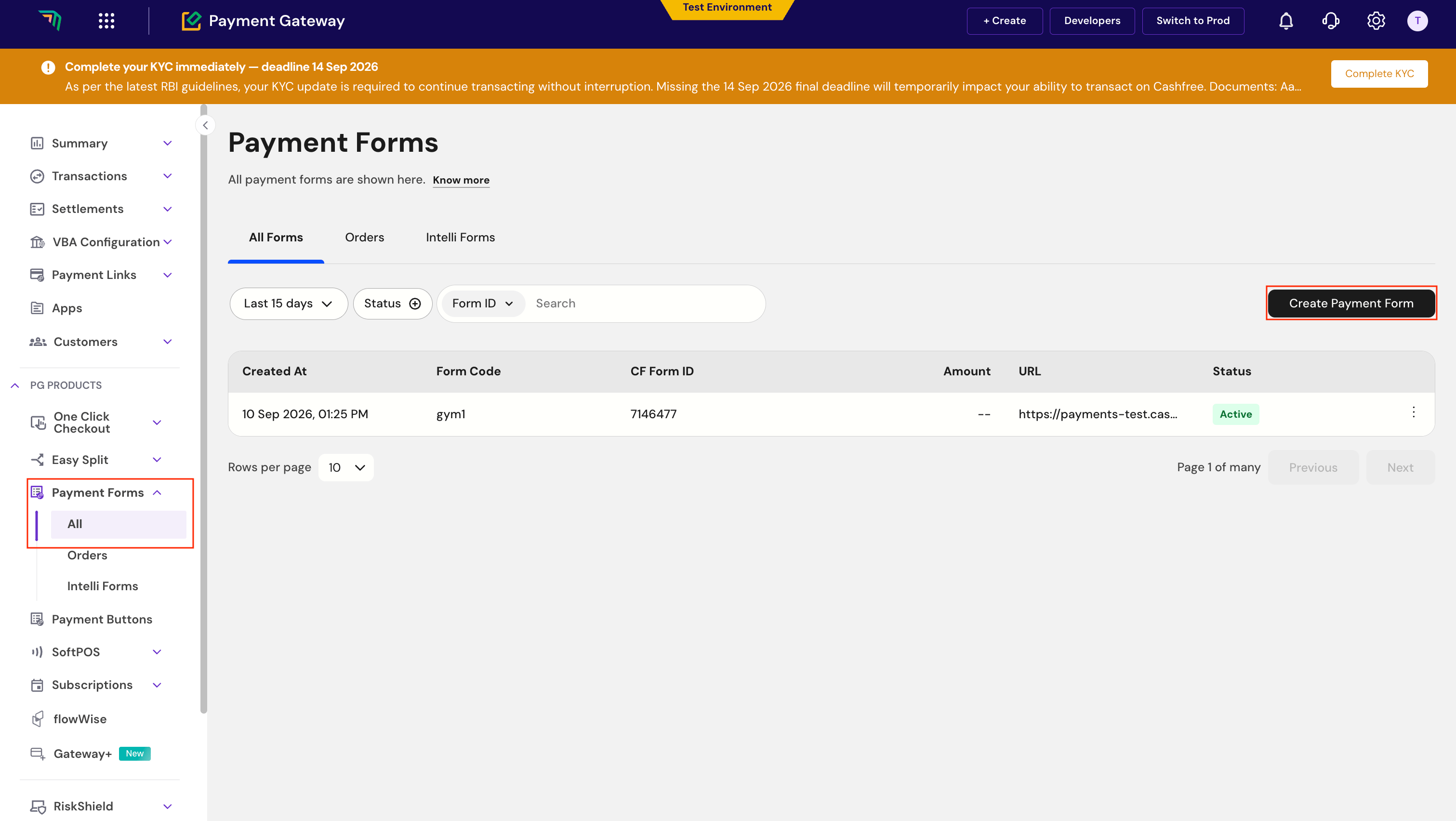 Click **Create a Payment Form**, select **Subscription** as the payment form type, and enter the form details, such as the form name and purpose of payment.
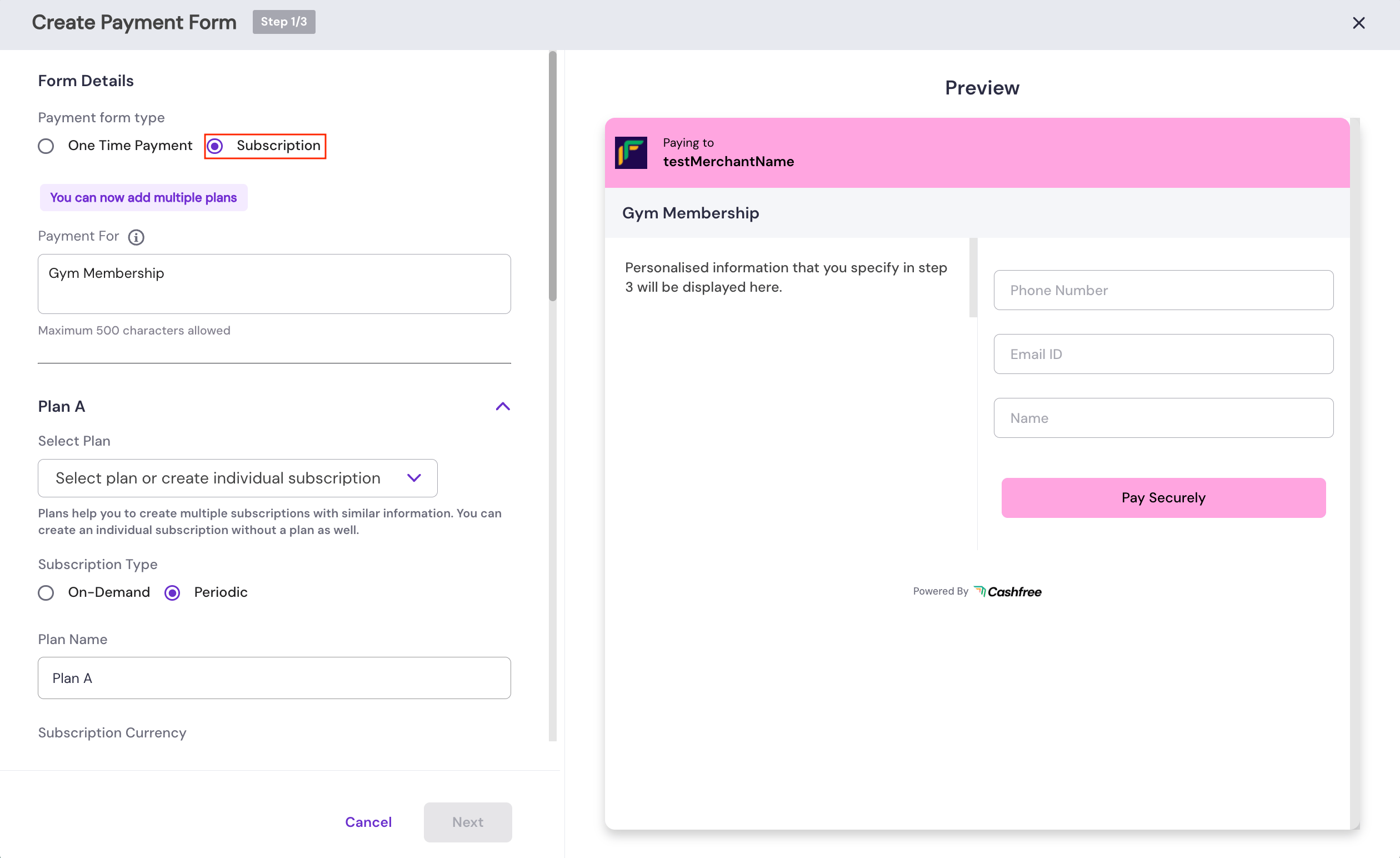 Configure each plan with a name, amount, and subscription type, and add a minimum of one subscription plan. Set a frequency only when the subscription type is Periodic.
| Field | Required | Description |
| --------------------- | ------------------- | ---------------------------------------------------------------------------------------------------- |
| **Plan name** | Yes | Name shown to the customer at checkout and during mandate authorisation. |
| **Amount** | Yes | Amount charged for the plan. |
| **Subscription type** | Yes | `Periodic` for a fixed amount at a fixed interval. `On-Demand` for amounts you charge when required. |
| **Frequency** | Periodic plans only | How often you charge a Periodic plan. Cashfree supports intervals in days, weeks, months, or years. |
| **Description** | No | Short text that explains the plan. On a multi-plan form, use this to help customers compare options. |
All plans on one form must use the same currency. Plans with the same name or amount are allowed. Periodic plans on the same form can use different frequencies.
For the frequencies supported by each payment method, see [Subscriptions FAQs](/docs/payments/subscription/faq).
Click **Add Plan** for each extra option you want on the same form. Configure every additional plan with the same fields. You can add as many plans as you need.
Edit or delete any plan before you publish. Confirm that every plan uses the same currency, then publish the form and share the URL.
Share the form URL through your website, WhatsApp, email, SMS, or any other channel.
## Next steps
To manage subscriptions after customers subscribe, refer to the following topics:
* View and manage subscriptions from [Manage Subscriptions](/docs/payments/subscription/manage).
* Charge On-Demand subscriptions after the mandate is active. See [charge a subscription](/docs/payments/subscription/charge).
* Receive subscription updates through [subscription webhooks](/docs/payments/subscription/webhooks).
## Limitations
To avoid unexpected behaviour, note the following limitations:
* Customers cannot subscribe to more than one plan in a single checkout.
* Customers cannot switch plans after the subscription is created. Create a new subscription if they need a different plan.
Configure each plan with a name, amount, and subscription type, and add a minimum of one subscription plan. Set a frequency only when the subscription type is Periodic.
| Field | Required | Description |
| --------------------- | ------------------- | ---------------------------------------------------------------------------------------------------- |
| **Plan name** | Yes | Name shown to the customer at checkout and during mandate authorisation. |
| **Amount** | Yes | Amount charged for the plan. |
| **Subscription type** | Yes | `Periodic` for a fixed amount at a fixed interval. `On-Demand` for amounts you charge when required. |
| **Frequency** | Periodic plans only | How often you charge a Periodic plan. Cashfree supports intervals in days, weeks, months, or years. |
| **Description** | No | Short text that explains the plan. On a multi-plan form, use this to help customers compare options. |
All plans on one form must use the same currency. Plans with the same name or amount are allowed. Periodic plans on the same form can use different frequencies.
For the frequencies supported by each payment method, see [Subscriptions FAQs](/docs/payments/subscription/faq).
Click **Add Plan** for each extra option you want on the same form. Configure every additional plan with the same fields. You can add as many plans as you need.
Edit or delete any plan before you publish. Confirm that every plan uses the same currency, then publish the form and share the URL.
Share the form URL through your website, WhatsApp, email, SMS, or any other channel.
## Next steps
To manage subscriptions after customers subscribe, refer to the following topics:
* View and manage subscriptions from [Manage Subscriptions](/docs/payments/subscription/manage).
* Charge On-Demand subscriptions after the mandate is active. See [charge a subscription](/docs/payments/subscription/charge).
* Receive subscription updates through [subscription webhooks](/docs/payments/subscription/webhooks).
## Limitations
To avoid unexpected behaviour, note the following limitations:
* Customers cannot subscribe to more than one plan in a single checkout.
* Customers cannot switch plans after the subscription is created. Create a new subscription if they need a different plan.