> ## Documentation Index
> Fetch the complete documentation index at: https://www.cashfree.com/docs/llms.txt
> Use this file to discover all available pages before exploring further.
# Payouts Reports
> Access Cashfree Payouts reports from the dashboard or schedule them via email to monitor fund flow, reconcile transfers, and review business health daily.
Monitoring fund flow in the account is important for every business. Cashfree provides various reports that can help you streamline the payment flow of your business. You can access the reports in your dashboard or [configure to receive via email](/docs/payouts/payouts/dashboard/set-email-notifications) to get a view of the business health either for a day or for a particular date range.
Payouts reports include the following sections:
* [Transfers report](/docs/payouts/payouts/dashboard/reports#transfer-report)
* [Pending transfers report](/docs/payouts/payouts/dashboard/reports#pending-transfers-report)
* [Cashgram report](/docs/payouts/payouts/dashboard/reports#cashgram-report)
* [Account statement report](/docs/payouts/payouts/dashboard/reports#account-statement-report)
* [Reversed transfers report](/docs/payouts/payouts/dashboard/reports#reversed-transfers-report)
* [Custom report](/docs/payouts/payouts/dashboard/reports#custom-report)
The maximum permitted date range for any report is 31 days. Reports for larger date ranges may take longer to generate.
## Transfer report
Transfer reports contain all the necessary details of transfers made using your Payouts account. It includes transfer statuses, events, beneficiary details, reference numbers, and other financial information related to each transfer.
You can generate transfer reports, either for a day or for a particular date range.
Follow the instructions below to view the transfer report:
1. Log in to the [Merchant Dashboard](https://merchant.cashfree.com/auth/login).
2. Go to **Payouts Dashboard** > **Reports**.
3. In the **Report Type** field, select **Transfer** > click **Generate Report**.
4. Specify a name for the report if you want it to be different from the one suggested.
5. Select the required **File Format**, **.csv** and **.xls** are supported.
6. Specify the **Date Range** for which you want to view the report.
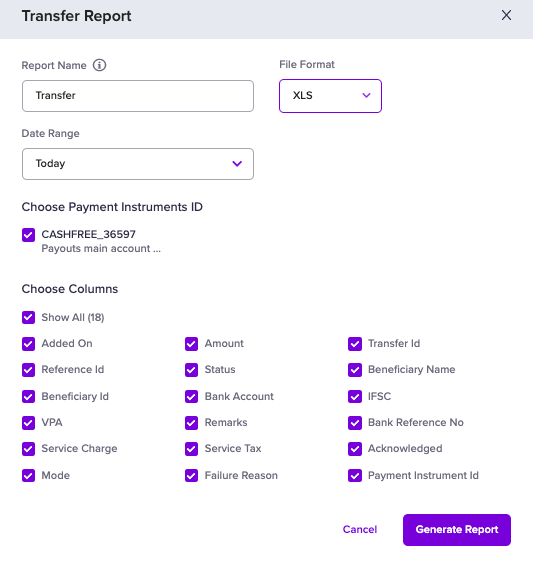 7. Click the **Generate Report** button. The generated report will be available for download in the **Reports** section.
## Pending transfers report
Monitoring pending transfers helps you make informed decisions, mitigate risks, and maintain smooth business operations. You can view comprehensive details for all pending transfers directly from your dashboard.
Follow the instructions below to view the report on pending transfers:
1. Log in to the [Merchant Dashboard](https://merchant.cashfree.com/auth/login).
2. Go to **Payouts > Reports**.
3. Choose **Pending Transfer** from the **Report Type** dropdown field, and select **Generate Report**.
7. Click the **Generate Report** button. The generated report will be available for download in the **Reports** section.
## Pending transfers report
Monitoring pending transfers helps you make informed decisions, mitigate risks, and maintain smooth business operations. You can view comprehensive details for all pending transfers directly from your dashboard.
Follow the instructions below to view the report on pending transfers:
1. Log in to the [Merchant Dashboard](https://merchant.cashfree.com/auth/login).
2. Go to **Payouts > Reports**.
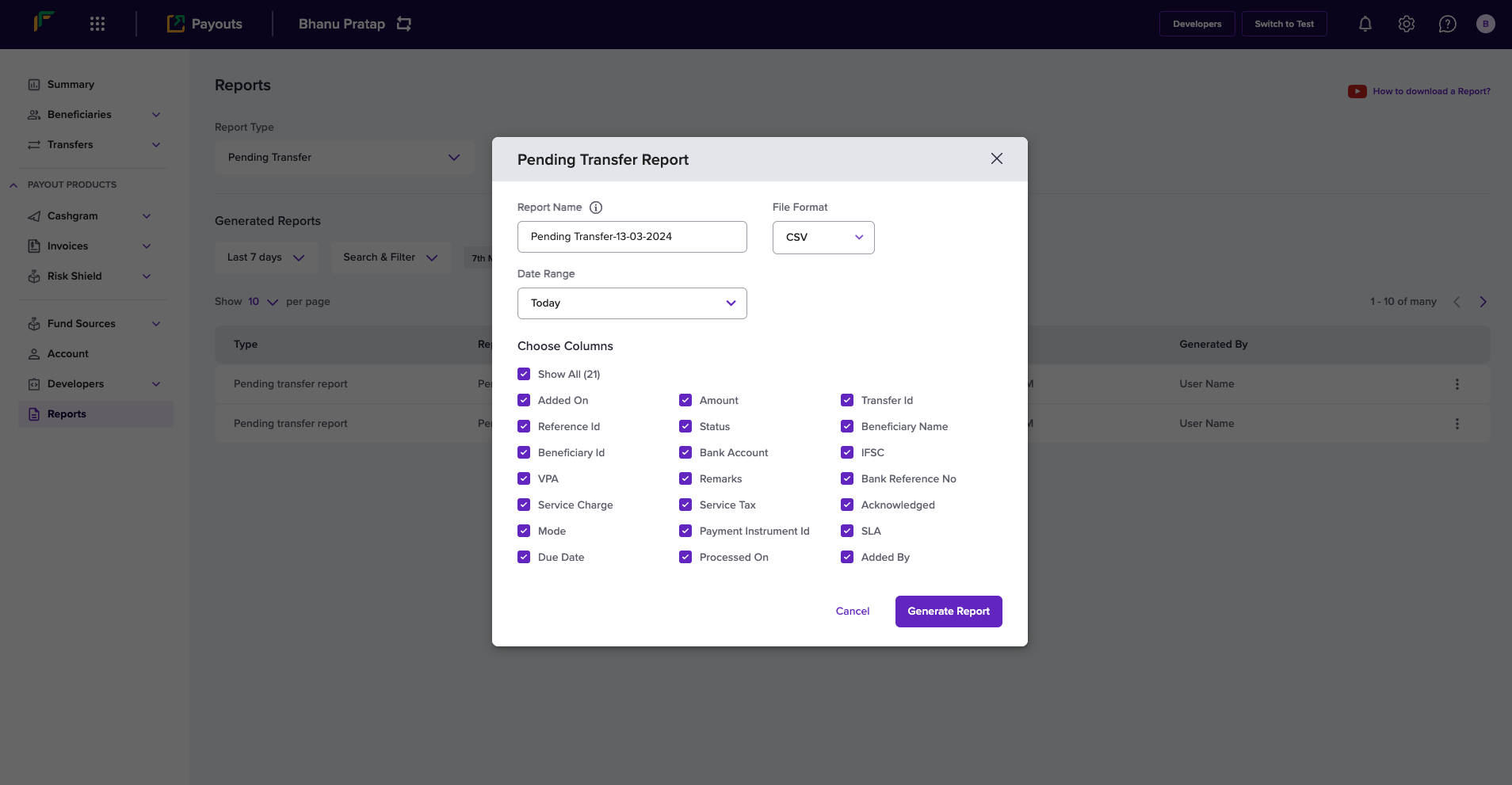
3. Choose **Pending Transfer** from the **Report Type** dropdown field, and select **Generate Report**.
 4. Fill in the following information in the **Pending Transfer Report** popup:
* **Report Name**: Enter a name for the report in this field.
* **File Format**: Select the required file format **.csv** and **.xls** are supported.
* **Date Range**: Use this dropdown to select a period of time for which you want to view the pending transfers.
* **Choose Columns**: Use the checkboxes to include or exclude specific data in the report.
The report includes **SLA** and **Due Date** details to help you track the anticipated completion timeline for your pending transfers.
4. Fill in the following information in the **Pending Transfer Report** popup:
* **Report Name**: Enter a name for the report in this field.
* **File Format**: Select the required file format **.csv** and **.xls** are supported.
* **Date Range**: Use this dropdown to select a period of time for which you want to view the pending transfers.
* **Choose Columns**: Use the checkboxes to include or exclude specific data in the report.
The report includes **SLA** and **Due Date** details to help you track the anticipated completion timeline for your pending transfers.
 ## Cashgram report
Cashgram reports contain all the necessary details of the Cashgrams created using your Payouts account. The report gives you details about the customer, amount, the URL created and shared with the customer, link expiry details, Cashgram status, and more information related to each Cashgram. Details of all Cashgrams added in a batch file is also available in the report.
You can generate Cashgram reports, either for a day or for a particular date range.
Follow the instructions below to view the Cashgram report:
1. Log in to the [Merchant Dashboard](https://merchant.cashfree.com/auth/login).
2. Go to **Payouts Dashboard** > **Reports**.
3. In the **Report Type** field, select **Cashgram** > click **Generate Report**.
4. Specify a name for the report if you want it to be different from the one suggested.
5. Select the required **File Format**, **.csv** and **.xls** are supported.
6. Specify the **Date Range** for which you want to view the report.
7. Select the details you want to include in the report, as shown below.
## Cashgram report
Cashgram reports contain all the necessary details of the Cashgrams created using your Payouts account. The report gives you details about the customer, amount, the URL created and shared with the customer, link expiry details, Cashgram status, and more information related to each Cashgram. Details of all Cashgrams added in a batch file is also available in the report.
You can generate Cashgram reports, either for a day or for a particular date range.
Follow the instructions below to view the Cashgram report:
1. Log in to the [Merchant Dashboard](https://merchant.cashfree.com/auth/login).
2. Go to **Payouts Dashboard** > **Reports**.
3. In the **Report Type** field, select **Cashgram** > click **Generate Report**.
4. Specify a name for the report if you want it to be different from the one suggested.
5. Select the required **File Format**, **.csv** and **.xls** are supported.
6. Specify the **Date Range** for which you want to view the report.
7. Select the details you want to include in the report, as shown below.
 8. Click the **Generate Report** button. The generated report will be available for download in the **Reports** section.
## Account statement report
The account statement report gives you information about all the credits and debits that have happened in your Payouts account within a given period of time.
Follow the instructions below to view the account statement report:
1. Log in to the [Merchant Dashboard](https://merchant.cashfree.com/auth/login).
2. Go to **Payouts Dashboard** > **Reports**.
3. In the **Report Type** field, select **Account Statement** > click **Generate Report**.
4. Specify a name for the report if you want it to be different from the one suggested.
5. Select the required **File Format**, **.csv** and **.xls** are supported.
6. Specify the **Date Range** for which you want to view the report.
7. Select a **Fund Source** from the dropdown options.
8. Select the details you want to include in the report, as shown below.
8. Click the **Generate Report** button. The generated report will be available for download in the **Reports** section.
## Account statement report
The account statement report gives you information about all the credits and debits that have happened in your Payouts account within a given period of time.
Follow the instructions below to view the account statement report:
1. Log in to the [Merchant Dashboard](https://merchant.cashfree.com/auth/login).
2. Go to **Payouts Dashboard** > **Reports**.
3. In the **Report Type** field, select **Account Statement** > click **Generate Report**.
4. Specify a name for the report if you want it to be different from the one suggested.
5. Select the required **File Format**, **.csv** and **.xls** are supported.
6. Specify the **Date Range** for which you want to view the report.
7. Select a **Fund Source** from the dropdown options.
8. Select the details you want to include in the report, as shown below.
 9. Click the **Generate Report** button. The generated report will be available for download in the **Reports** section.
## Reversed transfers report
Reversed Transfer report is a new report that is added and it gives you information about all the transfers that are reversed in your Payouts account. Details like, date, time, and the reason for reversal is available in the report.
Follow the instructions below to view the transfer reversals report:
1. Log in to the [Merchant Dashboard](https://merchant.cashfree.com/auth/login).
2. Go to **Payouts Dashboard** > **Reports**.
3. In the **Report Type** field, select **Reversed Transfers** > click **Generate Report**.
4. Specify a name for the report if you want it to be different from the one suggested.
5. Select the required **File Format**, **.csv** and **.xls** are supported.
6. Specify the **Date Range** for which you want to view the report.
7. Check the box to **Choose Fund Sources** from the available sources displayed.
8. Select the details you want to include in the report, as shown below.
9. Click the **Generate Report** button. The generated report will be available for download in the **Reports** section.
## Reversed transfers report
Reversed Transfer report is a new report that is added and it gives you information about all the transfers that are reversed in your Payouts account. Details like, date, time, and the reason for reversal is available in the report.
Follow the instructions below to view the transfer reversals report:
1. Log in to the [Merchant Dashboard](https://merchant.cashfree.com/auth/login).
2. Go to **Payouts Dashboard** > **Reports**.
3. In the **Report Type** field, select **Reversed Transfers** > click **Generate Report**.
4. Specify a name for the report if you want it to be different from the one suggested.
5. Select the required **File Format**, **.csv** and **.xls** are supported.
6. Specify the **Date Range** for which you want to view the report.
7. Check the box to **Choose Fund Sources** from the available sources displayed.
8. Select the details you want to include in the report, as shown below.
 9. Click the **Generate Report** button. The generated report will be available for download in the **Reports** section.
## Custom report
Custom reports are delivered automatically on a daily basis in **CSV** or **XLSX** format, and are useful for automated downstream processing, internal data pipelines, and analytics. Unlike the other reports above, custom reports are not generated manually from the dashboard. They're configured by the Cashfree team based on the delivery method and fields according to your specifications.
Custom reports can be delivered using any of the following methods:
* **Email**: The report is sent as a file attachment to one or more email addresses you specify. This is the simplest option and is best suited for business teams who review reports manually. To configure this method, share your email address or addresses with the Cashfree team.
* **SFTP (Secure File Transfer)**: The report is deposited automatically into a secure folder on your server every day without manual intervention. This method works well if your team has an existing system that picks up and processes files automatically. To configure this method, share your **Host**, **Port**, **Username**, and **Password** with the Cashfree team.
* **AWS S3 (Cloud Storage)**: The report is uploaded directly to a folder in your AWS cloud storage bucket. This method is best suited for teams that run data pipelines or analytics tools that read from cloud storage. To configure this method, set up an IAM role and share your **S3 Bucket Name** and **S3 Upload Folder** with the Cashfree team.
To set up a custom report, raise a request with the Cashfree support team through the [support form](https://merchant.cashfree.com/merchants/landing?env=prod\&raise_issue=1) with your preferred delivery method and configuration details.
### Available fields
The following fields can be included in your custom report. Share the list of fields you need to view in your custom report when contacting the Cashfree team.
Use these fields to track individual transfer status, beneficiary details, and bank-level reference information.
| Field | Key |
| -------------------- | ------------------ |
| Transfer ID | `transferid` |
| Cashfree Transfer ID | `cftransferid` |
| Amount | `amount` |
| Status | `status` |
| Bank Status | `bankstatus` |
| Bank Reference No | `bankrefno` |
| Bank Account | `bankaccount` |
| IFSC | `ifsc` |
| VPA | `vpa` |
| Mode | `mode` |
| Remarks | `remarks` |
| Service Charge | `servicecharge` |
| Service Tax | `servicetax` |
| Added On | `addedon` |
| Processed On | `processedon` |
| Beneficiary Name | `benenamefromuser` |
| Beneficiary ID | `beneid` |
| Fund Source Name | `fundsourcename` |
| Account ID | `accountid` |
Use these fields to track account credits, debits, and balance movement for each ledger event.
| Field | Key |
| ---------------- | ---------------- |
| Event ID | `eventid` |
| Event Type | `eventtype` |
| Transaction Time | `txtime` |
| Event | `event` |
| Amount | `amount` |
| Charged Amount | `chargedamount` |
| Closing Balance | `closingbalance` |
| Remarks | `remarks` |
| Source Bank | `sourcebank` |
| Account ID | `accountid` |
Use these fields to track the reversal reason, reference IDs, and the original transfer details.
| Field | Key |
| ----------------- | ------------------ |
| Reference ID | `referenceid` |
| Transfer ID | `transferid` |
| Reversal ID | `reversalid` |
| Amount | `amount` |
| Reason | `reason` |
| Bank Reference No | `bankrefno` |
| Bank Account | `bankaccount` |
| IFSC | `ifsc` |
| VPA | `vpa` |
| Mode | `mode` |
| Bank Status | `bankstatus` |
| Beneficiary Name | `benenamefromuser` |
| Beneficiary ID | `beneid` |
| Fund Source Name | `fundsourcename` |
| Added On | `addedon` |
| Processed On | `processedon` |
| Account ID | `accountid` |
9. Click the **Generate Report** button. The generated report will be available for download in the **Reports** section.
## Custom report
Custom reports are delivered automatically on a daily basis in **CSV** or **XLSX** format, and are useful for automated downstream processing, internal data pipelines, and analytics. Unlike the other reports above, custom reports are not generated manually from the dashboard. They're configured by the Cashfree team based on the delivery method and fields according to your specifications.
Custom reports can be delivered using any of the following methods:
* **Email**: The report is sent as a file attachment to one or more email addresses you specify. This is the simplest option and is best suited for business teams who review reports manually. To configure this method, share your email address or addresses with the Cashfree team.
* **SFTP (Secure File Transfer)**: The report is deposited automatically into a secure folder on your server every day without manual intervention. This method works well if your team has an existing system that picks up and processes files automatically. To configure this method, share your **Host**, **Port**, **Username**, and **Password** with the Cashfree team.
* **AWS S3 (Cloud Storage)**: The report is uploaded directly to a folder in your AWS cloud storage bucket. This method is best suited for teams that run data pipelines or analytics tools that read from cloud storage. To configure this method, set up an IAM role and share your **S3 Bucket Name** and **S3 Upload Folder** with the Cashfree team.
To set up a custom report, raise a request with the Cashfree support team through the [support form](https://merchant.cashfree.com/merchants/landing?env=prod\&raise_issue=1) with your preferred delivery method and configuration details.
### Available fields
The following fields can be included in your custom report. Share the list of fields you need to view in your custom report when contacting the Cashfree team.
Use these fields to track individual transfer status, beneficiary details, and bank-level reference information.
| Field | Key |
| -------------------- | ------------------ |
| Transfer ID | `transferid` |
| Cashfree Transfer ID | `cftransferid` |
| Amount | `amount` |
| Status | `status` |
| Bank Status | `bankstatus` |
| Bank Reference No | `bankrefno` |
| Bank Account | `bankaccount` |
| IFSC | `ifsc` |
| VPA | `vpa` |
| Mode | `mode` |
| Remarks | `remarks` |
| Service Charge | `servicecharge` |
| Service Tax | `servicetax` |
| Added On | `addedon` |
| Processed On | `processedon` |
| Beneficiary Name | `benenamefromuser` |
| Beneficiary ID | `beneid` |
| Fund Source Name | `fundsourcename` |
| Account ID | `accountid` |
Use these fields to track account credits, debits, and balance movement for each ledger event.
| Field | Key |
| ---------------- | ---------------- |
| Event ID | `eventid` |
| Event Type | `eventtype` |
| Transaction Time | `txtime` |
| Event | `event` |
| Amount | `amount` |
| Charged Amount | `chargedamount` |
| Closing Balance | `closingbalance` |
| Remarks | `remarks` |
| Source Bank | `sourcebank` |
| Account ID | `accountid` |
Use these fields to track the reversal reason, reference IDs, and the original transfer details.
| Field | Key |
| ----------------- | ------------------ |
| Reference ID | `referenceid` |
| Transfer ID | `transferid` |
| Reversal ID | `reversalid` |
| Amount | `amount` |
| Reason | `reason` |
| Bank Reference No | `bankrefno` |
| Bank Account | `bankaccount` |
| IFSC | `ifsc` |
| VPA | `vpa` |
| Mode | `mode` |
| Bank Status | `bankstatus` |
| Beneficiary Name | `benenamefromuser` |
| Beneficiary ID | `beneid` |
| Fund Source Name | `fundsourcename` |
| Added On | `addedon` |
| Processed On | `processedon` |
| Account ID | `accountid` |