Payouts to your vendors, suppliers, employees and others involved in your business can be done instantly with Cashfree Payouts. You need to have a sufficient balance in your account to make a payout. You can make a payout using the Payout Dashboard or the APIs. You can also make transfers in batches when you have to make payouts to a large number of customers.Documentation Index
Fetch the complete documentation index at: https://www.cashfree.com/docs/llms.txt
Use this file to discover all available pages before exploring further.
Quick transfer
To make a quick transfer,- Log in to the Merchant Dashboard.
- Go to Payouts Dashboard > Transfers > select Quick Transfer.
- Enter the Beneficiary ID, select the Fund Source from which you want to transfer funds, and select the Transfer Method.
- Enter the Transfer ID, Amount, and Remarks.
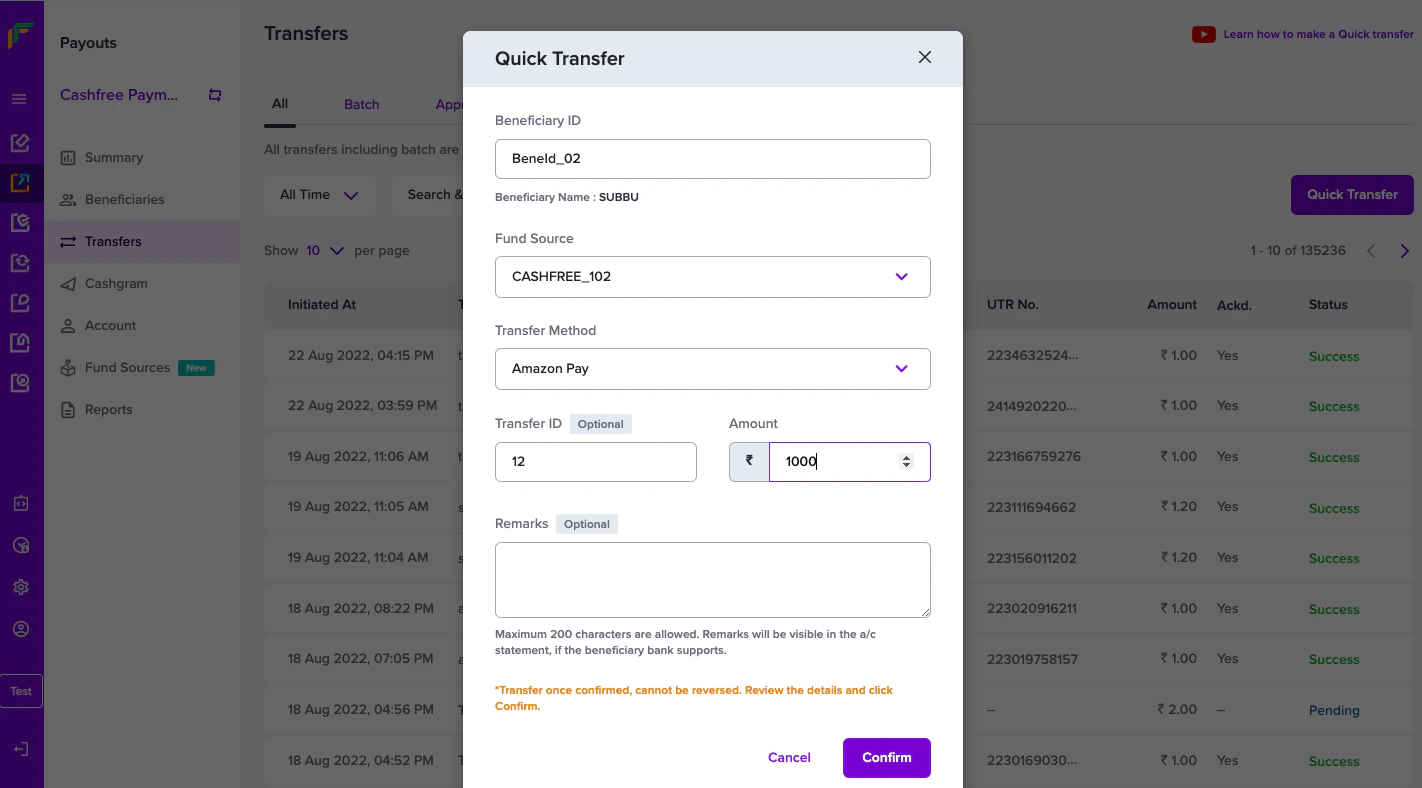
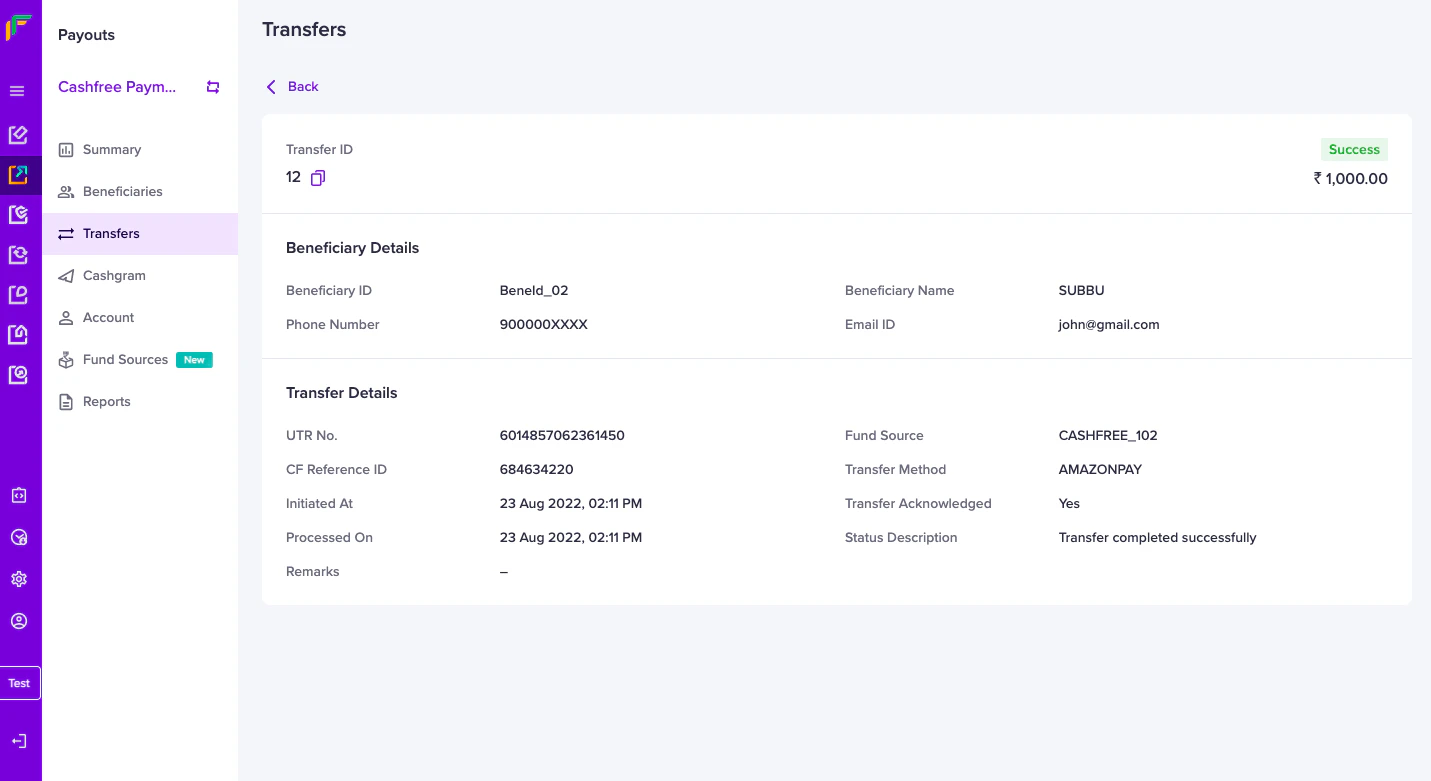
- Select Confirm. The transfer details appear in the Transfers screen.
Select the individual transaction to view more details.
API Integration
You can also use our APIs to initiate payouts to your customers. For more information, see Transfer API.
You can also use our APIs to initiate payouts to your customers. For more information, see Transfer API.
Batch upload transfer details
Use the Batch Transfer feature to create and initiate a large number of transfers to beneficiaries. Add all the required details in a single file as per the required format and upload it. Download the sample file to see what information to include in the batch upload. To upload a batch file,- Log in to the Merchant Dashboard.
- Go to Payouts Dashboard > Transfers > Batch > click Upload File.
- Click Choose a File to select the file you want to upload and then select Upload. The uploaded file with the status will be visible in the Batch section.
- Click on the file to view the individual transaction details uploaded in the file.
- Maximum file size allowed is 5 MB, and a maximum of 10000 records can be included in the file. - The file cannot be uploaded if it is not as per the suggested format. Also, if there are any errors in the uploaded file, you must resolve all the errors and upload the file again.
Approve batch transfer
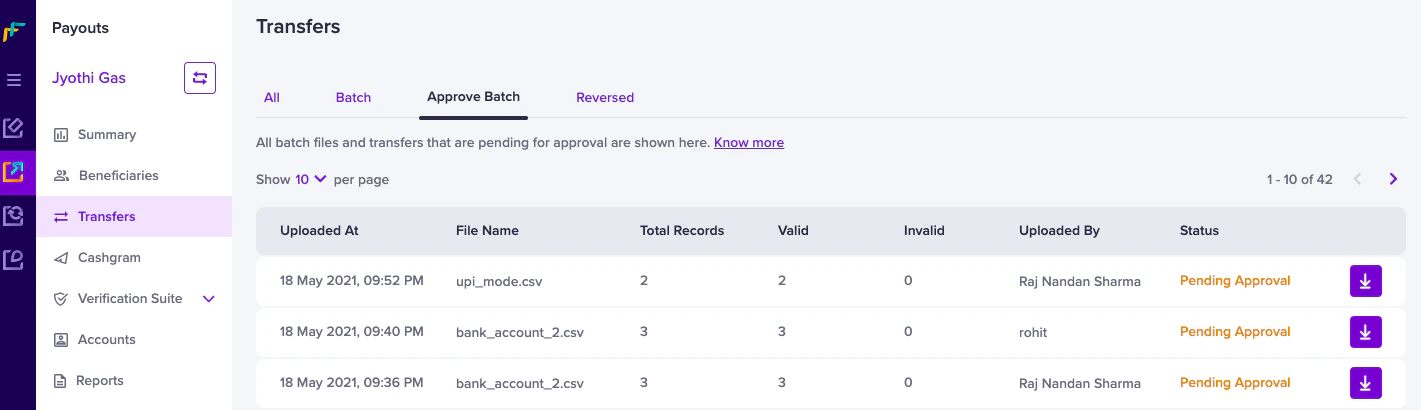
To manage a large number of transfers at once Batch Upload of transfers is supported. Since it involves processing all the transfers at once, you may want to check and approve it before the amount gets transferred to the respective beneficiaries. To do this, you have to create an approver profile within your Cashfree Account and after it gets approved by the approver, transfers will be made to beneficiaries. All transfers that are pending approval will be shown in the Approve Batch section as shown below: