- Unauthorised access: Prevent fraudsters or former employees from accessing your accounts and making large payouts.
- Excessive payouts: Avoid unintended duplicate or excess payouts caused by operational or technical errors.
- Fraudulent penny drops: Block attempts to misuse penny drop or micro-transactions to withdraw large amounts.
- End-user abuse: Stop fraud by end customers when redeeming payouts.
Limit breach actions
Smart Rules let you define how transfers should behave when an active limit is exceeded. You can choose one of the following actions:- Reject transfers: Transfers that breach an active limit are automatically rejected. No further review or approval is required, and the payout does not proceed.
- Stop transfers and request approval: Transfers that exceed a limit are temporarily stopped and moved to the Flagged Transfers section under Risky Transfers. An authorised user can review these transfers and take action by selecting Allow or Block for each transfer.
Configure amount limits
Follow the instructions below to configure transfer amount limits:- Log in to the Merchant Dashboard.
- Go to Payout Protect > Smart Rules.
-
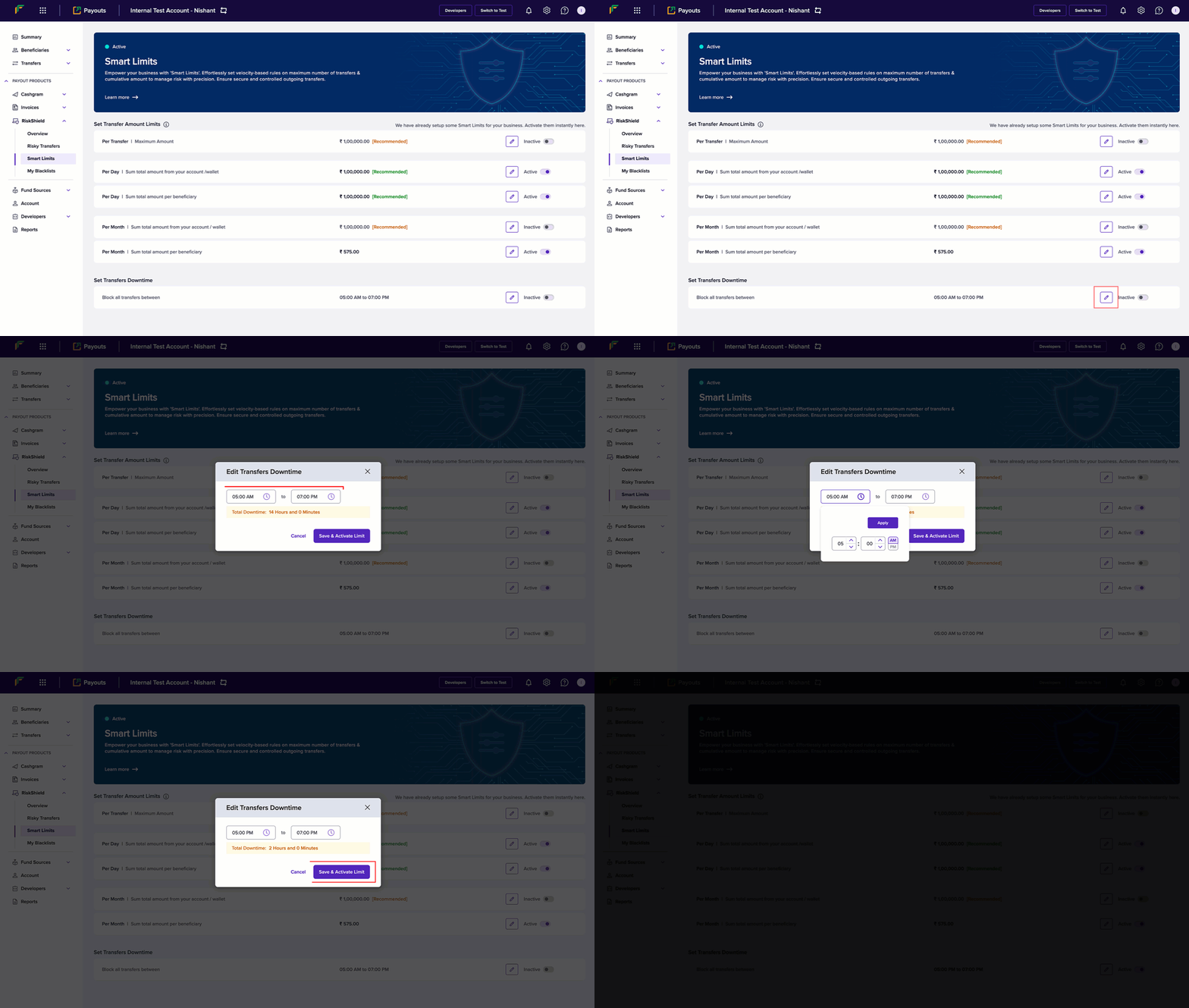
Click the Edit icon to configure the following information:
- Per Transfer: Enter the maximum amount allowed per transaction.
- Per Day: Enter the allowed total sum of money for transfers from your account/wallet within a day. The day begins at 00:00:00 and ends at 23:59:59 hours.
- Per Day: Enter the allowed total sum of money for transfers within a day for a beneficiary. The day begins at 00:00:00 and ends at 23:59:59 hours.
- Per Month: Enter the allowed total sum of money for transfers from your account/wallet within a month.
- Per Month: Enter the allowed total sum of money for transfers for a beneficiary within a month.
- Switch the toggle to activate or deactivate the smart limit.
Configure transfer count limits
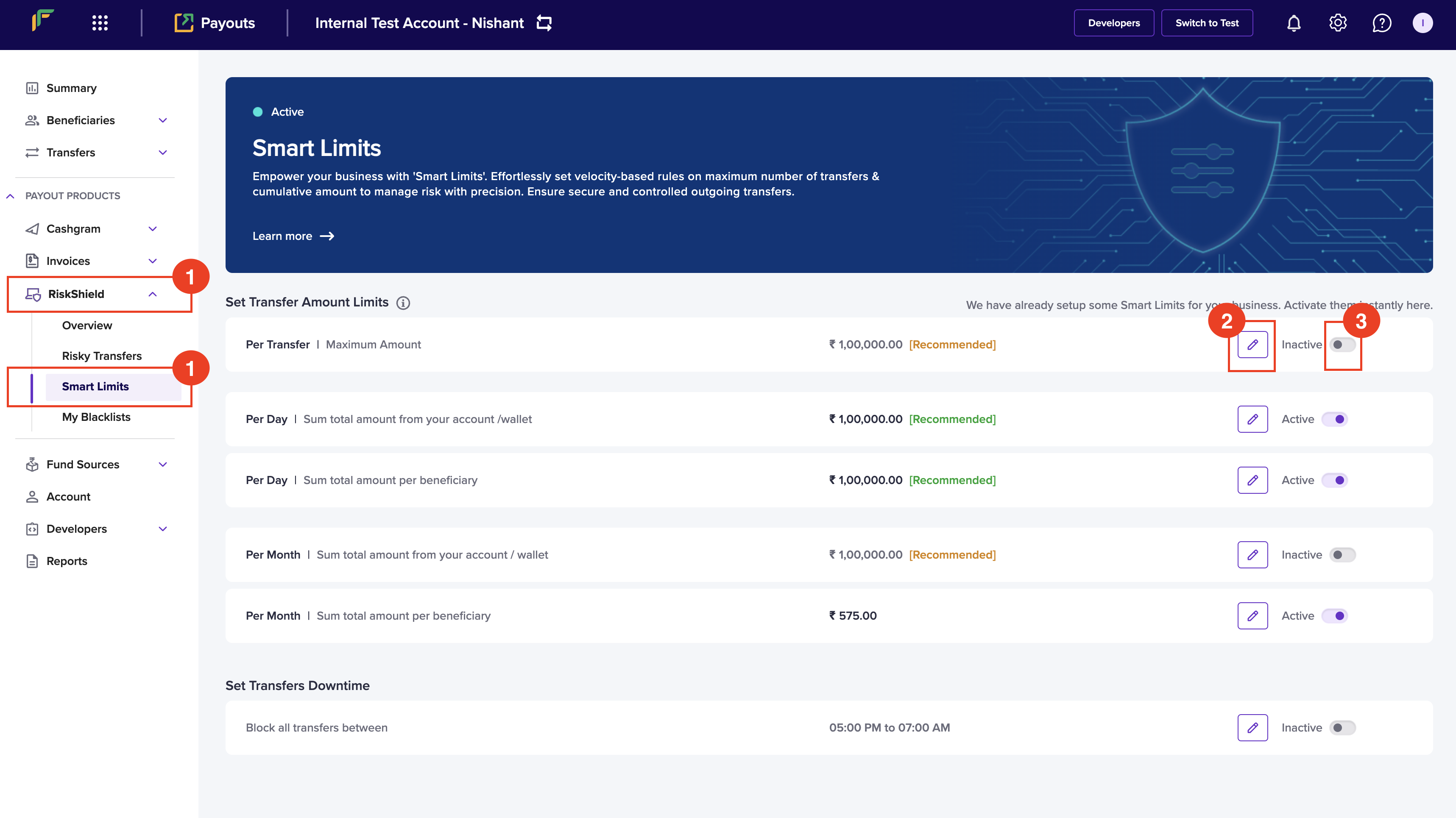
Follow the instructions below to configure transfer count limits:- Log in to the Merchant Dashboard.
- Go to Payout Protect > Smart Rules > Set Transfer Count Limits.
-
Click Edit and set the transfer count limits as required:
- Per Day: Number of transfers allowed per beneficiary in a single day. A day refers to the time window between 12:00 AM and 11:59:59 PM.
- Per Week: Number of transfers allowed per beneficiary in a week. A week starts on Monday and ends on Sunday.
- Per Month: Number of transfers allowed per beneficiary in a month. A month starts on the 1st and ends on the last day of the month (either the 30th or 31st).
- Click Save to activate limit.
Configure downtime
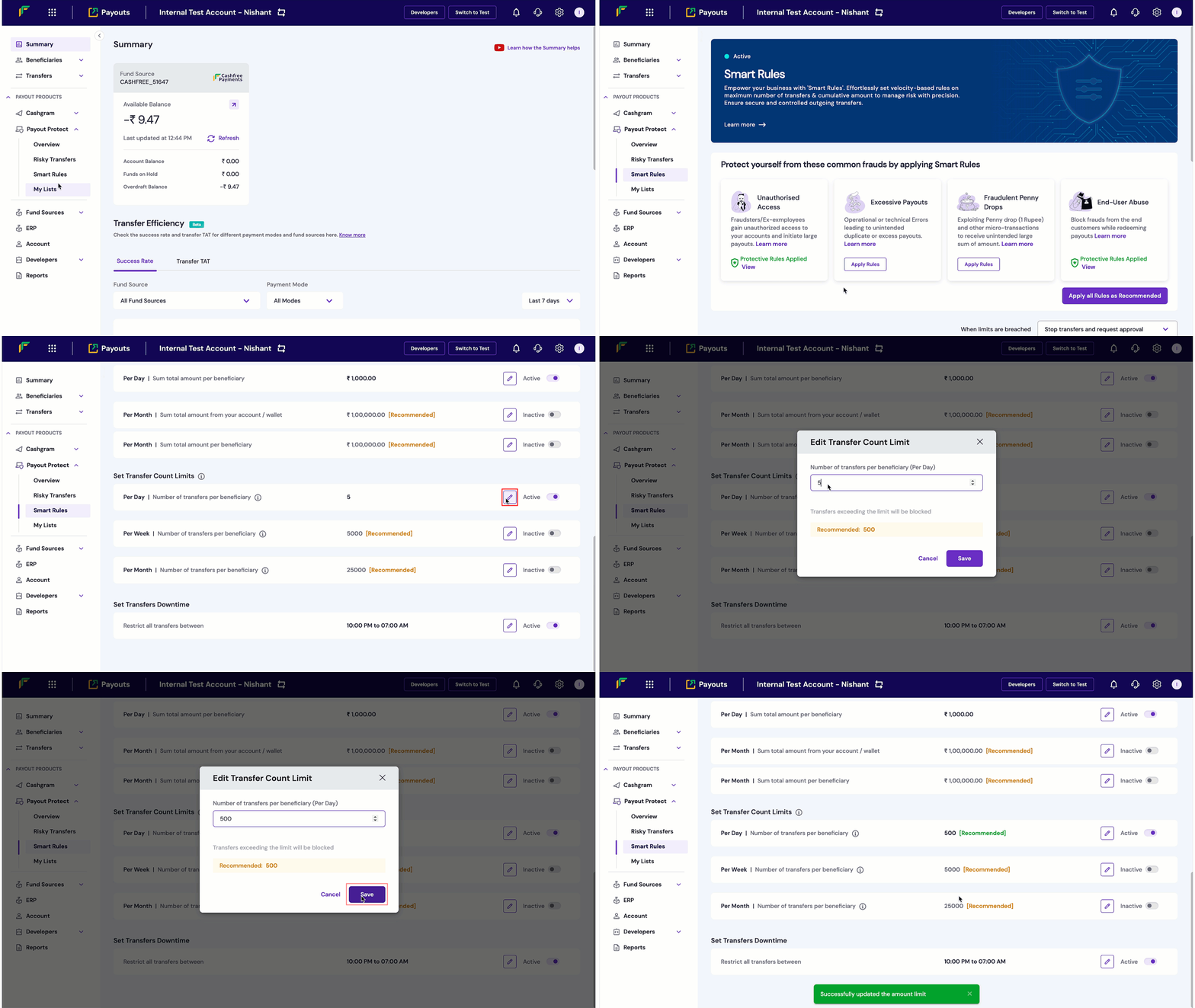
You can configure a specific time when you don’t want to allow any payouts. Follow the instructions below to schedule a time that blocks transfers:- Log in to the Merchant Dashboard.
- Go to Payout Protect > Smart Rules > Set Transfers Downtime.
- Click the Edit button.
- Configure the start and end time in the Edit Transfers Downtime popup.
- Click Save to activate limit.