

| Category | Description |
|---|---|
| Ageing report | It gives you every day updates on the pending payouts. |
| Credit confirmation emails | It gives you updates on the confirmation of recharges to your Cashfree virtual account. |
| Daily account statement report | It gives you every day report of the account statement. |
| Cashgram report | It gives you updates on Cashgram. |
| Daily reverse transfer report | It gives you every day report of the reversed transfers. |
| Daily transfer report | It gives you every day updates on the previous day transfers. |
| Low balance threshold emails | It gives you updates when the balance in your Payouts account goes below the set threshold. |
| Transfer emails | It gives you updates on successful initiation of transfers. |
| Reverse transfer emails | It gives you updates when a transfer is reversed to your account. |
Add recipient
Follow the instructions below to add a recipient to receive notifications:- Log in to the Merchant Dashboard.
- Go to Settings > Email Notifications under Payouts.
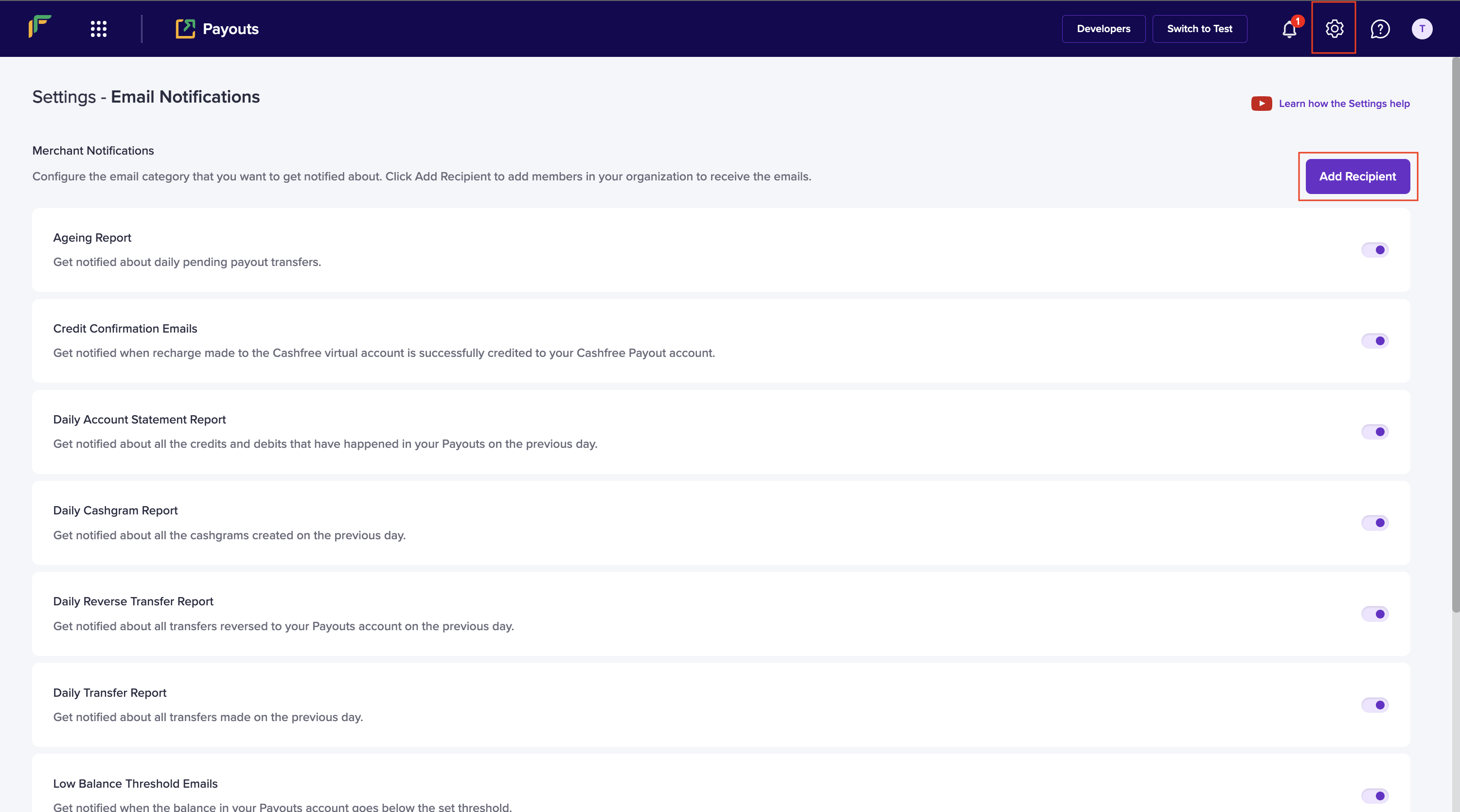
- Click Add Recipient.
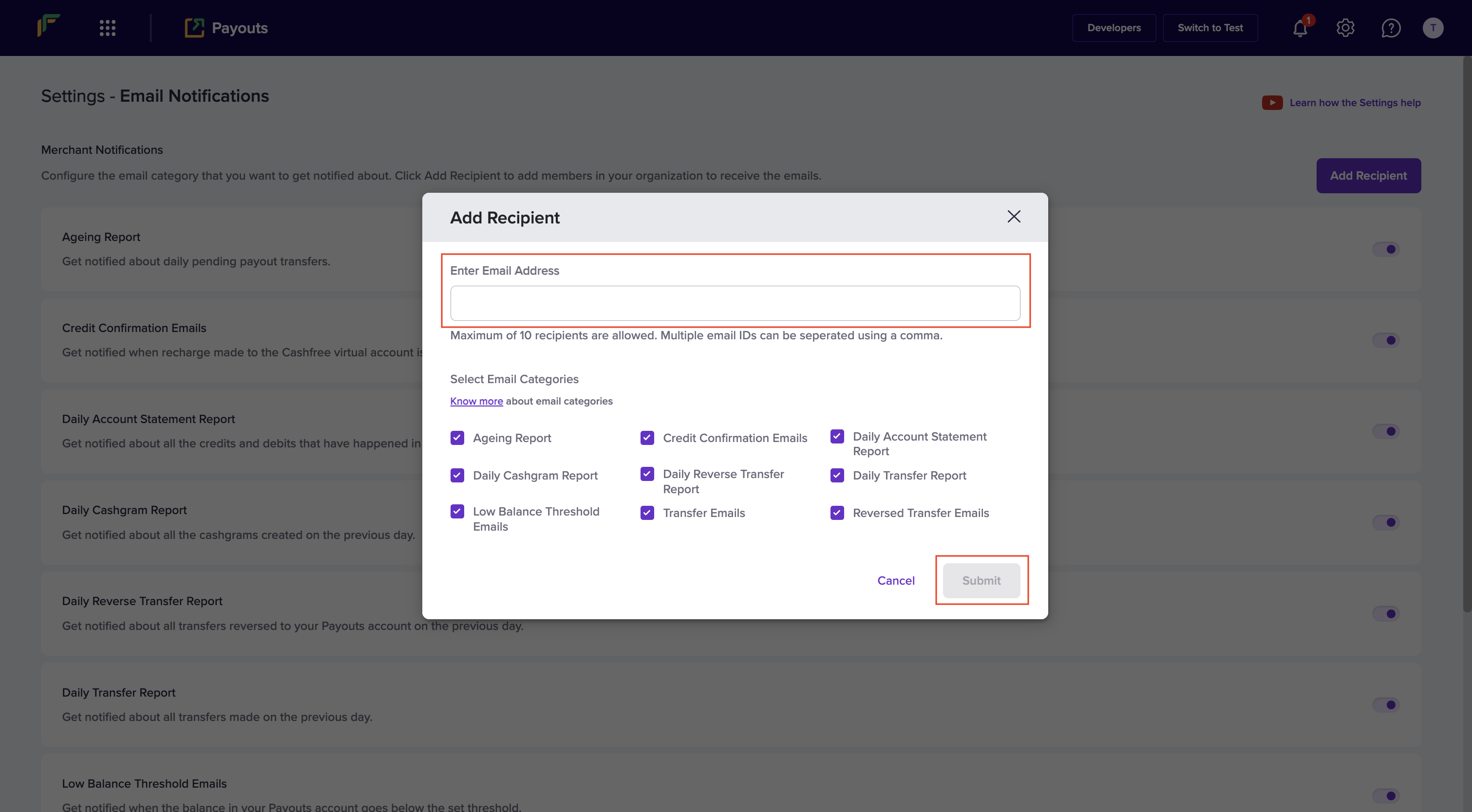
- In the Add Recipient popup, fill in the following information:
- Enter Email Address: Enter the email address in this field. You can add a maximum of ten email addresses by separating each with a comma (,) for each category.
- Select Email Categories: Use the checkbox to select or deselect the categories for which you want to receive email notifications from us.
- Click Submit.
- You can view the recipient added to the selected categories in the Settings - Email Notifications screen.
Manage recipients and categories
You can delete a recipient or turn off a category if you wish to stop getting notifications.Delete recipient
Follow the instructions below to delete a recipient:- Log in to the Merchant Dashboard.
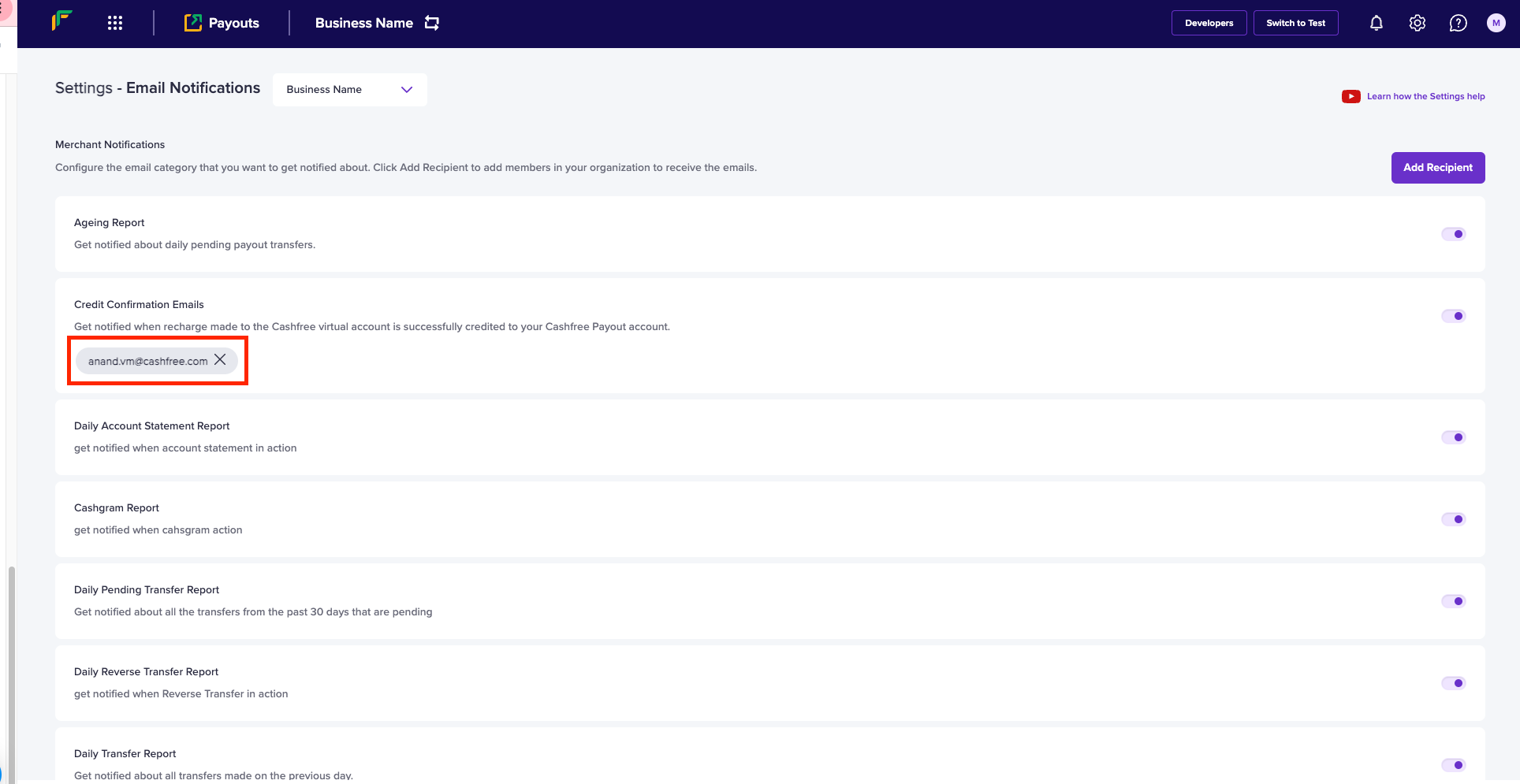
- Go to Settings > Email Notifications under Payouts, click a category to view the recipient added to receive notifications.
- Click the delete button next to the email address you want to remove.
- The selected recipient will no longer receive notifications for this category. Other recipients added to this category will continue to receive notifications.
Disable category
You can choose to stop getting notifications for select categories from Cashfree Payments. Follow the instructions below to disable a category:- Log in to the Merchant Dashboard.
- Go to Settings > Email Notifications under Payouts, switch the toggle off to disable a category.
- All recipients added to this category will stop receiving notifications.
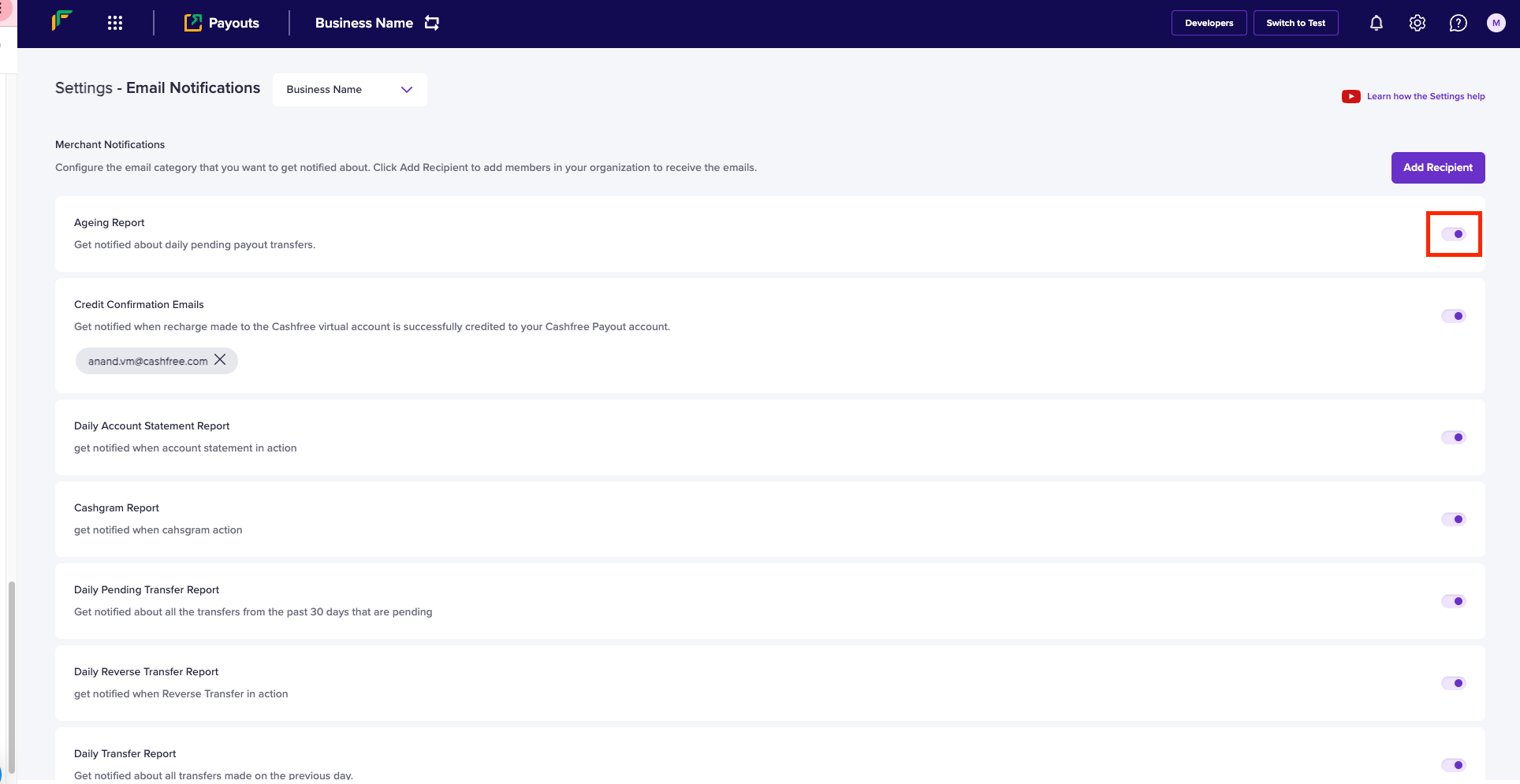
You can re-enable notifications for any category at any time by switching the toggle back on.