

Monitoring fund flow in the account is important for every business. We provide various reports that can help you streamline the payment flow of your business. You can access the reports in your dashboard or configure to receive via email to get a view of the business health either for a day or for a particular date range. Payouts reports include the following sections:Documentation Index
Fetch the complete documentation index at: https://www.cashfree.com/docs/llms.txt
Use this file to discover all available pages before exploring further.
Reports for larger date ranges may take longer to generate.
Transfer report
Transfer reports contain all the necessary details of transfers made using your Payouts account. It includes transfer statuses, events, beneficiary details, reference numbers, and other financial information related to each transfer. You can generate transfer reports, either for a day or for a particular date range. The maximum permitted date range is 31 days. Follow the instructions below to view the transfer report:- Log in to the Merchant Dashboard.
- Go to Payouts Dashboard > Reports.
- In the Report Type field, select Transfer > click Generate Report.
- Specify a name for the report if you want it to be different from the one suggested.
- Select the required File Format, .csv and .xls are supported.
- Specify the Date Range for which you want to view the report.
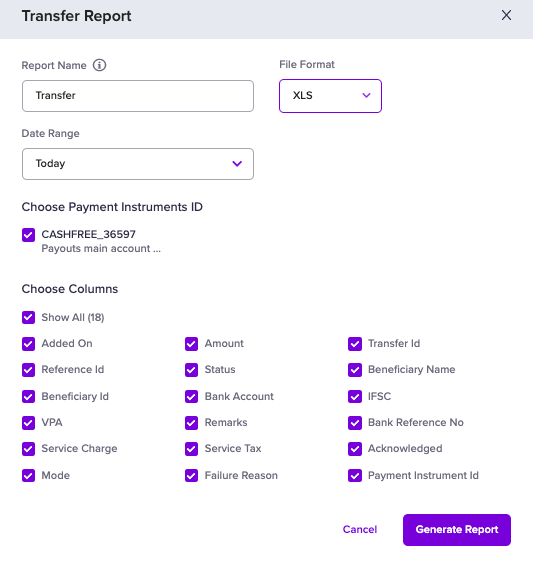
- Click the Generate Report button. The generated report will be available for download in the Reports section.
Pending transfers report
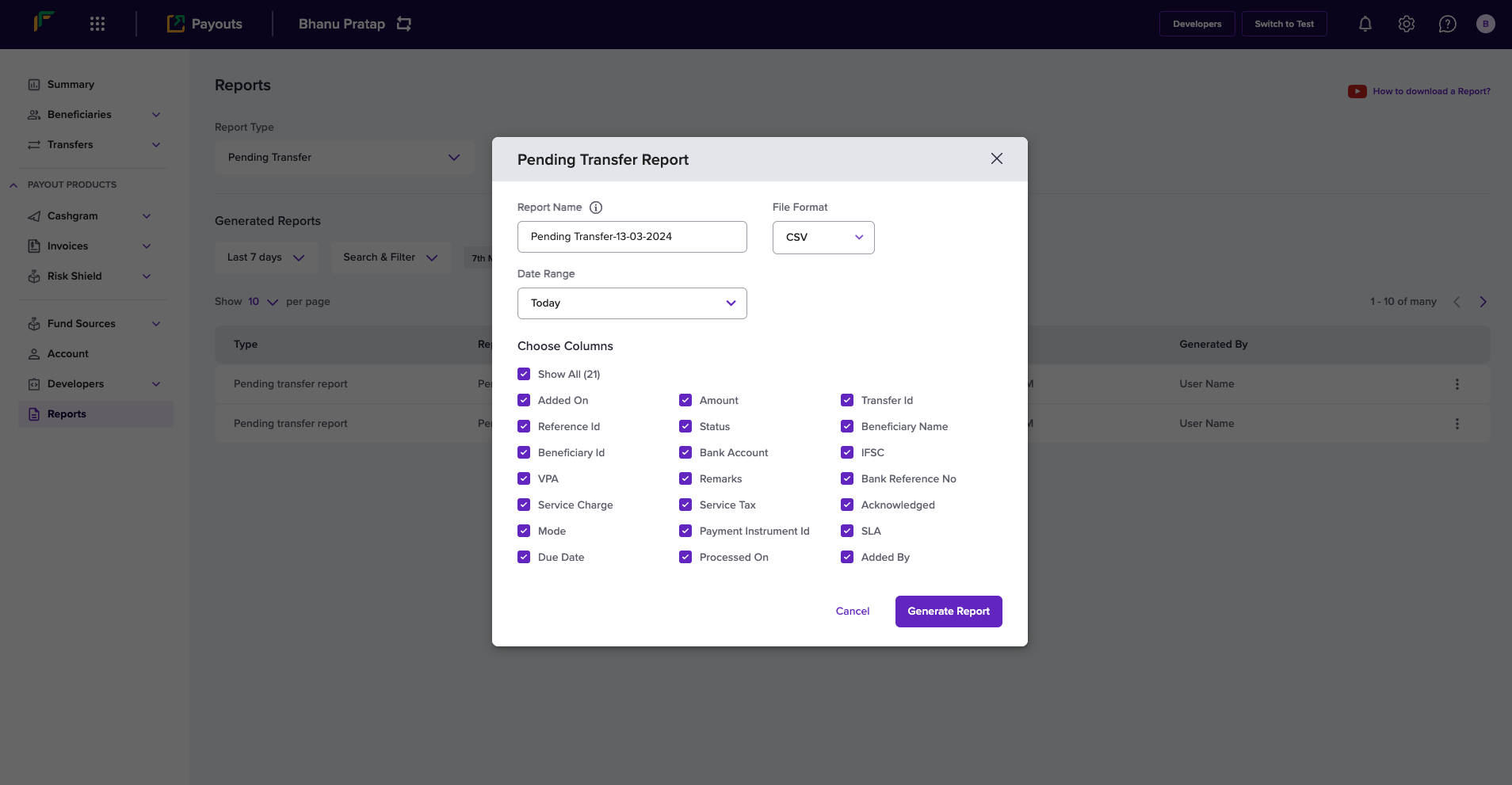
Monitoring pending transfers helps you make informed decisions, mitigate risks, and maintain smooth business operations. You can view comprehensive details for all pending transfers directly from your dashboard. Follow the instructions below to view the report on pending transfers:- Log in to the Merchant Dashboard.
- Navigate to Payouts > Reports.
- Choose Pending Transfer from the Report Type dropdown field, and click Generate Report.

- Fill in the following information in the Pending Transfer Report popup:
- Report Name: Enter a name for the report in this field.
- File Format: Use this dropdown field to choose a format to download the file.
- Date Range: Use this dropdown to select a period for which you want the pending transfers.
- Choose Columns: Use the checkboxes to include or exclude specific data in the report.
The report includes SLA and Due Date details to help you track the anticipated completion timeline for your pending transfers.
Cashgram report
Cashgram reports contain all the necessary details of the Cashgrams created using your Payouts account. The report gives you details about the customer, amount, the URL created and shared with the customer, link expiry details, Cashgram status, and more information related to each Cashgram. Details of all Cashgrams added in a batch file is also available in the report. You can generate Cashgram reports, either for a day or for a particular date range. The maximum permitted date range is 31 days. Follow the instructions below to view the Cashgram report:- Log in to the Merchant Dashboard.
- Go to Payouts Dashboard > Reports.
- In the Report Type field, select Cashgram > click Generate Report.
- Specify a name for the report if you want it to be different from the one suggested.
- Select the required File Format, .csv and .xls are supported.
- Specify the Date Range for which you want to view the report.
- Select the details you want to include in the report, as shown below.

- Click the Generate Report button. The generated report will be available for download in the Reports section.
Account statement report
The account statement report gives you information about all the credits and debits that have happened in your Payouts account. Follow the instructions below to view the account statement report:- Log in to the Merchant Dashboard.
- Go to Payouts Dashboard > Reports.
- In the Report Type field, select Account Statement > click Generate Report.
- Specify a name for the report if you want it to be different from the one suggested.
- Select the required File Format, .csv and .xls are supported.
- Specify the Date Range for which you want to view the report.
- Select a Payment Instrument ID.
- Select the details you want to include in the report, as shown below.
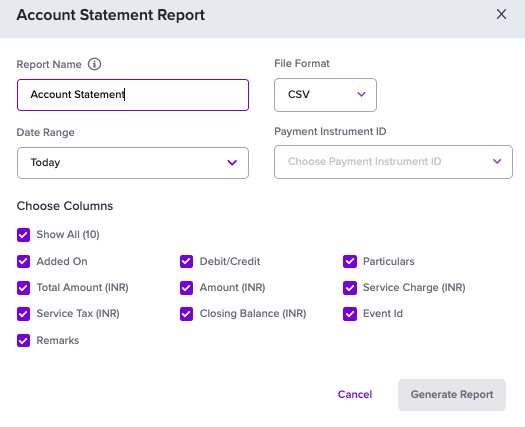
- Click the Generate Report button. The generated report will be available for download in the Reports section.
Reversed transfers report
Reversed Transfer report is a new report that is added and it gives you information about all the transfers that are revered in your Payouts account. Details like, date, time, and the reason for reversal is available in the report. Follow the instructions below to view the transfer reversals report:- Log in to the Merchant Dashboard.
- Go to Payouts Dashboard > Reports.
- In the Report Type field, select Reversed Transfers > click Generate Report.
- Specify a name for the report if you want it to be different from the one suggested.
- Select the required File Format, .csv and .xls are supported.
- Specify the Date Range for which you want to view the report.
- Select the details you want to include in the report, as shown below.
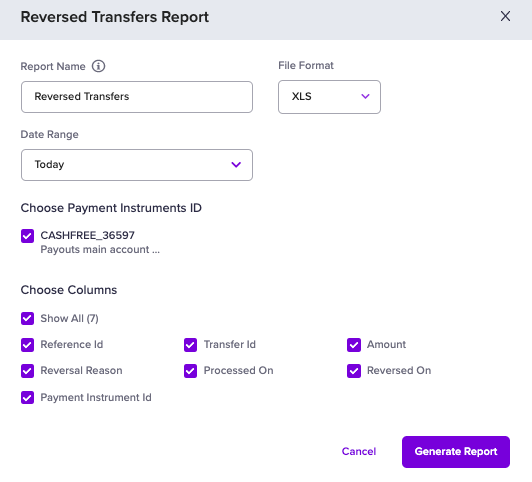
- Click the Generate Report button. The generated report will be available for download in the Reports section.