

/order/sessions Payments API.
Types of API credentials
The credentials you need depend on how you integrate with Cashfree. The following table maps each credential to the names you may see in the documentation, SDKs, and sample code, and shows where to get it:If you are a merchant integrating Cashfree into your own website or app, you need only the App ID and Secret Key. The Partner API Key, OAuth Client ID and OAuth Client Secret apply only to platforms that process payments on behalf of other businesses, and require a partner account with Cashfree.
Merchant authentication
-
The standard authentication for merchants uses two specific headers
x-client-idandx-client-secret. Pass yourappIdandsecretKeyin these fields. - Ensure that you place your secret key securely and that no one else can access it.
- Also never call any API which requires authentication from the client as that would require you to expose the secret key to the client.
Generate API keys
Payment Gateway uses its own client ID and client secret, while Payouts and Secure ID share one set of keys. Use this procedure to generate API keys for Payment Gateway, Payouts or Secure ID from the Merchant Dashboard.Before you beginMake sure the following are in place:
- You are the account owner, or your role has access to API keys. Among the default roles, Admin and Developer have this access. For more information, see Access management.
- To generate production keys, your account is activated for the product. You can generate test keys before activation. For more information, see Account activation.
- You can complete two-factor authentication (2FA) on the Merchant Dashboard. You need 2FA to generate production keys and to view Payment Gateway production keys.
1
Log in and select the product
Log in to the Merchant Dashboard. On the home page, select the product you need keys for: Payment Gateway, Payouts or Secure ID.
2
Select the environment
Choose the environment that matches your integration stage:
- Test: Click Switch to Test in the top-right corner to generate sandbox credentials. A yellow banner shows that you are in the test environment.
- Production: Stay in the production environment to generate live credentials. If you are in the test environment, click Switch to Prod.
3
Open API Keys
Go to Developers > API Keys.For Payment Gateway, you can also go directly to your Production API credentials.
4
Generate the keys
Click Generate API Keys. If you are in the production environment, complete the 2FA verification when prompted.
5
View and copy the keys
The dashboard shows the keys in a masked format. To see the full keys, click the icon next to the key and select View API Key. In the production environment, complete the 2FA verification when prompted.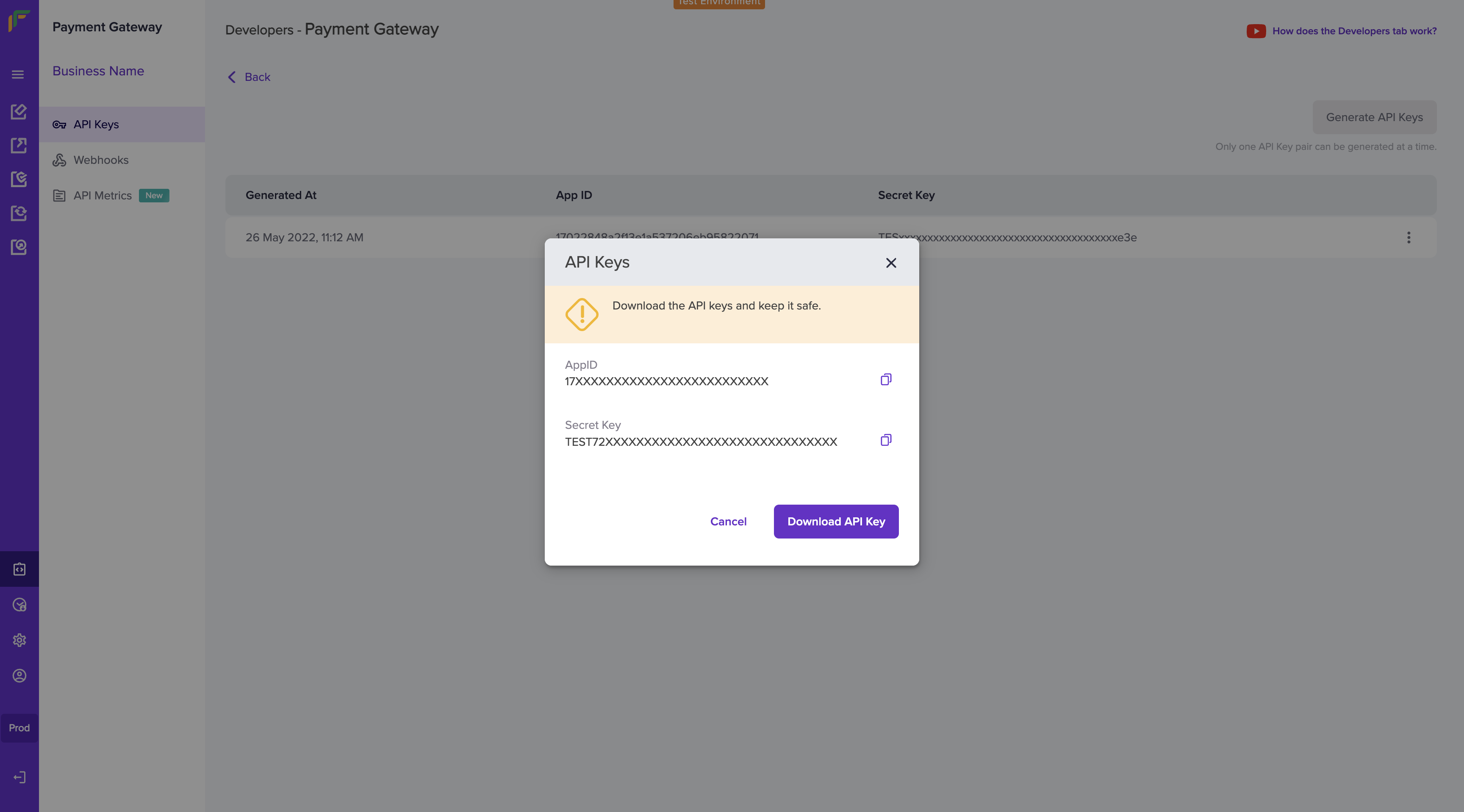
6
Store the keys securely
Save the keys in a secure location, such as a secrets manager. Never expose the client secret in client-side code, public repositories or support tickets.
x-client-id and x-client-secret headers of your API requests.
The number of API keys you can have depends on the product:
- Payment Gateway: One API key pair at a time.
- Payouts and Secure ID: Up to 10 API keys, shared between both products.
401 with an authentication error:
Troubleshooting
If you run into problems while generating or using your keys, check the following:The Developers section or API Keys option is not visible
The Developers section or API Keys option is not visible
Your role might not have access to API keys. Ask your account owner to assign you the Admin or Developer role, or a role that includes access to API keys.
API requests fail with an authentication error
API requests fail with an authentication error
Check that the keys belong to the product you are calling: Payment Gateway keys for the Payments API, and Payouts or Secure ID keys for the Payouts API and the Secure ID API. Also check that the environment matches the base URL: test keys with sandbox URLs and production keys with production URLs.
You lost your client secret
You lost your client secret
Go to Developers > API Keys and generate a new set of keys. Update your integration with the new keys.
Partner authentication
If you are building a platform and want to use the Payment APIs on behalf of your customers you can do so using by leveraging authentication for platforms. You should use the x-partner-apikey and x-partner-merchantid headers instead of the x-client-id and x-client-secret headers.- x-partner-apikey: This is the common API Key generated and unique for each Partner
- x-partner-merchantid: This is the unique merchant ID for each merchant associated with the Partner.
To view the merchant ID for each merchant, login to your Cashfree Partner Dashboard with your partner login credentials > go to the Merchants section, and copy the Merchant ID of the respective merchant.