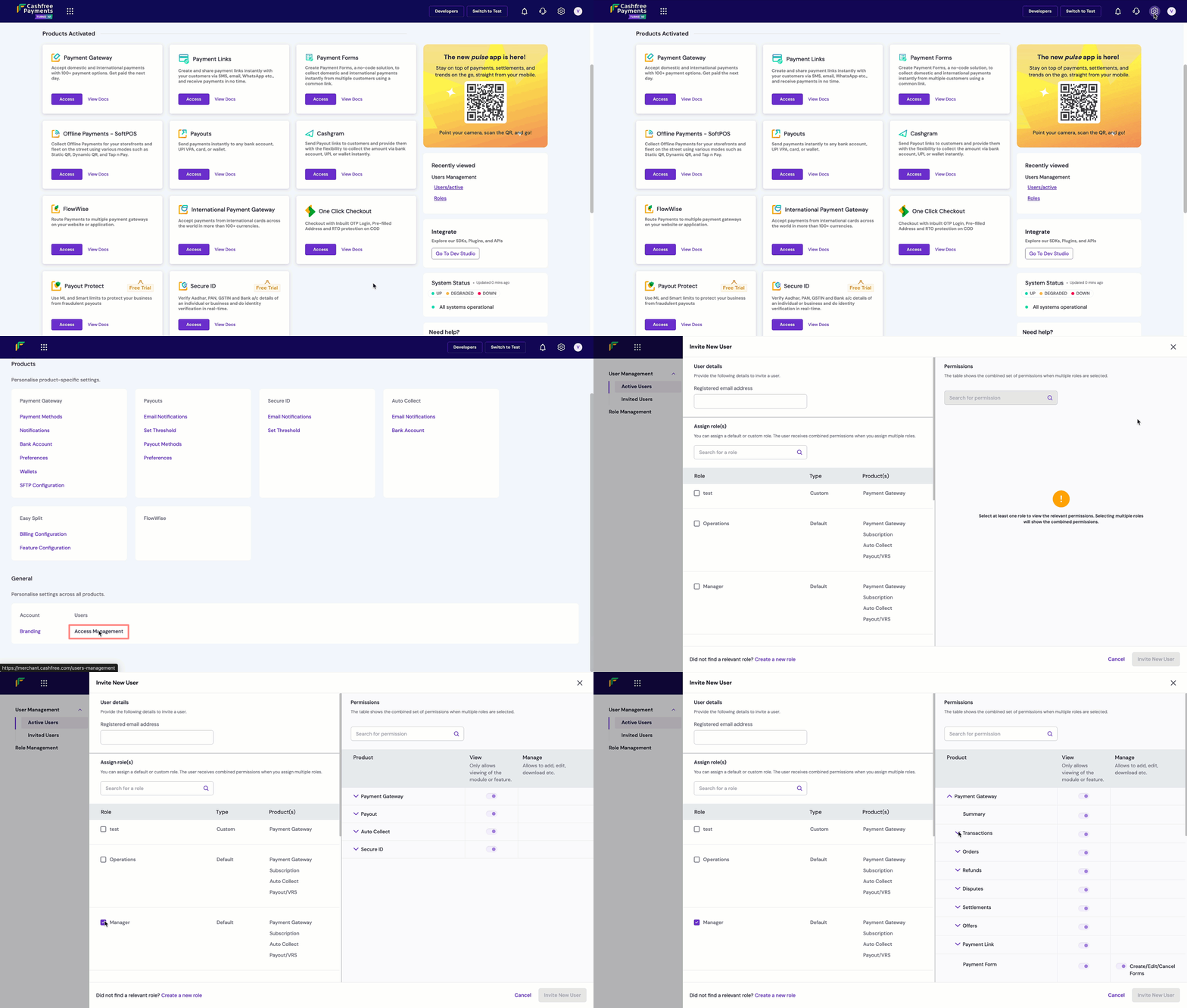
Access management allows you to control who can access your Cashfree Payments account and what actions they can perform. Use role-based access control to minimise security risks, maintain accountability, and ensure team members have appropriate permissions. You can assign predefined or custom roles, enable specific permissions without roles, combine multiple roles for a user, or create custom roles for your organisation’s needs. The system is built on three core components that work together to provide flexible and secure access control:
Access these features by navigating to Settings > Access Management in the Merchant Dashboard.

User management

User management allows you to invite team members to your Cashfree Payments account and control their access through role assignments or direct permission grants. You can invite unlimited users and assign them different access levels based on their responsibilities.

Default roles

Cashfree Payments provides five default roles that cover common use cases. Each role includes a predefined set of permissions designed for specific responsibilities:
RoleDescriptionTypical use cases
DeveloperDevelops and maintains integrations with access to API secrets, webhooks, and all API resources.API integration, webhook configuration, SDK implementation
OperationsManages daily payment processing, ensures payouts, refunds payments, handles disputes, and exports data.Transaction processing, refund management, dispute handling
ManagerManages overall business cash flow including settlements, payment methods, and reports.Financial oversight, settlement monitoring, business analytics
AdminOversees all system functions and has access similar to account owner.Full system administration, user management, configuration
SupportProvides technical assistance to customers and has view-only access to transactions, refunds, and transfers.Customer support, transaction queries, read-only access
The following table shows what each default role can access. Use this to understand which role best fits your team member’s responsibilities:
FeatureDeveloperOperationsManagerAdminSupport
API Keys & SecretsFull accessNo accessNo accessFull accessNo access
WebhooksFull accessNo accessNo accessFull accessNo access
Orders & PaymentsView onlyFull accessView onlyFull accessView only
RefundsNo accessFull accessView onlyFull accessView only
SettlementsNo accessView onlyFull accessFull accessNo access
DisputesNo accessFull accessView onlyFull accessView only
PayoutsNo accessFull accessFull accessFull accessView only
Payment MethodsNo accessNo accessFull accessFull accessNo access
ReportsView onlyFull accessFull accessFull accessView only
User ManagementNo accessNo accessNo accessFull accessNo access
Role ManagementNo accessNo accessNo accessFull accessNo access
Account SettingsNo accessNo accessView onlyFull accessNo access
Quick guide:
  • Full access: Can view and modify (create, edit, delete, configure)
  • View only: Can see information but can’t make changes
  • No access: Can’t view or access this feature

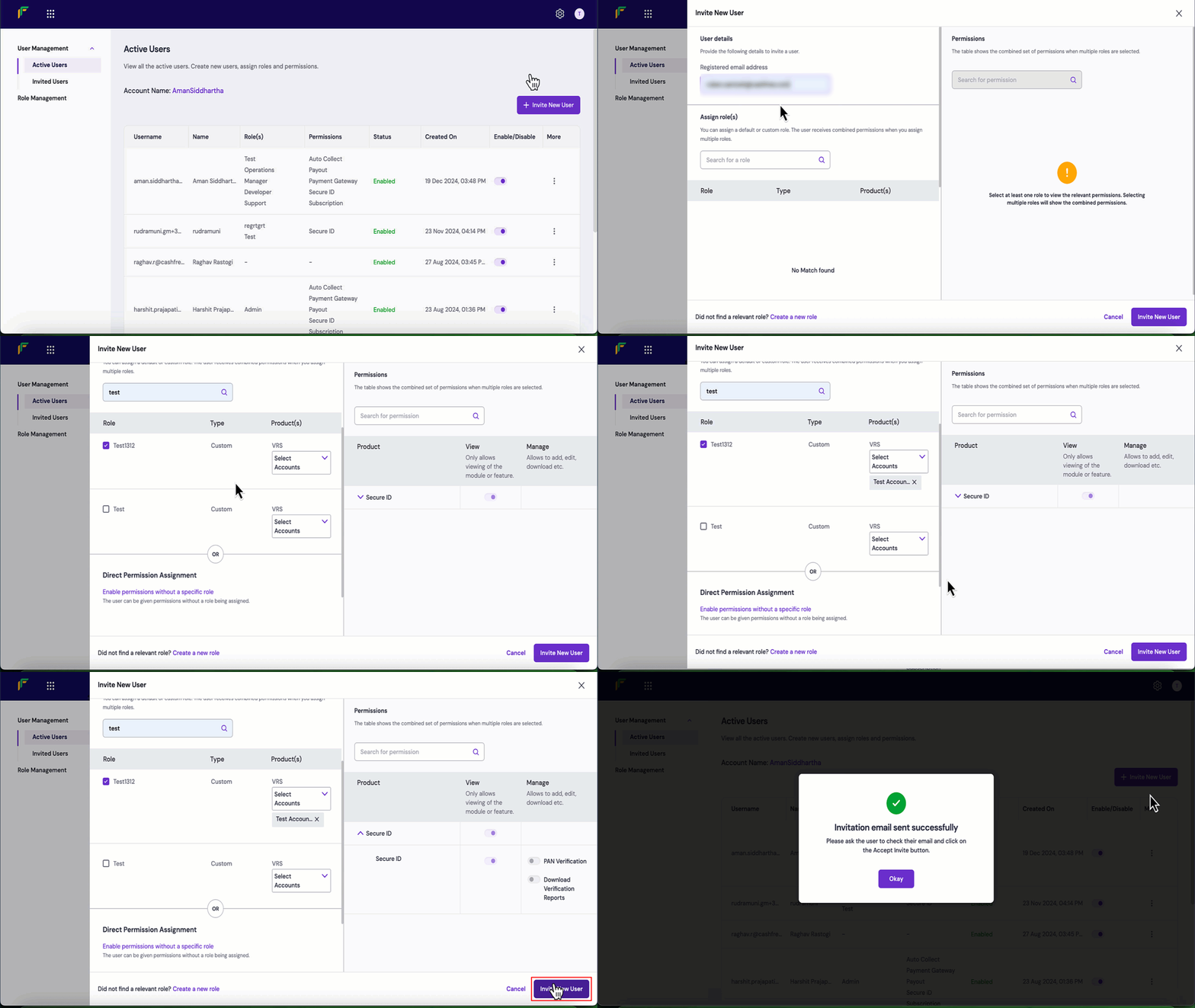
Invite a user and assign a role

Follow these steps to invite a user and assign one or more roles:
  1. Log in to the Merchant Dashboard.
  2. Navigate to Settings > Access Management > User Management.
  3. Select Invite New User.
  4. Enter the email address of the user in the Registered email address field under User details.
  5. In the Assign roles section, select the roles you want to assign:
    • Default roles: Select any of the five default roles (Developer, Operations, Manager, Admin, Support)
    • Custom roles: Select any custom roles you have created in the Role Management section
  6. Review the permissions displayed in the Permissions section. When multiple roles are assigned, the permissions are combined.
  7. Select Invite New User.
The user receives an invitation email and appears in the Invited Users list until they accept the invitation. Invite user and assign role
Assigning multiple rolesYou can assign multiple roles to a user by selecting multiple role checkboxes. The Permissions section displays the combined permissions of all selected roles, making it easy to review the total access granted.

Invite a user with direct permissions

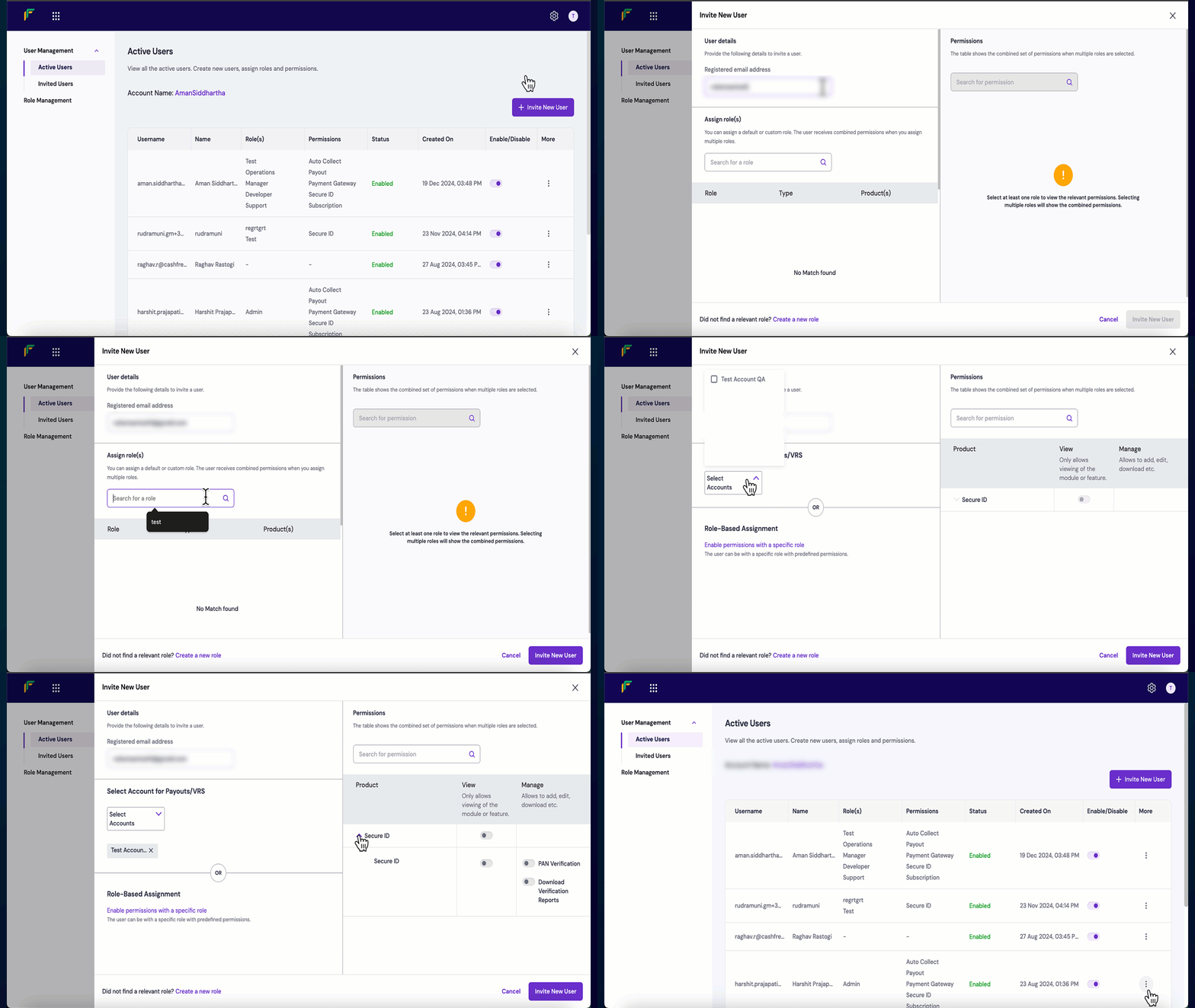
You can invite users and enable specific permissions without assigning a formal role. This approach is useful for providing temporary access to specific features or when a user’s responsibilities don’t align with existing roles. Follow these steps to invite a user and assign direct permissions:
  1. Log in to the Merchant Dashboard.
  2. Navigate to Settings > Access Management > User Management.
  3. Select Invite New User.
  4. Enter the email address of the user in the Registered email address field under User details.
  5. Scroll down to the Direct Permission Assignment section and select Enable permissions without a specific role.
  6. Use the Select Account for Payouts or VRS dropdown to select the accounts the user can access (if applicable).
  7. Configure permissions in the Permissions section:
    • Search for a permission: Use the search bar to find specific permissions
    • Product dropdown: Navigate through different products and features
    • View toggle: Enable or disable view-only access to modules or features
    • Manage toggle: Enable or disable full access (add, edit, download, delete)
  8. Select Invite New User.
The user receives an invitation email and appears in the Invited Users list. Invite user with direct permissions

Manage existing users

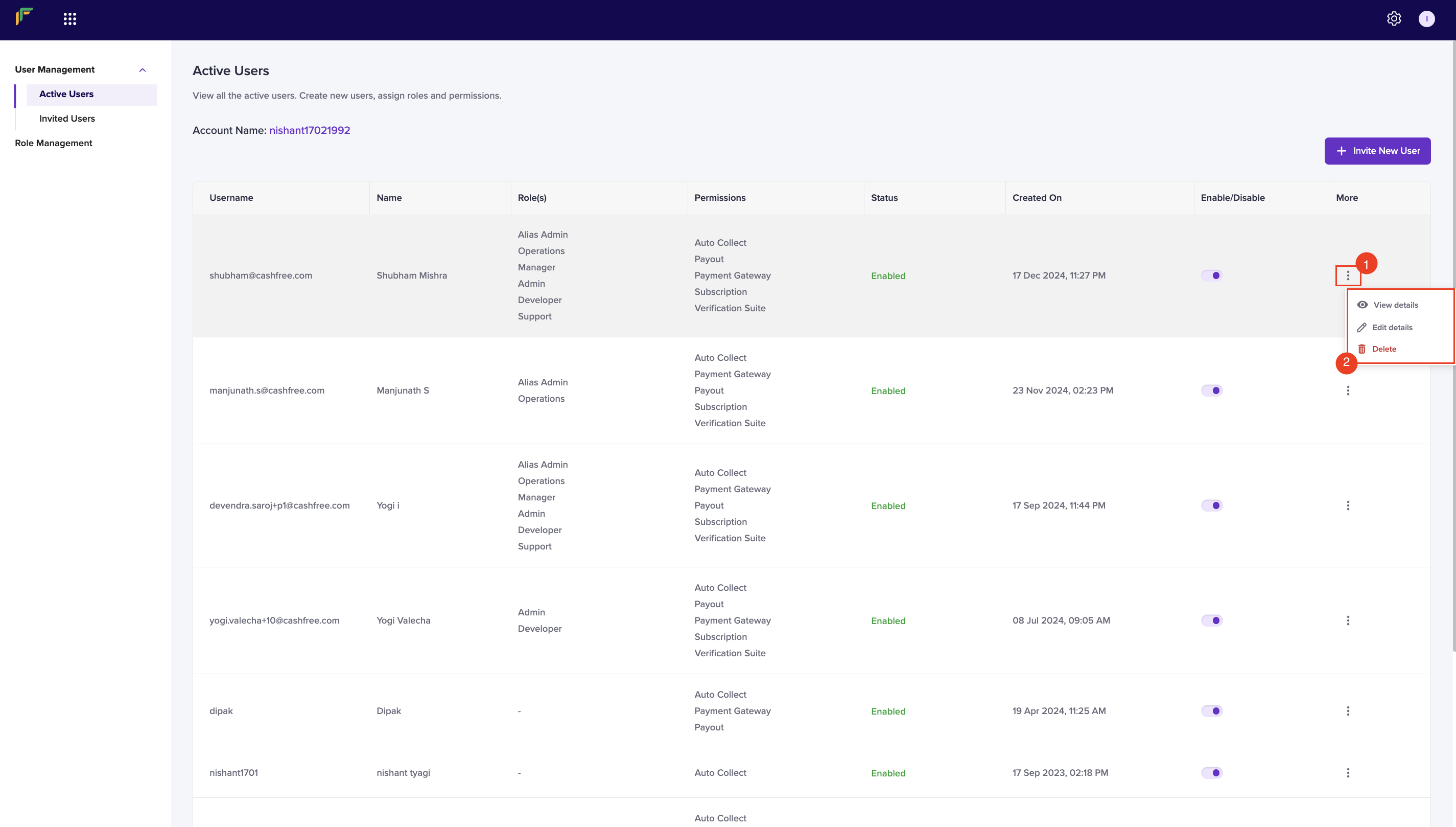
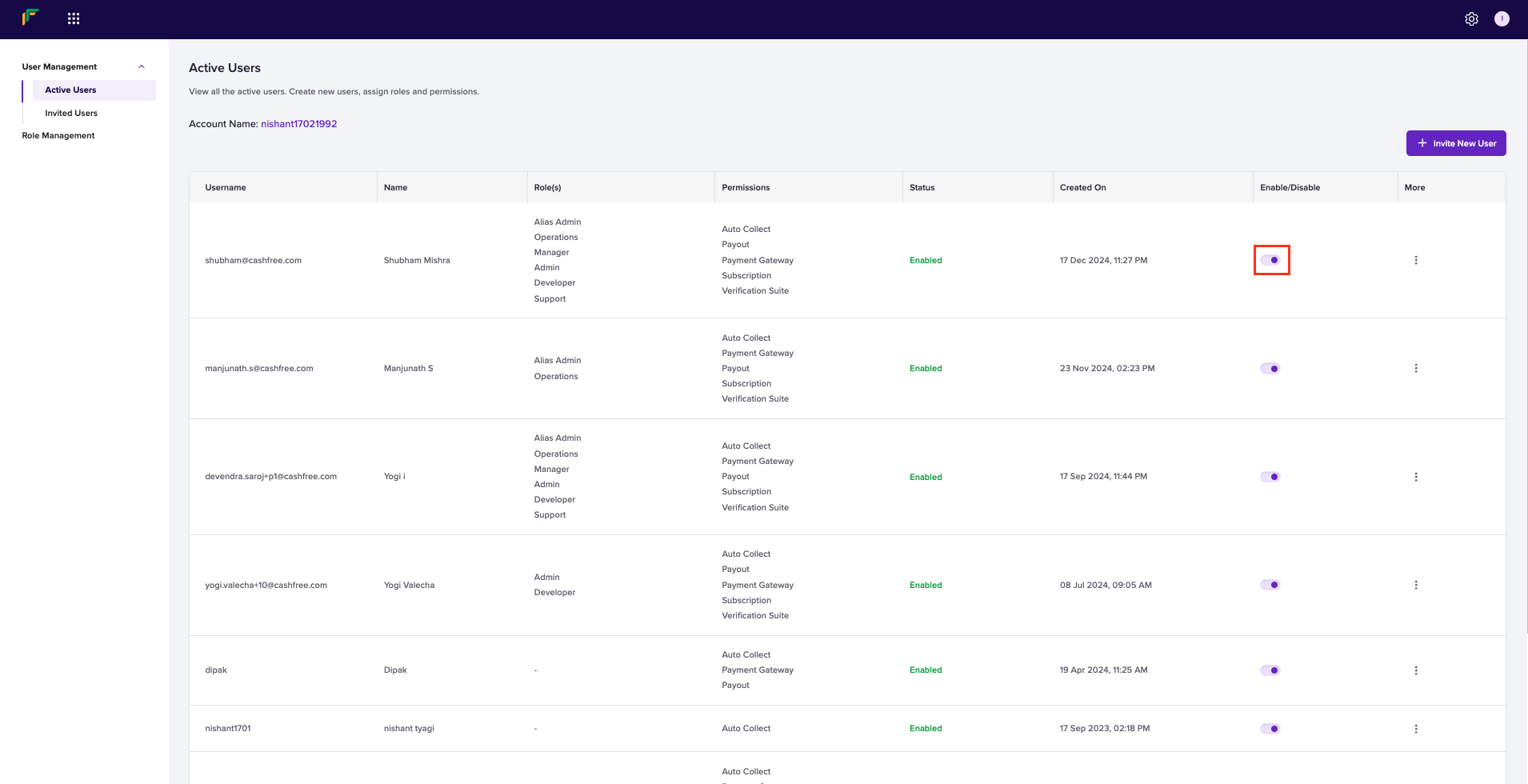
The User Management screen displays all active and invited users in your account. You can enable or disable users, edit their permissions, and remove users when necessary.
The user management table displays the following information:
  • User email: The email address of the user
  • Roles: The roles assigned to the user
  • Status: Active or Invited status
  • Enable or disable toggle: Enable or disable user access Manage users table
View user details

To view comprehensive details about a user’s roles and permissions:
  1. Log in to the Merchant Dashboard.
  2. Navigate to Settings > Access Management > User Management.
  3. Locate the user in the table and select the ellipsis (⋮) icon.
  4. Select View details.
The details popup displays the user’s email, assigned roles, and all enabled permissions.

Role management

Beyond the five default roles, you can create custom roles with specific permission sets tailored to your organisation’s needs. Custom roles enable you to define precise access levels for specialised team functions that don’t align with the default roles.

Create a custom role

You can create roles that grant access to specific features or products. For example, you can create a role that allows users to view Payment Gateway orders but nothing beyond that, or a role that provides full access to payouts but read-only access to payments. Follow these steps to create a custom role:
  1. Log in to the Merchant Dashboard.
  2. Navigate to Settings > Access Management > Role Management.
  3. Select New Role.
  4. Enter the following information in the Create New Role popup:
    • Role: Enter a descriptive name for the role (for example, “Payment Gateway Viewer” or “Payout Manager”)
    • Description: Provide a clear description of the role’s purpose and intended use
  5. Configure permissions using the permissions table:
    • Search for a permission: Use the search bar to find specific permissions
    • Product dropdown: Navigate through different products and features
    • View toggle: Enable permissions that allow users to view modules or features
    • Manage toggle: Enable permissions that allow users to add, edit, download, or delete
  6. Select Create New Role.
The role is created and appears in the Role Management screen. You can now assign this role to users in the User Management section.

Manage custom roles

Once you have created custom roles, you can edit or delete them as your organisation’s needs change.
To modify an existing custom role:
  1. Log in to the Merchant Dashboard.
  2. Navigate to Settings > Access Management > Role Management.
  3. Locate the role in the table and select the ellipsis (⋮) icon.
  4. Select Edit role.
  5. Update the role name, description, or permissions as needed.
  6. Select Update Role.
Changes to a role apply immediately to all users assigned that role.

Permissions framework

The permissions framework provides granular control over what users can view and manage across all Cashfree Payments products and features. Understanding how permissions work helps you create effective roles and grant appropriate access to your team members.

How to access permissions

Permissions appear in the Merchant Dashboard when you work with users and roles:
  • When inviting or editing users:
    1. Navigate to Settings > Access Management > User Management
    2. Select Invite New User or edit an existing user
    3. The Permissions section displays all enabled permissions based on assigned roles or direct permission grants
  • When creating or editing roles:
    1. Navigate to Settings > Access Management > Role Management
    2. Select New Role or edit an existing role
    3. Use the permissions table to configure View and Manage permissions for each product and feature
  • When viewing user details:
    1. Navigate to Settings > Access Management > User Management
    2. Select the ellipsis (⋮) icon next to a user and choose View details
    3. The popup displays all permissions currently enabled for that user
Configuring permissions

Permission levels

Each feature in the dashboard supports two permission levels:
  • View: Allows users to view information but not make changes. Users can access dashboards, view transactions, download reports, and see configuration settings.
  • Manage: Provides full access to add, edit, download, delete, and configure features. This level includes all View permissions plus the ability to make changes.
Multiple roles and permissionsWhen a user has multiple roles or direct permissions, all permissions are combined (additive). The highest permission level applies (Manage overrides View). Learn more about permission conflicts.Permission scopePermissions are organised by product category (Payment Gateway, Payouts, Secure ID, Subscriptions, Settings, Reports). The specific features available within each product can be viewed in the permissions interface when inviting users or creating roles.

Account-specific permissions

For products like Payouts and Virtual Account Services, you can grant permissions for specific accounts rather than all accounts. This allows you to:
  • Limit users to specific business units or brands
  • Provide segregated access in multi-account setups
  • Control access to specific fund sources or settlement accounts

Best practices

Follow these recommendations to implement secure and effective access management:
  • Principle of least privilege: Grant users only the permissions they need to perform their job functions
  • Regular access reviews: Periodically review user access and remove permissions that are no longer required
  • Disable inactive users: Disable or delete user accounts for team members who no longer require access
  • Use role-based access: Prefer role-based assignments over direct permissions for easier management and consistency
  • Create focused roles: Design roles for specific job functions rather than broad access levels
  • Use descriptive names: Name roles clearly to indicate their purpose (for example, “Finance Viewer” instead of “Role 1”)
  • Document role purposes: Use the description field to explain when and why to use each role
  • Review before assigning: Always review the combined permissions before assigning multiple roles
  • Verify email addresses: Ensure user email addresses are correct before sending invitations
  • Communicate with users: Inform users when you grant or change their access
  • Monitor login activity: Use the login history feature to track user access patterns
  • Require 2FA: Enable two-factor authentication for all users accessing the dashboard
  • Separate duties: Assign different responsibilities to different users to maintain checks and balances
  • Use approval workflows: For payouts, assign Initiator and Approver roles to different users
  • Maintain audit trails: Keep records of who has access to what and when changes are made
  • Test before production: Test new roles or permission changes with a single user before broad deployment

FAQs

Yes. You can assign multiple roles to a single user by selecting multiple role checkboxes when inviting or editing the user. The permissions from all assigned roles are combined, giving the user access to all features permitted by any of the roles.When multiple roles are assigned, the Permissions section displays the combined permissions, making it easy to review the total access granted to the user.
When you disable a user, they immediately lose access to the Merchant Dashboard and can’t log in. However, their user account, role assignments, and permission configuration are retained in the system.To restore access, use the Enable or disable toggle to re-enable the user. They regain access with their previous roles and permissions intact.Disabling is useful for temporary access suspension (for example, during employee leave) without the need to reconfigure permissions later.
No. The five default roles (Developer, Operations, Manager, Admin, Support) are predefined by Cashfree Payments and can’t be edited or deleted. These roles are designed to cover common use cases and maintain consistency across merchant accounts.If the default roles don’t meet your requirements, you can create custom roles with the exact permissions you need. Custom roles can be assigned alongside default roles, and you can create as many custom roles as needed for your organisation.
View permissions allow users to see information and access dashboards without making changes. Users with View permissions can:
  • View transaction lists and details
  • Access reports and analytics
  • See configuration settings
  • Download reports (read-only access)
Manage permissions provide full access to modify and configure features. Users with Manage permissions can:
  • Perform all View actions
  • Create, edit, and delete items
  • Configure settings and parameters
  • Process transactions and approvals
  • Upload files and documents
When designing roles or assigning permissions, grant Manage permissions only to users who need to make changes, and use View permissions for monitoring and reporting purposes.
If you are unable to access certain features in the Merchant Dashboard, your current role or permissions may not include access to those features. To request access:
  1. Identify the specific feature or page you need to access.
  2. Contact your account administrator or the person who invited you to the Cashfree Payments account.
  3. Request that they update your role or add the necessary permissions through the User Management section.
If you are unsure who manages your account, check the Login History page in the dashboard to identify users with Admin roles, or contact Cashfree Payments support for assistance.
No. You can invite unlimited users to your Cashfree Payments account at no additional cost.Follow the principle of least privilege and only grant access to users who require it for their job functions.
No. The access management system doesn’t support role hierarchies or nested roles. Each role is independent and contains its own set of permissions.However, you can achieve similar functionality by:
  • Assigning multiple roles to a user, which combines the permissions from all assigned roles
  • Creating custom roles that include specific permission sets
  • Using role naming conventions to indicate the scope or level of access (for example, “Payment Gateway Viewer” and “Payment Gateway Manager”)
This approach provides flexibility while maintaining simplicity in role management.
You can’t delete a custom role if it’s currently assigned to any users. Before deleting a role, you must:
  1. Identify all users assigned to the role (visible in the Role Management section).
  2. Edit each user and either assign them a different role or remove the role assignment.
  3. After all users are reassigned, you can delete the custom role.
This safeguard prevents accidental removal of user access and ensures that you consciously reassign permissions before deleting roles.
If a user hasn’t received the invitation email, try these solutions:
  1. Check spam or junk folder: Invitation emails sometimes get filtered. Ask the user to check their spam or junk mail folder.
  2. Verify email address: Ensure you entered the correct email address when inviting the user. Check for typos in the User Management > Invited Users section.
  3. Resend invitation:
    • Navigate to Settings > Access Management > User Management
    • Find the user in the Invited Users list
    • Select the ellipsis (⋮) icon and choose Resend Invitation
  4. Email provider restrictions: Some corporate email systems block automated emails. Contact your IT team to allowlist emails from @cashfree.com domains.
  5. Wait and retry: Email delivery can sometimes be delayed. Wait 10-15 minutes before resending.
If the issue persists, contact Cashfree Payments support with the user’s email address.
If a user can’t access expected features after role assignment, try these solutions:
  1. Verify role permissions:
    • Navigate to Settings > Access Management > User Management
    • Find the user and select View details
    • Review the enabled permissions to ensure they include the needed features
  2. Check for account-specific restrictions:
    • If using multiple accounts, verify the user has access to the correct account
    • Review the Select Account for Payouts or VRS settings for the user
  3. Ask user to log out and log back in:
    • Permission changes may require a fresh login session
    • User should log out completely and log back in
  4. Clear browser cache:
    • Ask the user to clear their browser cache and cookies
    • Try accessing the dashboard in an incognito/private browser window
  5. Verify role assignment was saved:
    • Check that you selected Update User or Invite New User after making changes
    • Confirm the role appears in the user’s details
  6. Review combined permissions:
    • If the user has multiple roles, ensure none of them conflict
    • Check that the required permission isn’t restricted by product activation status
If features remain inaccessible, verify that the specific product (Payment Gateway, Payouts, etc.) is activated for your account.
If a user has unexpected access levels or permission conflicts, try these solutions:
  1. Understand permission combining:
    • When a user has multiple roles, all permissions are combined (additive)
    • If any role grants a permission, the user has that permission
    • Manage permissions override View permissions
  2. Review all assigned roles:
    • Navigate to Settings > Access Management > User Management
    • Select the user and click View details or Edit details
    • Check all assigned roles and direct permissions
  3. Check for direct permission assignments:
    • Users may have both role-based and direct permissions
    • Review the Direct Permission Assignment section in the user’s details
  4. Remove conflicting roles:
    • If a user has too many permissions, remove unnecessary roles
    • Edit the user and uncheck roles that provide broader access than needed
  5. Use custom roles for precise control:
    • Instead of combining multiple default roles, create a custom role with exactly the needed permissions
    • This provides clearer access control and easier management
  6. Audit recent changes:
    • Check the Login History page to see recent permission changes
    • Review who made changes and when
For complex permission scenarios, document your intended access structure before making changes, and test with a single user before broad deployment.
If you’re unable to delete or modify a custom role, try these solutions:
  1. Check for assigned users: You can’t delete a role that’s currently assigned to users. See What happens to users when I delete a custom role? for the complete process.
  2. Default roles can’t be edited: See Can I edit default roles? for information about editing system-defined roles.
  3. Verify admin permissions: Ensure your account has the Admin role or equivalent permissions. Only users with role management permissions can edit or delete roles.
  4. Check active sessions: If a user with the role is currently logged in, wait for their session to end or ask active users to log out, then try again.