

You can view your API usage and rate limits on your dashboard. Go to Developers > Rate Limits to view various metrics such as:
Rate Limit, Latest Usage, Average Usage, Burst limit, Request Count and Violation Count.Rate limiting
We use rate limiting for all endpoints. Rate limiting is based on your IP and your account Id. By default, the following rate limits are applied per minute. You can also view your rate limits in the response headers.- Production
- Sandbox
Rate limit in Production
Rate limiting headers
All responses will have the following headers to help you understand rate limiting.Upgrading limits
You can increase rate limits or burst limits at an API level through the Merchant Dashboard. To request a limit increase:- Log in to the Merchant Dashboard.
-
Go to Payment Gateway > Developers > Rate Limits.
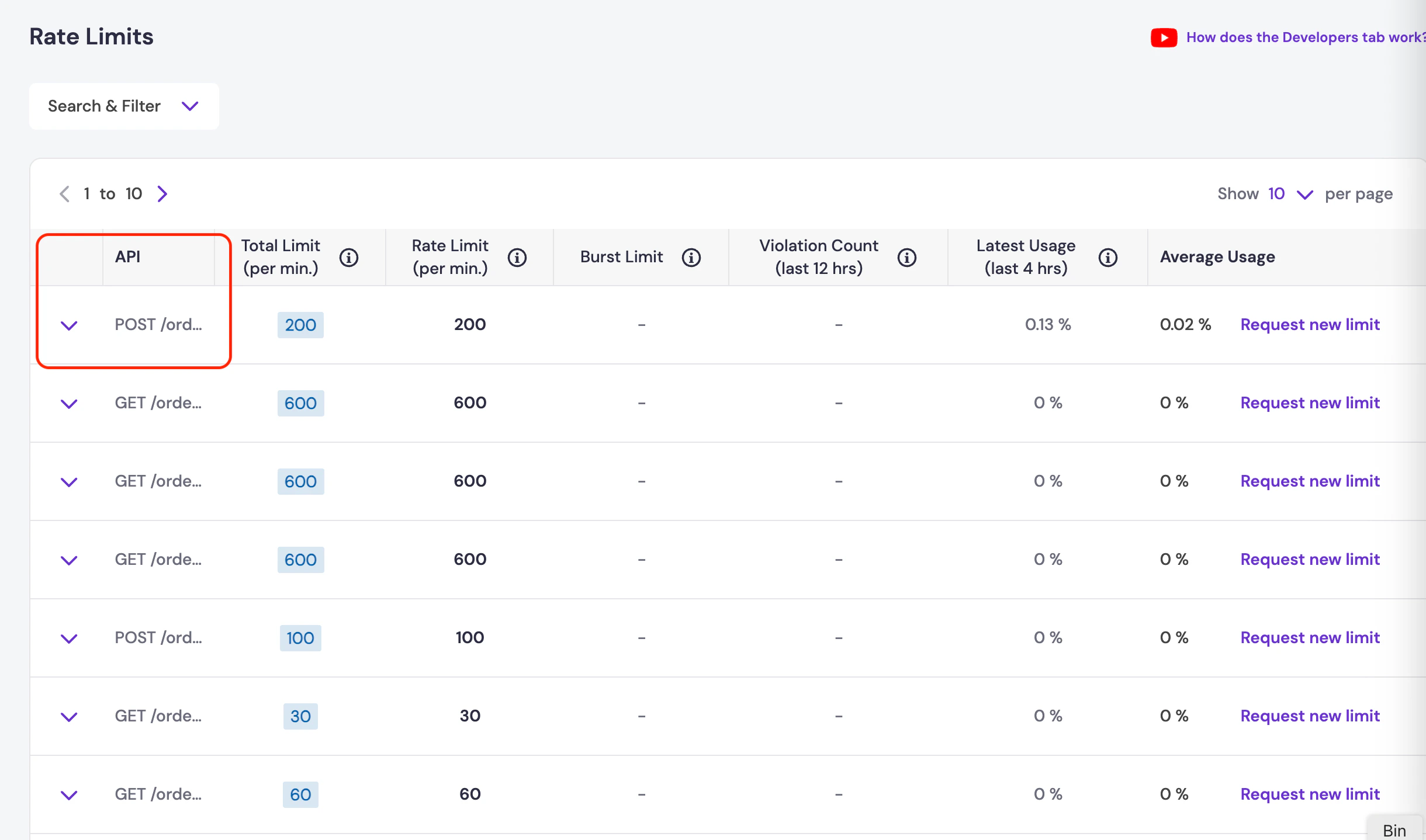
-
Select Request new limit for the API you want to change the limit for.
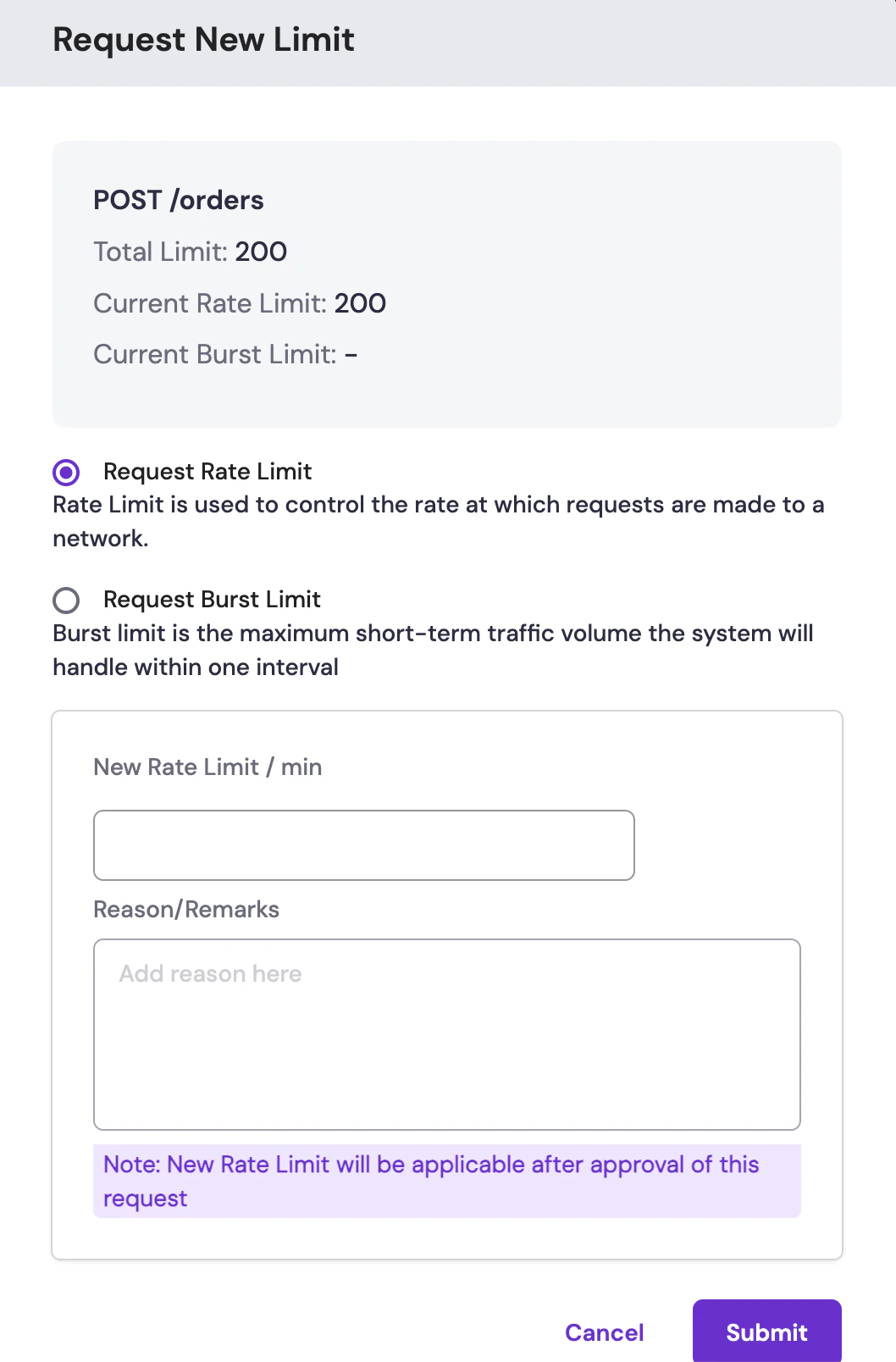
-
Enter the new rate or burst limit you require. For burst limit, enter the time duration.
The total limit is the sum of the rate limit and burst limits.
- Provide the reason for the request and click Submit.