View flagged transactions
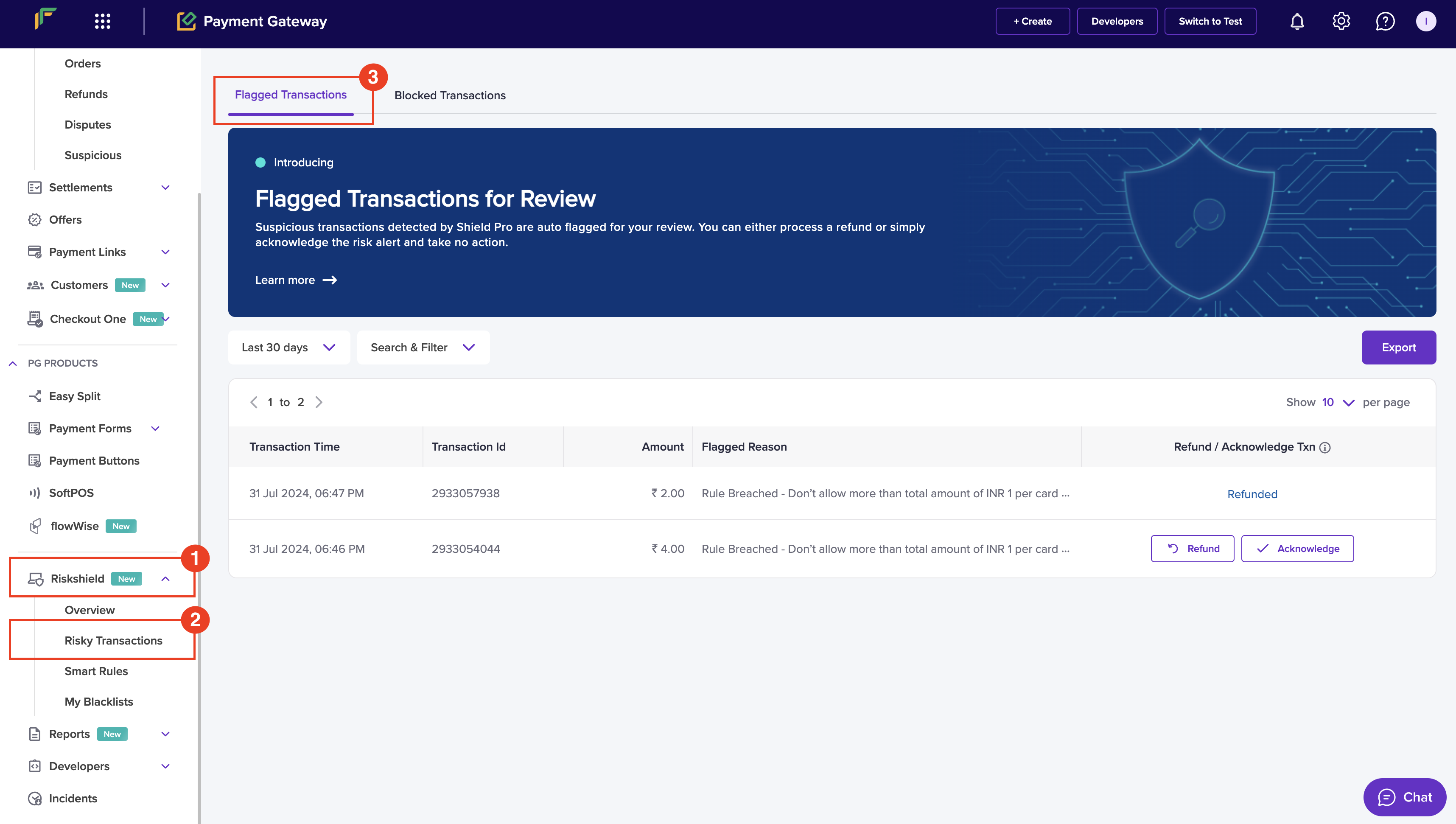
You can view the suspicious transactions detected by Shield Pro and transactions that fall under the activated smart rules and recommended rules here. For the transactions under the recommended rule(s), you chose to flag appear here. Follow the instructions below to view the flagged transactions:- Log in to the Merchant Dashboard.
- Go to Payment Gateway > Riskshield > Risky Transactions > Flagged Transactions.
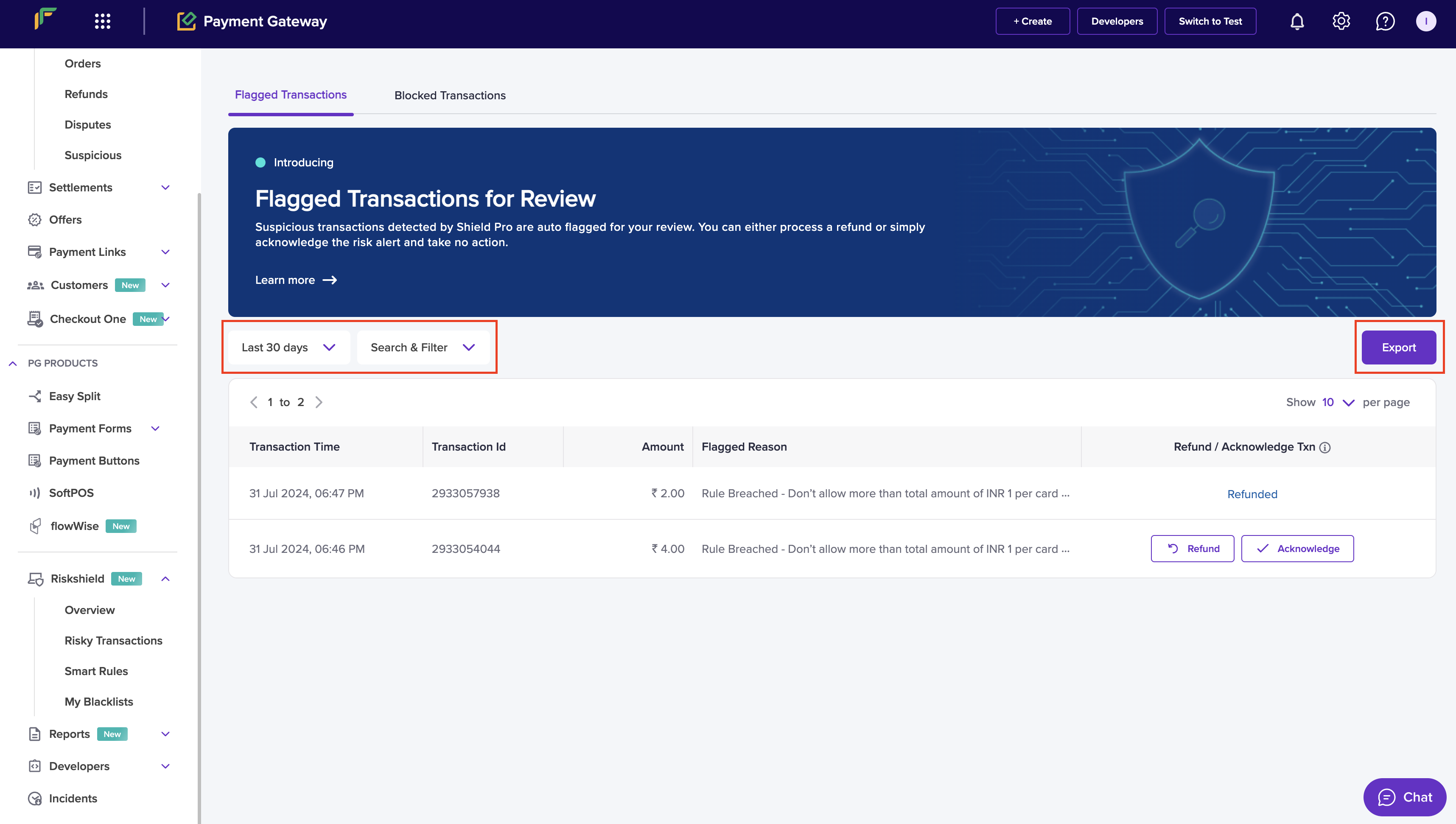
- Last 30 Days: Use the dropdown menu to select the time period of the flagged transactions that you wish to view. You can select Custom Data Range to select a custom date range.
- Search & Filter: Use the available filter options to retrieve the data and click Apply.
- Export: Select this option to export the data.
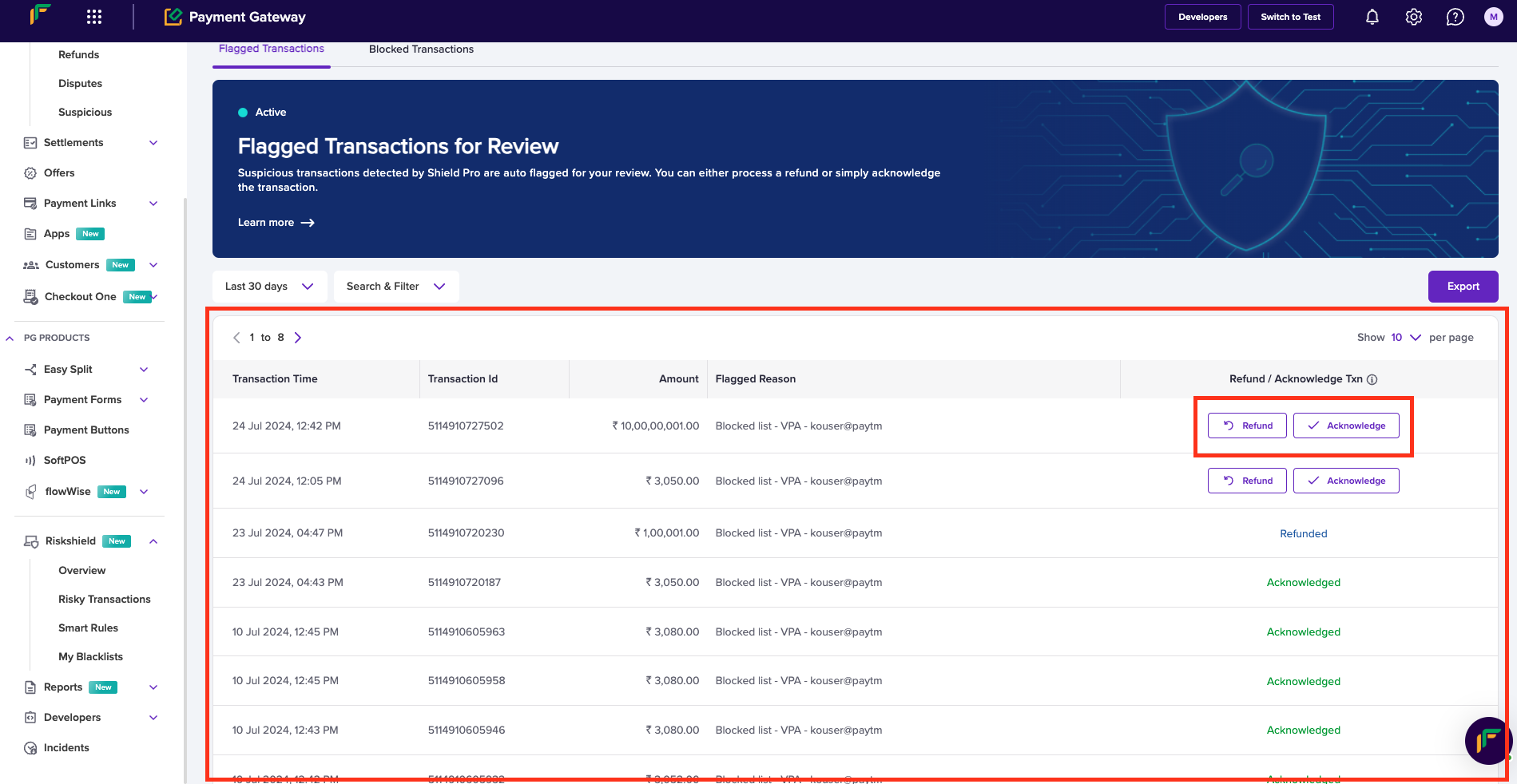
- You can view the following data in the form of cards:
- Transaction Time: It displays the number of transactions scanned.
- Transaction Id: It displays the number of transactions.
- Amount: It displays the amount protected because of blocking the transactions.
- Flagged Reason - It displays the reason for flagging the transaction for review.
- Refund / Acknowledge Txn
- Refund: Select this option to refund the flagged transaction.
- Acknowledge: Select this option to acknowledge the flagged transaction.
Refund flagged transaction
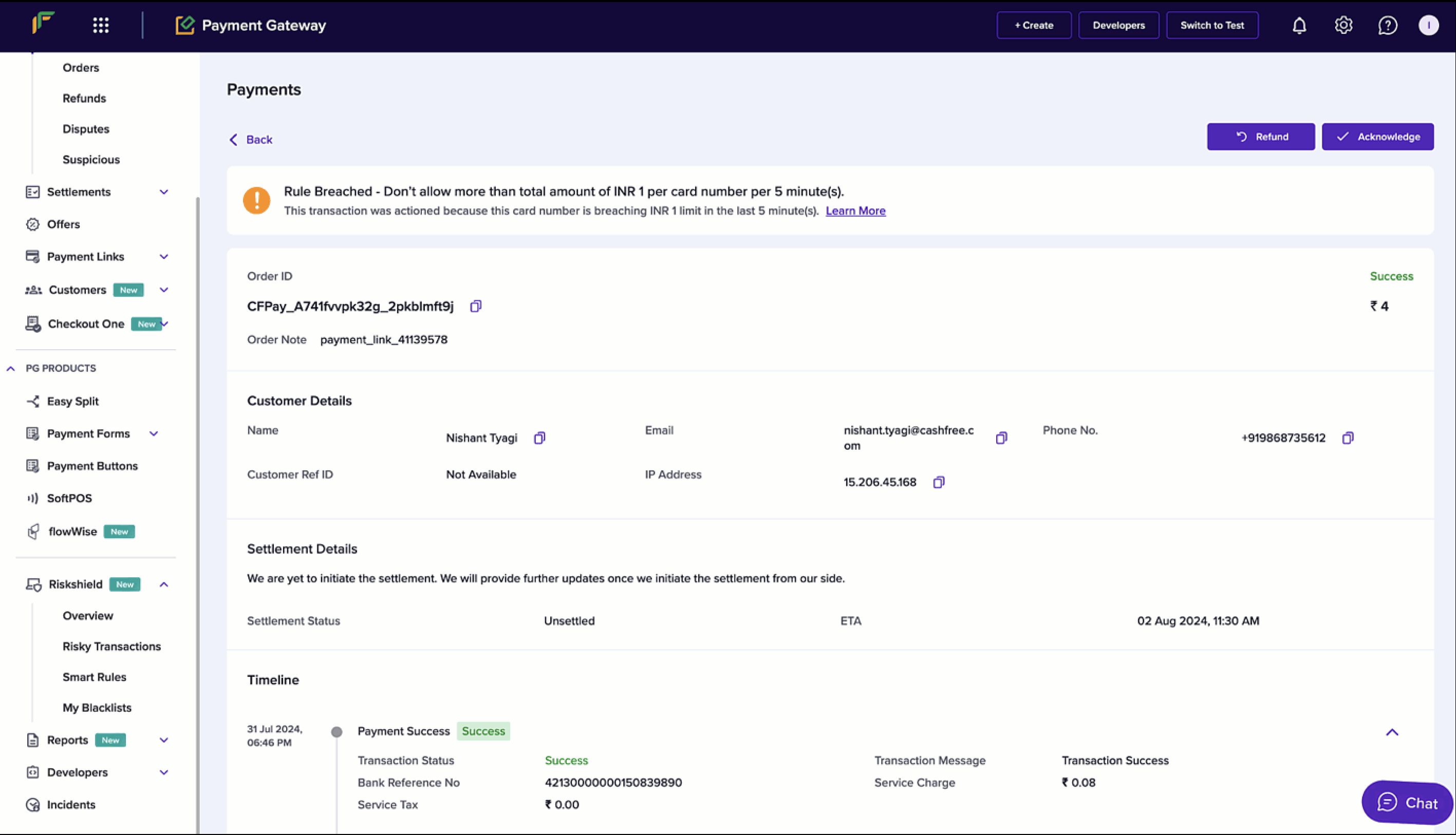
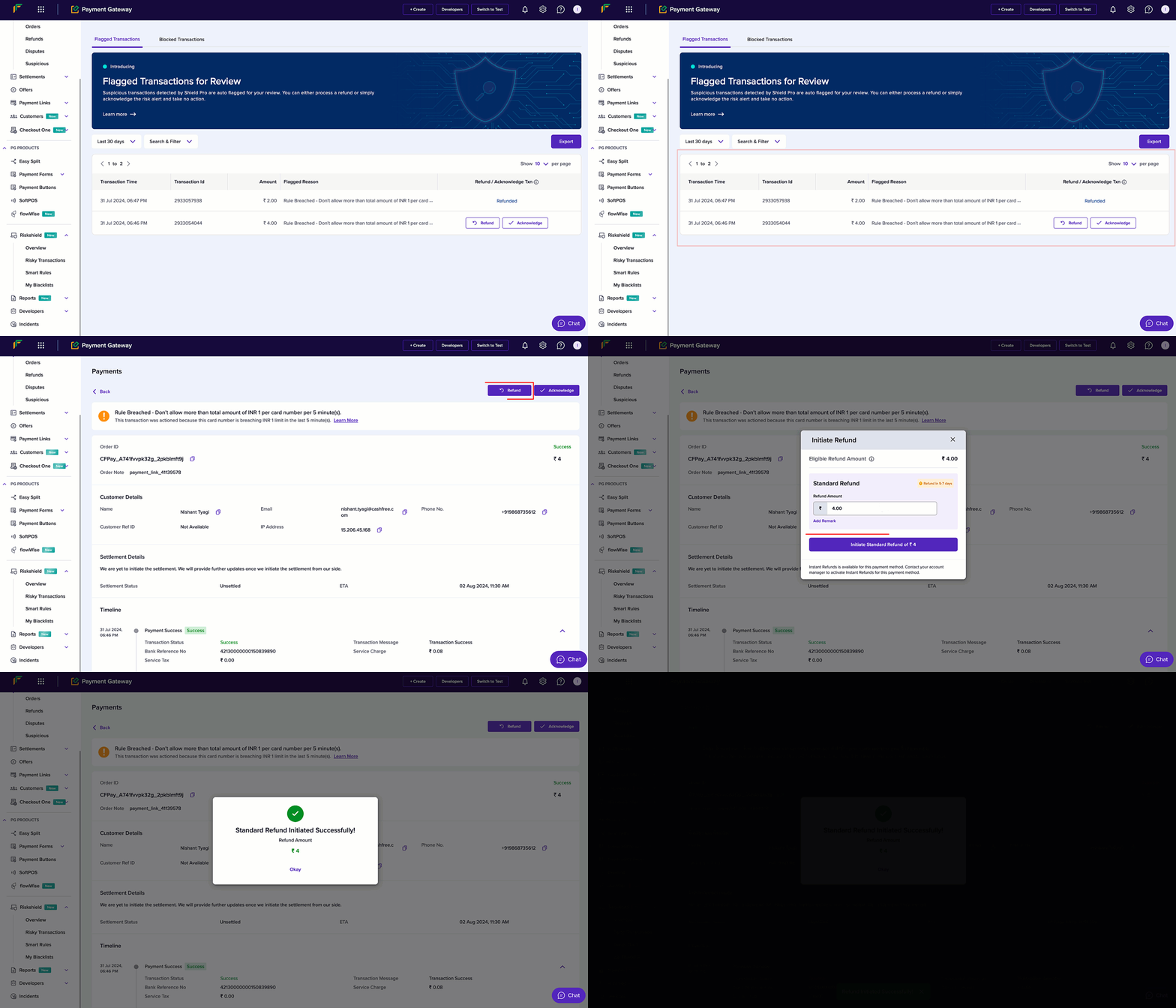
You can choose to refund the flagged transactions by following the instructions below:- From the Flagged Transactions screen, you can click Refund to proceed with the process or select the flagged transaction to view it in detail.
- Click Refund.
- In the Initiate Refund popup, enter the refund amount in the respective field and proceed.
Acknowledge flagged transaction
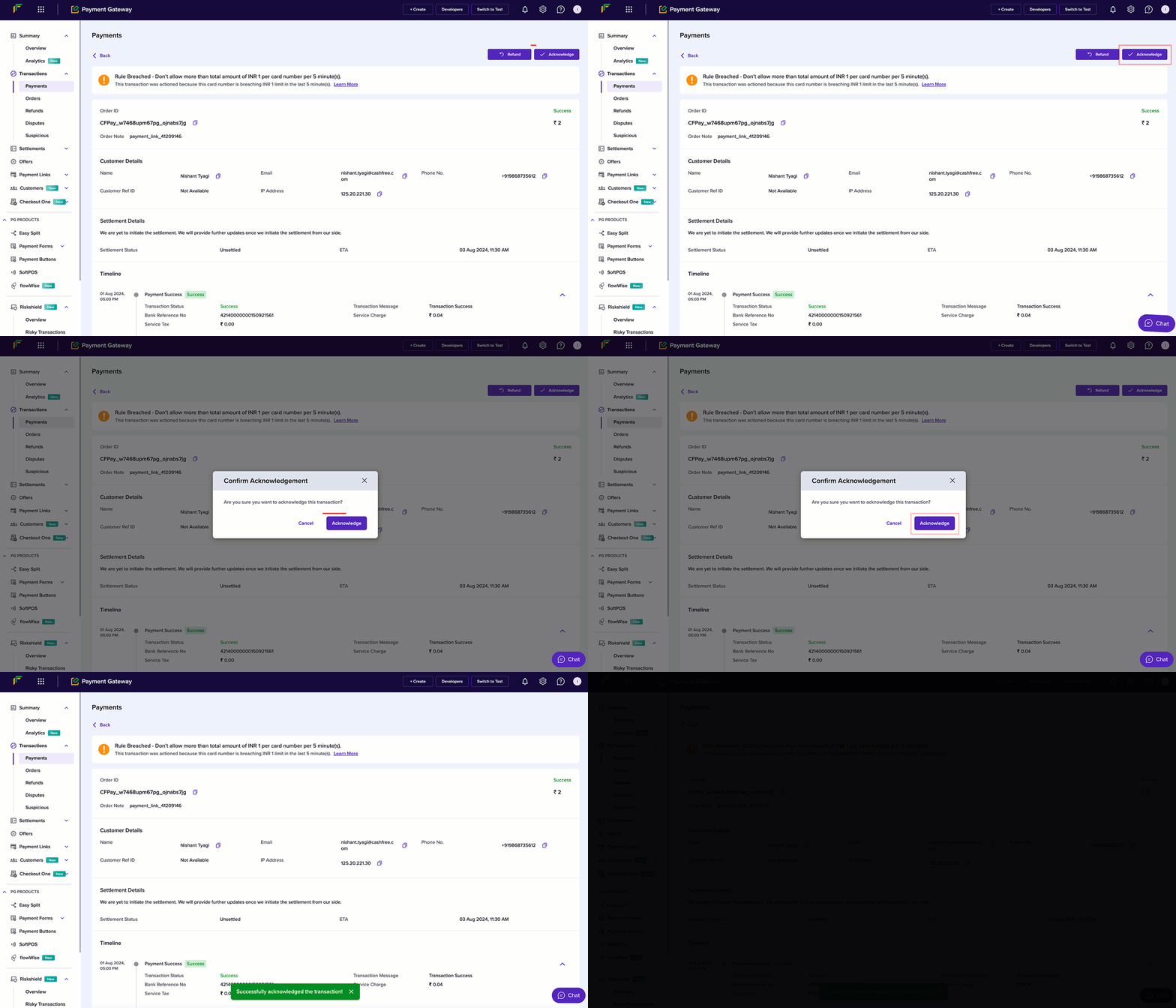
You can choose to acknowledge the flagged transactions by following the instructions below:- From the Flagged Transactions screen, you can click Acknowledge to proceed with the process or select the flagged transaction to view it in detail.
- Click Acknowledge.
- In the Confirm Acknowledgment popup, click Acknowledge.
View blocked transactions
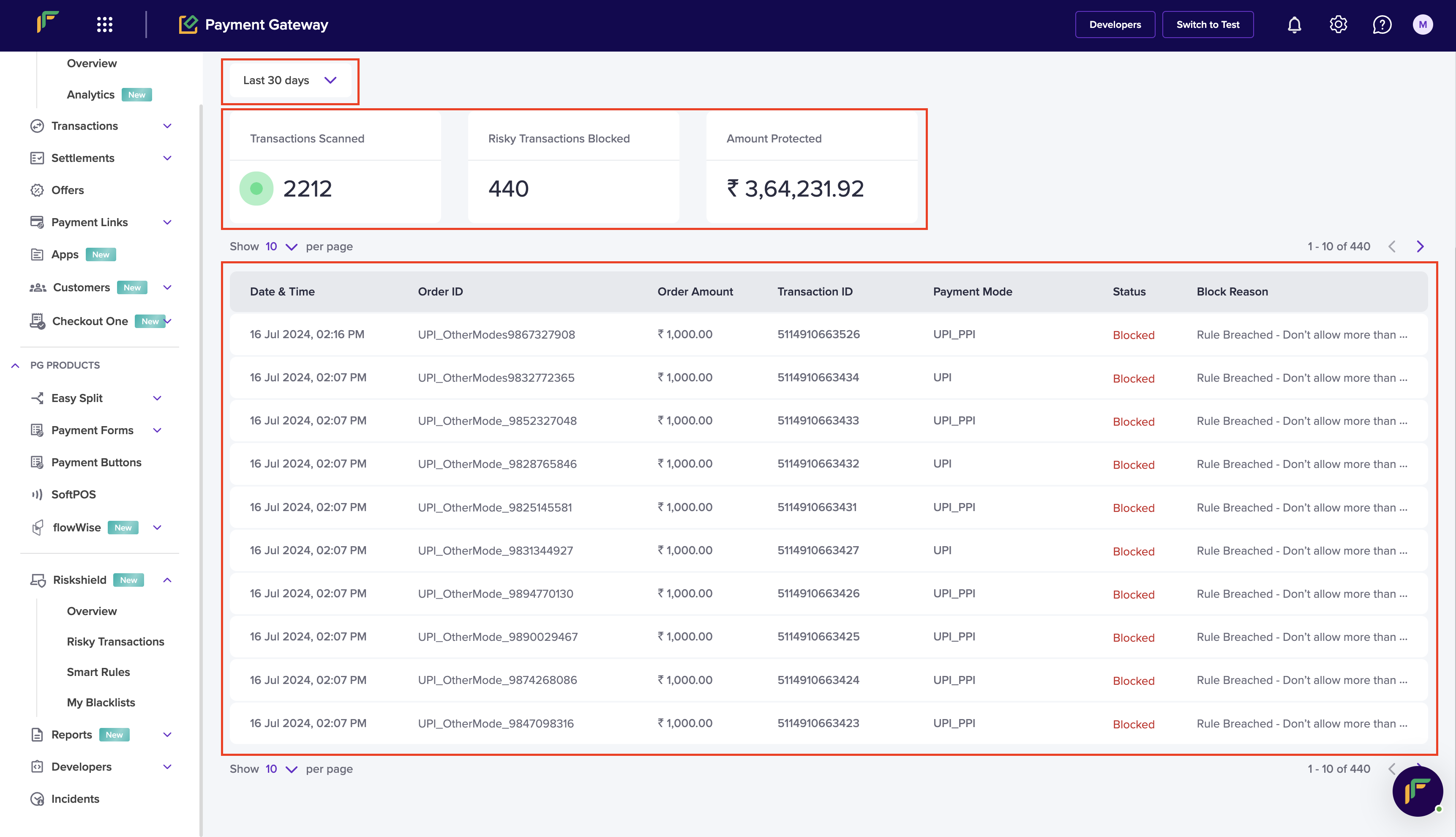
You can view the transactions that we prevent or restrict from being processed. For the transactions under the recommended rule(s), you chose to block appear here. Follow the instructions below to view the blocked transactions:- Navigate to Riskshield > Risky Transactions > Blocked Transactions.
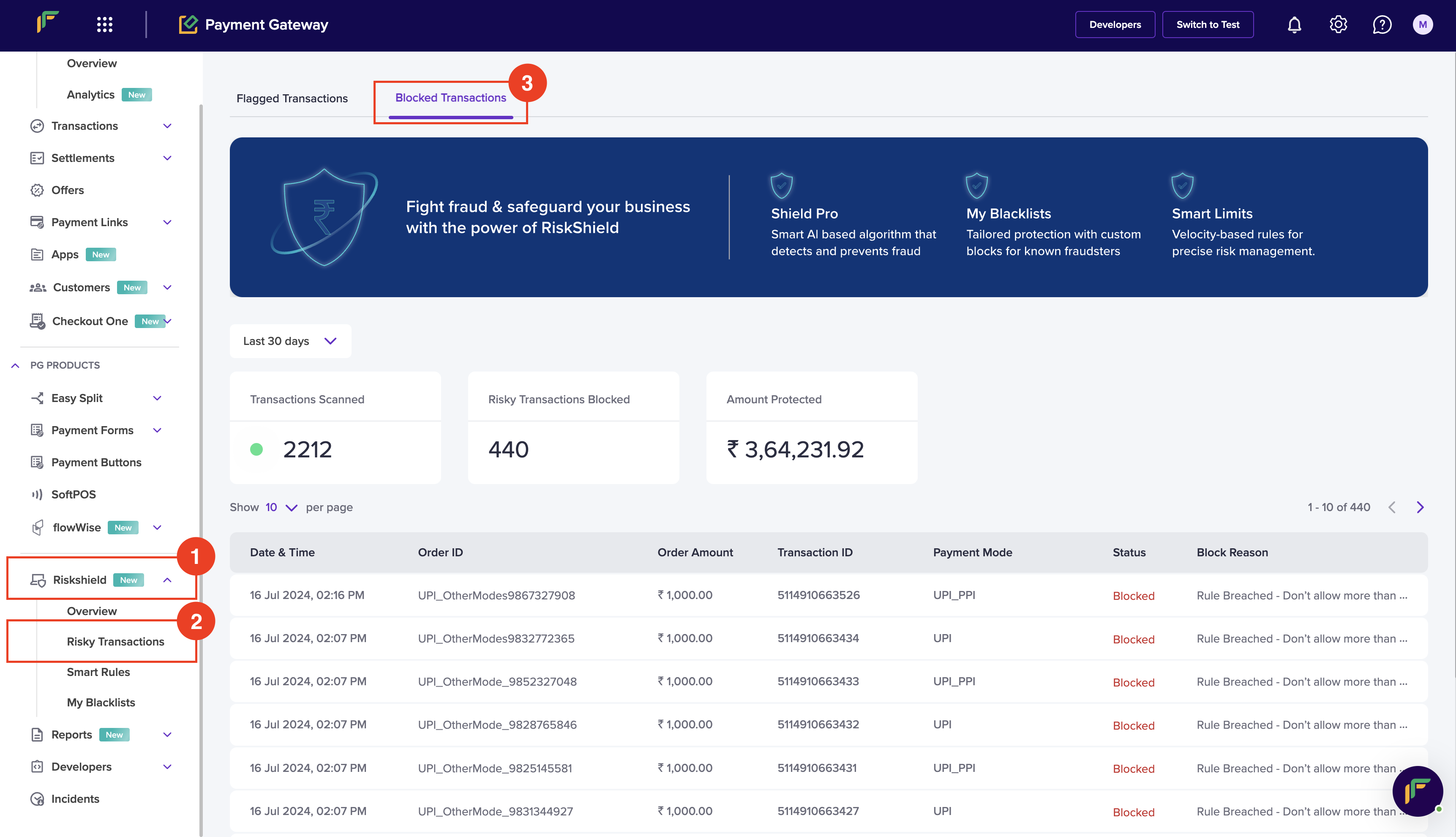
- Last 7 Days: Use the dropdown menu to select the time period of the blocked transactions that you wish to view. You can select Custom Data Range to select a custom date range.
- You can view the following data in the form of cards:
- Transactions Scanned: It displays the number of transactions scanned.
- Risky Transactions Blocked: It displays the number of transactions.
- Amount Protected: It displays the amount protected because of blocking the transactions.
- You can view the following information of a blocked transactions:
- Date and Time: It displays the date and time of the transactions.
- Order ID: It displays the unique identifier of the order.
- Order Amount: It displays the amount of the order.
- Transaction ID: It displays the unique identifier of the transaction.
- Payment Mode: It displays the mode of payment used for the transaction.
- Status: It displays the status of the transaction.
- Block Reason: It displays the reason for blocking the transactions.