The ledger report summarises all the debits and credits that have happened in your account for the selected time period.

Generate ledger report

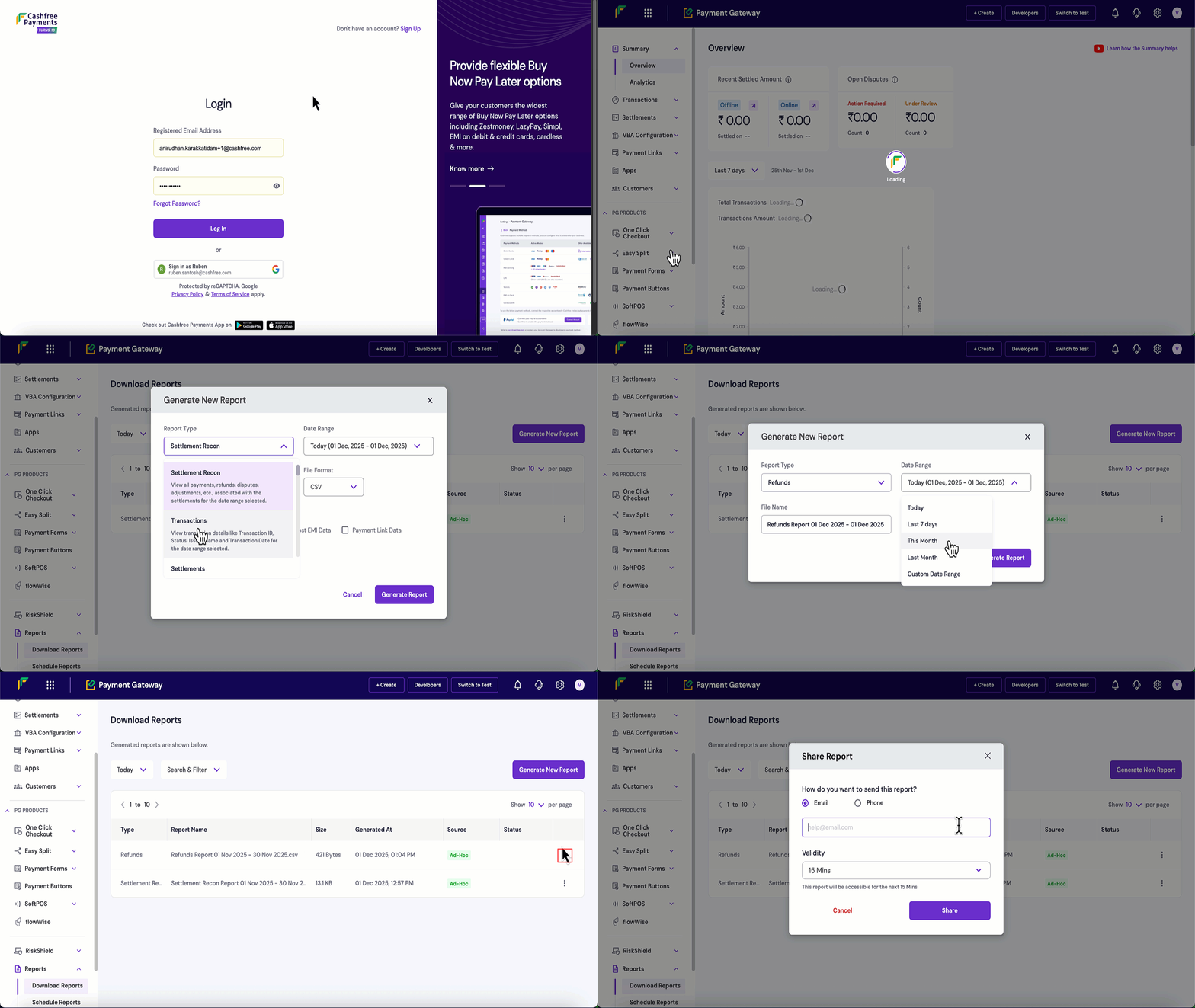
Follow these steps to generate and download a ledger report:
  1. Log in to the Merchant Dashboard.
  2. Navigate to Payment Gateway > Reports > Download Reports.
  3. Click the Generate New Report button.
  4. Configure your report settings:
    • Report Type: Select Ledger from the dropdown.
    • Date Range: Choose the time period for the report.
    • File Format: Select CSV or XLSX.
    • File Name: Modify if needed, this is optional.
  5. Click Generate Report.
  6. Once generated, click the three dots (ā‹®) next to your report.
  7. Click Download Report to save the file.
  8. Click Share Report to share the report via email or mobile number and set the validity period.
Ledger report specification

The following table describes the parameters available in the ledger report:
ParameterSample valueFlagDescription
Ledger ID130872636idUnique identifier assigned by Cashfree to each ledger entry.
Sale TypeDEBITenumIndicates whether this ledger entry decreases or increases your balance. Possible values include: DEBIT - amount deducted from balance and CREDIT - amount added to balance.
EventREFUNDenumThe type of event that generated this ledger entry. The common values are: REFUND, FUND_SWEEP, SETTLEMENT_COMPUTE, CORRECTION_CREDIT.
Amount3.00amountThe monetary value of this ledger transaction. This amount is either added to or subtracted from your balance based on the Sale Type (CREDIT or DEBIT).
Event ID98307625idThe identifier for the underlying event associated with this ledger entry. For example, for REFUND events this corresponds to the Refund ID.
Added On2025-10-31 15:49:41datetimeDate and time at which this ledger entry was recorded in the ledger.
Closing Balance-17.52amountLedger balance immediately after applying this entry. Reading the report in sequence allows you to follow how your balance evolves over time.