Generate transactions report
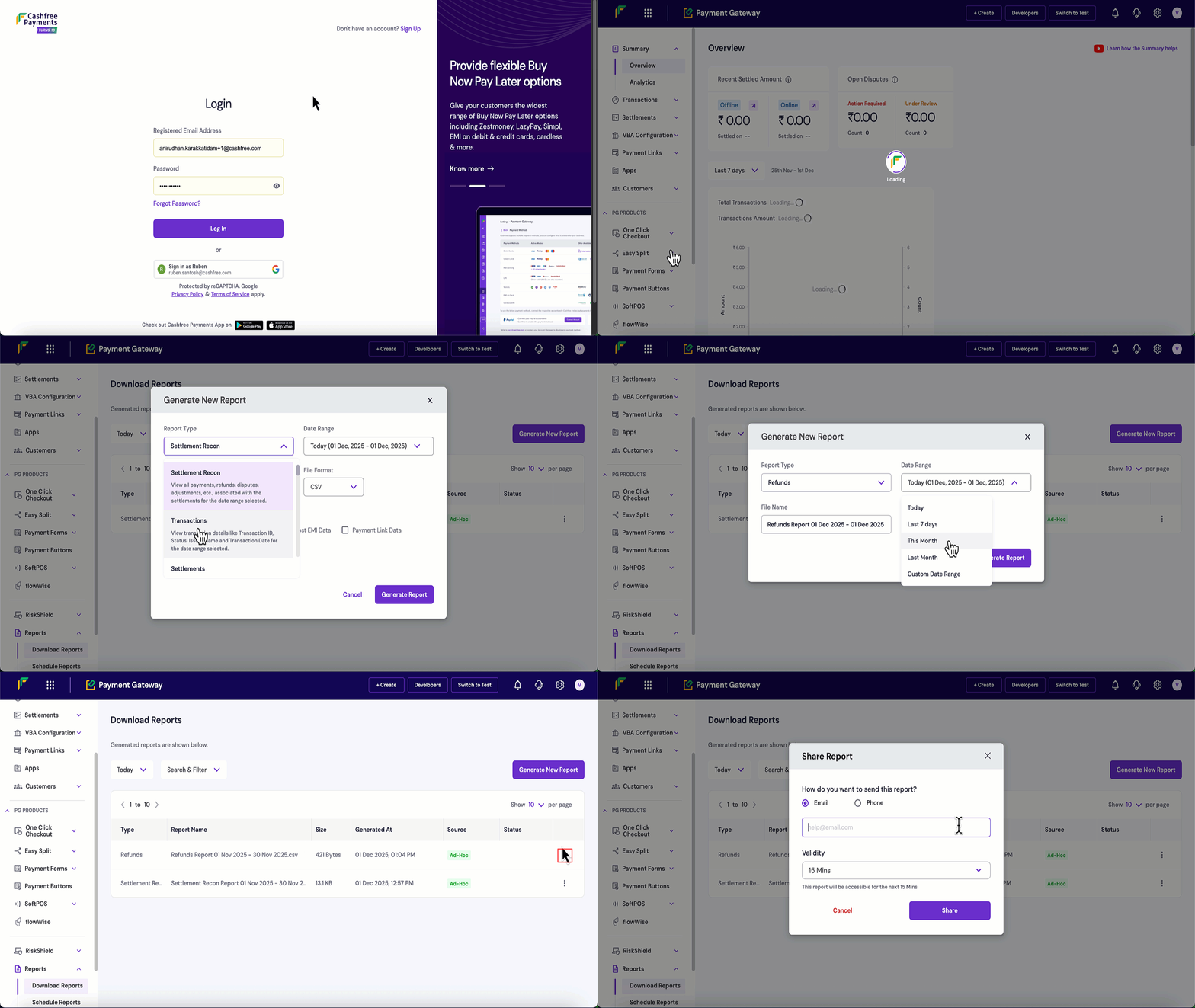
Follow these steps to generate and download a transactions report:- Log in to the Merchant Dashboard.
- Navigate to Payment Gateway > Reports > Download Reports.
- Click the Generate New Report button.
- Configure your report settings:
- Report Type: Select Transactions from the dropdown.
- Date Range: Choose the time period for the report.
- File Format: Select CSV or XLSX.
- Status: Select the transaction status you want to view (for example, Success, Failed, Dropped, Incomplete, or All).
- File Name: Modify if needed, this is optional.
- Click Generate Report.
- Once generated, click the three dots (⋮) next to your report.
- Click Download Report to save the file.
- Click Share Report to share the report via email or mobile number and set the validity period.