

- Visual preview
- Code snippet
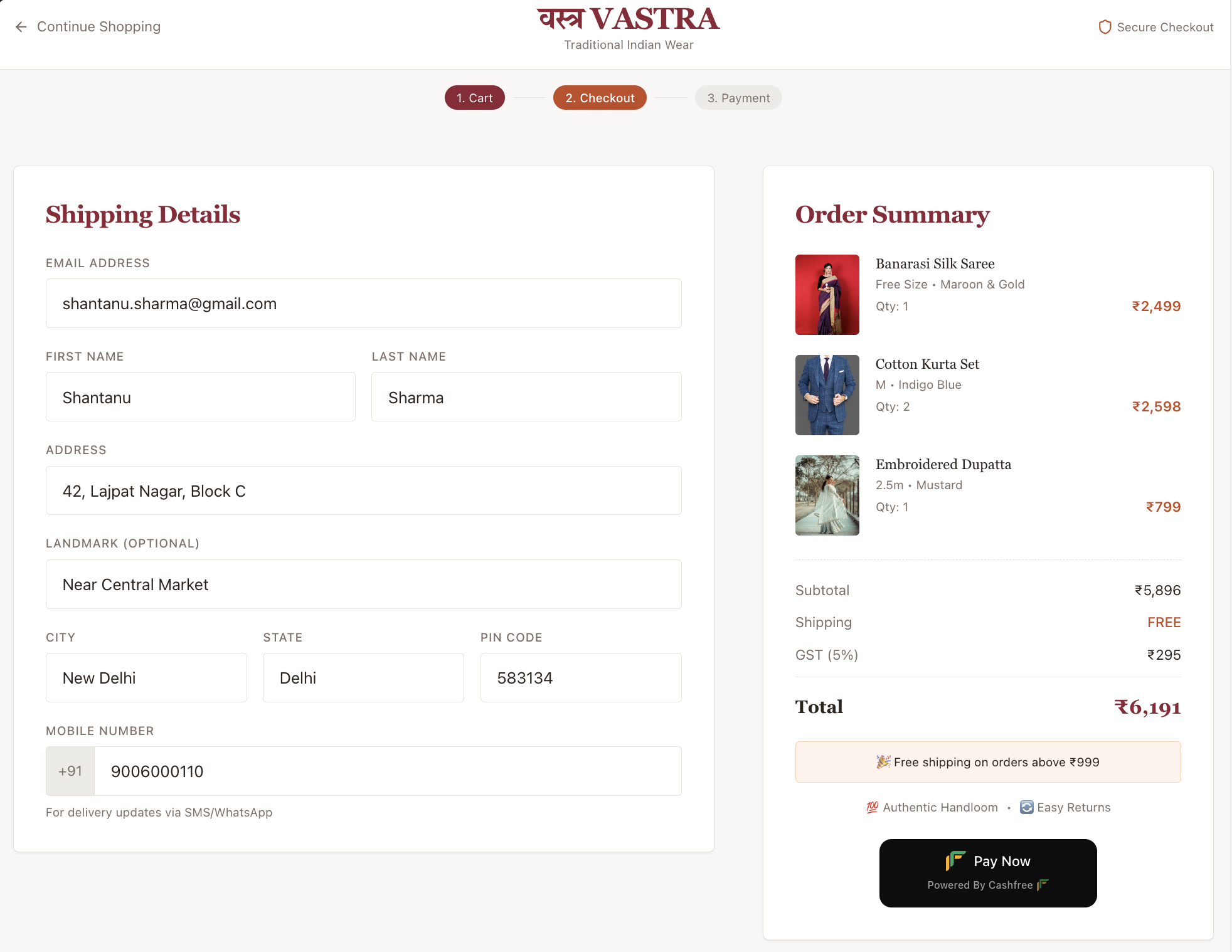
Key benefits
The payment button streamlines your collection process with several automated features:- Fast setup: Accept payments in a matter of minutes by simply embedding a code snippet.
- Custom information collection: Collect information based on your case, such as donations, events, selling physical or digital products, etc.
- Automated redirects: Redirect back to your website by using the Return URL feature after a transaction.
- Instant invoicing: Send invoices after successful payment to your customers automatically.
Use cases
You can deploy the payment button across various business models to handle transactions efficiently.- E-commerce: Sell physical or digital products on any custom website or blog.
- Donations: Collect funds for social causes or NGOs with a simple Donate Now button.
- Events: Manage registrations and payments for workshops, webinars, or local events.
- Service bookings: Allow customers to pay for appointments or reservations using custom CTA text such as Book Now or Reserve Now.
Creating a payment button
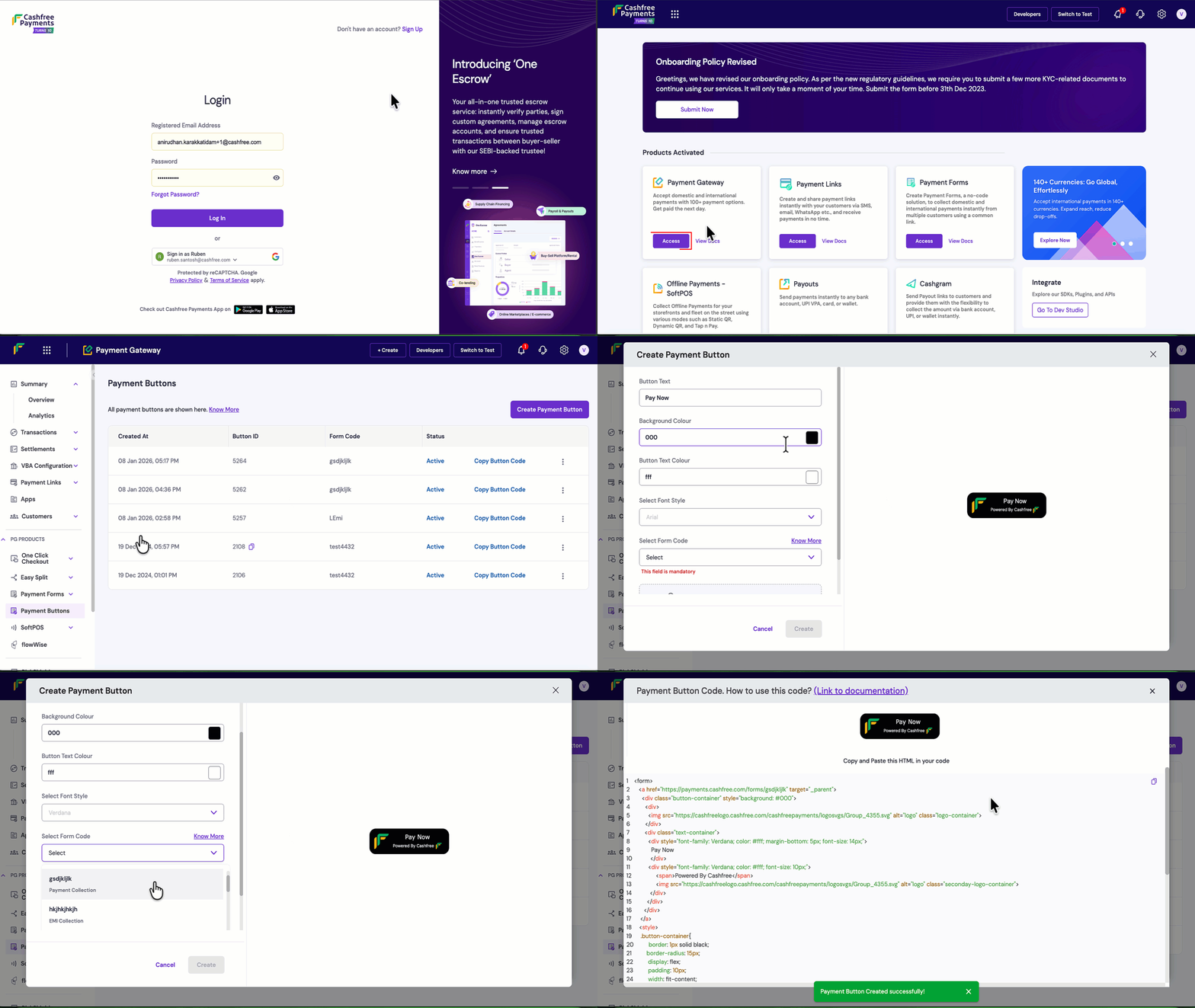
Follow these steps to log in, configure, and generate your custom payment button within the Merchant Dashboard:- Log in to the Merchant Dashboard.
- Go to Payment Gateway Dashboard > Payment Button > click Create Payment Button.
- Enter the Button Text (Call to Action) and specify with examples such as Pay Now, Donate Now, Book Now, or Reserve Now.
- Customise the Button Text Colour, Background Colour, Select Font Style, and Select Form Code according to your website or blog. You can view the preview directly in the editor.
- You need a Payment form to create a payment button. These forms let you collect customer information such as name, address, and other details specific to your use case.
- Create your form in the Payment Form Dashboard and link it to your payment button using the Form Code. We recommend using a readable form code in the personalised URL section during creation; you can find this code listed against each form in the dashboard.
- After you click Create, copy the generated HTML snippet and paste it into your website.
Platform integration guides
Choose your website hosting platform below to see specific instructions for embedding your payment button code accordingly:- Google Sites
- GoDaddy
- Weebly
- Blogger
Follow the steps given below to integrate the payment button with Google Sites:
- Log in to your Google Site and switch to Editor mode.
- Navigate to the page on which you want to place the button.
- Navigate to Insert → Embed → Embed Code and paste the Cashfree button code from the dashboard.
- Publish to view the button on your Google Site.