

Samsung Pay at checkout
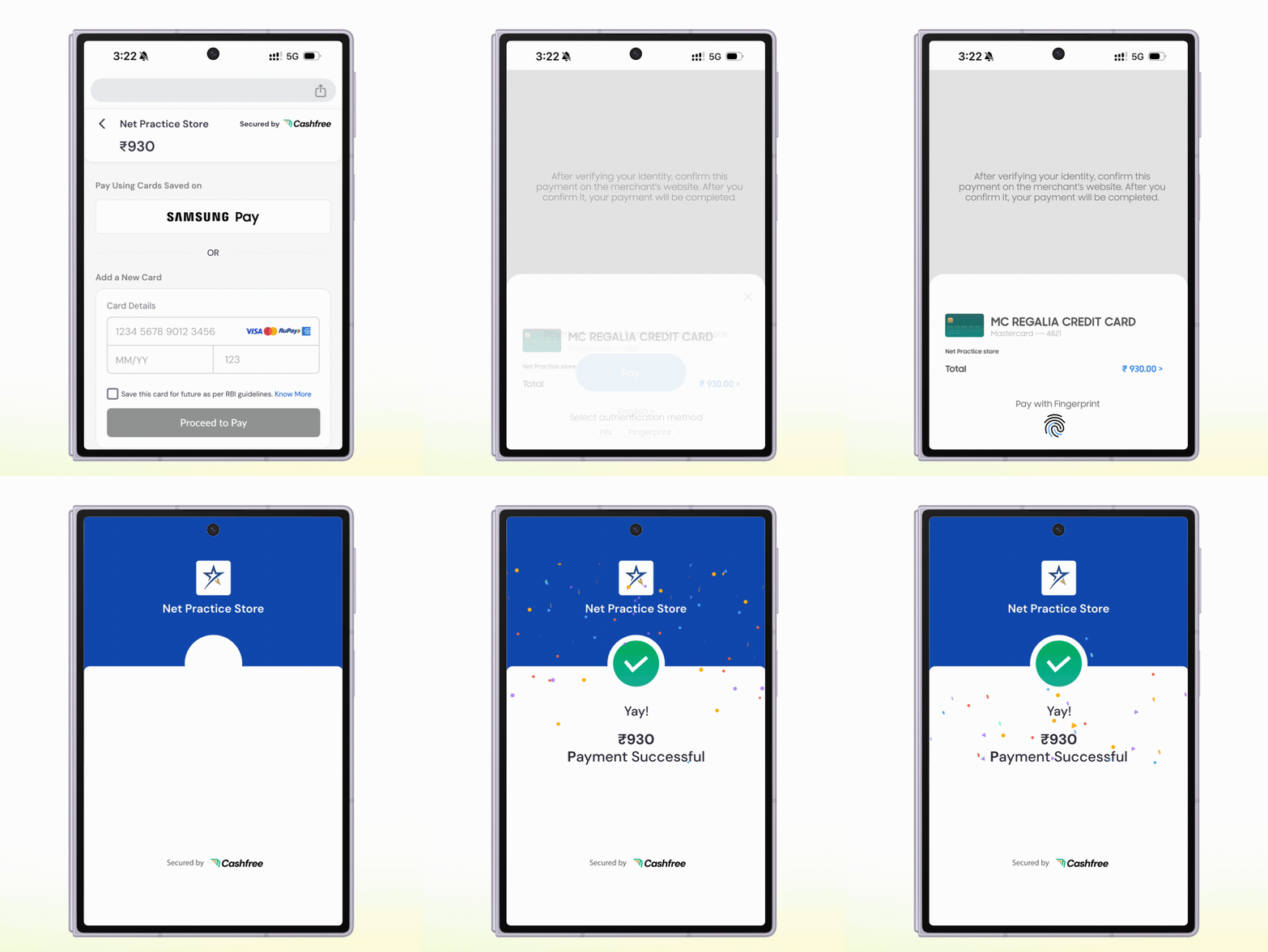
Samsung Pay checkout flow on a Samsung Galaxy phone from payment selection to completion
Benefits of Samsung Pay
Offering Samsung Pay at checkout gives Samsung Galaxy customers a fast, saved-card payment experience, which improves both payment success and checkout conversion:- Higher success rate: Samsung Pay uses a device-specific token instead of manually entered card details. This removes common failure points such as mistyped card numbers.
- Better conversion: Customers pick a card in Samsung Wallet and confirm with biometrics or PIN, with no card form to fill in.
- Saved-card experience for first-time buyers: Cards are saved in Samsung Wallet at the device level and work with any merchant on that device. Customers get a saved-card experience even on their first purchase with you.
- Works on desktop too: Customers shopping on a laptop or PC can pay by linking their Galaxy phone through their Samsung account email or by scanning a QR code.
Compatibility
Samsung Pay works for customers in the following cases:- Samsung Galaxy phone with Samsung Wallet: The customer pays on mobile, and Samsung Wallet opens on the same phone.
- Desktop: The customer links their Galaxy phone by entering their Samsung account email or scanning a QR code, then approves the payment in Samsung Wallet on the phone.
Samsung Pay availability also depends on the customer’s device model and browser. Samsung Pay appears as a payment option only when Samsung confirms that the customer’s device and browser support it and the customer has saved cards in Samsung Wallet.
How Samsung Pay works
The payment flow depends on whether the customer pays on their phone or on a desktop.- Samsung Galaxy phone
- Desktop
The customer completes the payment on their phone as follows:
- The customer selects Pay with Samsung Pay at checkout.
- Samsung Wallet opens on the phone and shows the merchant name, the amount and the customer’s default card. The customer can switch to another card.
- The customer confirms with fingerprint, face or PIN.
- Cashfree processes the payment and the customer sees the result on checkout.
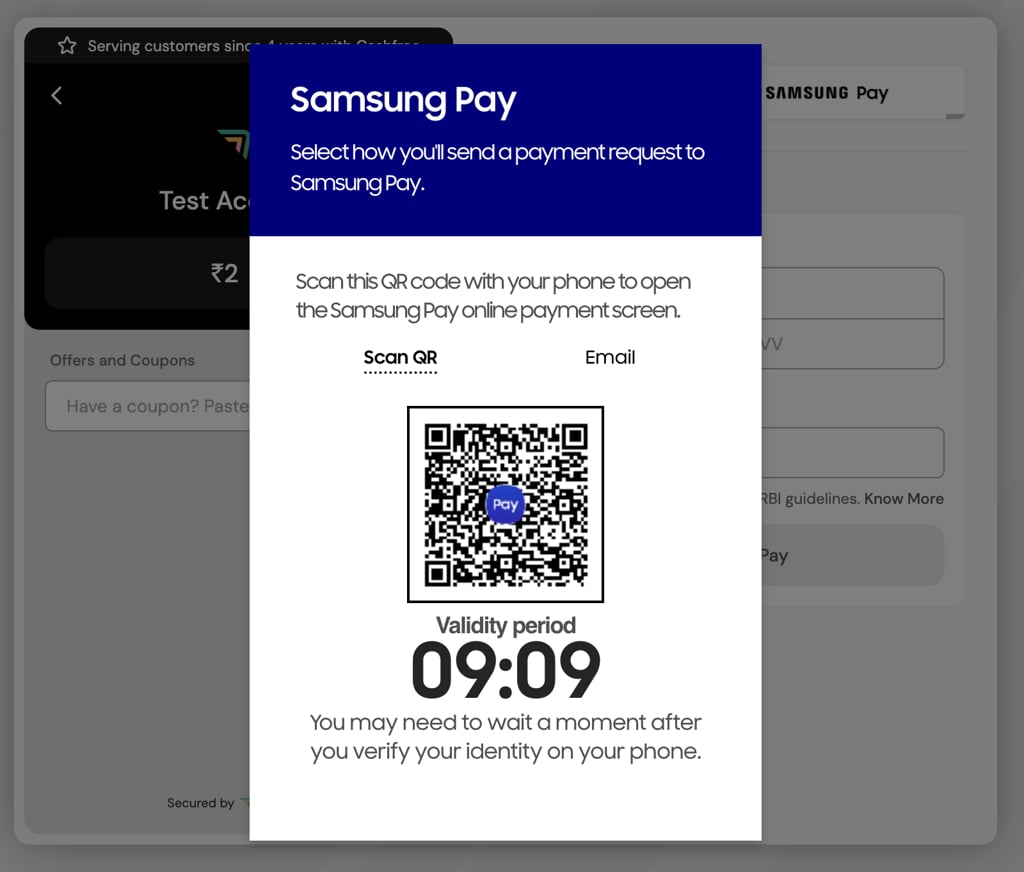
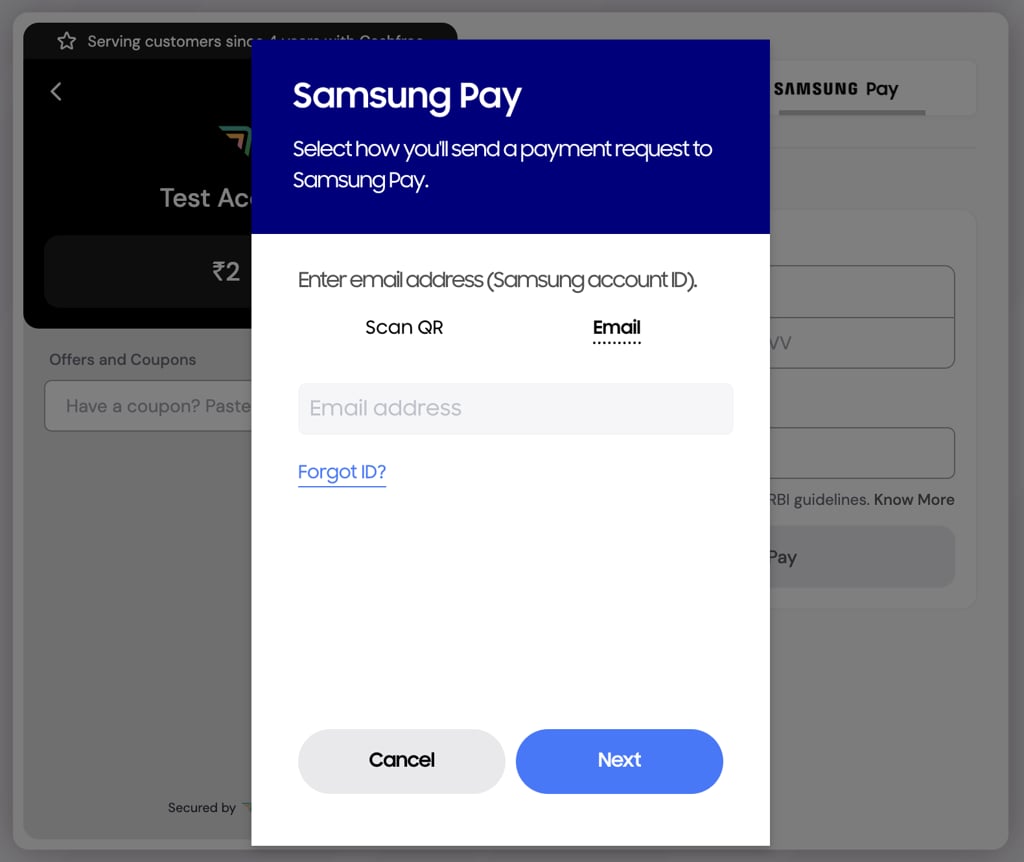
For some cards, the issuing bank may still ask for an OTP (one-time password) after the customer approves in Samsung Wallet. This depends on whether the issuer supports consumer device cardholder verification method (CDCVM), which is device-based biometric authentication, for that card. If the issuer doesn’t support it, Cashfree shows OTP authentication as a fallback.
Integration options
How you enable Samsung Pay depends on how you load Cashfree-hosted checkout:- Web checkout
- Android apps
- WebView with Cashfree JS SDK
Samsung Pay is enabled by default for redirect, popup and inline checkout. No code changes are needed. Cashfree handles the following for you:
- Cashfree checkout checks whether the customer’s device and browser support Samsung Pay and shows the Samsung Pay button only when they do.
- Cashfree handles the Samsung Pay session, decrypts the payment data, processes the payment and shows the final status to the customer.
- You receive the payment status through the usual payment webhooks and the Get Payments for an Order API.
Security
Samsung Pay protects customer card data as follows:- Samsung Pay uses device-specific tokens instead of actual card numbers.
- Customers approve payments in Samsung Wallet with fingerprint, face or PIN.
- Samsung encrypts the payment data, and Cashfree decrypts it on its servers. Card details never reach your website or app.