

Use cases
Payment forms support a wide range of business scenarios for payment collection and customer data gathering:Collect Fees
Ideal for the educational sector to collect fees from parents and students.
Accept Donations
Ideal for non-profit organisations looking to raise money for a good cause.
Events and Webinar Registrations
Ideal for event or webinar organisers to collect fee from the participants.
Booking and Payment Reservations
Ideal for hospitality sectors to collect customer details and payments.
Esign and Pay
Ideal for SEBI-registered RAs and IAs to collect payments and authenticate customer’s acceptance of terms and conditions.
Recurring Subscriptions
Ideal for recurring donations, courses, and memberships. Use a single plan, or add multiple plans so customers choose one at checkout.
Creating a payment form
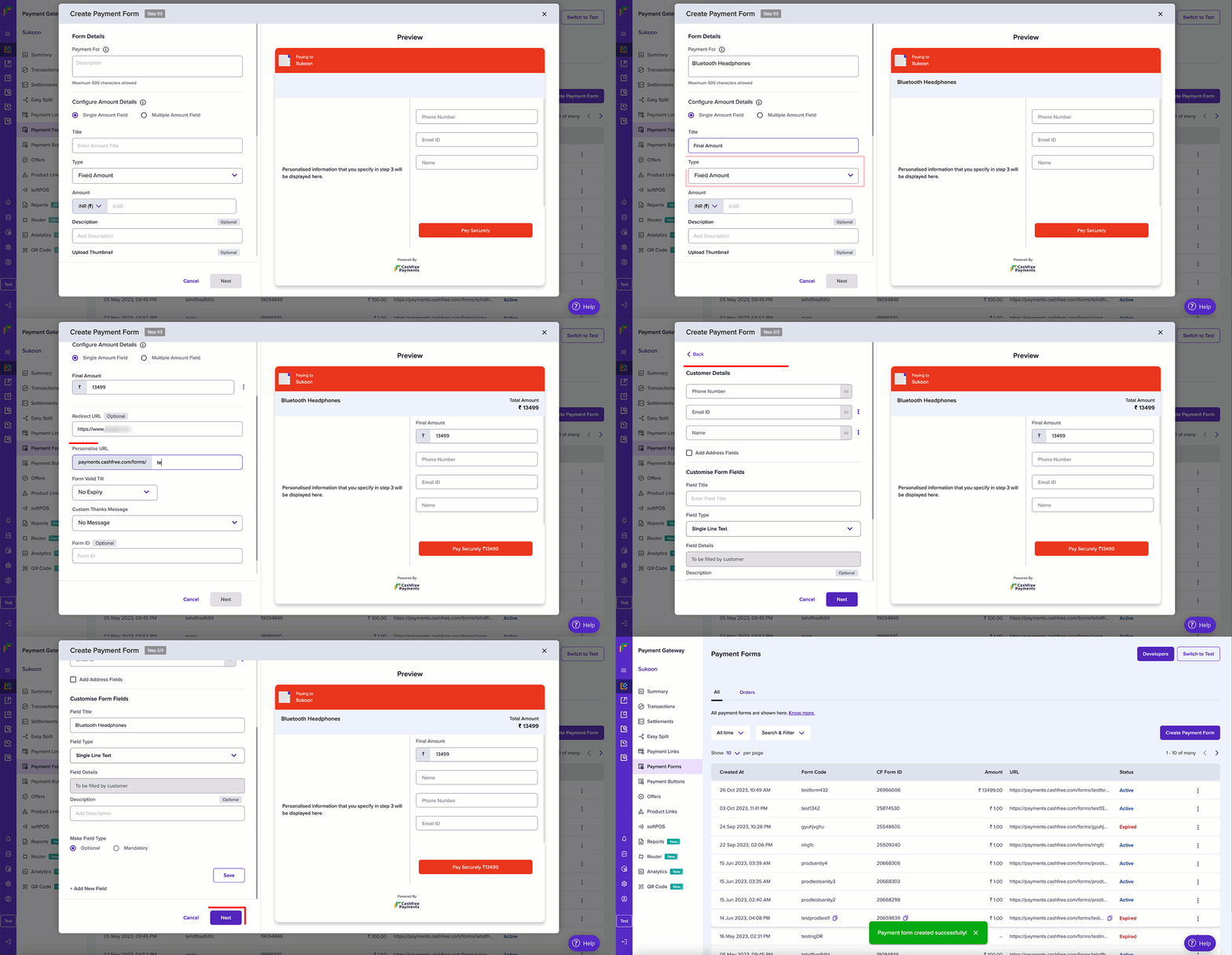
You can create an unlimited number of payment forms and share them with your customers, and easily track all the payments. Follow these steps to create a payment form through the Merchant Dashboard:- Log in to the Merchant Dashboard.
- Go to Payment Gateway > Payment Forms > All.
- Click the Create a Payment Form button.
- Complete the form details:
- Payment For: Enter a brief description such as the product name. For example, Headphones for audio equipment.
- Amount configuration: Choose single amount for fixed pricing or multiple amounts for customer choice.
- Amount title: Enter a title like Final amount.
- Currency and amount: Select currency type and enter the payment amount.
- Description: Add brief payment details (optional).
- GST and service charges: Set rates if applicable to your business (optional).
- Redirect URL: Add where customers go after payment completion (optional).
- Configure form settings:
- Personalised URL: Create a custom URL slug for easy sharing.
- Form validity: Set expiration date for the form.
- Thank you message: Customise the post-payment message.
- Form ID: Create unique identifier for tracking (optional).
- Set up customer data collection:
- Required fields: Enable name, phone number, and email address.
- Address field: Enable if required for your business (optional).
- Enhance form functionality:
- Description: Add business or payment purpose information.
- Invoice option: Enable automatic invoice generation after payment.
- Terms and conditions: Add legal terms customers must accept.
- Add business contact information:
- Contact details: Email, phone, WhatsApp number, website URL, and support link.
- Connect social media profiles:
- Social links: Add Twitter, Instagram, Facebook, and LinkedIn URLs (optional).
- Click Create to finalise and publish your payment form.
To send a customer a payment form with their personal details pre-filled, see personalised payment forms. To collect recurring payments with a single plan or multiple plans, see subscription payment forms.
Payment forms are required to create payment buttons. Use the form code from your personalised URL to link forms with buttons.