To ensure secure transactions, each collection point must go through a verification process before it can be used to collect payments. The requirements vary depending on the collection model you have chosen. This page covers the following topics:Documentation Index
Fetch the complete documentation index at: https://www.cashfree.com/docs/llms.txt
Use this file to discover all available pages before exploring further.
Storefront verification
To add and verify a storefront collection point, complete the following steps:- Log in to the Merchant Dashboard.
- Navigate to PG PRODUCTS > Offline Payments > Collection Point Management.
- Click Add Collection Point, then select the Storefront collection type.
-
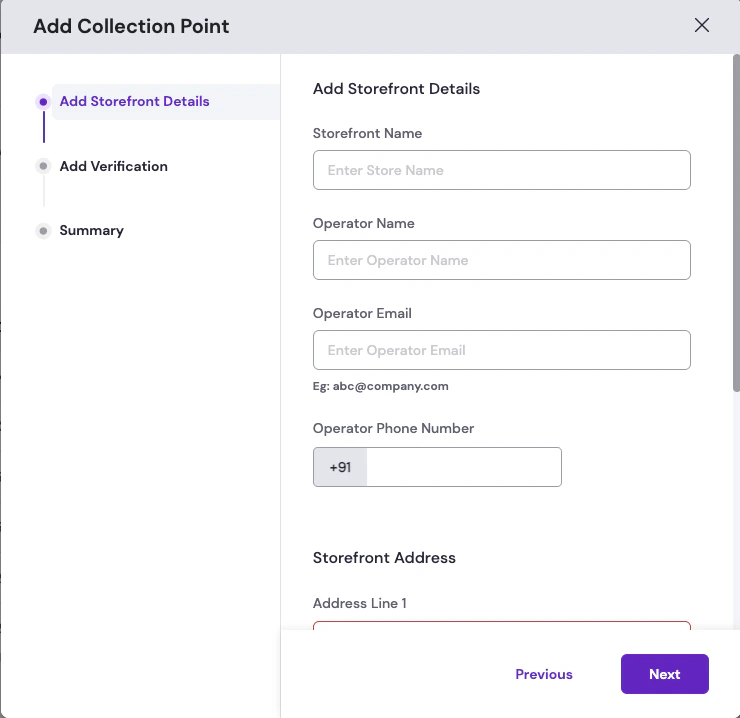
Provide the following details for the storefront:
- Storefront Name: The name of the physical store location.
- Operator Name: The name of the person operating the store.
- Operator Email: The operator’s email address.
- Operator Phone Number: The operator’s registered mobile number.
- Storefront Address: Full address including pin code and state.
-
Add verification documents: Upload the following mandatory documents to complete the KYC.
Document Accepted formats Address proof of storefront: Rent agreement or municipality certificate PDF, DOC, JPEG, JPG, PNG Storefront image: Front facade of the store with the store name clearly visible JPEG, JPG, PNG (max 4 MB) 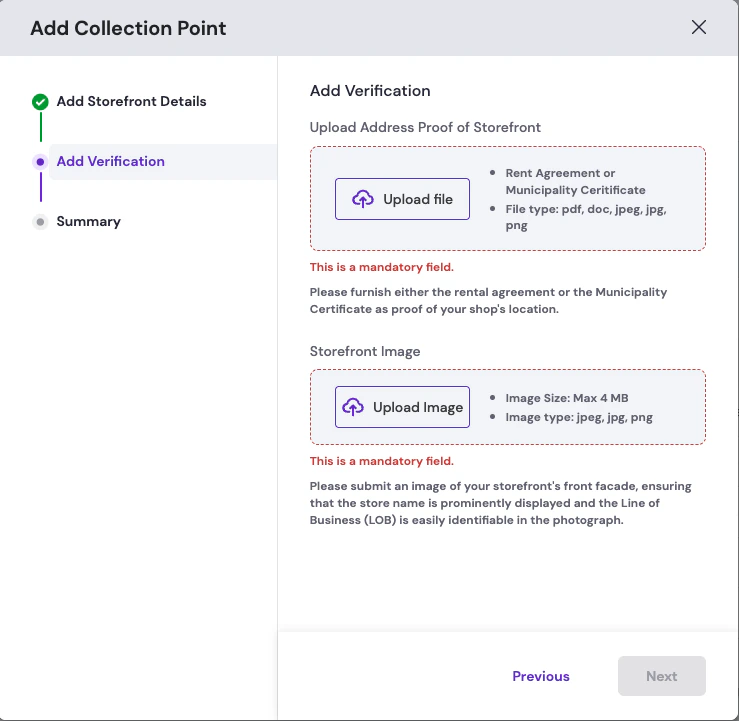
-
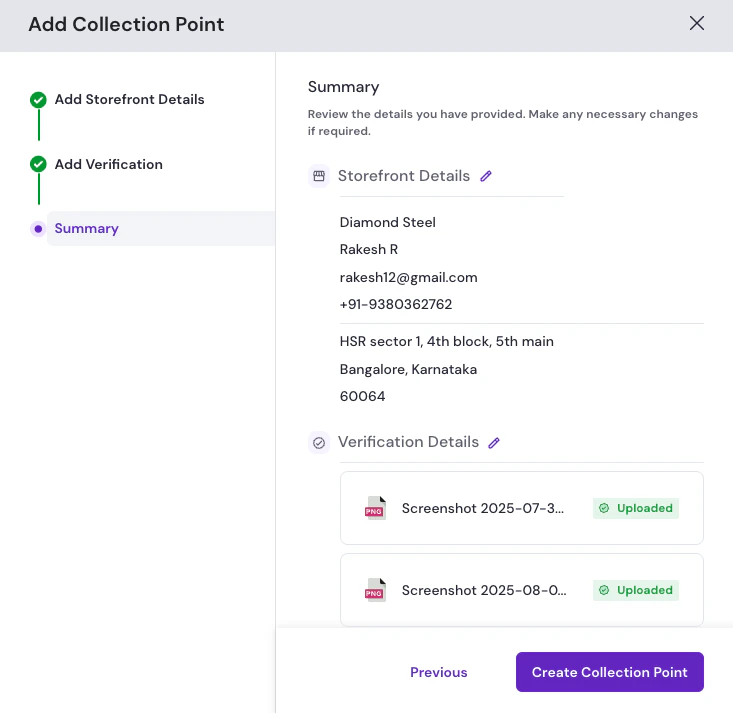
Summary: Review the storefront and verification details you have provided. Make any necessary changes to the storefront or verification details if required by selecting the edit icon next to the details. Click the Create Collection Point button to submit the details.
Agent verification
To verify an agent through KYC and onboard several agents at once using a batch file, complete the following steps:- Single agent
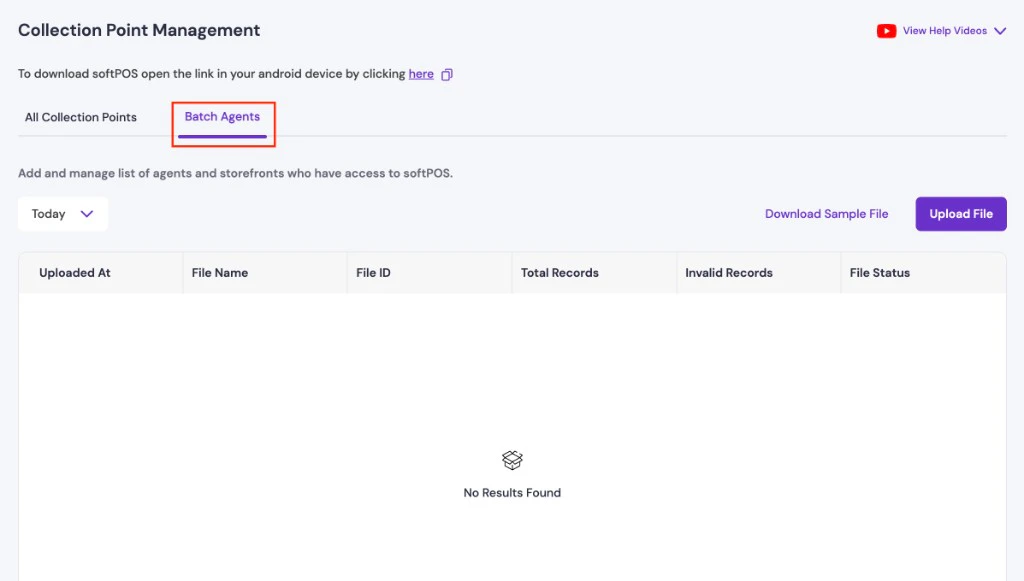
- Batch agents
To perform single-agent verification, complete the following steps:
- Log in to the Merchant Dashboard.
- Navigate to PG PRODUCTS > Offline Payments > Collection Point Management.
- Click Add Collection Point, then select the Agent collection type.
-
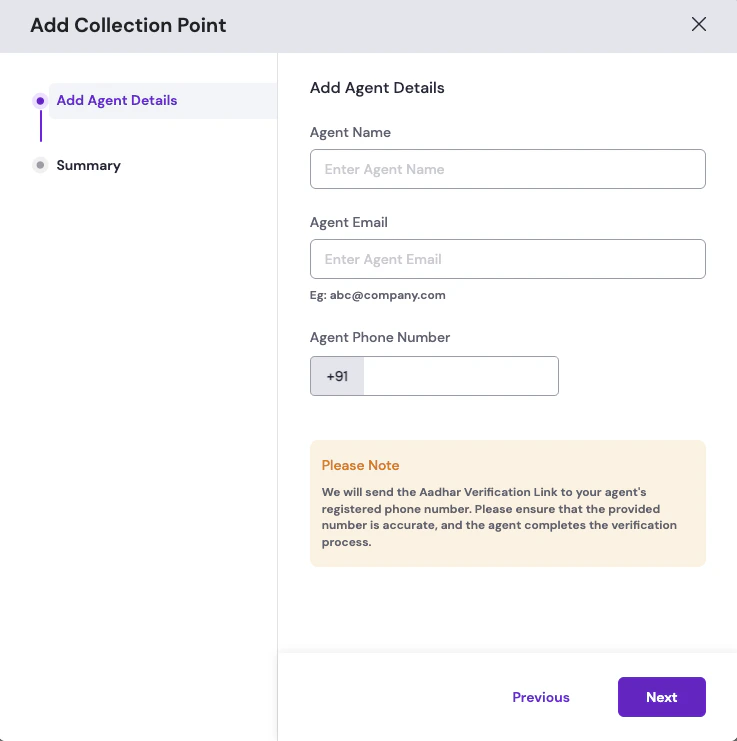
Provide the following mandatory agent details to initiate the verification:
- Agent Name: Full name of the agent as it should appear in the Merchant Dashboard and on KYC records.
- Agent Email: Valid email address that Cashfree uses for verification related communications with the agent.
- Agent Phone Number: Cashfree sends the Aadhaar verification link to this number. If this number is incorrect, the agent cannot complete verification until you correct it and resend the KYC SMS.
-
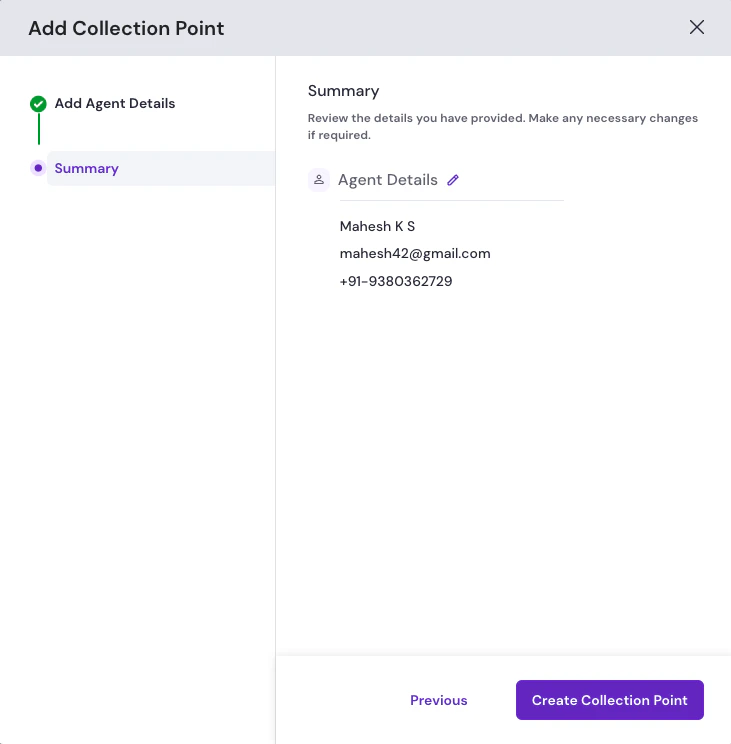
Summary: Review the agent details you have provided. Make any necessary changes to the agent details if required by selecting the edit icon next to the details. Click the Create Collection Point button to submit the details.
Agent KYC verification
After you submit the agent’s details, Cashfree runs the following verification steps:Cashfree sends the KYC verification link
An SMS containing a KYC verification link is sent to the agent’s registered mobile number. The link is valid for seven days from the date the agent is added. The SMS reads:“[Company name] has sent an identity verification request for KYC purposes. Click on the [link] to complete the online KYC. The link is valid till [date] - Powered by Cashfree.”
Agent completes Aadhaar OTP authentication
The link redirects the agent to an Aadhaar OTP authentication page. Once authentication is complete, the agent’s status moves to Provisionally Active.
Agent statuses
The following statuses indicate where each agent is in the verification process:| Status | Description |
|---|---|
| Active | Cashfree has approved KYC; the agent can download and log in to the softPOS application. |
| Blocked | The agent cannot collect payments until Cashfree resolves a compliance or risk hold. |
| Doc Awaited | Required documents or details are still missing or incomplete. |
| Inactive | The agent is not enabled to collect payments (for example, deactivated or not yet usable). |
| Provisionally Active | Aadhaar OTP authentication is complete; Cashfree is still reviewing the submission. |
| Rejected | Verification did not pass; review the details in the Merchant Dashboard and correct or resubmit as prompted. |
| Under Review | Cashfree is reviewing the submitted information or documents. |
If an agent has not received or has misplaced the KYC SMS, you can resend it directly from the Merchant Dashboard.
Customer VPA verification
To add and verify a Customer VPA collection point, complete the following steps:- Log in to the Merchant Dashboard.
- Navigate to PG PRODUCTS > Offline Payments > Collection Point Management.
- Click Add Collection Point, then select the Customer VPA collection type.
-
Provide the following mandatory customer details for verification:
- Customer ID: A unique identifier for the customer (for example, CUST001).
- Customer Name: The customer’s name for this customer ID.
- Customer Phone Number: The customer’s mobile number.
- Customer VPA: If not provided, the VPA defaults to
merchantName.customerId. - Customer Email: The customer’s email address.
- Customer Address: Street, city, state, and pin code for the customer.
Use Upload File on the Add Customer Details screen in the Merchant Dashboard to upload a batch file and create customer VPAs or QR codes for multiple customers at once.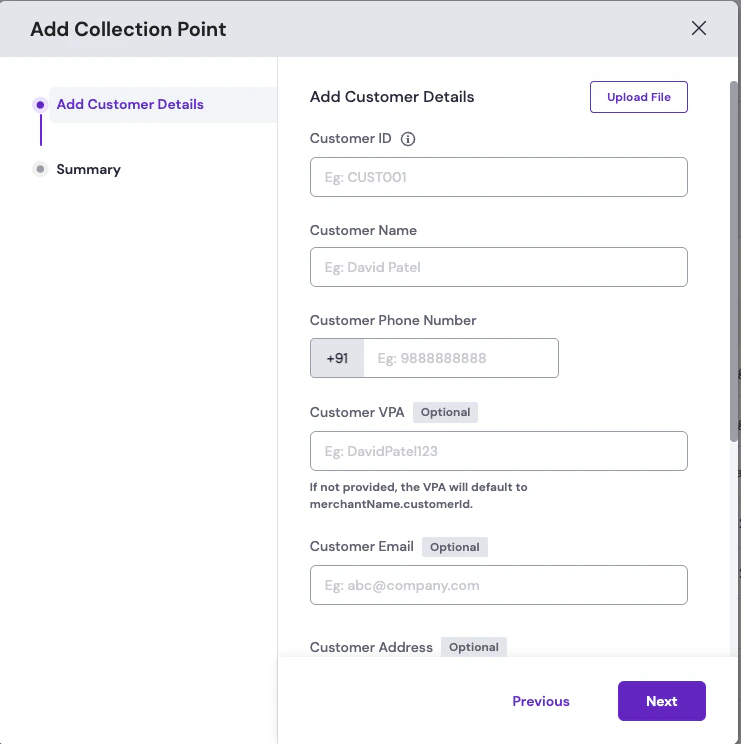
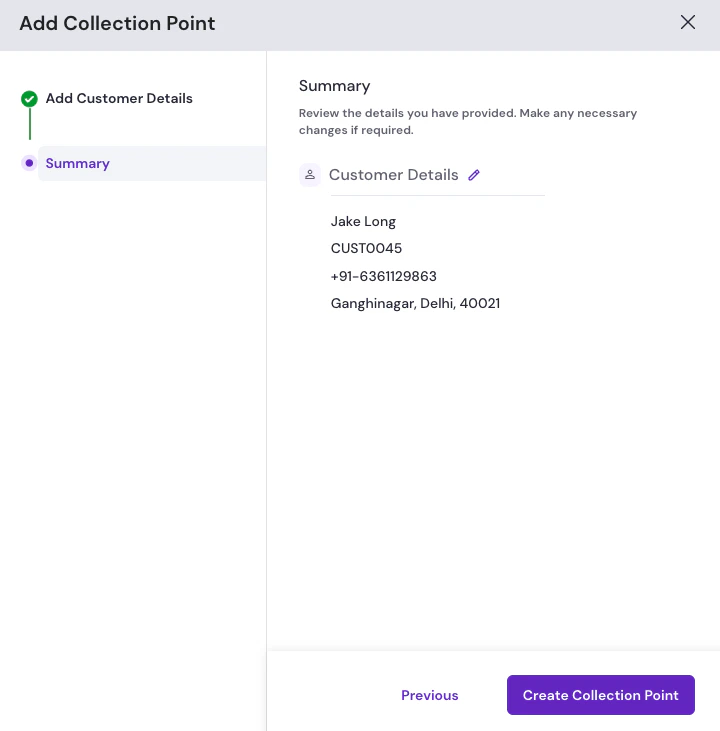
-
Summary: Review the customer VPA details you have provided. Make any necessary changes to the customer details if required by selecting the edit icon next to the details. Click the Create Collection Point button to submit the details.