- Manage profile information
- Configure 2FA authentication
- Manage communications
- View login history
- View invoices
Manage profile information
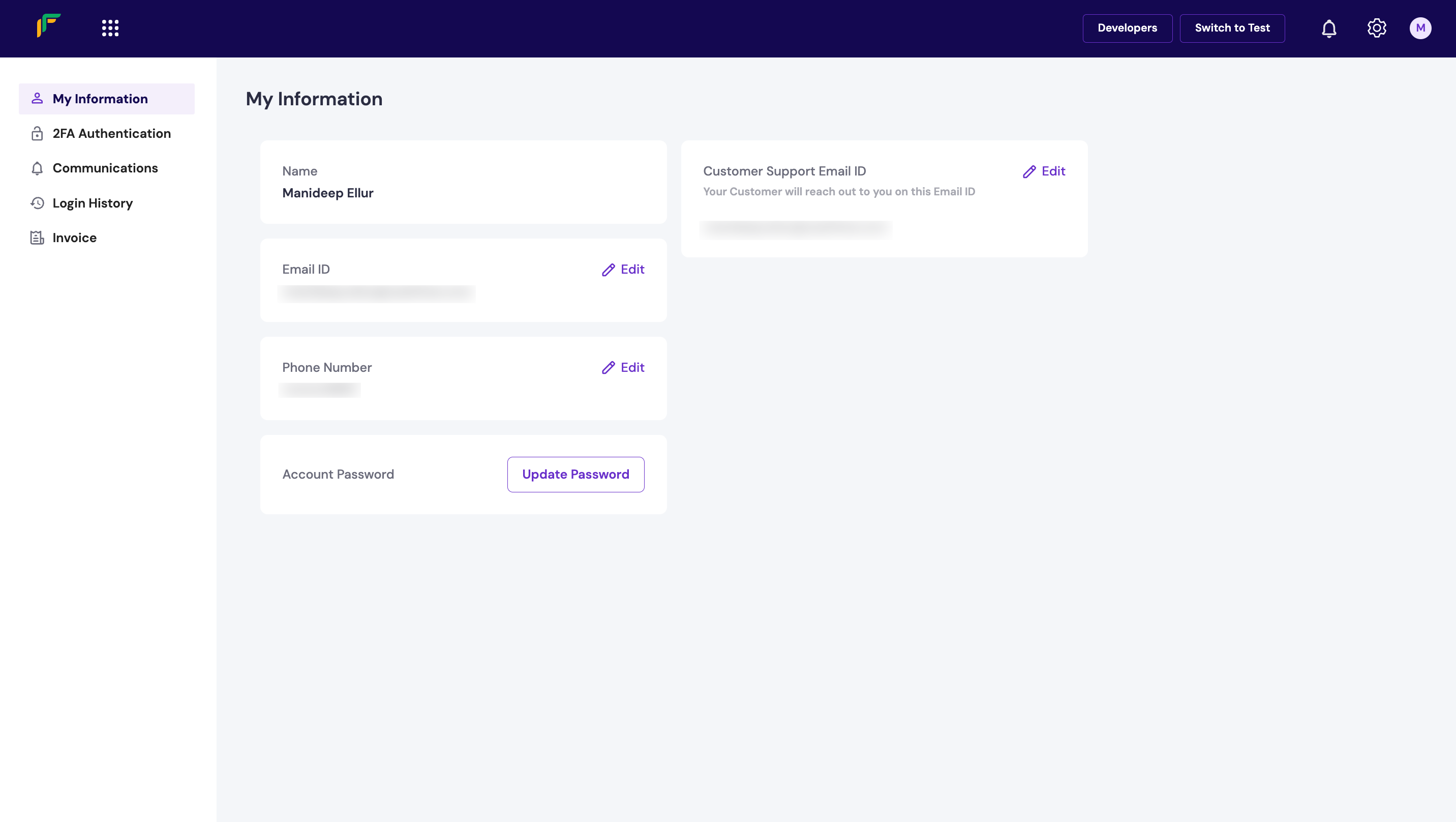
The My Information section displays the following details under Personal Profile:- Name: The registered name of your Cashfree account.
- Email ID: The registered email address of your Cashfree account.
- Phone Number: The registered phone number of your Cashfree account.
- Customer Support Email: Your customer support email address.
- Account Password: Select Update Password to change your account password.
Update profile information
You can edit your details such as email ID, phone number, and customer support email ID using the features available on the dashboard. The Edit icon next to each field allows you to update the information after successful OTP authentication. To update your profile information:- Log in to the Merchant Dashboard.
- Navigate to Profile > My Information.
Why Aadhaar validation?To confirm your identity and prevent fraudulent activities, you must complete Aadhaar validation to update your contact information.
Update email ID
Update email ID
- Select the Edit icon next to the email ID field.
- In the Edit Email popup, enter your Aadhaar number and select Verify.
- In the Enter OTP popup, enter the OTP received on your Aadhaar-registered mobile number and select Confirm.
- Enter the new email address in the Email ID field and select Verify Changes.
- Enter the OTP sent to your new email address in the Verify Email popup and select Confirm.
Update phone number
Update phone number
- Select the Edit icon next to the phone number field.
- In the Edit Phone Number popup, enter your Aadhaar number and select Verify.
- In the Enter OTP popup, enter the OTP received on your Aadhaar-registered mobile number and select Confirm.
- Enter the new phone number in the Enter New Phone Number field and select Verify Phone.
- Enter the OTP sent to your new phone number in the Verify Phone Number popup and select Confirm.
Validation processYou only need to complete the Aadhaar validation process once when updating both email and phone number information.
Update customer support email ID
Update customer support email ID
- Select the Edit icon next to the customer support email ID field.
- Enter the OTP sent to your registered phone number or email address in the Authenticate popup and select Confirm.
- Enter the new customer support email ID in the Customer Support Email ID field and select Verify Changes.
Configure 2FA authentication
Two-factor authentication (2FA) is a method to confirm secure login to your Cashfree account and authenticate specific operations. It combines two different factors: sign-in password and OTP to confirm user identity. By default, you receive an OTP to your registered phone number via SMS. You can configure it to receive the OTP on your email as well. Once the OTP is validated, the session is valid for 15 minutes. To add another layer of security to the login sequence for your Cashfree account:- Log in to the Merchant Dashboard.
- Navigate to Profile > 2FA Authentication.
- Switch the toggle Enable 2FA for Login to enable two-factor authentication for every login attempt for you and your team members.
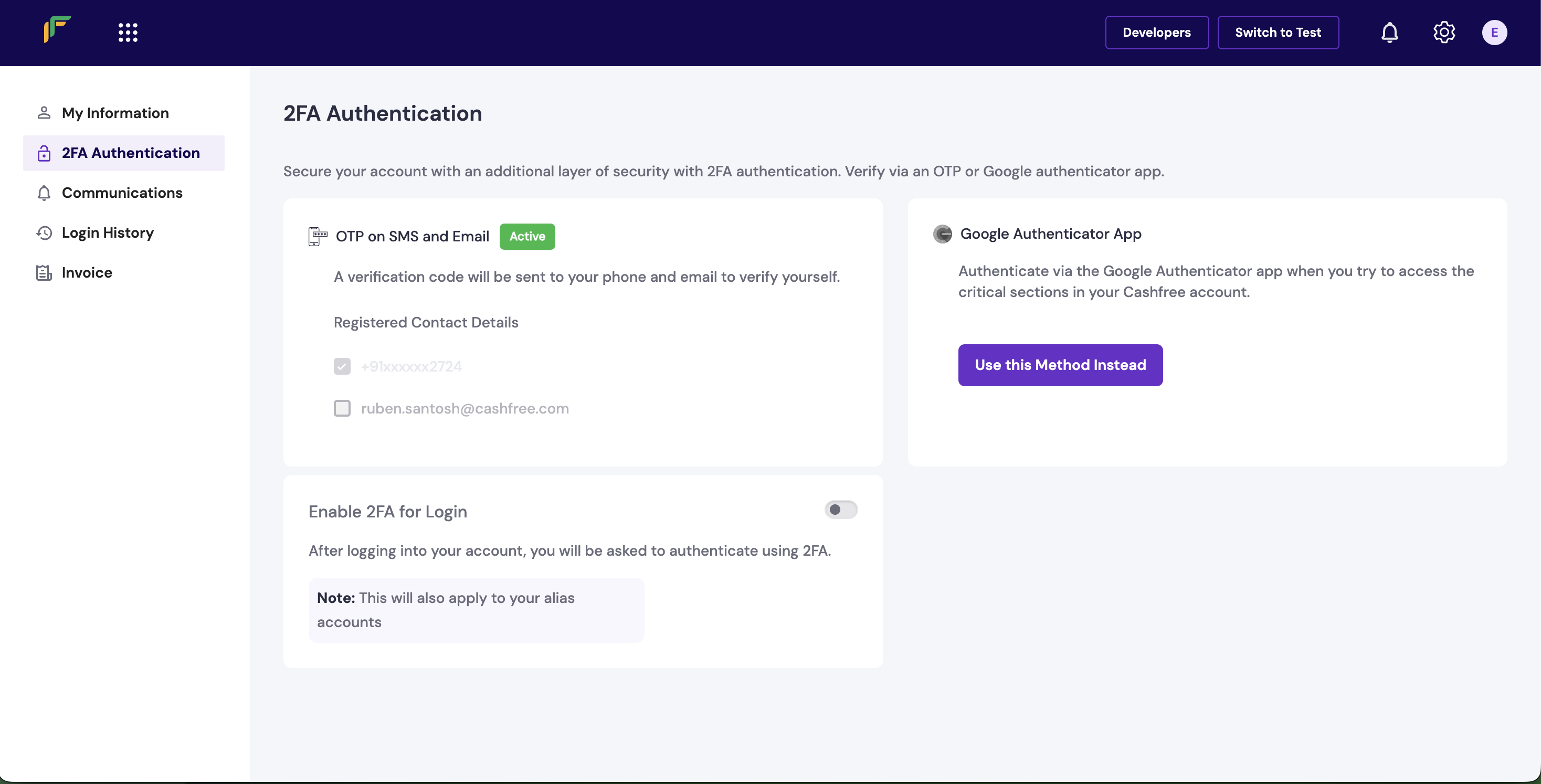
Use Google AuthenticatorIf you don’t want to use OTP-based authentication, select Use this Method Instead to configure your account authentication via the Google Authenticator app.
Manage communications
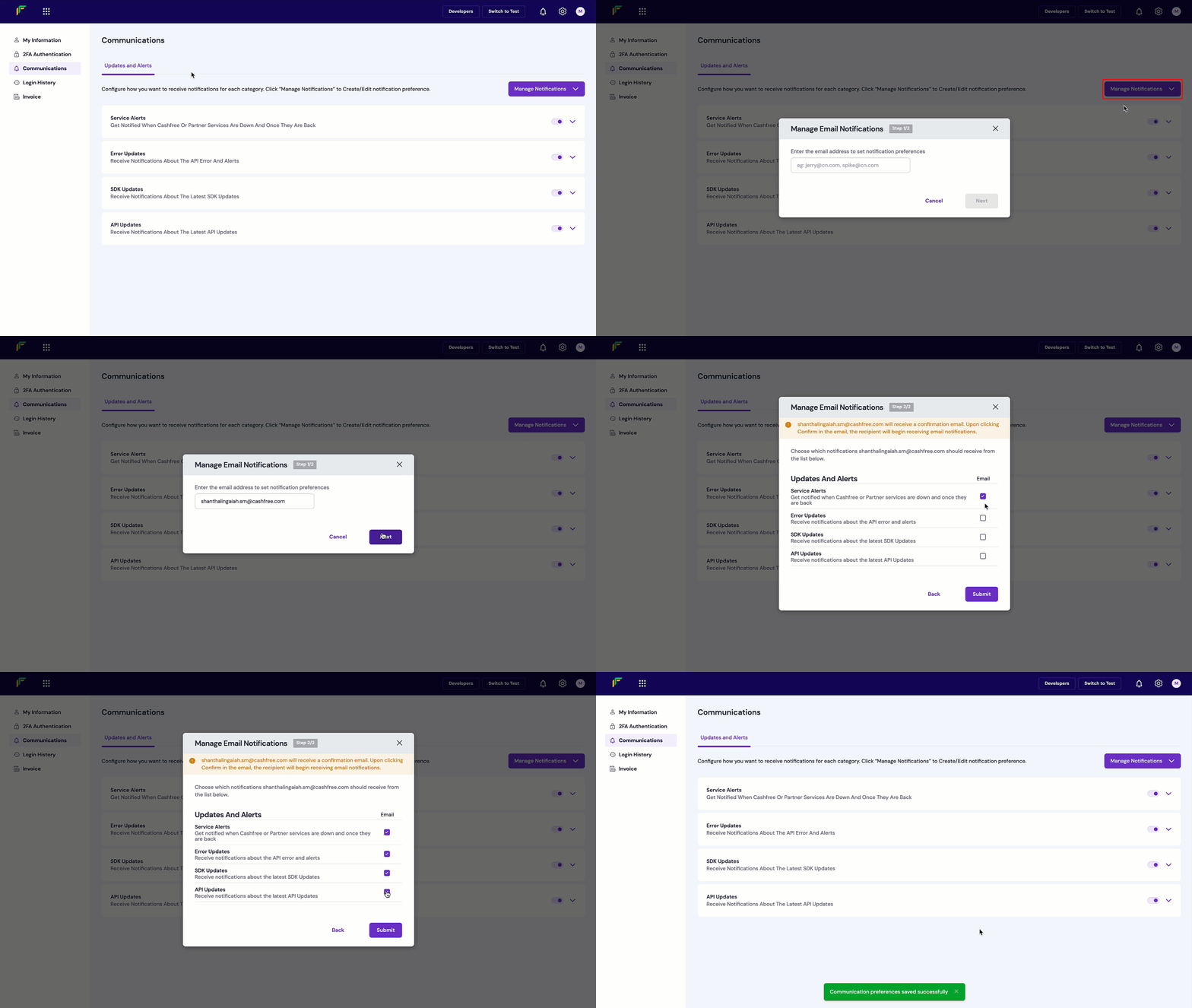
The Communications section allows you to manage the notification preferences for various events. To create or edit notification preferences:- Log in to the Merchant Dashboard.
- Navigate to Profile > Communications.
- Select Manage Notifications and then select Email Notifications.
- Enter the email address to set notification preferences and select Next.
- Select which notifications to deliver to the entered email.
- Select Submit to save the preference.
Check recipient’s consent status
To check whether a recipient has provided their consent to receive notifications:- Log in to the Merchant Dashboard.
- Navigate to Profile > Communications.
- Select any category card.
- Hover over any email to see the consent status.
View login history
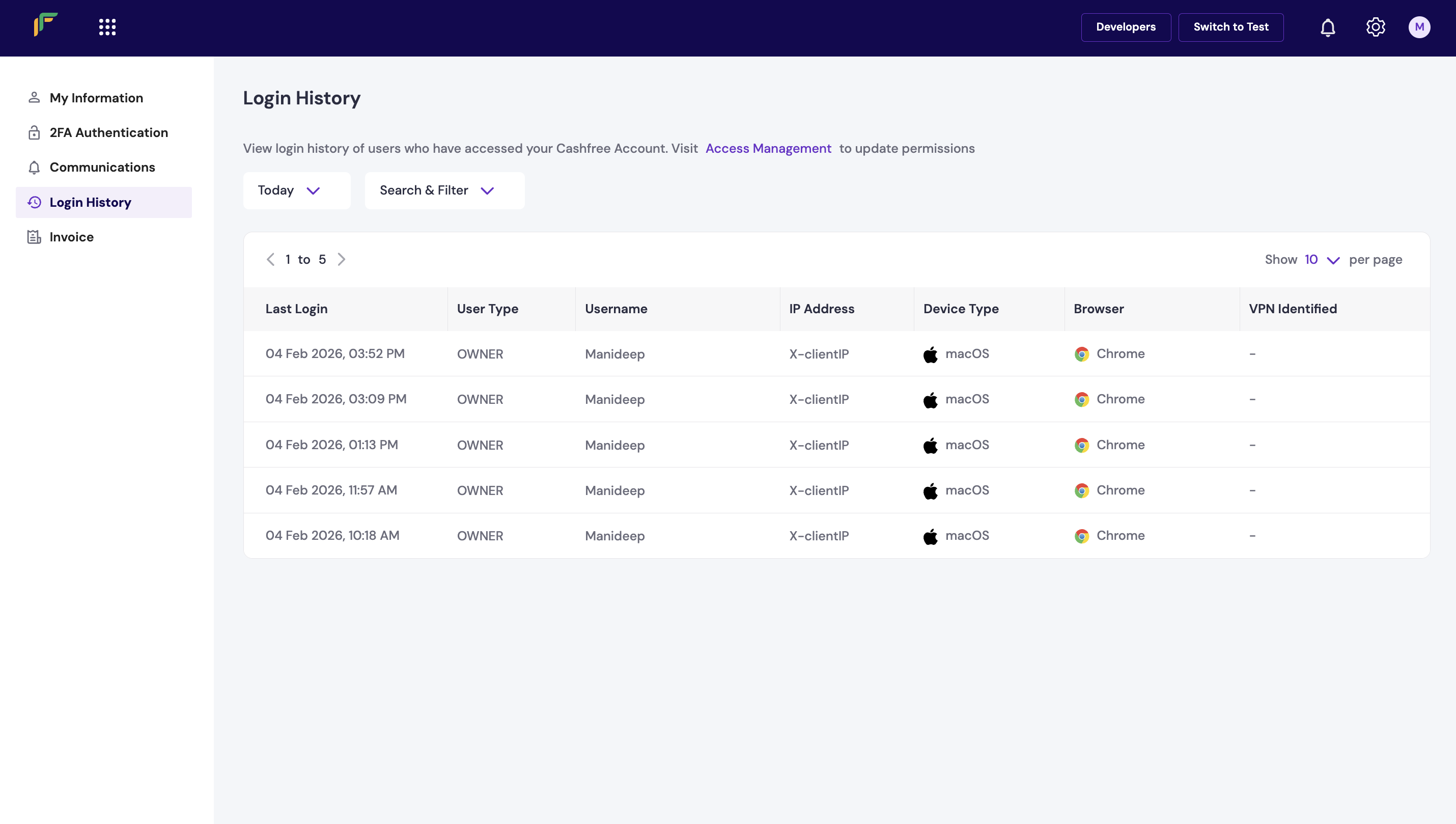
The Login History section displays information about successful logins by users added to your Cashfree account. To search and filter login history:- Log in to the Merchant Dashboard.
- Navigate to Profile > Login History.
- Use the following filters to search for specific login history:
- All Time: Use this dropdown menu to set the date range.
- Search and Filter: Use this dropdown menu to set the search filter.
- Search: Use this dropdown menu to determine the search value and enter the value in the field. For example, if you choose Email ID, enter the specific email ID in the field.
- Select Apply.
View invoices
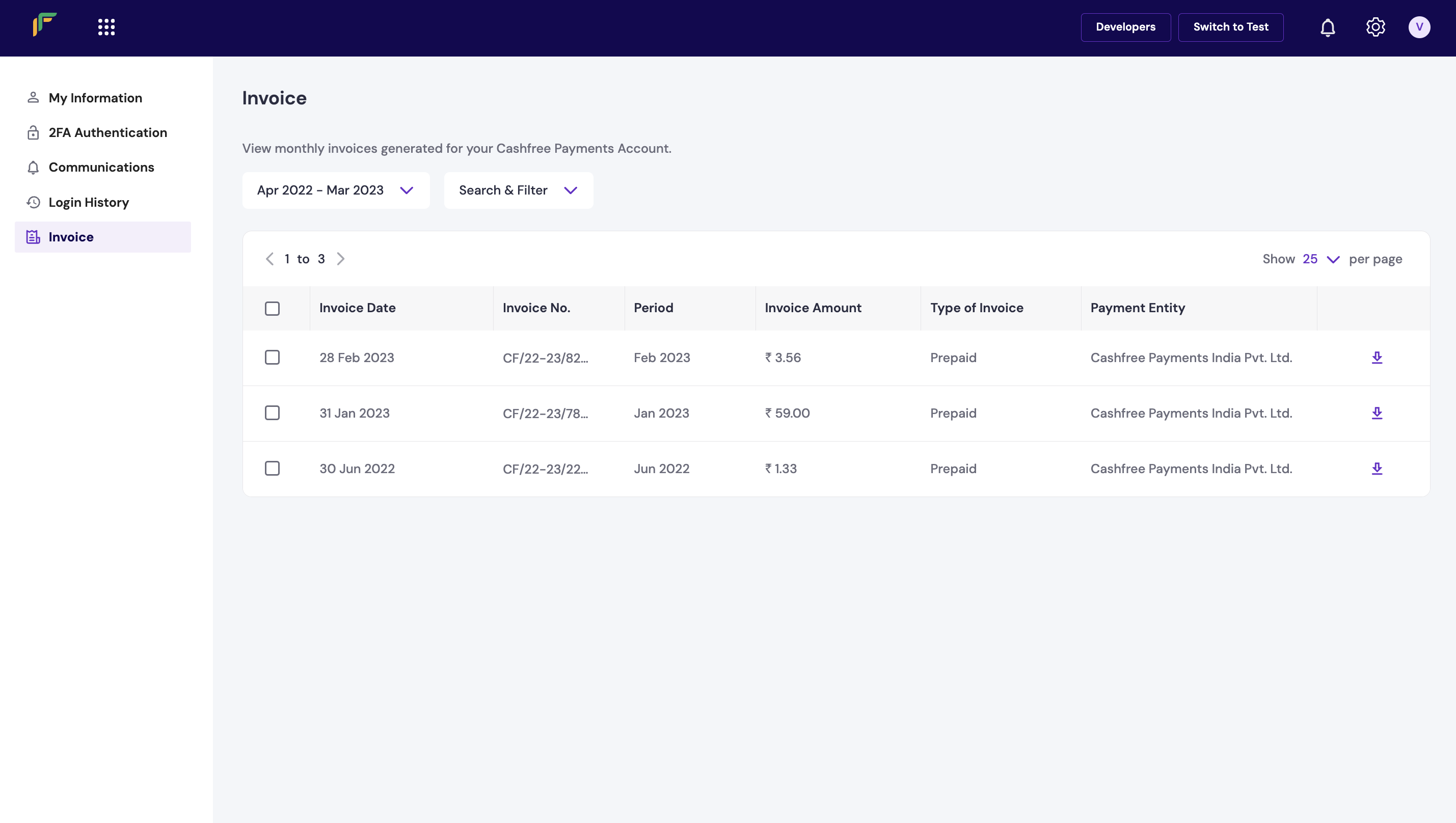
The monthly invoices generated for your Cashfree account are available in the Invoice section. You can download the invoices for your records. To view and download invoices:- Log in to the Merchant Dashboard.
- Navigate to Profile > Invoice.
- Select the download icon next to the invoice you want to download.