

Prerequisites
Before you create a booster, make sure that your store meets the following requirements:- One Click Checkout is active on your Shopify store. To set it up, see One Click Checkout for Shopify.
- Your store uses One-Page Checkout, which shows payment methods directly on the checkout page. Cashfree turns on One-Page Checkout by default when you use One Click Checkout on Shopify. If One-Page Checkout is off for your store, submit a Support Form to ask Cashfree to turn it on.
- For quick add-ons, your Shopify store has a product that represents each add-on, such as a gift wrap product. Checkout charges the price of this product when a customer adds the add-on.
- The products that you select for quick add-ons and manual cross-sell recommendations have the Active status in Shopify.
When you create your first booster, Cashfree turns on cart editing for your store, even if you save the booster as paused. You can’t turn off cart editing. For details, see Cart editing at checkout.
Booster types
AOV Booster supports the following booster types:Quick add-on templates
When you create a quick add-on, you start from one of the following templates. Each template provides default display text that you can edit.
For example, to charge for gift wrapping, create a booster from the Gift wrap template and select your gift wrap product. The template’s default display text is Gift wrap for you. At checkout, customers see this text with the product’s price and a checkbox, as the following preview shows.
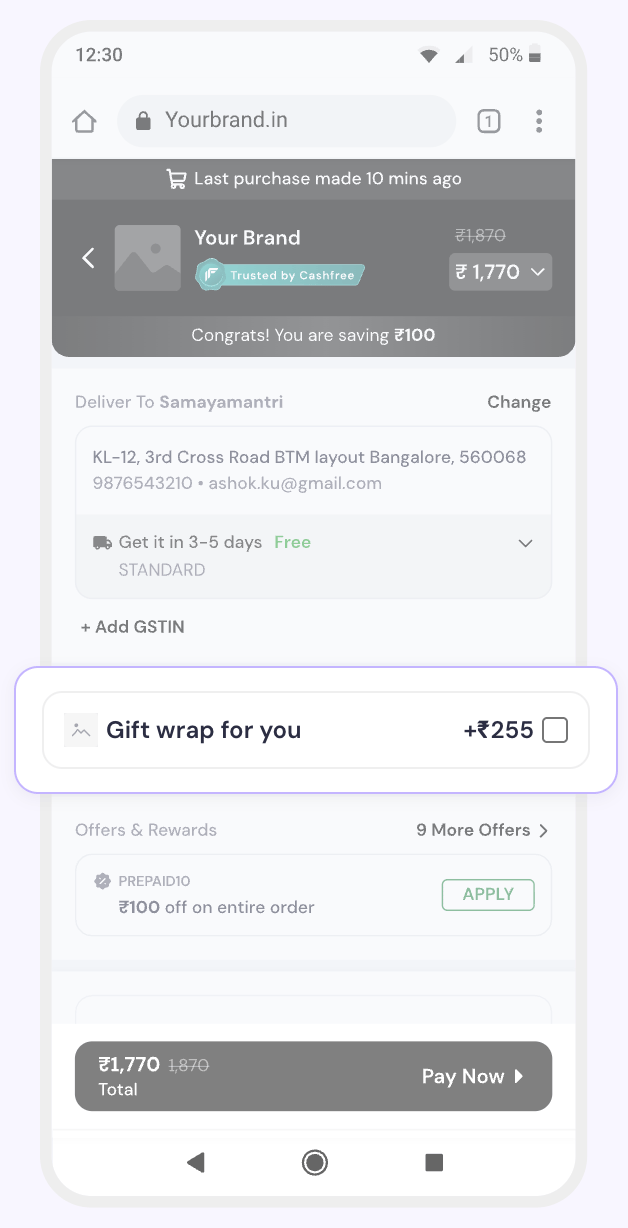
Preview of a Gift wrap add-on at checkout
Cross-sell recommendation types
A cross-sell booster uses one of the following product selection methods:- AI powered recommendation: Cashfree automatically suggests relevant products for each customer, based on past orders, current cart contents, and similar buyers. You don’t select any products.
- Choose your product recommendations (manual selection): You select up to five products from your Shopify store to recommend.
For example, a Recommended for you booster uses AI-powered product selection, so you don’t select any products. At checkout, Cashfree shows products for each customer under the default display text Recommended for you, as the following preview shows.
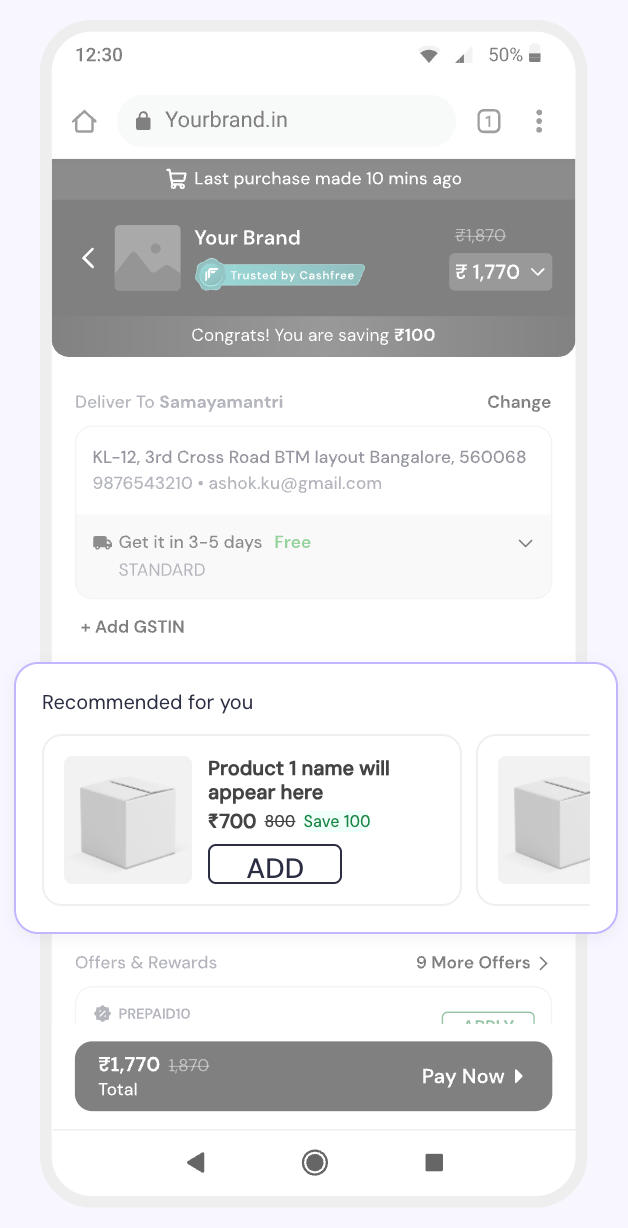
Preview of Recommended for you cross-sell recommendations at checkout
How boosters appear at checkout
Checkout shows every active booster that applies to the customer’s cart, based on any product or collection condition that you set. Boosters appear after the customer logs in and adds a delivery address. They don’t appear while the customer pays the advance amount for a Cash on Delivery (COD) order with partial payment. Customers interact with each booster type as follows:- Quick add-ons: Each add-on appears as a checkbox with its display text and price, for example +₹49. Customers select the checkbox to add the add-on and clear the checkbox to remove it. Checkout adds the add-on once per order, at a quantity of 1, regardless of how many items are in the cart.
- Cross-sell recommendations: Recommended products appear in a horizontally scrolling list under the booster’s display text. If the cross-sell boosters that apply to the cart have different display text, checkout shows a separate tab for each display text. Checkout doesn’t recommend products that are already in the cart. For a product with more than one variant, the customer selects an option, such as a size or colour, before adding the product.
Cart editing at checkout
When you create your first booster, Cashfree turns on cart editing for your store, even if you save the booster as paused. Cart editing lets customers change the items in their cart at checkout. It stays on even if you later pause or delete all your boosters, and you can’t turn it off. The following rules apply to cart editing:- Customers can increase the quantity of products in the cart, up to the inventory available in your Shopify store. Quick add-ons and free gifts stay at their original quantity.
- Customers can reduce the quantity of items that were in the cart when they reached checkout, to a minimum of 1. They can’t remove these items.
- Customers can reduce the quantity of items that they add at checkout, or remove these items. When a customer removes an item, checkout asks them to confirm.
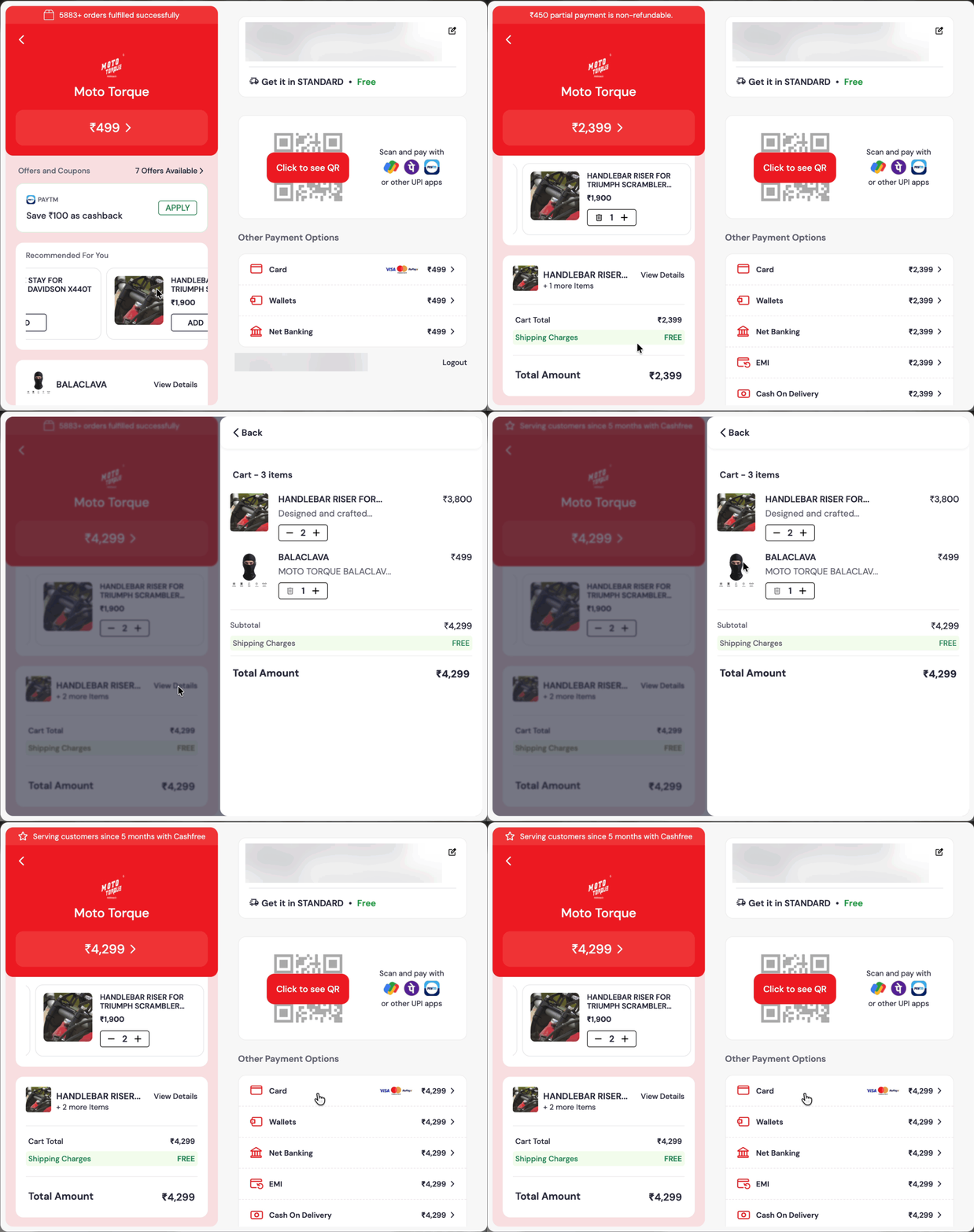
A customer adds a recommended product and changes its quantity at checkout
Create a quick add-on booster
As you configure a booster, the Preview panel shows how it appears at checkout. To create a quick add-on booster, follow these steps:- Log in to the Merchant Dashboard.
- Under One Click Checkout, select Access.
- In the left pane, select AOV Booster.
- Under Quick add-ons, select Create.
- Select a template, for example Gift wrap. To create an add-on that doesn’t match a template, select Add your own.
-
Under Choose the add-on product from your Shopify store, search for and select the product that represents your add-on.
The remaining fields appear after you select a product.Only products with the Active status in Shopify appear in the search. Draft products don’t work with AOV Booster. To use a draft product, change its status to Active in Shopify.
-
Enter the booster details:
- Booster name: A name that identifies the booster in your boosters list. Customers don’t see this name. You can enter up to 30 characters.
- Display text: The text that customers see next to the add-on at checkout. You can enter up to 30 characters.
-
(Optional) To show the add-on only for certain carts, turn on Show this booster only for specific products or collections, and then select one of the following options:
- Product based condition: Shows the booster when the cart contains at least one of the selected products. To choose the products, select Search by product name from Shopify.
- Collection based condition: Shows the booster when the cart contains a product from at least one of the selected collections. To choose the collections, select Search by collection name from Shopify.
- To show the booster at checkout as soon as you create it, keep Activate booster immediately turned on. To save the booster as paused, turn off Activate booster immediately.
- Select Create Booster.
Create a cross-sell booster
As you configure a booster, the Preview panel shows how it appears at checkout. To create a cross-sell booster, follow these steps:- Log in to the Merchant Dashboard.
- Under One Click Checkout, select Access.
- In the left pane, select AOV Booster.
- Under Cross-sell recommendations, select Create.
- Select a recommendation type, for example Frequently paired.
-
Under Add products, select a product selection method. Only the methods that your recommendation type supports are available:
- AI powered recommendation: Cashfree automatically suggests relevant products for each customer, based on their shopping behaviour. You don’t select any products.
- Choose your product recommendations: Under Choose products from your Shopify store to recommend, select up to five products. To change the order in which the products appear, drag them in the selected products list.
If you choose your product recommendations, only products with the Active status in Shopify appear in the search. Draft products don’t work with AOV Booster. To use a draft product, change its status to Active in Shopify. -
Enter the booster details:
- Booster name: A name that identifies the booster in your boosters list. Customers don’t see this name. You can enter up to 30 characters.
- Display text: The heading that customers see above the recommended products at checkout. You can enter up to 30 characters.
-
(Optional) To show the recommendations only for certain carts, turn on Show this campaign only for specific products or collections, and then select one of the following options:
- Product based condition: Shows the booster when the cart contains at least one of the selected products. To choose the products, select Search by product name from Shopify.
- Collection based condition: Shows the booster when the cart contains a product from at least one of the selected collections. To choose the collections, select Search by collection name from Shopify.
- To show the booster at checkout as soon as you create it, keep Activate booster immediately turned on. To save the booster as paused, turn off Activate booster immediately.
- Select Create Booster.
Manage boosters
The boosters list on the AOV Booster page shows the name, type, and status of each booster. A booster’s status is either Active or Paused. To find a booster, search by Booster Name, or filter the list by Status, Booster Type, or both. To manage a booster, select the More options icon (⋮) on the booster’s card, and then select one of the following options:- Edit: Change the booster’s configuration, and then select Update Booster. If you leave before you save, you lose your changes.
- Active: To pause the booster, turn off the toggle. To activate it, turn on the toggle. Then select Confirm. A paused booster doesn’t appear at checkout until you activate it again.
- Delete: Delete the booster permanently. To confirm, select Delete.
Troubleshooting
Use the following guidance to resolve common issues with AOV Booster.A booster doesn't appear at checkout
A booster doesn't appear at checkout
Check the following:
- The booster’s status is Active in the boosters list.
- Your store uses One-Page Checkout. Boosters appear only on One-Page Checkout.
- If the booster has a product or collection condition, the cart contains at least one of the selected products, or a product from one of the selected collections.
- The customer has logged in and added a delivery address. Boosters don’t appear before these steps, or while the customer pays the advance amount for a COD order with partial payment.
- For an AI-powered cross-sell booster, Cashfree has products to recommend to the customer. If Cashfree has no products to recommend, the booster doesn’t appear, but your other boosters still do.
A customer can't remove an item from their cart at checkout
A customer can't remove an item from their cart at checkout
Cart editing works this way by design. Customers can’t remove items that were already in the cart when they reached checkout, but they can reduce the quantity of these items to a minimum of 1. Customers can remove only the items that they add at checkout, such as quick add-ons and cross-sell products. For details, see Cart editing at checkout.