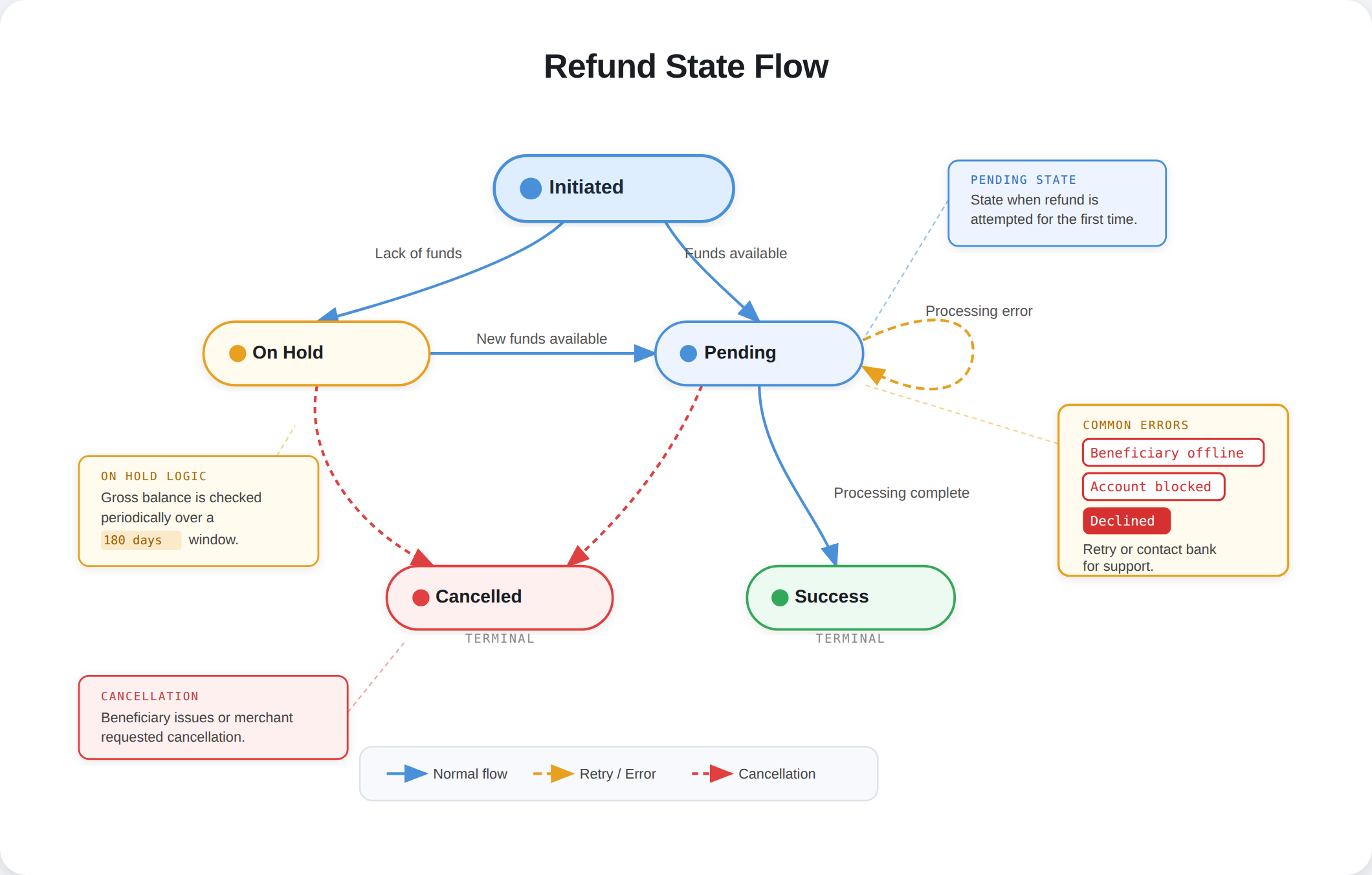
Initiate refunds with Cashfree using the Merchant Dashboard or refund APIs, run batch refunds, and configure webhooks for real-time refund status updates.
You can refund payments to customers when necessary, such as for returned items or cancelled orders. Refunds can be initiated from the Merchant Dashboard or through the API.When you submit a refund request, the system accepts it instantly. However, you receive the outcome of the refund asynchronously through a refund webhook.
Install Cashfree Agent Skills to bring Cashfree product knowledge into your AI coding assistant (Claude Code, Cursor, VS Code Copilot, Gemini CLI, and more) to answer integration questions and generate accurate code without leaving your editor.
Partial refund: Refund a portion of the captured amount.
Multiple partial refunds: Process multiple partial refunds for a single payment. The total of all partial refunds can’t exceed the captured amount.
Some payment methods don’t support partial refunds.
After you initiate a refund, it can take 7 to 10 business days for the funds to be returned to the customer’s account, depending on the payment method.
You can initiate a refund for individual transactions directly from the dashboard. Use this option to process refunds for specific payments that require customer service or order corrections.To initiate a single refund:
Search for the transaction that you want to refund.
Select the Refund option, enter the refund amount (full or partial), and click Initiate Refund.
The refund option is only visible for successful transactions that have been settled. Voided or failed transactions will not display the refund option.
Use the Batch Refunds feature to initiate refunds for a large number of payments at a time. Add all the required refund details in a single file as per the required format and upload the file.To initiate a batch refund:
You can track and view all automatic refunds initiated by Cashfree directly from the dashboard. Use this option to monitor refunds triggered for failed payment attempts or other automated scenarios.To view auto refunds:
Configure refund webhooks to receive real-time notifications for refund status updates. This enables you to build systems to update refund statuses and send customer communications.To set up refund webhooks:
Auto refunds are refunds triggered automatically for unsuccessful payments, disputes, duplicate payments, or instances where payments are received directly to your VPA, regardless of whether an order has been generated.Auto refunds usually occur when customers:
Make a payment after the order has reached a terminal state.
Make a direct payment to the UPI ID.
Auto refunds differ from standard refunds because they handle refunds that occur automatically (such as failed payment attempts) rather than manual refunds tied to specific orders. Since these automatic refunds may occur before an order is created, they don’t contain the usual order-related data fields that are mandatory in standard refund webhooks. For more information, view Auto-refund webhooks.
Customers are kept informed about their refund status and stay up to date on every stage of the process. Refunds, as reversals, involve multiple stages: initiation, processing, cancellation, and potential delays that are essential to monitor. With refund communication, customers receive timely notifications, helping build trust and satisfaction. Customers can also use Cashfree Customer Hub to track these refunds better.
A refund wallet is a dedicated balance pool for processing customer refunds, separate from your main settlement account. This separation streamlines refund management and improves cash flow control.
Refund wallets offer a streamlined and efficient solution for managing your refund process. The following table provides more information: