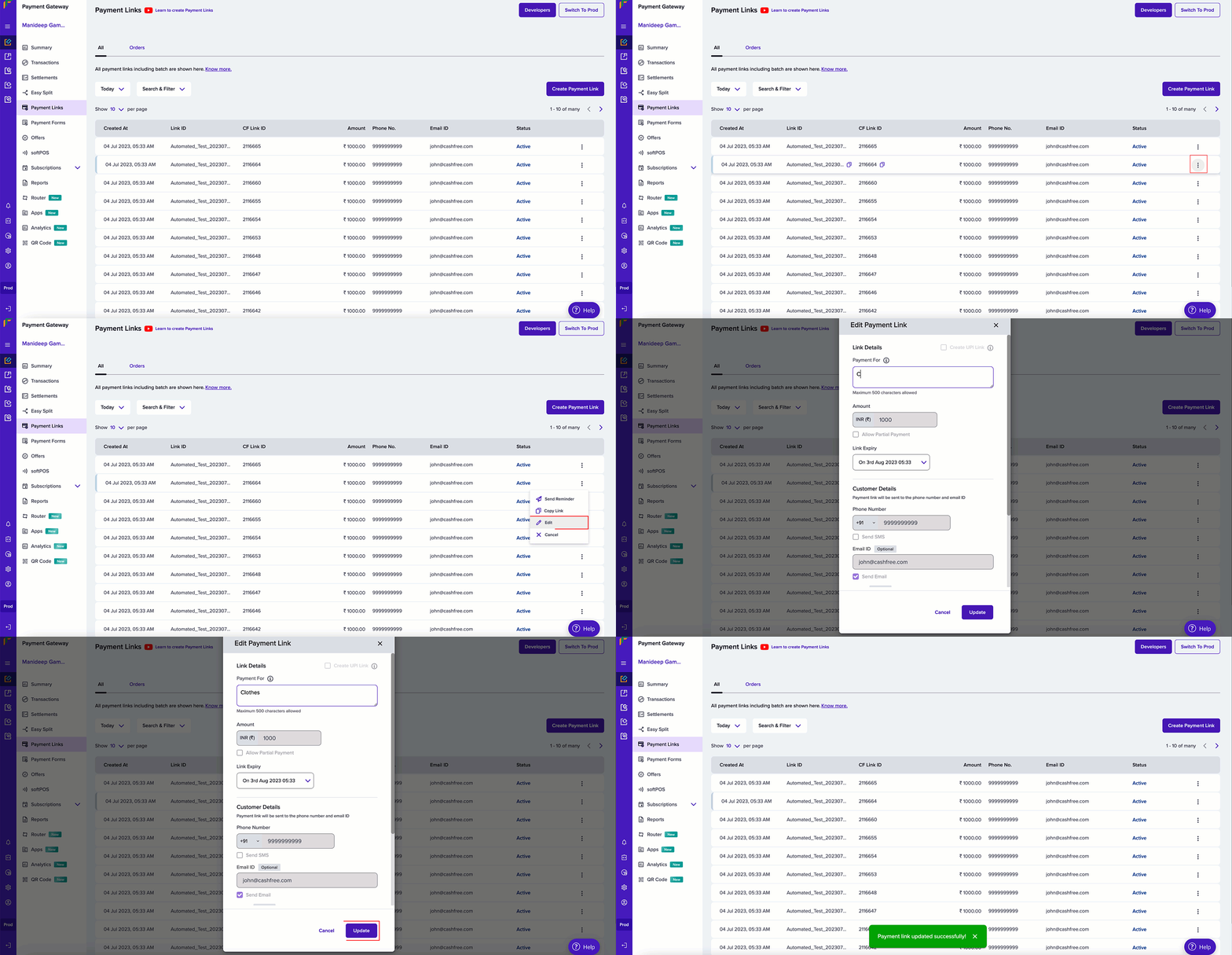
Edit from the payment links list
- In the Merchant Dashboard, open Payment Gateway and go to Payment Links > All.
- Find the link in the table and click the ellipsis (⋮) on that row, then select Edit.
-
In the Edit Payment Link dialog, update any fields that apply:
- Payment link type: All payment methods or Only UPI
- Payment reason: text shown to the customer on the checkout page and in email
- Amount: currency and value (enter a higher or lower amount to change what you collect)
- Allow partial payment: optional; enable if customers can pay in parts
- Customer details: phone number, Send SMS, email, Send email, name
- Click Update. The dashboard shows a confirmation when the link is saved (for example, Payment link updated successfully!), and the Amount column in the list reflects the new value.