Personalised form links can only be generated for payment forms that already exist on your account. If you have not created a payment form yet, see how to create a payment form.
Generate a personalised link for a customer
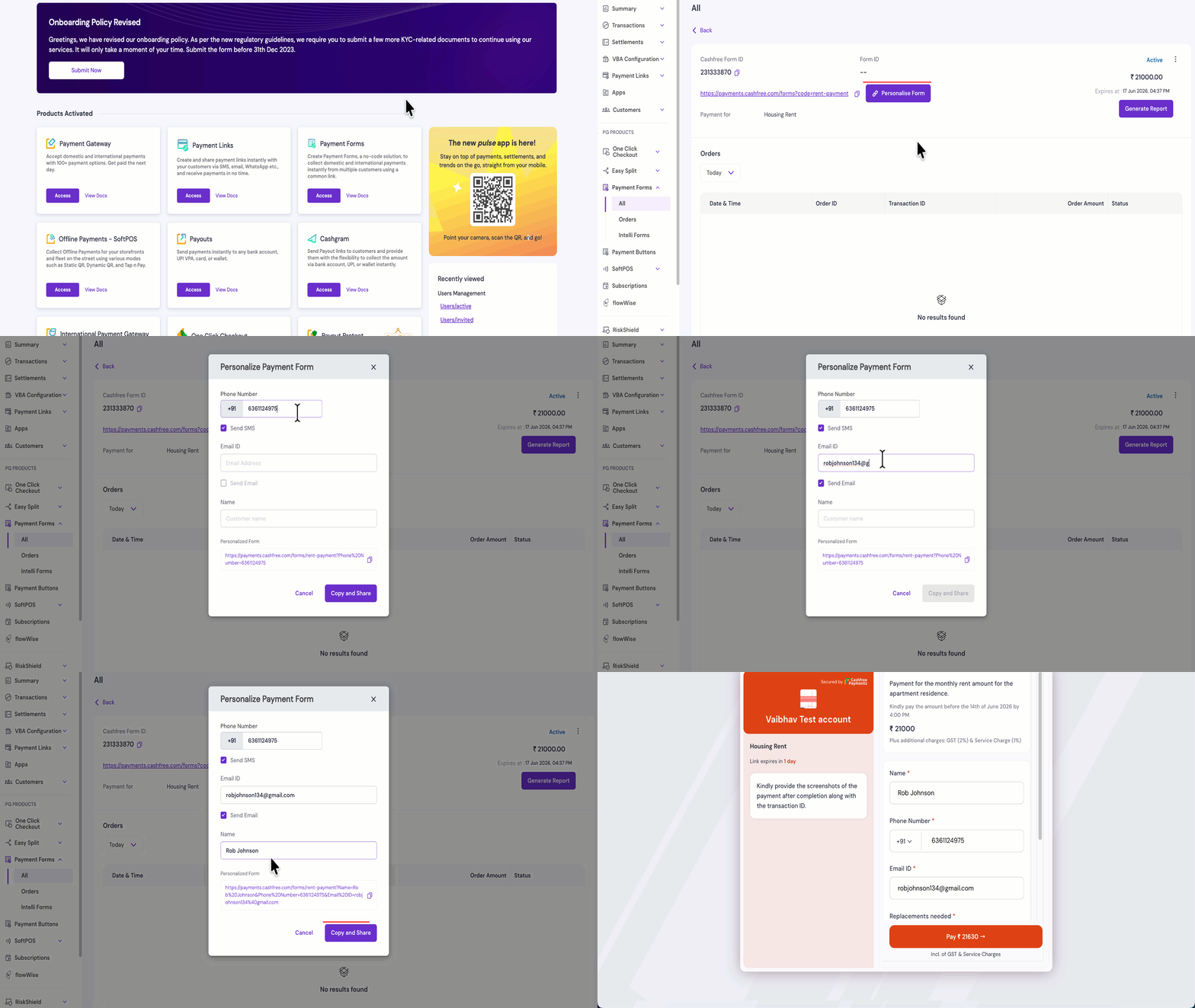
Use the following steps to create and share a personalised payment form with a customer:1
Open your payment form
Log in to the Merchant Dashboard and navigate to Payment Forms > All. Select the payment form you want to personalise from the list of created forms.
2
Select Personalise Form
On the form detail page, click the Personalise Form button. The personalize payment form panel will then open as an overlay.
3
Enter the personalised details
Enter the customer details you want pre-populated on the payment form. Fill in only the fields relevant to your customer’s requirements.
4
Copy and share the link
The Personalized Form field at the bottom of the panel shows the generated URL with your entered details as query parameters.
If you want to notify the customer directly, enable Send SMS, Send Email, or both this changes the action button from Copy to Copy and Share.
- If you enabled Send SMS or Send Email via the respective check boxes, click the Copy and Share button to copy the link and notify your customer simultaneously.
- If neither option is enabled, click the Copy button to copy the link to your clipboard and share it manually via WhatsApp, email, SMS, or any other channel.
The pre-filled fields are editable by the customer. They can update their details on the form, if needed before completing the payment.