

Install and log in to the softPOS application
Before collecting payments, each agent must install the softPOS application and complete OTP verification to log in.1
Install the application
Download and install the Cashfree softPOS application on the agent’s Android device.
Android on Google Play
Android on Google Play
Scan the QR code with your Android device camera, or use the download link below. Download link: Cashfree softPOS on Google Play
2
Enter the registered mobile number
Launch the application and enter the mobile number registered with Cashfree, then tap Send OTP.
3
Complete OTP verification
Enter the OTP received on the registered number. After the agent completes OTP verification and logs in, their profile details appear in the Profile section. The agent can then start collecting payments from customers.
The softPOS application is available only on Google Play. It is not currently available on the iOS App Store or any other app marketplaces.
Payment methods
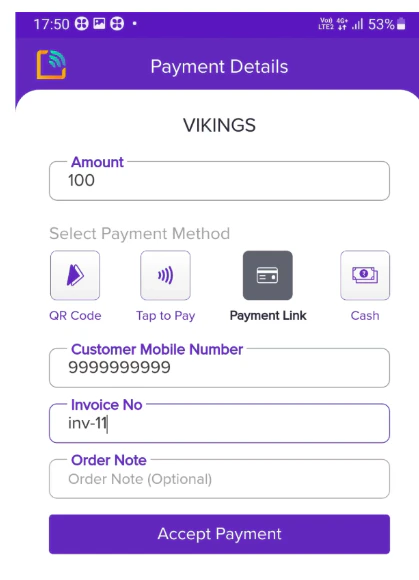
The softPOS application supports the following payment methods. Select the appropriate method on the Payment Details screen before tapping Accept Payment.- QR code
- Payment link
The softPOS application supports two types of QR codes: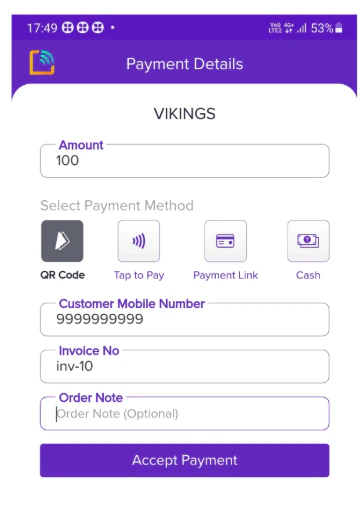
- Static QR code: Reusable for multiple payments; the customer enters the amount at payment time.
- Dynamic QR code: Generated per transaction with a fixed amount the customer cannot change.
Static QR code
A static QR code is a single, reusable QR code unique to the business. Use it to collect multiple payments without specifying an amount. The customer enters the amount during payment.To use a static QR code, complete the following steps:- In the softPOS application, tap QR Code and select Static QR.
- Download or share the QR code with your customers. Customers can scan it using any UPI app such as Google Pay, PhonePe, or Paytm, then enter the amount to pay.
- Once the customer completes the payment, the agent receives a confirmation notification.
Dynamic QR code
A dynamic QR code is generated per transaction and includes a specified amount. The customer cannot change the amount when scanning.To generate a dynamic QR code, complete the following steps:- In the softPOS application, tap QR Code.
- Enter the amount to collect from the customer.
- Optionally, enter any of the following details:
- Customer mobile number: Identifies the payer.
- Invoice number: A unique reference for accounting and reconciliation.
- Order note: Additional details to store with the transaction.
- Display or share the QR code with the customer. The agent receives a notification once the payment is complete.
Payment limits
You can set and customise daily and maximum transaction limits for each payment method in the Merchant Dashboard. Limits help reduce risk at the merchant and business level.There are no daily transaction count limits. Limits apply to the amount processed per transaction through different payment modes.