

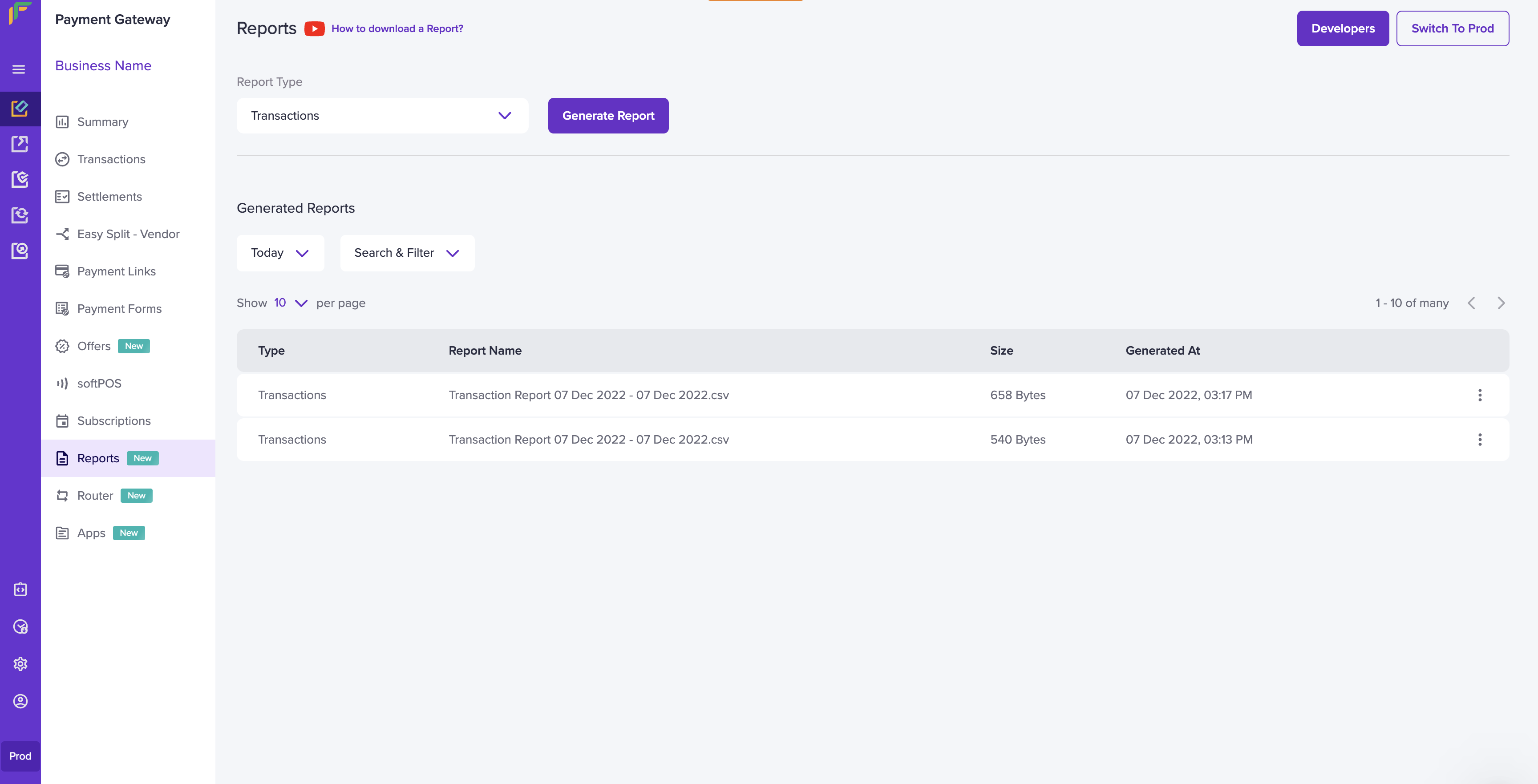
- Go to Payment Gateway Dashboard > Reports.
- In the Report Type field, select Transactions, and click Generate Report.
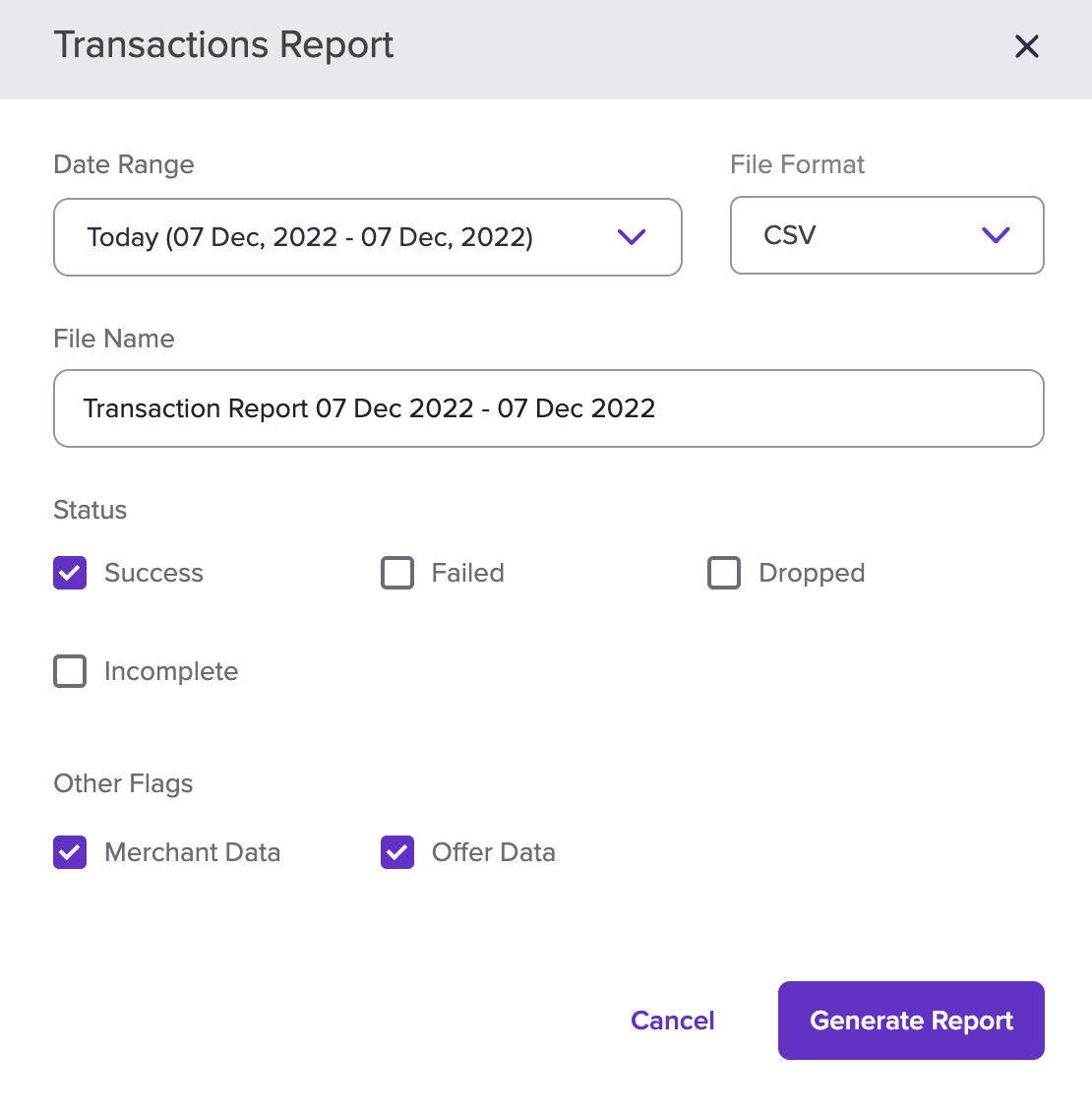
- Select the date range for which you want to view the report, file format, file type, and transaction status. You can add the merchant date and offer data if any in your report. Once done choosing the options, click Generate Report.
FAQs
What are the different transaction status in Cashfree?
What are the different transaction status in Cashfree?
When customers initiate a payment, there are various states that the transaction may go through before reaching your account. After the customer initiates a payment, the transaction can go to either of the following:
- SUCCESS
- FAILURE
- VOID
- INCOMPLETE
- PENDING
- FLAGGED
- CANCELLED
- USER_DROPPED
How do I track my transactions?
How do I track my transactions?
As soon as you log in to your Cashfree account, the Summary section in the payment gateway dashboard will give you instant context as to what is the amount of transaction that has happened on that particular day, and the settlement amount that you’re yet to receive. Besides this, Cashfree also provides a wide range of reports to analyse your business finances. The different reports that Cashfree provides you are,
- Transactions Report
- Settlement Reconciliation Report
- Settlement Summary
- Refunds Report
- Ledger Report
- Monthly Invoices
Can I track the amount of daily transactions in Cashfree?
Can I track the amount of daily transactions in Cashfree?
Yes. With Cashfree, you can receive specific reports such as Transaction reports, Settlements, and Adjustment reports directly into your own SFTP servers or Cashfree’s SFTP servers at a set frequency every day.
If you’d like Cashfree to push out the reports to your own SFTP servers, please fill out the Support Form.
Can Cashfree send reports to my own SFTP servers?
Can Cashfree send reports to my own SFTP servers?
Yes. With Cashfree, you can receive specific reports such as Transaction reports, Settlements, and Adjustment reports directly into your own SFTP servers or Cashfree’s SFTP servers at a set frequency every day.
If you’d like Cashfree to push out the reports to your own SFTP servers, please fill out the Support Form.
Can I add custom fields like roll number or institute code to a payment and see them in my reconciliation report?
Can I add custom fields like roll number or institute code to a payment and see them in my reconciliation report?
Yes. Pass the fields you need as key-value pairs in the
order_tags object when calling the Create Order API. Up to three tags per order appear in the Settlement Recon Report under columns Key_1/Value_1, Key_2/Value_2, and Key_3/Value_3 in the Transaction details section. Although you can pass up to 10 tags per order, only three are surfaced in the report. Use keys that match your reconciliation process—for example institute_code, roll_number, and division for education and multi-institute fees, or identifiers such as branch_id, campaign_id, or invoice_ref for other businesses. Include only the fields you need and keep your order_tags object to three keys.