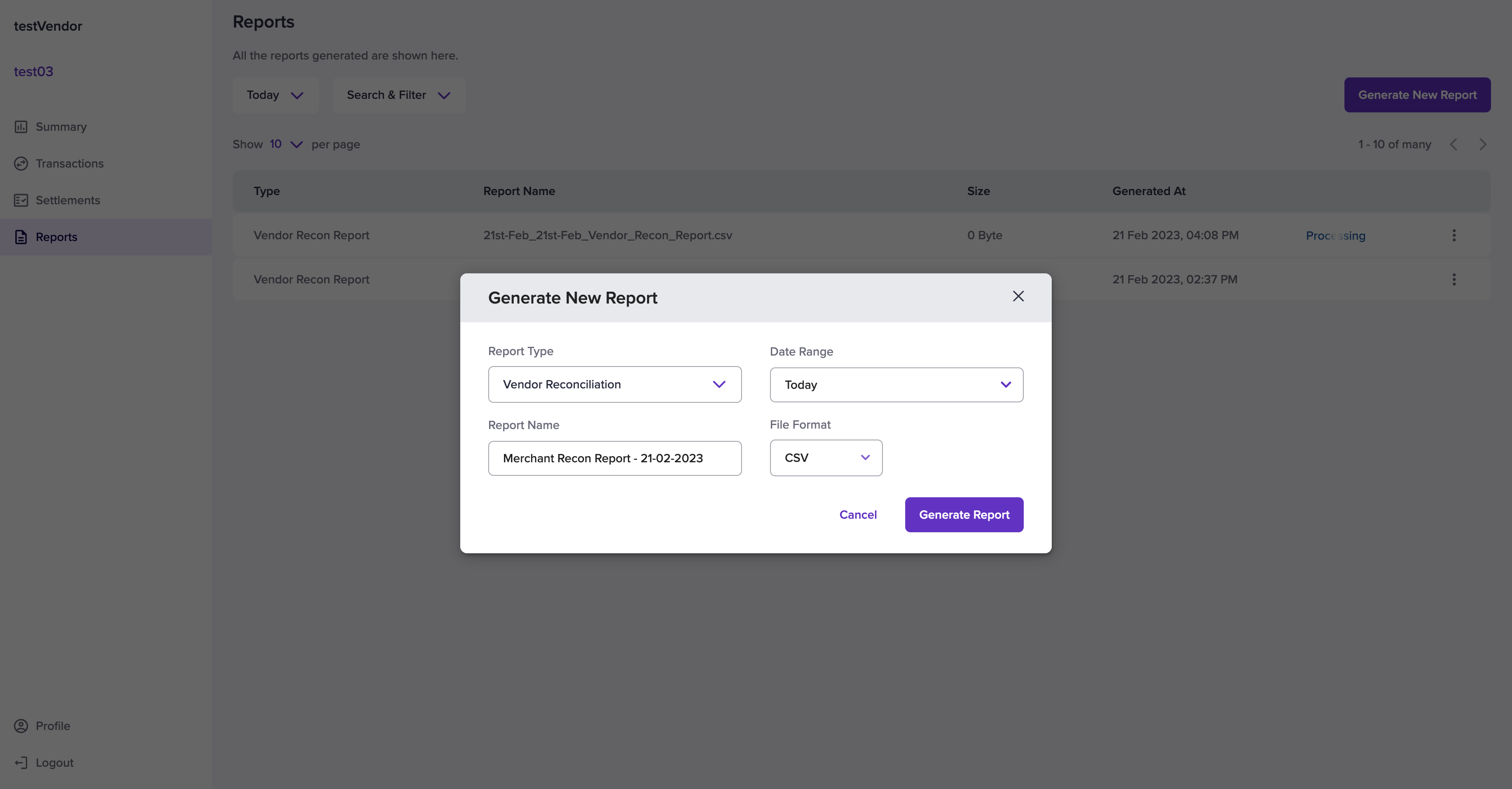
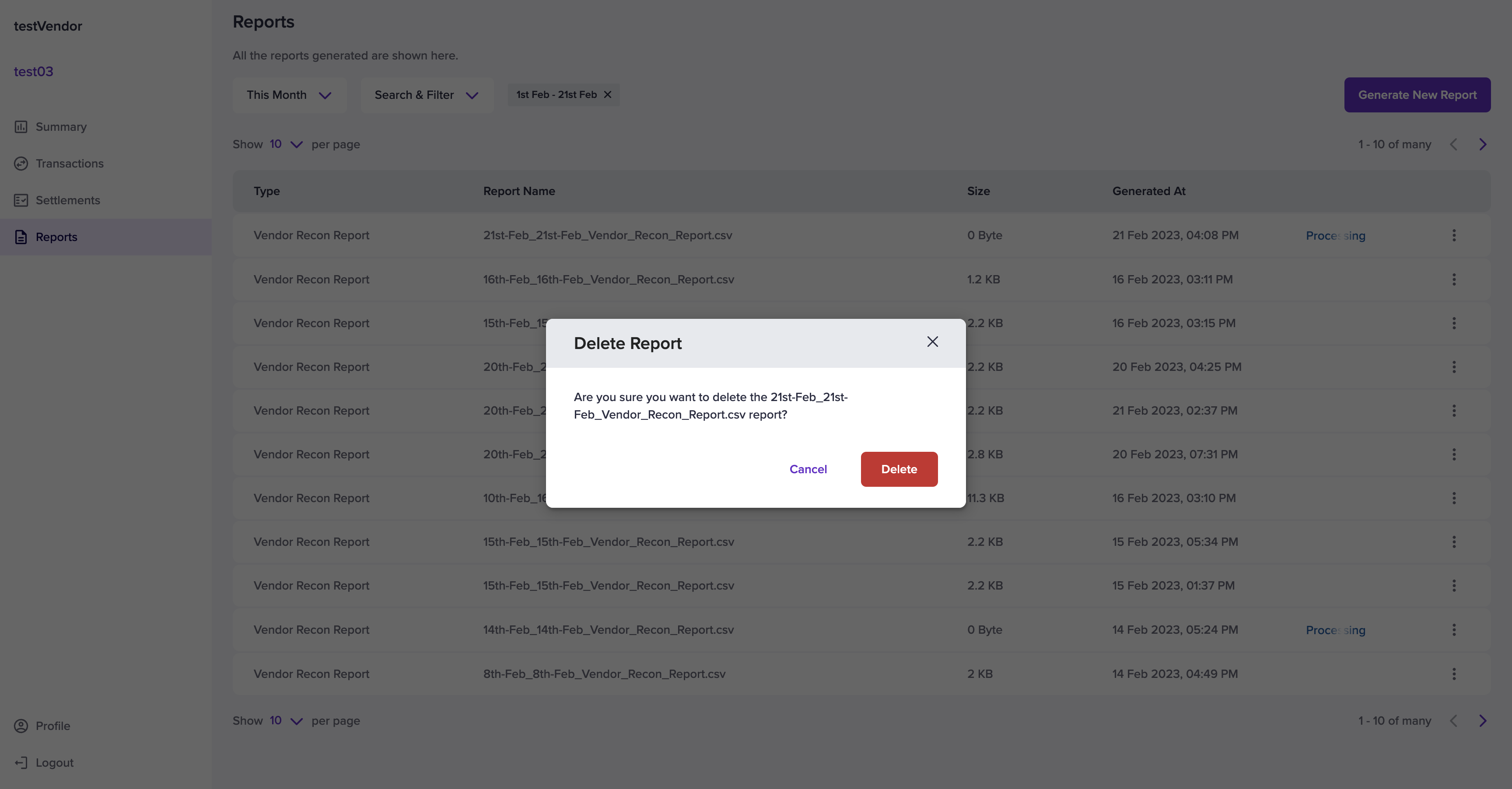
- Vendor Reconciliation - vendors can view the reconciliation details of all vendors.
- Settlement Specific - vendors can view the reconciliation details that are specific to a settlement by specifying the settlement ID.
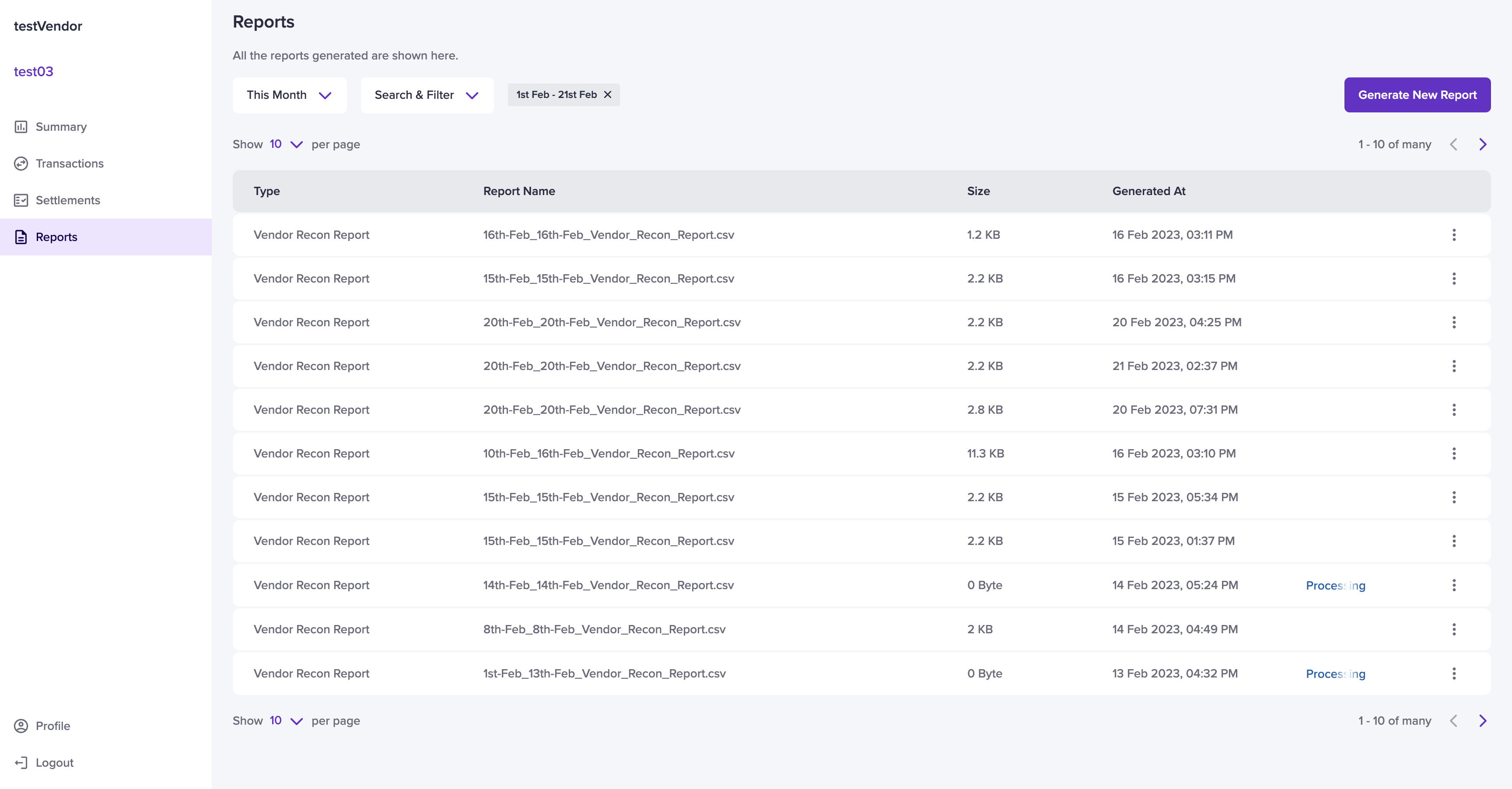
- Go to Vendor Dashboard > Reports.
- In the Reports homepage, select the Generate New Report option.
- Choose the Report Type and the Date Range. Provide a Report Name and select the File Format. Supported file formats are CSV and XLS.
- If you are generating a settlement-specific report, provide the settlement ID.
- Click Generate Report. The report is successfully generated and can be downloaded from the Report homepage.